

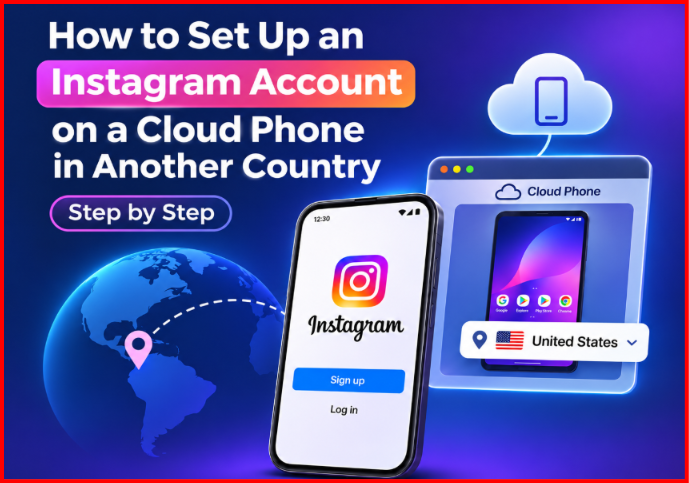
REAL ANDROID PHONE • REMOTE ACCESS • STEP-BY-STEP
| REAL PHONE IN TARGET COUNTRY | CONTROL FROM YOUR BROWSER |
Running an Instagram account for another market is absolutely the thing now. A brand will open up a page for their French market. A social media manager in Kyiv will have a client in LA. A marketer will want to see what the Reels feed, the Shops and the music library look like for users in Texas rather than in their own country.
The problem is that Instagram knows where you actually are. If you go and create a “Paris” account from a laptop in Warsaw via a hotel Wi-Fi, you’re going to get a mixture of signals that don’t quite match, and that’s when the verification checks, the reach limits and the locked accounts all come into play.
This guide shows you how to set up an account from within the target country (i.e. without having to travel there) using a cloud phone, which is a real Android device with a local SIM. It takes about 20 minutes plus a quiet first week.
What Instagram looks at when you sign up
Instagram doesn’t publish its rules, but the signals that actually matter are very well known from the app’s permissions and from anyone who’s ever run accounts at scale.
- Network and IP. What country and carrier the connection is coming from, and whether it’s a mobile network, a home connection or a data centre.
- The device. Model, Android build, sensors, Google Play integrity checks. Emulators and virtual Android machines will often fail one or more of these checks or will report hardware that no actual phone has.
- SIM and locale. The SIM’s country, the handset’s time zone and language.
- Behaviour. How quickly a new account follows, posts and edits its profile, and whether it keeps jumping between locations.
The objective is simple: every one of those signals should be telling the same story. “A person in Paris, on a phone, on a French mobile network.”
Two kinds of cloud phones
“Cloud phone” means two very different things in 2026, and it’s the difference between the two that will determine how much work you’ll do.
A virtual cloud phone is an Android instance running on a server in a data centre. It’s very cheap and very quick to get going, but on its own it’s just going to have a data centre IP and virtual hardware. To make it look local you have to buy a mobile or residential proxy in the right country, attach that to the instance and hope the device fingerprint is good enough.
A real cloud phone is a physical smartphone that’s in the target country and which you control remotely via your browser. It comes with a local SIM, a real carrier IP, real sensors and stock firmware. There’s nothing to fake, so there’s nothing to configure.
| Virtual cloud phone + proxy | Real cloud phone with local SIM | |
| Hardware | Virtual Android instance | Physical smartphone (e.g. Samsung Galaxy) |
| Network | Data centre IP, needs a proxy | Local mobile carrier IP |
| Location signals | Depend on proxy and settings | Native: SIM, GPS, time zone |
| Extra setup | Buy, attach and test a proxy | None |
| Best for | Large numbers of short-lived profiles | Accounts you want to keep long-term |
For one or a few accounts that need to be around for months, a real device is the way to go. That’s what we’re doing below.
Step-by-step: Instagram account on a real cloud phone
1. Follow one rule: one account, one phone, one location
Before you create the account, you need to decide which device it’s going to be on. Don’t create it on a remote phone in Paris and then log in from your own phone at home the next day. That sudden jump across countries is precisely the pattern that will trigger the checks. If you’re running multiple accounts, then obviously each one should be on its own device.
2. Rent a real phone in the target country
Open up a marketplace of real devices and filter by country and city. In this example we’re using DroidDesk, where hosts in various countries have their own Samsung phones and you can rent one as a cloud phone by the hour, day, week or month.
Pick a phone in the city that’s appropriate for your audience. Each card will show you the location, the model and whether the device is free at the moment.
For a new Instagram account you need to rent for at least a week. The first few days are the ones when it gets scrutinised the most, and you want to be back on the same device every day.
3. Connect and check the phone
Once the rental has started, the phone’s screen opens straight in your browser. You can tap, type and scroll as if it’s in your hand. There’s also a desktop app connection for longer sessions.
Before you install anything, spend two minutes on checks:
- Open the phone’s browser and go to any “what is my IP” site. The country and carrier should match the ones listed.
- Open Settings → General management → Date and time and make sure the time zone is set automatically. It should be showing local time.
- Leave the language as it is, or switch to the local language if the account is going to be posting in it.
Long passwords and emails are a pain to type out on a remote screen. Use the Text to send to the phone field: tap an input field on the phone, paste the text from your computer and send it.
4. Install Instagram from Google Play
Sign in to Google Play with a Google account. The cleanest option is to create a new account on this device, as that account will be “born” in the same country. Then install Instagram from the Play Store, not from an APK. A Play Store install will pass the integrity checks that the app is expecting.
5. Create the account
Register with an email address or with a phone number you control. Then:
- Choose the account type (personal, creator or business) that is appropriate for the type of content you’ll be posting.
- Add a name and a profile picture, and leave the bio link and full profile for later.
- Allow the permissions that Instagram asks for, including location if your use case requires it.
As the SIM, the IP and the time zone are all from the same country, the sign-up looks exactly like that of any other local user. There’s no proxy to break mid-sign-up and there’s no emulator warning.
6. Warm the account up for 7–14 days
New accounts are on probation. For the first one to two weeks, use the account like a person would:
- Open it once or twice a day from the same rented phone.
- Watch Reels, like and save posts from local accounts in your niche, and follow a few of them each day.
- Post your first piece of content after a few days, then fill in the bio and add a link.
- Don’t do any mass following or mass DMs, and don’t use any automation tools at this stage.
After two weeks of very calm, consistent activity from one device and one location, the account behaves exactly like any other established local account.
Common mistakes
- Mixing locations. Creating the account in Paris and then checking it from your laptop at home. Stay on the same device.
- Switching devices every session. A different phone every day looks like an account that’s been sold or hacked.
- Doing it all on day one. Profile, bio, link, ten posts and 200 follows in an hour is the quickest way to a checkpoint.
- Installing from APK mirrors. Modified builds can fail integrity checks and get your account flagged.
- Wiping the phone by accident. A data wipe at the end of a rental removes the account from the device. If you intend to continue managing it, you’ll need to extend the rental or carefully move the account over to a long-term device.
FAQ
Can you run Instagram accounts for other countries?
Yes, you can. Instagram allows one person to add up to five accounts to the app, and it’s very common for brands, agencies and creators to run regional accounts. What gets accounts restricted is spam and breaking the Community Guidelines, not the country you’re posting for.
Do you need a proxy if the phone has a local SIM?
No. The phone connects via the local mobile carrier, so the IP, the SIM and the location are all already in line. A proxy only really makes sense on a virtual phone that has no local network at all.
What’s the difference between a cloud phone and an Android emulator?
An emulator runs Android as software on a computer or server. A real cloud phone is a physical device that you access remotely. On the second one, apps see real hardware, a real SIM and stock firmware.
Can I use the same phone for TikTok or Facebook?
Yes, you can, as long as it’s for the same person or brand in the same location. For accounts that belong to different clients, you’ll need to use separate devices.
Can the phone’s owner see my account?
On DroidDesk, the host’s screen is effectively locked during your session, and the phone is wiped at the end of the rental. Still, treat any shared device as a shared device: use strong passwords and two-factor authentication.
Bottom line
Instagram trusts accounts whose signals agree with each other. The easiest way to make them agree for another country is to work from a real phone that is actually there: local SIM, local time zone, real hardware. Rent one, check it, install the app from Google Play, register, and give the account a quiet first two weeks on the same device.
