

Quick answer: how you watch IPTV on a smart TV depends on its operating system. Google TV and Android TV run the full range of IPTV apps. Samsung (Tizen) and LG (webOS) can’t run Android apps, so you either use a player from their own store, a browser-based player, or a cheap streaming stick. The simplest route needs no app at all: TapGo runs its player in a web browser and signs the TV in with a six-letter code typed on your phone. Try it with the free trial: 36 hours, no card.
A browser-based player on a smart TV: nothing to install.
Why IPTV on a smart TV is confusing
Most IPTV guides assume an Android device. But the two best-selling TV brands don’t run Android:
- Samsung uses Tizen.
- LG uses webOS.
Neither can install Android apps. That is why the popular Android player TiviMate is not available on Samsung or LG, and why app availability on these TVs keeps changing: players come and go from the Samsung and LG stores, and some have been removed outright, as Smart IPTV was from Samsung’s store in 2019.
Pick your method by TV
Pick the method by your TV’s operating system.
| Your TV | Easiest method | Notes |
| Google TV / Android TV (Sony, TCL, Hisense, Philips…) | Install an IPTV app from Google Play | Widest app choice |
| Samsung (Tizen) | Store player or browser player | Store apps vary by region; many charge a per-TV activation fee |
| LG (webOS) | Store player or browser player | No Android apps |
| Older or “dumb” TV | Streaming stick or laptop over HDMI | A stick costs less than two months of cable |
Method 1: Google TV and Android TV
- Open Google Play on the TV.
- Install an IPTV player such as IPTV Smarters Pro or XCIPTV (TiviMate’s availability on Play has changed more than once, so search first).
- Choose Xtream Codes login and enter your server, username and password.
Done. Channels, movies and series load in a minute or two.
Method 2: Samsung and LG store apps
Search your TV’s app store for an IPTV player. The players most often listed are activation-based: you pay a one-off fee, typically $5–$20, tied to your TV’s MAC address. Two cautions:
- A factory reset or a new TV can mean paying again, because the activation is tied to the hardware.
- Store listings change by region and over time. Check the store on your own TV before you buy anything.
Method 3: No app at all (browser player + code sign-in)
This is the route most guides miss. A browser-based IPTV player runs as a web page, so there is nothing to install, nothing to activate and nothing for a store to remove.
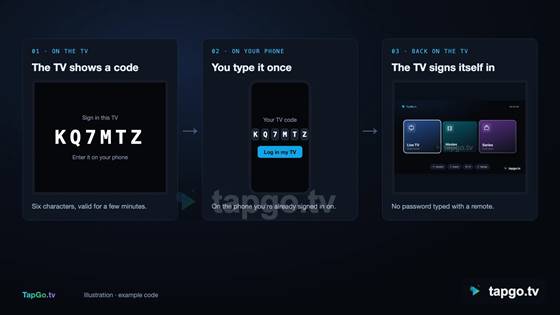
The trick that makes it usable on a TV is device sign-in by code, the same pattern big streaming apps use:
Device sign-in by code: the TV never sees a password.
- The TV shows a short code (TapGo uses six characters) and a QR code.
- You type the code on your phone, where you’re already signed in.
- The TV signs itself in and starts playing. No password typed with a remote.
Built-in TV browsers vary in how well they handle live streams, especially on older models. If yours struggles, open the same player on a laptop connected by HDMI, or on a streaming stick. TapGo’s smart TV setup guide covers each brand.
Method 4: Add a streaming stick
If the TV is old or slow, a streaming stick (Google TV Streamer, Chromecast with Google TV, Fire TV Stick 4K Max, Roku) turns it into a modern smart TV for a one-off cost. Android-based sticks run every IPTV app.
Get the picture right
Once IPTV plays, tune the TV: turn off motion smoothing for films, use Movie or Filmmaker mode, and set brightness for black level. There is a full walkthrough of Samsung and LG picture settings for IPTV.
What internet speed do you need?
Typical bandwidth and data use per stream.
Netflix recommends 5 Mbps for 1080p and 15 Mbps for 4K; the FCC’s broadband guide suggests 25 Mbps for 4K. Add the numbers for every screen that watches at the same time, and use Ethernet for the TV if you can: Wi-Fi is the most common cause of buffering.
Test before you pay
Whatever method you choose, test on your own TV and connection at prime time. TapGo’s free trial gives 36 hours with the full lineup (16,000+ live channels, 135,000+ movies, 33,000+ series), needs only an email address, and stops by itself when it ends. If you’d rather use an app, the same login works in IPTV Smarters Pro, TiviMate and other common players.
Frequently asked questions
Can I watch IPTV on a Samsung smart TV without a Firestick? Yes, with a player from Samsung’s store or a browser-based player. A stick is only needed for older TVs or if you want Android apps.
Is TiviMate available on Samsung or LG? No. TiviMate is Android-only, and Tizen and webOS can’t run Android apps.
What is the best IPTV app for a Samsung smart TV? It changes with store availability in your region. A browser-based player avoids the problem, because it doesn’t depend on any store.
Why did Smart IPTV disappear from my Samsung TV? Samsung removed it from its store in 2019. Copies already installed kept working, but it can’t be installed fresh.
Does IPTV work on LG webOS? Yes, through webOS store players or a browser-based player. Android apps won’t install.
Do I need a box for IPTV on a smart TV? Not on Google TV / Android TV, and usually not on recent Samsung and LG models. Older TVs benefit from a streaming stick.
The takeaway
On Google TV, install an app. On Samsung and LG, skip the store lottery: a browser player with code sign-in gets you watching in minutes, with nothing to install or activate. Whatever you choose, start with a free trial and test at the hours you actually
