

Direct Answer: To stop an update safely, open Settings, select Windows Update, and pause updates. If Windows is still downloading an update, you can stop the Windows Update service through Command Prompt with administrator access. However, never force your computer to shut down while Windows installs an update. Always check the update status before you make changes.
Introduction
You’re in the middle of important work when Windows suddenly starts downloading an update. Your computer slows down, notifications appear, and a restart message interrupts your plans. You might worry about losing your work or getting stuck on a loading screen. I’ve lost an entire draft to a computer problem once, so I understand why you want to stop an update before it causes trouble. However, you need to know whether Windows is downloading files or installing them. The right choice depends on the current stage of the update. Before you make any changes, learn how to stop a Windows 11 update in progress without putting your files at risk.
Why Windows Updates Refuse to Stop
Windows 11 uses the Windows Update service to check for updates, download files, and prepare installations. When you click the pause option, Windows can stop downloading new updates for a limited time. However, that option may not cancel an installation that has already started. Windows also needs to restart some system files during installation. If the update has reached this stage, you might see a percentage counter or a message asking you to keep your computer turned on. losing Settings won’t stop every update process. Similarly, clicking the restart button again won’t cancel an installation that’s already running. First, check the screen and determine whether Windows is downloading, installing, or waiting for a restart.
Solution 1: Pause Windows Updates Safely
The easiest way to manage updates is through Windows Settings. Use this option when Windows has not started installing the update.
Step 1: Open Windows Update Settings
- Press Windows + I to open Settings.
- Select Windows Update from the left menu.
- Find the option to pause updates.
- Select the available pause period from the dropdown menu.
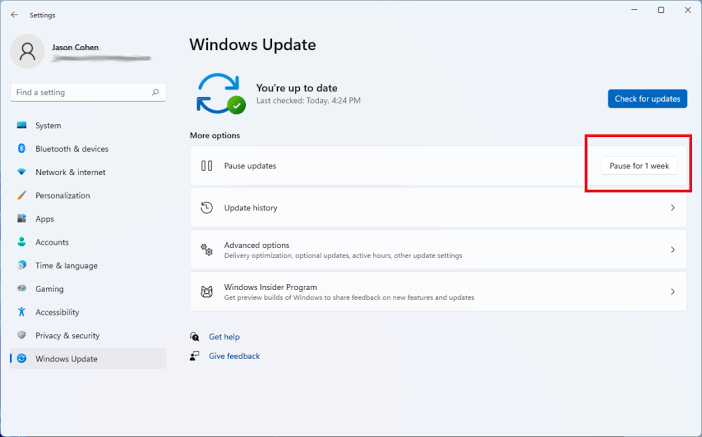
Windows 11 lets you pause updates for a limited period. The available duration depends on your Windows version and current settings.
Step 2: Use a Metered Connection
You can also mark your internet connection as metered to reduce automatic downloads.
- Open Settings and select Network & internet.
- Select Wi-Fi or Ethernet, depending on your connection.
- Open your connected network’s properties.
- Turn on Metered connection, if the option is available.
Windows limits some downloads over metered connections. However, this setting doesn’t block every update, and Windows may still download important files. Remember that pausing updates only delays them. You should install security updates when you’re ready because they help protect your computer from known security problems.
Solution 2: Stop an Update That’s Already Downloading
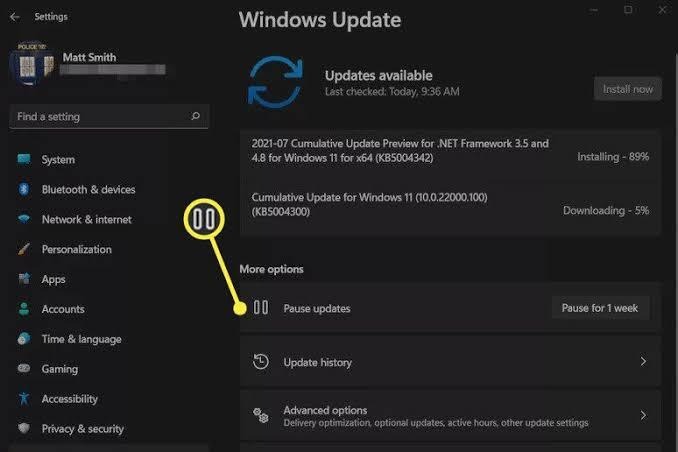
If Windows is downloading an update and the normal pause option doesn’t help, you can try stopping the Windows Update service. Use this method only when Windows is not installing updates or showing an active installation screen.
Step 1: Stop the Windows Update Service
Follow these steps carefully:
- Open the Start menu.
- Type Command Prompt in the search box.
- Right-click Command Prompt and select Run as administrator.
- Enter the following command:
net stop wuauserv
- Press Enter and wait for Windows to respond.
This command asks Windows to stop the Windows Update service. If Windows reports that the service cannot stop, don’t force the process. Check the update status and use the normal Settings options instead. Stopping the service may interrupt a download, but it doesn’t guarantee that Windows will cancel an update that’s already prepared for installation.
Step 2: Clear Downloaded Update Files Carefully
If a downloaded update appears damaged, clearing its temporary download files may help Windows download them again. First, make sure Windows isn’t installing an update. Then stop the Windows Update service using the command above. Open File Explorer and enter this location in the address bar: C:\Windows\SoftwareDistribution\Download You can remove the temporary files inside the Download folder if Windows allows you to do so. Do not delete the entire Windows folder or other system folders. If you don’t know whether Windows is using these files, leave them alone. You can restart your computer and use Windows Update’s built-in troubleshooting options instead. To restart the update service, open Command Prompt as an administrator and run: net start wuauserv This allows the Windows Update service to run again. Return to Settings and check the update status before taking further action.
Step 3: Check the Update Status
Open Settings, select Windows Update, and check whether Windows still shows the same download or installation message. If Windows asks you to restart the computer, save your work and follow the on-screen instructions. If the computer remains stuck, give the process time before trying additional fixes.
Solution 3: Disable Windows 11 Automatic Updates for Longer
If automatic downloads regularly interrupt your work, you can adjust your update settings.
Use Group Policy on Supported Windows Editions
Windows 11 Pro, Enterprise, and Education include the Local Group Policy Editor.
- Press Windows + R.
- Type gpedit.msc and press Enter.
- Navigate to Computer Configuration → Administrative Templates → Windows Components → Windows Update → Manage end user experience.
- Find Configure Automatic Updates.
- Open the policy and review the available options.
- Choose a suitable setting and apply your changes.
The exact policy location may vary by Windows version. If you use Windows 11 Home, the Group Policy Editor may not be available. You can also use the pause option in Settings to delay updates without changing advanced system policies.
Should You Turn Off Updates Permanently?
You should avoid permanently disabling security updates. Windows updates often include fixes for security problems, system errors, and compatibility issues. Instead, schedule updates for a convenient time and keep your important files backed up. This approach helps you control interruptions without leaving your computer unprotected.
What NOT to Do When Stopping an Update
A few mistakes can turn a small update problem into a serious system issue.
- Don’t force a shutdown: Turning off your computer during installation can damage system files or prevent Windows from starting correctly.
- Don’t delete system folders: Removing files from unrelated Windows folders can cause unexpected problems.
- Don’t change registry settings without a clear reason: Incorrect changes can affect Windows Update and other system features.
- Don’t disable security tools: Antivirus and firewall protection help keep your computer safe.
- Don’t ignore low storage space: Windows needs enough free space to download and install updates.
If low storage space causes the problem, remove temporary files through Windows Settings. Open Settings → System → Storage and review the available cleanup options. For additional help with disk space and partition management, visit the official 4DDiG Partition Manager page to review its features and supported operations. Before resizing or changing partitions, back up important files and check the instructions for your device.
Frequently Asked Questions
1. Will pausing updates damage my computer?
No. Pausing updates through Windows Settings is a normal feature and won’t damage your computer. However, delaying security updates for too long may leave your system exposed to known security problems.
2. Can I turn off Windows 11 updates permanently?
Windows provides settings to control automatic updates, but permanently blocking all updates isn’t recommended. You can pause updates or adjust automatic update policies on supported editions. Keep security updates enabled whenever possible.
3. What should I do if Windows 11 gets stuck during a restart?
If you need a Windows 11 update stuck at restart fix, first wait and check whether the installation is still progressing. Keep your computer connected to power. If Windows remains stuck for an unusually long time, follow Microsoft’s recovery instructions for your specific situation instead of repeatedly forcing shutdowns.
Conclusion
Knowing how to stop Windows 11 updates in progress can help you avoid unwanted interruptions and manage your computer more safely. Start by pausing updates in Settings. If Windows is only downloading files, you may also try stopping the update service with administrator access. Avoid interrupting an active installation, deleting system folders, or making unnecessary registry changes. For the best results, keep enough free disk space, back up important files, and install security updates when you’re ready. These simple steps can help you manage updates without putting your files at unnecessary risk.
