


The latest Windows update introduces new features on your PC, improves its performance, and fixes security issues. However, sometimes these latest OS updates can cause unexpected problems, such as missing files, inaccessible folders, or even an apparently empty drive. If you ever experience data loss issues on your PC after the latest OS installation, it’s important to immediately proceed with adequate recovery workarounds.
The good news is that file recovery is possible even after the Windows update wipes your drive. This guide explains how to identify what happened, check Windows’ built-in recovery options, and use free file recovery tools to recovery lost files in Windows. Let’s get started!
Why Do Files Disappear After Windows Update?
Before you apply methods to recover files missing after Windows update, it is important to understand what might have caused them to disappear. Some common reasons include:
- Temporary user profile: If you’ve logged in to the temporary profile instead of your regular account, your desktop and documents may look empty even though your original files remain on the computer.
- Update-related errors: Sometimes an incomplete or unsuccessful update affects the system settings, user profiles, or access to existing files.
- Windows.old folder: Following certain upgrades or installations, Windows may retain files from the previous installation in a folder named Windows.old.
- Drive or file system issues: An update or restart may coincide with disk errors that make partitions or folders inaccessible.
- Files moved to another location: Your files may not be deleted, but just moved to a different folder or under another Windows user account.
Identifying the exact reason for your lost files after Windows update can save time and help you choose the safest recovery method.
Quick Methods to Recover Files After Windows Update Wipes Your Drive (Free Tools You Can Try)
In this section, we’ll explore different free data recovery workarounds which you can try to restore your lost files after OS updates:
Method 01: Check Whether Windows Has Moved Your Files
Sometimes, your file is not deleted – you might be accessing a different user profile, or the file itself is moved to another folder location during the update. In such cases, you should follow the below steps before attempting file recovery:
- Press the Windows + E keys to launch File Explorer.
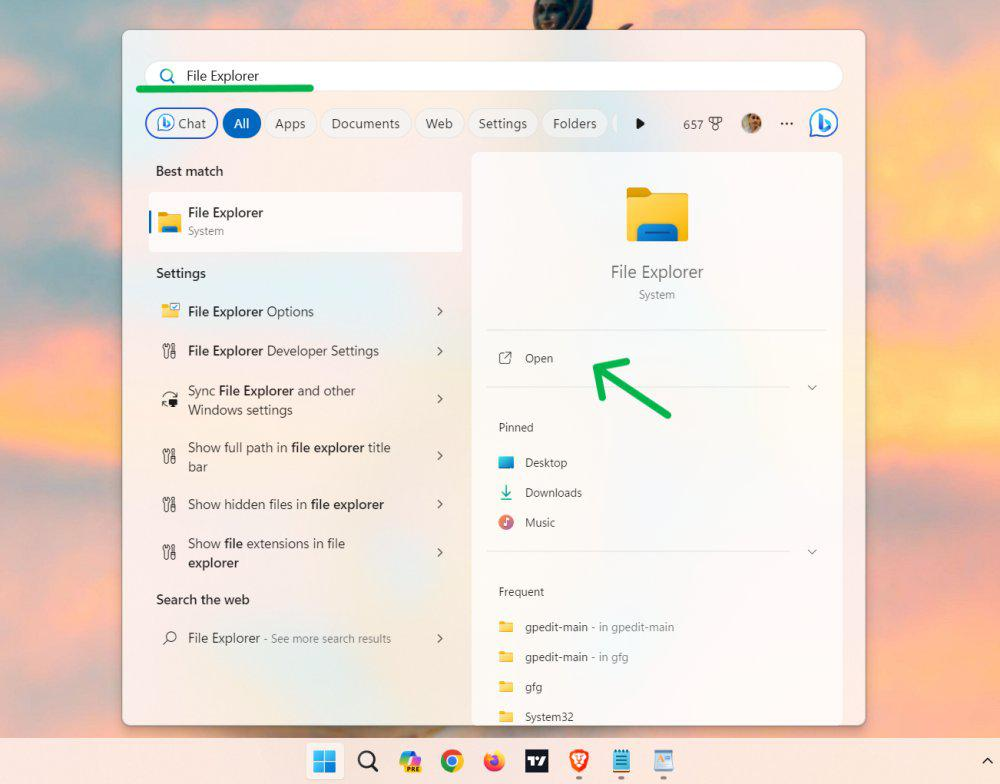
- Select This PC from the left pane, then search for your missing files (either using the file name or its file types such as *.docx, *.jpg, or *.pdf).
- Check the search results and open the folder containing your required files.
- Copy the recovered files to a safe location, preferably an external drive.
Note: In case your computer screen appears blank, or Windows display a temporary profile notification, sign out and log back in using your regular account. Do not delete any strange user folders without ensuring that your data is secure.
Method 02: Use Windows File Recovery (Free Microsoft Tool)
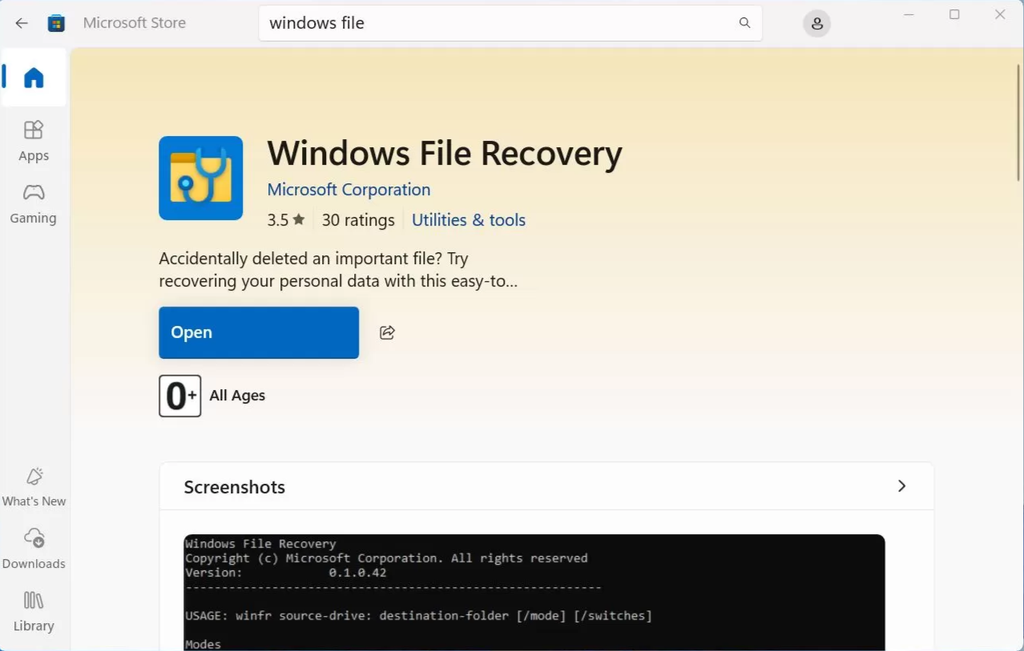
Windows File Recovery is Microsoft’s free command-line tool which you can use to recover deleted files from internal drives, external drives, and other local storage devices. You can download this tool from the Microsoft Store and follow the below steps to restore your files:
- Firstly, open the Microsoft Store on your PC and download the Windows File Recovery app. Also, connect your external drive or USB storage device to that device.
- Search for Windows File Recovery in the Start menu. Open the application and approve the administrator permission request.
- Enter the following command: winfr C: E: /regular /n *.docx /n *.pdf (this will recover Word documents and PDF files from the C: drive). Here, C: is the Source drive and E: is the Destination drive.
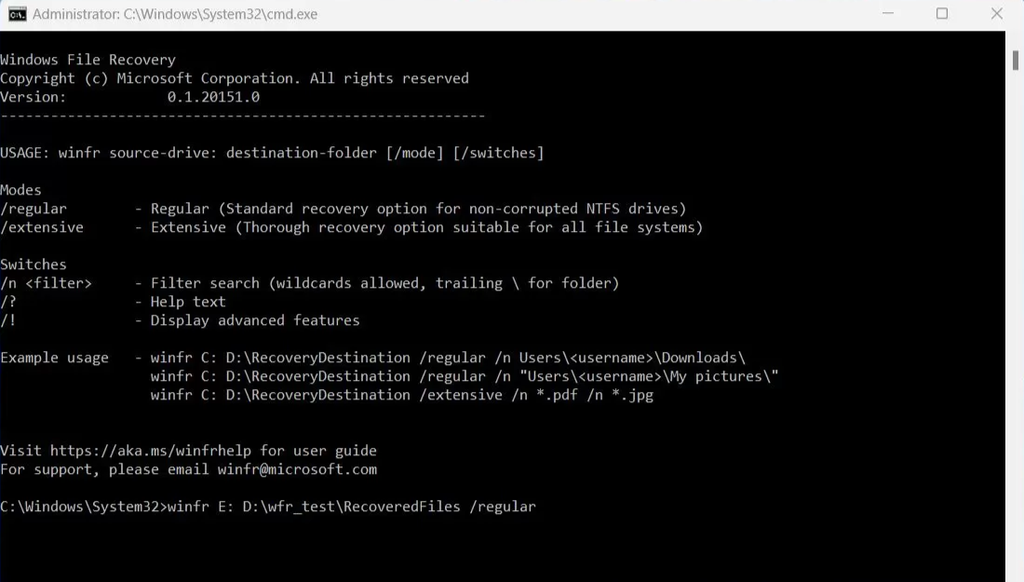
Go through the on-screen prompts to begin the scan. Once complete, inspect the recovery folder created on the destination drive and save the restored file to a different location.
Method 03: Try Stellar Data Recovery Free Software to Restore Deleted Files
In case no backup exists for your deleted file, use any third-party free data recovery software to restore your lost data. Tools like Stellar Data Recovery Free allow you to restore files deleted accidentally or lost due to system errors, storage drive corruption, and other data loss reasons. This all-in-one data recovery software can easily help you recover deleted files if they were wiped from your drive after Windows update. You can restore your lost data saved on hard drives, SSDs, and other internal or external storage devices.
Here’s how to recover files using the Stellar Data Recovery Free tool:
Step 1: Download and install the Stellar Data Recovery Free software from its official website on your Windows PC.
Step 2: Launch the software and, from the “What to Recover” window, choose the type of file you need to restore and click Next to continue.
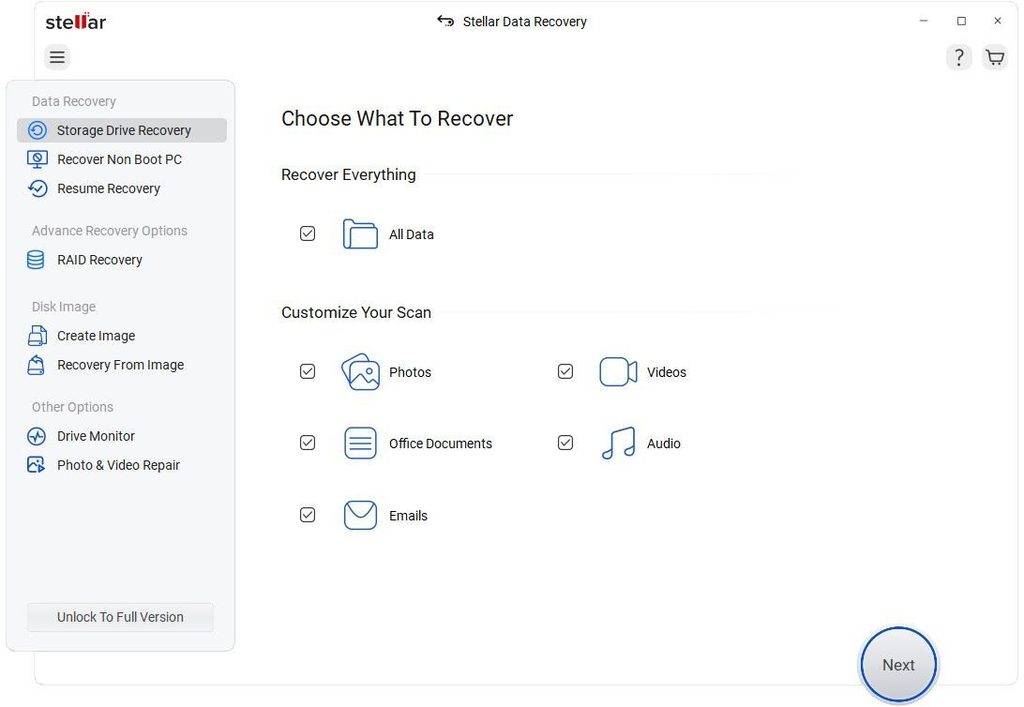
Step 3: Now select the storage drive where your deleted file was stored before deletion and click Scan to initiate the scanning process.
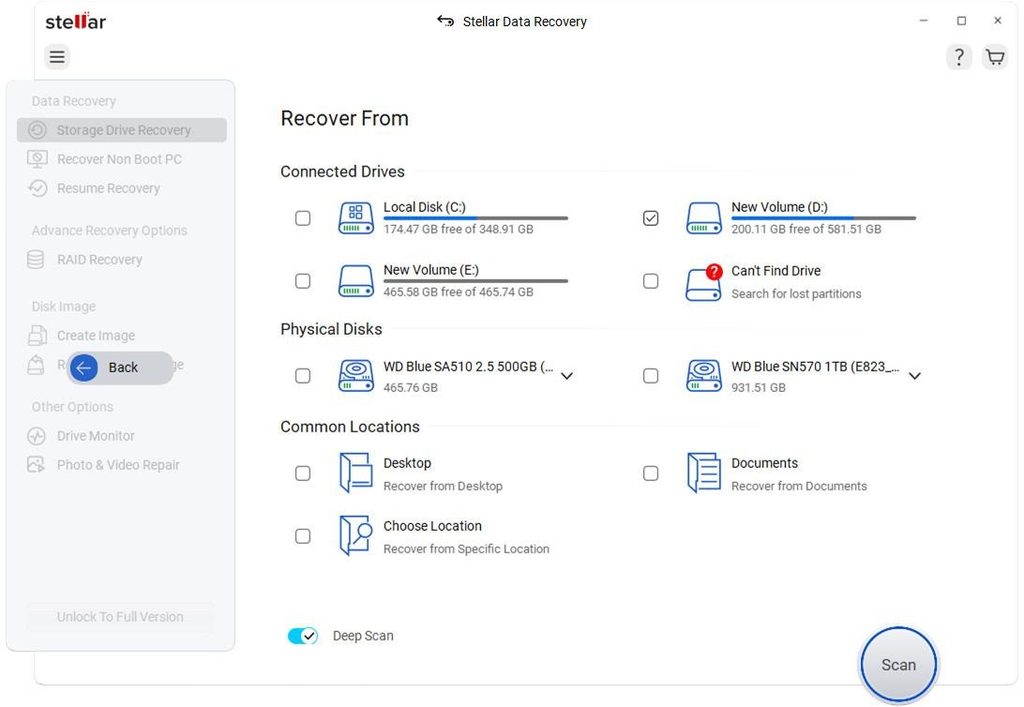
Step 4: After completion, preview the recoverable files and choose all the files that you need to restore. Click Recover to save recovered data to a safe location on your PC.
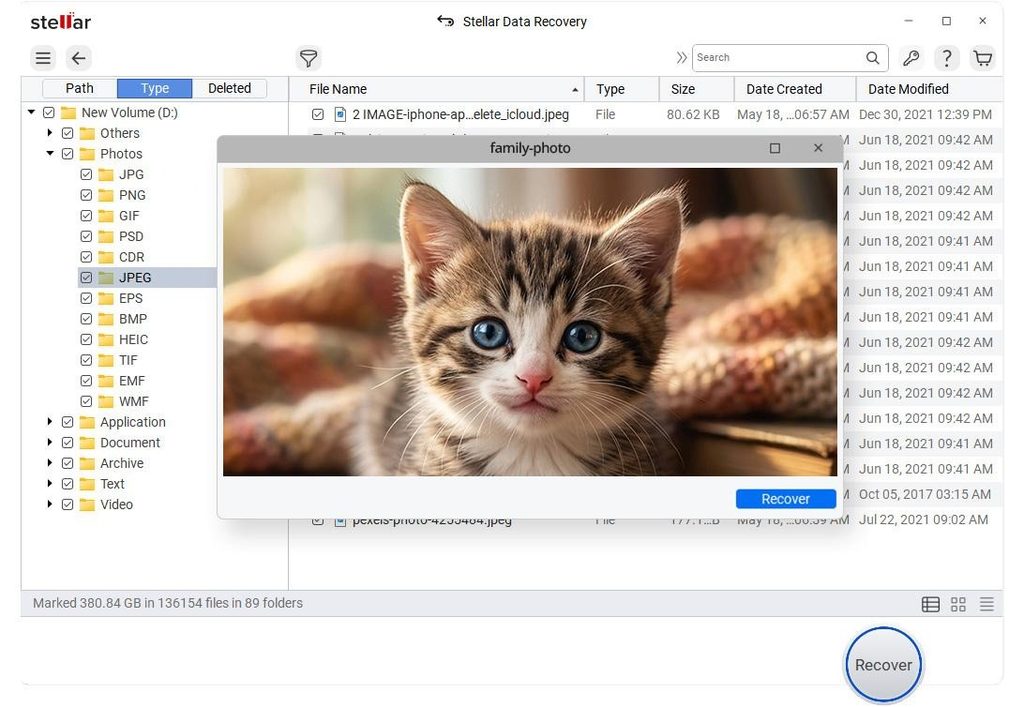
Note: The free version of Stellar Data Recovery Free software lets you restore deleted files only up to 1 GB of file size. To restore files of larger size, you can upgrade to premium versions.
What If None of These Methods Work?
If your files are still missing, check if you’ve previously created backups of those lost files. Syncing your device with OneDrive, File History, or another backup service creates automatic backups of your files, which you can use in case of unexpected data loss.
If you suspect the update itself is causing system problems, consider troubleshooting Windows separately from recovering your data. Microsoft’s Windows recovery options explain options such as uninstalling a problematic update or returning to a previous Windows version. These actions address Windows problems; they are not substitutes for file recovery.
Moreover, if your device was formatted, the files were overwritten, or the device is physically damaged, recovery may require specialist assistance.
Wrapping Up
Losing files after Windows OS update doesn’t mean your files are lost forever. The files may still exist in another user profile, a Windows.old folder, a backup, or an area of storage that recovery software can access.
Start by checking your existing backups and folders. If the files aren’t available, try Windows File Recovery or free data recovery software like Stellar Data Recovery Free. Most importantly, avoid writing new data to the affected drive and save recovered files somewhere else. The sooner you stop unnecessary disk activity and choose an appropriate recovery method, the better your chances of retrieving important documents, photos, and videos.
