

how to generate manga pages
Creating your own manga used to require years of drawing practice, scriptwriting ability, and a deep understanding of visual storytelling. But with today’s AI manga generatortools, anyone can create polished manga pages—even without drawing skills. Whether you’re a writer, a beginner artist, or someone who simply wants to bring a story to life, generating manga pages with AI has never been easier.
In this guide, we’ll walk through how complete beginners can generate manga pages using Anifun AI Manga Generator. You’ll learn how to turn ideas into visually coherent manga pages, how to select panel layouts, pick styles, choose color modes, and generate a complete page. By the end, you’ll be able to create a full manga page effortlessly—powered by AI but controlled by your creativity.
Below is the step-by-step process.
How AI Manga Page Generation Works (The Basics You Should Know)
Understanding What Modern AI Can Do
Today’s AI tools don’t just generate single anime images—they can:
- create multiple manga panels in one page
- maintain consistent characters
- generate backgrounds that match your story
- add speech bubbles and text
This means beginners can focus entirely on storytelling rather than drawing technique.
Why Anifun Is Ideal for Beginners
Anifun AI Manga Generator is designed specifically to make manga page creation simple:
- no login required
- free to use
- online, no software installation
- supports character consistency
- produces complete manga pages with panels and speech bubbles
- allows different art styles and color modes
Even if you’ve never made a comic page before, the workflow is instantly understandable.
What You’ll Need to Start
To follow this guide, you only need:
- A story idea (one clear sentence is all you need)
- Anifun AI Manga Generator (open in your browser)
Step 1: One-Sentence Story — The Only Script You Need
Write a Single-Sentence Story
Anifun’s approach is designed for simplicity. Instead of long scripts or line-by-line dialogue, start with one clear sentence that captures the whole page’s moment or action.
Examples:
- “A shy student finally confesses on the school rooftop at sunset.”
- “The hero sees the villain’s silhouette and prepares to charge.”
- “Two friends share a quiet moment as rain begins to fall.”

anifun make manga pages easily
This single sentence tells Anifun the scene, mood, and primary action — everything the generator needs to compose panels, poses, and atmosphere.
Step 2: Choose Panel Count (Anifun Handles Layout Automatically)
Select Panel Number in the UI
After entering your one-sentence story, Anifun asks you to choose how many panels you want on the page. Common presets include 3, 4, or 5 panels, depending on the pacing you want:
- 3 panels — good for short beats (establish → action → reaction)
- 4 panels — classic rhythm for short scenes or comedic beats
- 5 panels — more room for sequential action or a mini-scene
Anifun automatically generates the panel layout with borders and reading order, so you don’t need to draw anything manually
Step 3: Pick Style & Color — Japanese, Korean, Western, or Custom
Choose a Manga Style
Anifun offers style presets so your page looks consistent:
- Japanese manga (classic line-art, screentones)
- Korean manhwa (clean lines, soft shading)
- Western comic (bold lines, color-first)
- Custom/LoRA options (apply specific art Lora or artist-inspired style)
Choose Color Mode
Decide whether your page is:
- Black & White (classic manga) — with screen tones and shading
- Full Color — vibrant, suitable for webtoon-like releases or covers
Anifun applies the style and color to all panels, keeping everything visually consistent.
Step 4: One-Click Generate — Complete Page with Panels and Bubbles
Generate the Page
After inputting your one-sentence story, selecting panel count, style, and color, click Generate. Anifun will automatically:
- Compose each panel (poses, backgrounds, and camera angles)
- Place speech bubbles with auto-generated dialogue
- Render line art, tones or color, and manga effects (speedlines, screentones, etc.)
You receive a ready-to-read manga page in a single high-resolution image — no drawing or editing required.
Step 5: Export and Share
Export Options
You can download the manga page as PNG or JPEG for social media or print. Each page contains all panels, dialogue, and effects, so it’s ready to use immediately.
Batch Creation for Chapters
If creating multiple pages, repeat the process: one sentence → panel count → style → color → generate. Because each page starts from simple inputs, you can quickly produce a short chapter while keeping visual style consistent.
Why Anifun’s One-Sentence → Panel → Style → Color → Generate Workflow Works
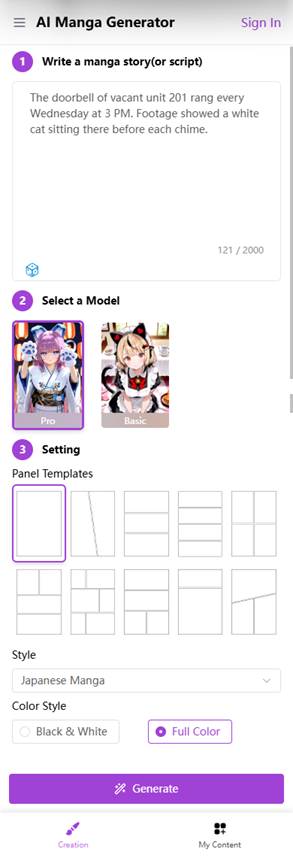
anifun manga generator workflow
- Simplicity: One sentence is enough to define the whole page.
- Speed: Create a complete manga page in minutes.
- Consistency: Styles, panel layout, and auto-generated dialogue keep pages coherent.
- Accessibility: Anyone can make manga, even without drawing skills.
- Flexibility: Works for all genres and storytelling needs.
Conclusion: Make Full Manga Pages Fast with Anifun
With Anifun AI Manga Generator, creating professional-looking manga pages is no longer reserved for artists. One sentence of story, a few clicks to select panels, style, and color, and you have a full manga page with coherent panels and dialogue. Beginners, writers, and hobbyists can bring their ideas to life easily — online, free, and without needing any drawing experience.
