

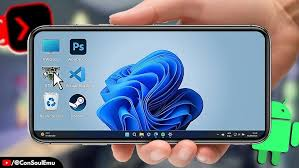
For countless gamers, the allure of PC titles is undeniable; however, the cost and space required for a dedicated gaming rig can be a significant barrier. This is where the magic of emulation bridges the gap, bringing classic and modern PC gaming experiences to the palm of your hand. If you’re an Android user eager to explore this world, the mobox emulator stands out as a remarkably accessible and powerful tool. This comprehensive guide from the team at XODOS will walk you through everything you need to know, from initial setup to fine-tuning for the ultimate gaming session.
What is the MoboX Emulator and How Does It Work on Android?
At its core, the mobox emulator is a sophisticated software application designed to create a Windows-compatible environment on your Android device. It doesn’t simply run PC games natively; instead, it uses a combination of compatibility layers and translation tools to interpret the game’s instructions (meant for a Windows x86 CPU) into commands that your phone’s ARM-based processor can understand.
Think of it as a skilled interpreter at a United Nations meeting. The game is designed for “Windows,” and your Android device is based on “ARM.” The MoboX emulator sits in the middle, translating the dialogue in real-time, allowing the two systems to work together seamlessly. This process, while complex, enables you to launch .exe files and install PC game setups directly on your phone or tablet, opening a library of thousands of titles.
Key Features of MoboX PC Emulator for Smooth Gameplay
Why choose MoboX over other options? Its beginner-friendly design, paired with robust performance features, makes it an ideal starting point.
- User-Friendly Interface: It boasts a clean, intuitive layout that doesn’t overwhelm new users with technical jargon from the get-go.
- Integrated Control Schemes: The emulator offers customizable on-screen touch controls that mimic a keyboard and mouse. For the best experience, it seamlessly supports physical Bluetooth/USB controllers.
- Performance Customization: You have direct access to settings for CPU core allocation, RAM usage, and graphics rendering, allowing you to balance performance with battery life.
- Multi-Instance Functionality: Run multiple games or applications simultaneously, which is great for strategy games or multitasking.
- File System Compatibility: Easily access and manage your game files, mods, and saves through an integrated file manager that bridges your Android storage and the virtual Windows environment.
System Requirements for Running the MoboX Emulator
Before installing, ensure your device is up to the task. Smooth emulation is demanding, and having capable hardware is crucial.
- Operating System: Android 8.0 (Oreo) or higher is recommended. Newer versions (Android 11+) generally offer better stability and performance.
- Processor (CPU): A mid-to-high-range chipset is essential. Snapdragon 700 series, 800 series, Dimensity 800/900 series, or equivalent from other brands are strongly recommended. The more powerful the CPU, the smoother the translation process.
- Memory (RAM): A minimum of 4GB of RAM is required, but 6GB or 8GB is the sweet spot for most games. Complex titles may benefit from having 12GB available.
- Storage: You will need substantial free space. The emulator itself requires room, and PC game installations can be large. 10-15GB of free internal storage is a practical starting point.
- Graphics (GPU): A modern Adreno or Mali GPU will handle most 2D and lighter 3D titles well.
Step-by-Step MoboX Emulator Installation Guide
Follow these steps carefully to get your virtual gaming PC up and running.
- Enable Installation from Unknown Sources: Since MoboX emulator is typically not on the Google Play Store, go to your Android Settings > Security > Install unknown apps. Grant permission to your chosen browser or file manager app.
- Download the Latest APK: Visit the official MoboX website or a trusted APK repository from your device’s browser. Always download from a credible source to avoid security risks. Look for the latest stable version.
- Install the APK File: Locate the downloaded .apk file in your device’s “Downloads” folder and tap on it. Follow the on-screen prompts to complete the installation.
- Initial Setup: Launch the MoboX emulator app. It will likely perform some first-time setup, which may include downloading additional system files or components. Ensure you have a stable Wi-Fi connection during this phase.
- Grant Necessary Permissions: The app will request permissions for access to storage and media files. These are required to install and run your PC game files, so be sure to allow them.
How to Configure MoboX Emulator Settings for Best Performance
Proper configuration is the key to transforming a sluggish experience into a smooth one. Navigate to the emulator’s settings menu (often represented by a gear icon).
- Performance Tab:
- CPU Cores: Allocate 2-4 cores depending on your device’s total cores. Avoid maxing it out; leave 1-2 cores for system stability.
- Memory (RAM): Allocate between 2048MB (2GB) and 4096MB (4GB). Never allocate more than half of your device’s total RAM.
- Graphics Tab:
- Renderer: OpenGL is generally the most stable. Vulkan can offer better performance on supported devices, but may cause crashes in some games.
- Graphics Driver: Experiment with different “D3D” drivers (like Turnip or Zink) based on your GPU for optimal compatibility.
- Resolution: Start with 1280×720 (720p) for the best balance of visual clarity and performance. You can increase this later if your device is powerful enough.
- Controls Tab: Here you can resize, reposition, and change the opacity of the on-screen touch controls. For serious gaming, we at XODOS highly recommend mapping your controls to a physical gamepad for precision and comfort.
Common MoboX Emulator Issues and Beginner-Friendly Fixes
Even with the best setup, you might encounter hiccups. Here are quick solutions.
- Game Crashes on Launch: This is often a compatibility issue. Try changing the Graphics Renderer (e.g., from Vulkan to OpenGL) or experiment with different Wine/Box versions within the MoboX settings.
- Extremely Slow Performance: Revisit your performance settings. Reduce the allocated RAM and CPU cores slightly. Lower the in-game resolution and graphics settings first.
- Controls Not Working: If a game isn’t recognizing inputs, ensure you’ve selected the correct input method (touch or controller) within the MoboX sidebar menu while the game is running.
- App/Game Not Installing: Verify that the .exe file is not corrupted. Some installers may require additional .NET Framework or Visual C++ packages, which might need to be installed separately within the MoboX environment.
Tips to Optimize Gaming with MoboX Emulator Performance
- Close Background Apps: Free up your device’s RAM and CPU by closing all non-essential applications before launching the emulator.
- Enable Performance Mode: If your device has a “Gaming Mode” or “Performance Mode” in its system settings, activate it. This reduces thermal throttling.
- Manage Device Temperature: Emulation generates heat. Use your device in a cool environment, and consider a passive cooling fan clip for long sessions to prevent performance drops.
- Start with Less Demanding Titles: Begin your journey with 2D games, indie titles, or older classics. This helps you learn the setup process before pushing your hardware with AAA games.
Safety and Legality of Using the MoboX Emulator on Android
The mobox emulator itself is a legitimate tool, much like a video player is for media files. Its legality hinges entirely on how you use it.
- Safety: Always download the emulator APK from its official source ora well-known, trusted tech forum. Unofficial sites may bundle malware.
- Legality: The emulator software is legal. You must only use it with software (games) for which you own a legitimate, purchased license. Downloading or distributing game files (ROMs/ISOs/.exe) you do not own is piracy, which is illegal. You are responsible for ensuring you have the right to use the games you install.
Conclusion: Why MoboX Emulator is Ideal for New Users
Embarking on PC emulation on Android can seem daunting, but the MoboX emulator successfully demystifies the process. Its straightforward installation, logical configuration layout, and strong community support create a gentle learning curve for beginners. It empowers you to take a vast library of PC gaming experiences anywhere, transforming your Android device into a surprisingly capable portable gaming station. By following this guide, you are well-equipped to navigate the initial setup, optimize your performance, and game responsibly. Remember, the journey is part of the fun, experiment, tweak, and discover the unique potential of your device.
