

Focus Sessions in Windows 11 help you work without constant distractions. They combine a timer, optional breaks, and notification controls so you can stay on one task for a set block of time. In this guide, you’ll learn where to find Focus Sessions, which Focus and notification settings to turn on first, and how to customize sessions to match your workflow.
What Focus Sessions in Windows 11 Do (And Where to Find Them)
Focus Sessions are a built-in productivity tool that lets you set a timed work block, add breaks, and track daily progress. When a session runs, Windows can reduce distractions by enabling Focus features like Do Not Disturb and limiting which alerts appear.
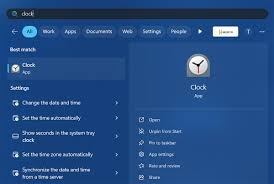
It’s designed to make “starting” easier and keep you working until the timer ends. You’ll find Focus Sessions inside the Clock app in Windows 11. Open Start, search Clock, then select Focus sessions from the left menu.
From there, you can set your session length, connect optional tools, and begin right away.
Before You Start, turn on the Right Focus & Notification Settings
Enable Do Not Disturb During Focus Time
Before you start a session, make sure Windows can quiet distractions. Go to Settings > System > Notifications and turn on Do not disturb. Then open Turn on do not disturb automatically and set rules for when it should activate, like during specific hours or when you’re duplicating your display.
Set Your Priority Notifications (Apps, Calls, Reminders)
Next, decide what you still want to see during focus time. In Settings > System > Notifications > Set priority notifications, choose allowed calls, reminders, and specific apps. Keep this list short: think calendar alerts, your work chat for urgent pings, and critical security prompts. Everything else can wait until your session ends.
Step-by-Step: Start a Focus Session from the Clock App
Open Focus Sessions in the Clock App
Click Start, type Clock, and open the app. In the left sidebar, select Focus sessions. You’ll see your daily progress, a timer area, and options to connect tasks or music if you want them.
Choose Session Length and Breaks
Set how long you want to focus, then decide whether you want breaks. A good starting point is 25–30 minutes with a short break, or 45–60 minutes if you’re doing deep work. If you’re new to this, keep sessions shorter and build up.
Start, Pause, or End The Session
Click Start focus session to begin. If something urgent comes up, use Pause and resume when you’re ready. When you’re done early, select End to stop the timer. At the end, take a minute to note what worked before starting your next session.
Customize Focus Sessions So They Match How You Work
Change Goals, Breaks, and Daily Progress
Focus Sessions work best when they fit your routine. In the Clock > Focus sessions screen, adjust your daily goal, session length, and break settings based on the type of work you do.
Shorter blocks help with email and admin tasks, while longer blocks are better for writing, analysis, or project work. If you also want Windows to feel smoother day-to-day, take a few minutes to personalize computer settings so your desktop supports your focus habits.
Adjust What Happens When the Timer Ends
When the timer finishes, treat it like a checkpoint—not just a buzzer. Use the end of a session to quickly save progress, write a one-line next step, and decide whether to start another session or take a longer break.
If you notice you keep stopping early, shorten the session. If you’re finishing strong, extend it. The goal is consistency, not perfection.
Optional Features: Microsoft To Do + Spotify (When They Help, When They Don’t)
Link Microsoft To Do to Pick a Task
If you struggle with “what should I work on first?”, connecting Microsoft To Do can help. In Clock > Focus sessions, link your Microsoft account and choose a task before you start the timer. That gives your session a clear target and makes it easier to avoid random busywork. If you already plan tasks in another tool, you can skip this—Focus Sessions still work fine with a simple note on what you’re tackling.
Connect Spotify for Background Music
Spotify can be useful if music helps you block out background noise. From the same Focus Sessions screen, connect Spotify and pick a playlist or “focus” style audio. But if you find yourself skipping songs, adjusting playlists, or getting distracted by recommendations, don’t use it. In that case, silence (or simple ambient sound) is often the better choice for staying locked in.
Practical Tips to Get Better Results from Focus Sessions
Use a Repeatable Schedule
Pick the same times each day for focus blocks so your brain expects them. Start with one session in the morning and one after lunch. Keep it realistic. Consistency beats long sessions that you don’t repeat.
Pair Focus Sessions with ‘Priority only’ Notifications
Don’t rely on willpower alone. During sessions, use Do not disturb with priority notifications so only truly important alerts get through. If you allow too many apps, you’ll end up checking everything “just in case.”
Review What Broke Your Focus and Adjust
After each session, note the main distraction—email, chat, browser tabs, or interruptions. Then change one setting for the next session: shorten the timer, tighten priority alerts, or prep what you need before you start. Small tweaks add up fast.
