

Counter-Strike 1.6 remains one of the most iconic first-person shooter (FPS) games ever created. Even decades after its release, it still holds a loyal player base thanks to its simple mechanics, competitive gameplay, and nostalgic value. If you’re using Windows 11 in 2026 and want to relive the classic experience, the good news is that CS 1.6 Download options are still available and the game can run smoothly with just a few simple steps.
This guide will walk you through everything you need to know—from installation to optimization—so you can start playing without issues.
1. Understanding Compatibility with Windows 11
Windows 11 is far more advanced than the operating systems Counter-Strike 1.6 was originally designed for. Since the game was built on older architecture (late 1990s to early 2000s), some compatibility adjustments may be required when performing a Counter-Strike 1.6 download for Windows 11.
Fortunately, Windows 11 supports legacy applications quite well. Most users can run the game without major issues, especially if they install it through official platforms. However, minor tweaks like compatibility mode and graphics settings may be needed for the best experience.
2. Getting the Game (Legal and Safe Methods)
There are two main ways to obtain Counter-Strike 1.6:
a. Official Purchase (Recommended)
The safest and most reliable method is to purchase and download the game from a trusted digital platform. This ensures:
- No viruses or malware
- Automatic updates
- Access to online servers
b. Backup or Legacy Copies
If you already own a physical CD or backup files, you can install from those. However, you may need additional patches to make the game run smoothly on modern systems.
Avoid downloading from unknown websites, as many versions are modified and may contain harmful files.
3. Installation Process
Once you have the game files, follow these steps:
- Run the installer or download the game client.
- Install it in a simple directory, such as:
C:\Games\CS1.6 - Avoid installing in protected folders like “Program Files” to prevent permission issues.
- Complete the installation and launch the game.
If you are using a platform-based version, installation is usually automatic.
4. Adjusting Compatibility Settings
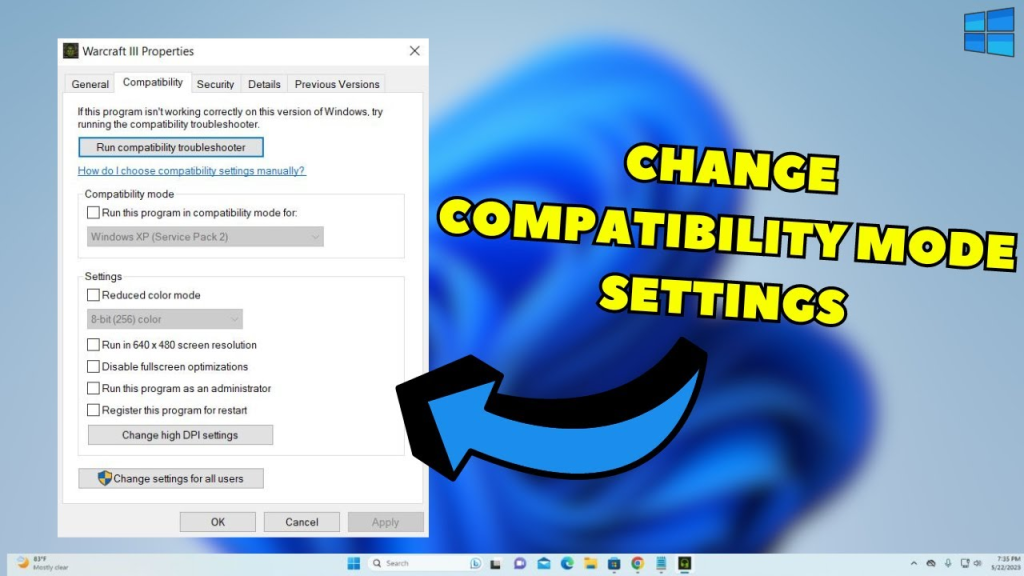
If the game doesn’t launch or runs poorly, you can enable compatibility mode:
- Right-click the game executable (hl.exe or cs.exe).
- Select Properties.
- Go to the Compatibility tab.
- Enable:
- Run this program in compatibility mode (Windows XP or Windows 7)
- Run as administrator
- Click Apply and OK.
This helps Windows 11 treat the game like it’s running on an older system.
5. Fixing Common Issues
a. Black Screen or Resolution Problems
Counter-Strike 1.6 may not scale properly on modern displays.
Solution:
- Launch options: -w 1024 -h 768
- Or adjust resolution inside the game settings
b. Mouse Lag or Sensitivity Issues
Modern systems sometimes cause input lag.
Solution:
- Disable mouse acceleration in Windows
- Use raw input if available in settings
c. No Sound or Glitches
Audio drivers in Windows 11 can conflict with older games.
Solution:
- Update audio drivers
- Switch audio mode in game settings
d. Game Crashes on Startup
This can happen due to missing files or incompatible drivers.
Solution:
- Reinstall the game
- Update graphics drivers
- Use compatibility mode
6. Optimizing Graphics for Smooth Gameplay
Even though Counter-Strike 1.6 is lightweight, optimizing settings ensures smooth performance:
- Set video mode to OpenGL (best performance)
- Disable unnecessary background applications
- Turn off V-Sync if you want lower input lag
- Use lower resolution for higher FPS
Most modern PCs can easily achieve over 100 FPS in this game.
7. Playing Online in 2026
Despite its age, Counter-Strike 1.6 still has active servers worldwide.
How to join servers:
- Open the game
- Click “Find Servers”
- Browse Internet or Favorites tab
- Join a server with good ping
Alternatively, you can manually connect using the console:
- Press ~ key
- Type: connect <server IP>
Community servers offer different modes such as:
- Classic competitive
- Deathmatch
- Zombie mode
- Surf maps
8. Playing with Friends
To play with friends:
- Join the same public server
- Or create a private server using LAN or port forwarding
You can also use third-party tools to host custom matches. Make sure all players use the same version of the game.
9. Improving Your Gameplay
Even though the game is old, it requires skill and strategy. Here are some tips:
- Learn recoil patterns of weapons
- Practice aim on training maps
- Communicate with teammates
- Use headphones for better sound awareness
- Master classic maps like Dust2 and Inferno
Consistency and practice are key to improving.
10. Is It Still Worth Playing in 2026?
Absolutely. Counter-Strike 1.6 offers a pure and skill-based FPS experience that many modern games lack. It runs on almost any PC, has a dedicated community, and provides endless replay value.
Whether you are a returning player or a newcomer curious about gaming history, it’s definitely worth trying.
Conclusion
Playing Counter-Strike 1.6 on Windows 11 in 2026 is not only possible but also enjoyable with the right setup. By installing the game properly, adjusting compatibility settings, and optimizing performance, you can experience this legendary shooter just like in its prime.
The simplicity, fast-paced gameplay, and competitive spirit make it timeless. So install the game, join a server, and jump back into one of the greatest FPS experiences ever created.
