

For a first-time user, messaging software can look more complicated than it is because several separate choices appear at once: phone or PC, Web or Desktop, English or Chinese, and one account or several devices.
The questions beginners ask are usually very practical:
- Which version should I install?
- Is the Chinese version different?
- Can one account work on phone and computer?
- Do files synchronize?
- How do I know which device is logged in?
The easiest way to make sense of the setup is to solve those questions in order instead of treating every label or nickname as a different product.
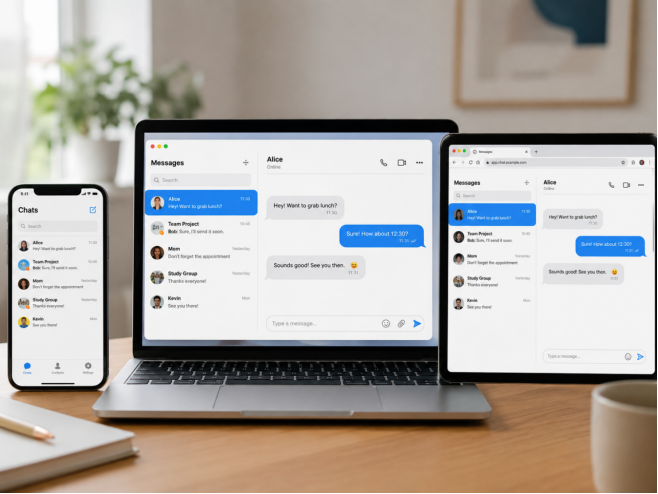
Start With the Device You Will Actually Use Most
The primary device determines which setup deserves the most attention.
If most messages are handled while travelling, start with the phone.
If the user works for hours at a Windows 10/11 computer, the desktop client is likely to become just as important as the mobile app.
A useful division of roles looks like this:
Mobile
- quick replies;
- travel;
- alerts;
- account verification.
Desktop
- longer typing;
- file management;
- work sessions.
Web
- temporary access.
Choose the Platform Before Searching for a Special Variant
Beginners may first encounter basic terminology on a broad resource such as telegrambasic.com. Use that kind of page to understand the platform choices, then verify the actual Windows or mobile path separately before installing anything.
Regardless of the terminology a guide uses, the first technical question is still: which platform am I setting up?
A Windows installer cannot be substituted for an Android package, and a browser session may need no local installer at all.
The interface language comes after that platform decision.
Chinese Nicknames Are Search Vocabulary, Not Technical Specifications
Chinese communities use several familiar names for messaging platforms.
- 电报;
- 纸飞机;
- Telegram中文版.
These names can help users find relevant discussions, but they do not necessarily represent separate software products.
These terms can be useful for finding explanations, but a beginner should always map the nickname back to the intended service and device.
Use a Simple Installation Order
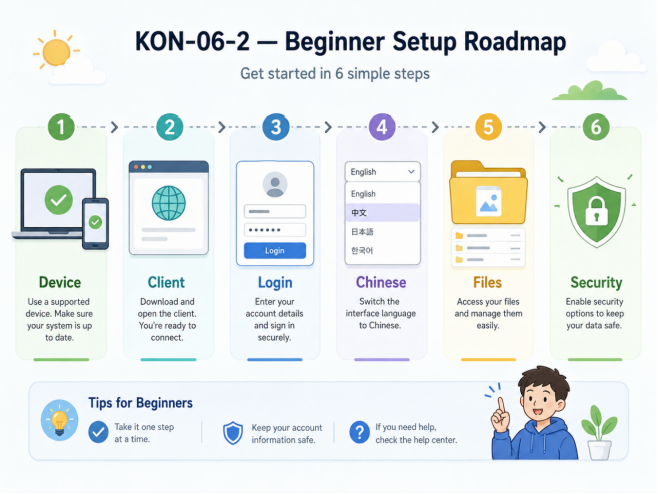
Once the platform is clear, keep the process short:
- verify the download source;
- select the correct package;
- install;
- sign in;
- configure language.
This order prevents language preferences from becoming mixed up with software-source decisions.
Set the Preferred Chinese Interface After Login
If the client provides Chinese in its own settings, use that option rather than assuming a separate localized installer is required.
- open settings;
- locate language;
- select Simplified or Traditional Chinese;
- restart if needed.
For Hong Kong and Taiwan users, Traditional Chinese is often the most familiar option when available.
Chinese Typing and Chinese Menus Are Separate
A Chinese interface does not automatically add a Chinese keyboard to Windows or a phone.
If the app is in Chinese but the keyboard remains English, configure:
- Windows IME;
- Android keyboard;
- iOS keyboard.
This is why typing problems should be checked at the operating-system level as well as inside the messaging app.
Treat “Paper Plane” Terms as Another Search Route
A beginner may also see a 纸飞机中文设置指南 while looking for Chinese configuration help. The wording is useful for discovery, but it does not change the underlying setup order.
Regional wording can help users discover Chinese instructions, but the same baseline still applies: supported client, correct platform, normal language settings and a verified account session.
- standard client;
- supported language;
- verified account;
- secure device sessions.
Add the Windows PC as a New Device Deliberately
If the account starts on a phone and is later added to a Windows computer, make the new login easy to recognize.
- install the desktop client;
- start login;
- approve verification;
- check the active-device list.
After login, confirm that the new PC appears in the active-device list with the time and location you expect.
Know What Syncs and What Stays on the Device
Chats may be available across devices while several practical settings remain local to each computer or phone.
Often local:
- download folder;
- cache;
- notification preferences;
- startup behavior.
That means a new Windows PC still needs its own download, notification and startup settings even when the account history appears immediately.
Give Files a Real Home on Windows
Desktop users should know where received files are stored and move important documents out of temporary chat or cache locations.
A file downloaded to a phone should not be assumed to exist automatically on the Windows PC.
Reduce Duplicate Notifications Across Devices
Beginners often leave every alert enabled on both phone and desktop. Over time, the duplicate reminders become distracting.
A better approach:
- keep direct messages;
- keep important groups;
- mute noisy communities;
The goal is not identical behavior; it is a sensible role for each device.
Review Active Sessions as the Device List Grows
Teach new users to periodically check:
- phone;
- desktop;
- browser;
- old devices.
Remove devices that are unfamiliar or no longer used, especially after replacing a phone or laptop.
Protect Login Codes From “Support” Requests
A verification code is temporary account access. Never share one with:
- strangers;
- group administrators;
- unofficial support accounts.
If someone asks for the code, stop the process and review the account from a trusted device.
Keep the Windows Client on a Consistent Update Path
Updates can fix compatibility and security issues, but they are easiest to manage when the client always updates through the same known route.
Use a consistent update route rather than downloading random new versions from unrelated websites.
After a major update, check:
- language;
- notifications;
- storage settings.
Beginner Setup Checklist
Device
- Primary platform selected
Install
- Correct client
- Source checked
Account
- Login completed
- Sessions reviewed
Chinese
- Interface selected
- Keyboard configured
Daily use
- Notifications adjusted
- Files organized
- Cache monitored
Security
- Codes kept private
- Old devices removed
Final Notes
Chinese messaging becomes much easier once platform, account, language and device management are treated as separate steps.
A useful mental model is:
device → client → login → preferred Chinese interface → cross-device management.
A beginner does not need to learn every regional nickname or advanced feature on day one.
For Hong Kong and Taiwan users, a reliable Windows setup plus a few habits around files, sessions and verification codes is enough to make the rest of the experience straightforward.
