

Getting locked out of an iPhone can be frustrating, especially when you don’t remember the passcode or Face ID isn’t working. Whether you recently changed your passcode or your iPhone has become unavailable after too many failed attempts, there are several ways to regain access.
If you’re searching for how to unlock iPhone without passcode or Face ID, the right solution depends on your iPhone model, iOS version, and whether your data has been backed up. Here are four practical methods to consider.
Method 1: Use Your Previous Passcode
If you recently changed your iPhone passcode, you may not need to erase the device at all. This is the only way if you want to unlock iPhone without losing data. On iOS 17 and later, Apple provides a Passcode Reset feature that allows you to use your previous passcode for up to 72 hours after changing it. When the iPhone becomes unavailable, tap Forgot Passcode?, choose Enter Previous Passcode, and follow the instructions to create a new passcode.
This is the simplest option because it can restore access without a computer or factory reset. However, it only works within the applicable 72-hour period and requires that the feature is available on your device.
Method 2: Reset Your iPhone From the Lock Screen
If you’ve completely forgotten your passcode, some iPhones running iOS 15.2 or later allow you to reset the device directly from the Lock Screen. After repeated incorrect passcode attempts, wait for the iPhone Unavailable or Security Lockout screen. If the required conditions are met, tap Forgot Passcode? and follow the onscreen instructions. You’ll generally need an active internet connection, Find My enabled, and your Apple Account password.
Keep in mind that this method erases the iPhone’s data and settings. Afterward, you can set up the device again and restore a backup if one is available. For anyone searching for how to unlock iPhone without face ID or passcode, this is one of Apple’s official options when the feature is available.
Method 3: Restore the iPhone Using Recovery Mode
If the Lock Screen reset option isn’t available, you can use a Mac or Windows PC to restore the iPhone. First, turn off the iPhone and connect it to your computer while entering Recovery Mode. On a Mac, use Finder; on Windows, use the Apple Devices app. Once the device is detected, choose the option to restore it and follow the onscreen instructions.
The exact button combination for entering Recovery Mode depends on the iPhone model. For newer iPhones with Face ID, the process generally involves connecting the device to a computer and holding the side button until the Recovery Mode screen appears.
This method provides an official way to regain access when you’ve forgotten the passcode, but there is an important drawback: restoring the iPhone erases its existing data. If you have a backup, you can restore it after the process is complete.
Method 4: Use an iPhone Unlocking Tool
If you don’t want to work through different recovery procedures yourself, a dedicated iPhone unlocking tool can provide a more guided alternative. MagFone iPhone Unlocker is designed to help users who looking for how to remove Apple ID from iPhone, remove forgotten screen locks, and more. It provides a guided workflow, which can be useful for users who aren’t familiar with Recovery Mode or other technical procedures.
How to Unlock an iPhone Without a Passcode or Face ID Using MagFone
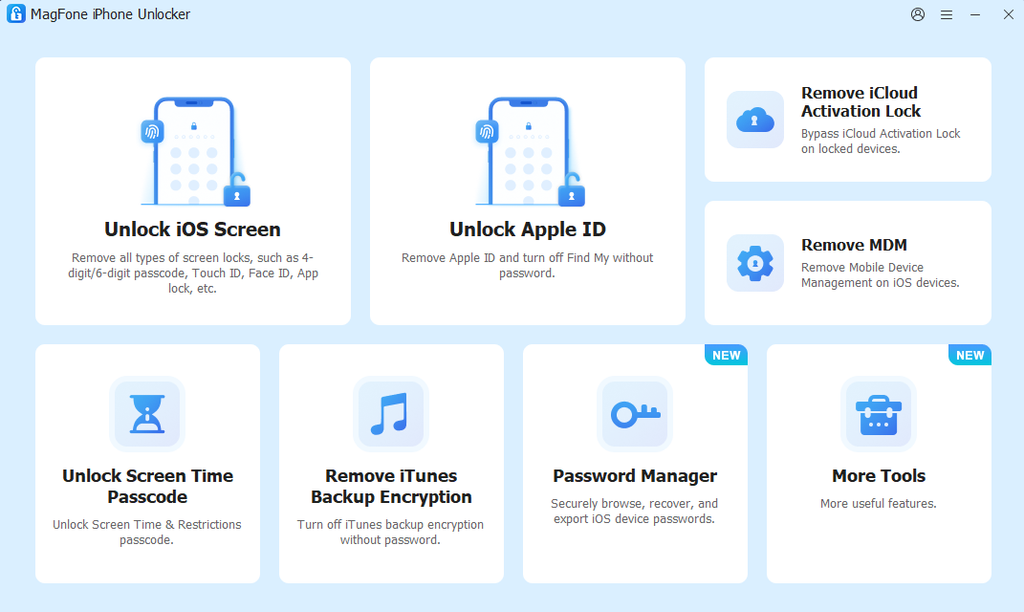
Step 1: Install and open the iPhone screen unlock software on a computer, then select the feature designed to remove the iPhone screen lock. Connect the locked iPhone to the computer using a USB cable.
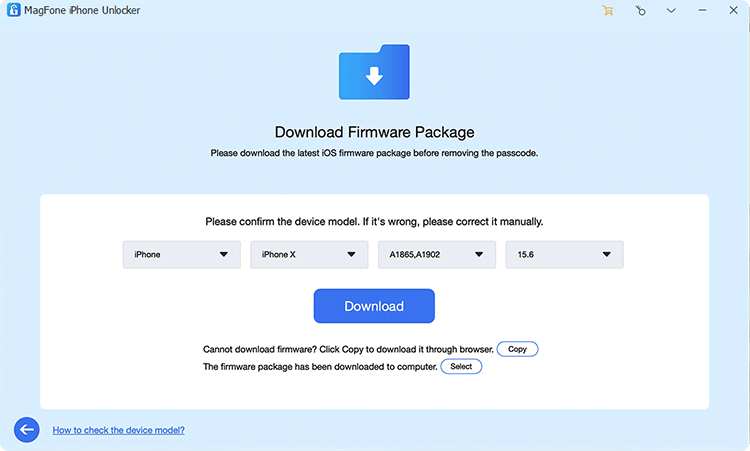
Step 2: Follow the instructions displayed by the software to put your iPhone into Recovery Mode or DFU Mode, and download the firmware package accordingly .
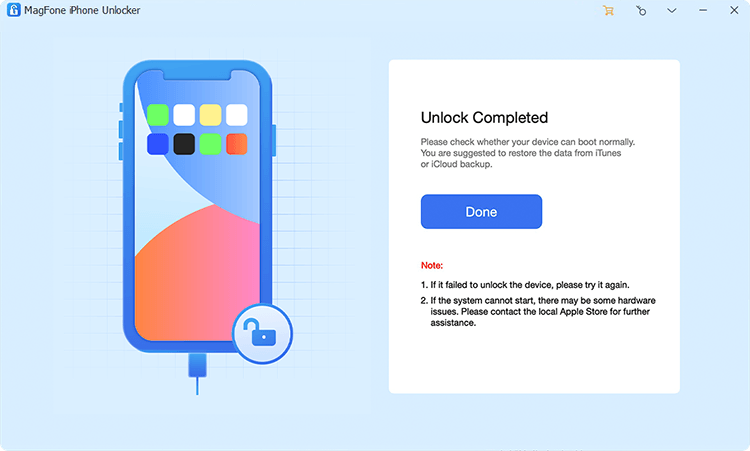
Step 3: Once the device is recognized and prepared, start the unlocking process and wait for the software to complete the required operations. After the process is finished, restart the iPhone and follow the setup instructions.
Can You Unlock an iPhone Without a Passcode or Face ID for Free?
If you’re looking for how to unlock iPhone without passcode or Face ID free, Apple’s built-in recovery options are the first methods worth trying because they don’t require purchasing third-party software.
However, when the passcode has been completely forgotten, Apple’s official reset methods generally erase the device. This means locally stored photos, messages, apps, and other data can be lost if they haven’t been backed up.
Third-party unlocking software may provide a more guided experience, but it may require a paid license. Before choosing one, check whether it supports your exact iPhone model and iOS version.
What to Know Before Unlocking Your iPhone
Before trying any method, keep these points in mind:
- Try Apple’s official recovery options first.
- Check whether you have an iCloud or computer backup.
- Make sure you know your Apple Account credentials.
- Understand whether the selected method will erase your data.
- Check software compatibility before using third-party tools.
- Only unlock an iPhone that you own or are authorized to access.
It’s also important to distinguish between a screen passcode and Activation Lock. Removing a forgotten screen passcode does not automatically remove Activation Lock. If the device later shows an “iPhone Locked to Owner” screen, Apple Account verification may still be required.
FAQs
- Can I unlock my iPhone without a passcode or Face ID?
Yes, but the available method depends on your device and iOS version. If you recently changed your passcode, Apple’s Passcode Reset feature may let you use the previous passcode temporarily. Otherwise, official recovery methods generally require resetting the device.
- What is the easiest way to unlock an iPhone without a passcode?
If available, using your previous passcode through Apple’s Passcode Reset feature is the easiest option because it doesn’t require erasing the device. If that isn’t available, you can reset the iPhone through the Lock Screen or Recovery Mode. A compatible unlocking tool such as MagFone iPhone Unlocker can also provide a more guided alternative.
Final Thoughts
Being locked out of an iPhone doesn’t necessarily mean the device is unusable. If you recently changed your passcode, try Apple’s Passcode Reset option first. For other situations, you can reset the iPhone directly from the Lock Screen or use Recovery Mode with a computer.
If you prefer a more guided approach, MagFone iPhone Unlocker is another option for compatible devices. Whichever method you choose, check your device compatibility, understand the potential for data loss, and make sure you’re authorized to unlock the iPhone before getting started.
