

For a long time, I thought I was doing enough. When I finished with a game or a tool, I went to the Windows Apps and Features panel, hit uninstall and moved on. I deleted a few leftover folders by hand and felt responsible.
Then my SSD started filling up faster than it made sense and my PC took longer and longer to reach the desktop. Browsers opened slowly, and small glitches appeared when I launched certain programs. Nothing was broken, still, everything felt heavier than it should.
A friend pointed out that normal uninstallations rarely remove everything. Logs, registry keys, startup items and support files tend to stay behind and pile up over the years. That is when I decided to stop guessing, install IObit Uninstaller and see what it could reveal about the mess I did not even know existed.
What Got My Attention About IObit Uninstaller
From the official information, IObit Uninstaller 15 Free is designed to completely remove unwanted software from Microsoft Store and third-party sources and then clean the leftovers that slow a system down. A few points stood out immediately:
- It can detect and delete stubborn programs, bundleware and hidden items, not only obvious entries in the list.
- It clears associated leftovers such as temporary files, registry entries, executables and configuration files so those programs stop quietly living on the disk.
- It acts as a browser extension manager, identifying plug-ins and toolbars across Chrome, Firefox, Edge and Internet Explorer and can remove malicious or annoying ones in one place.
- The Install Monitor feature logs changes that installers make so you can later reverse them when you uninstall that program.
- Software Health scans for outdated software, uninstallation leftovers, redundant files, hibernated software, unauthorised permissions and intrusive notifications and then repairs them with a Fix All button.
Compared with the plain Windows uninstaller, which simply runs each program’s own removal routine and ignores leftovers, this sounded like a much more complete approach.
How I Used IObit Uninstaller To Uninstall Unwanted Files
Step 1: First, install and check the full Programs
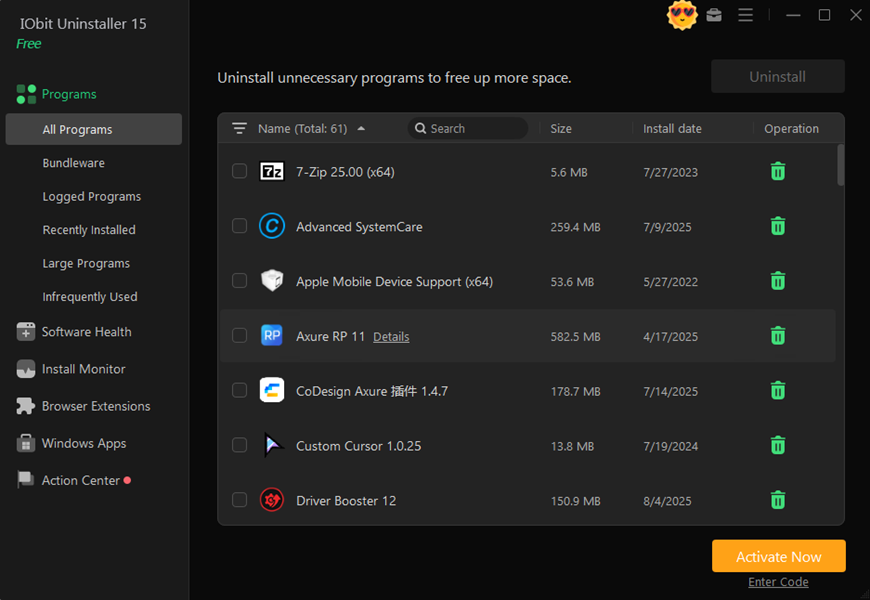
After downloading and installing IObit Uninstaller 15 Free, I opened it and let it scan my system. The main window listed all installed programs, Windows apps and browser plug-ins with size and install date. It was longer than I expected. There were launchers I had not opened for years, toolbars I did not remember installing and a surprising amount of bundleware.
Seeing everything in one panel was the first sign that my PC was not as tidy as I thought.
Step 2: Finding stubborn, bundled and hidden troublemakers
I began by sorting programs by size and install date. That immediately surfaced heavy tools and games I had not touched in months. IObit Uninstaller also highlights bundleware and rarely used applications, which are easy to miss when you scroll through the default Windows list.
Some entries were clearly stubborn. I recognised a few that had failed to uninstall cleanly in the past. According to the product description, the upgraded engine and enlarged Stubborn Program Database in version 15 are built to handle more than four thousand difficult programs and remove them completely. That gave me the confidence to put them on the hit list.
Step 3: Deep uninstall and leftover removal
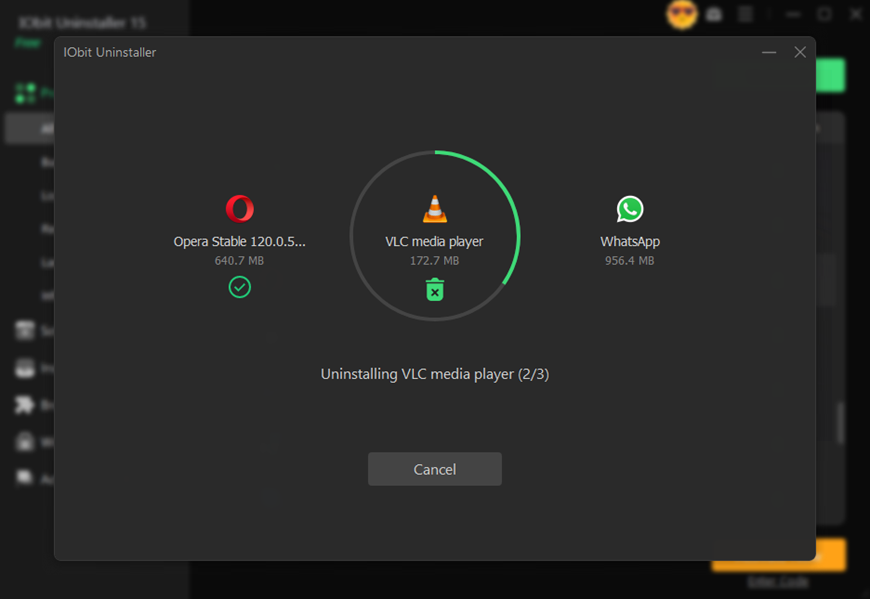
With my target list ready, I selected several programs and clicked Uninstall. IObit Uninstaller first ran each program’s own uninstaller, then scanned for leftover files, folders and registry entries connected to that software and displayed them in a list.
For the stubborn cases, I used Force Uninstall and the special stubborn program remover. These tools are designed to remove programs that cannot be uninstalled by Windows or other uninstallers and to clean residual data at the same time. Programs that had survived my earlier attempts finally disappeared along with their debris.
Browser plug-ins were next. In the Browser Extensions section, I saw toolbars and add-ons from multiple browsers grouped together. IObit Uninstaller used its database to identify malicious or unnecessary plug-ins so I could uninstall them and block related spam notifications and pop-ups.
Step 4: Repairing software health after the cleanup
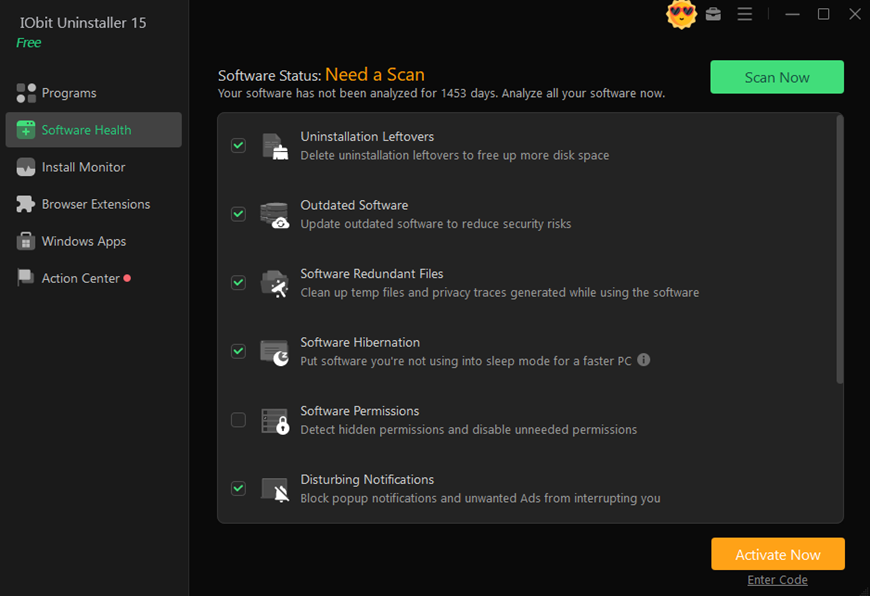
Once the obvious clutter was gone, I went to the Software Health section and ran a scan. IObit Uninstaller checked for outdated software, leftover files from old uninstalls, redundant setup packages, hibernated software, unauthorised permissions and intrusive notifications.
The scan result surprised me. It found more uninstallation leftovers, hidden logs and installer caches, as well as some program permissions and notifications I no longer needed. With one click on Fix All the tool removed or corrected these issues, giving my system a much cleaner baseline.
What Changed Afterwards
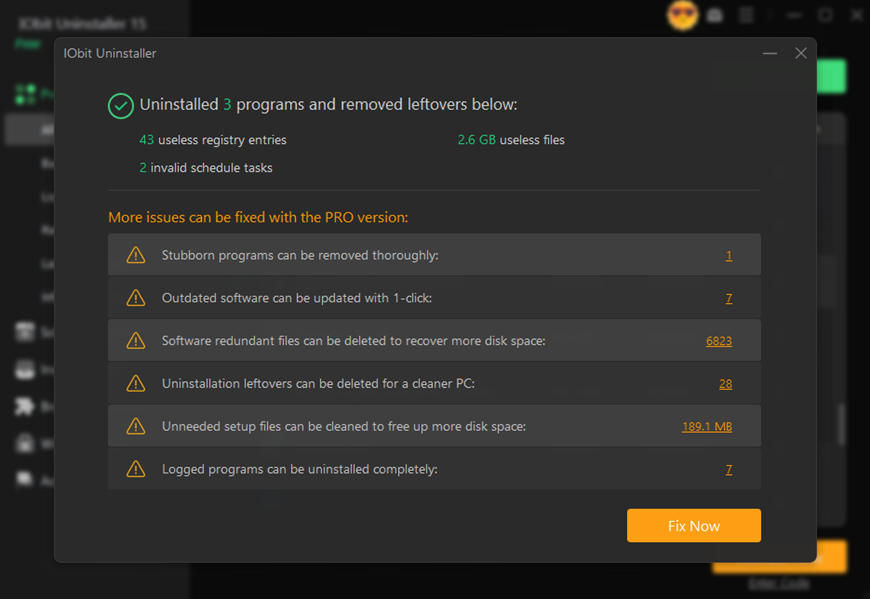
After everything was done, I noticed improvements both in day-to-day use and in simple numbers:
- Free space: I recovered several gigabytes that had been tied up in old program folders, installer caches and log files.
- Startup: boot time shortened because services and scheduled tasks from removed programs were no longer starting with Windows.
- Stability: Some small glitches, such as context menu delays and random warnings from old software, disappeared once the leftovers were gone.
- Browsing: with unwanted plug-ins removed and spam notifications blocked, my browsers felt more focused and less noisy.
The most interesting part was realising how many traces were left by programs I thought I had already uninstalled years ago. That hidden mess was what IObit Uninstaller revealed and cleaned.
What Still Annoys Me A Little
There were a few minor downsides:
- Deep scans and Software Health checks took noticeable time on my heavily used system, especially the first time. I had to schedule them when I was not in a hurry.
- The interface has many sections, such as Programs, Windows Apps, Browser Extensions, Install Monitor and Software Health. It took a little patience to learn where everything lives.
- When I turned on options like restore point creation and thorough cleanup, there were extra confirmation prompts. They are good for safety, but slow down large batch uninstalls.
None of these was serious problems, but they are worth keeping in mind.
Why I Keep IObit Uninstaller Installed
Looking back, IObit Uninstaller — a true uninstaller for Windows — did more than remove a few programs. It showed me that my PC was full of hidden leftovers, stubborn apps and unwanted plug-ins that the standard uninstaller had quietly ignored. By combining deep uninstalls, leftover cleaning, browser extension management and Software Health, it saved me from a mess I had built up without noticing over the years.
Now I open it regularly, remove software I no longer need and run a Software Health scan to keep those hidden traces under control. It is a simple routine, but it gives me a cleaner, faster and more predictable Windows machine than I had when I relied on basic tools alone.
