


Important files disappearing on a Mac can instantly disrupt your workflow, break focus, and slow progress on critical tasks. A project can fall apart the moment important files vanish, leaving you frustrated and under pressure to fix the damage. This situation happens because of a simple mistake, such as deleting the wrong file or mishandling storage.
The good news is that macOS manages file storage intelligently, which often leaves recoverable data behind temporarily. This guide explains how Mac’s file management system works and provides reliable methods to recover videos deleted from Trash.
Part 1. Inside Mac Trash: How Deleted Files Are Stored and Restored
Trash on Mac is a special folder that holds files you delete for a while. These deleted files are kept in the system for 30 days, after which they are deleted to release the free space. This setup allows a lot of time to locate and recover any valuable files you accidentally delete.

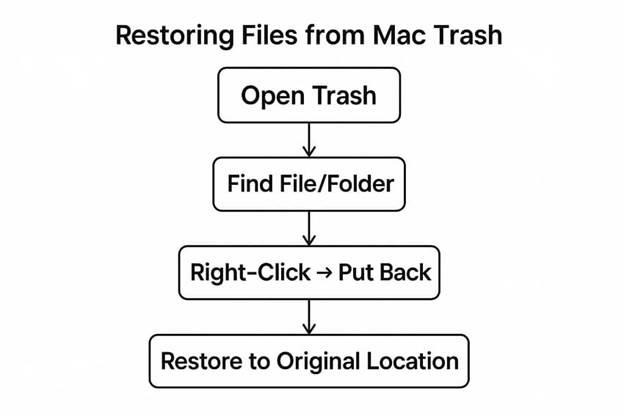
How to Restore Files from Trash
Before learning how to recover empty Trash Mac, look at how you can retrieve the videos from Trash.
● Open the Trash folder on your Mac by clicking the respective icon in the Dock.
● Browse the Trash to locate the specific file or folder you want to restore.
● Right-click the selected file and choose “Put Back” from the context menu to restore it.
● The restored file is returned to its original folder, preserving its name, location, and metadata.
Part 2. 5 Simple and Reliable Ways on How to Recover Empty Trash Mac
Once you know how Trash Mac recovery works, here are the top methods for how to recover deleted files Mac after empty Trash.
Method 1. Use Mac Data Recovery Software (Recoverit)
When videos are removed from the Trash, they disappear from Finder but remain on disk. In these cases, manual recovery methods fail, so specialized Mac recovery software becomes essential. This is where Wondershare Recoverit helps when videos are deleted from the Mac Trash. It provides a reliable way to restore lost video files without risking further data loss.
Recoverit scans the Mac’s storage for traces of deleted video files instead of writing risky new data blocks. This careful approach helps reduce the chance of overwriting important footage during recovery. The tool supports over 1,000 file types across thousands of storage devices. You can work with Mac computers, external drives, and many other devices with Recoverit.
Key Features
1. Advanced Search Filters: Users can apply filters like file type, size, and date to quickly locate specific files.
2. Preview Before Download: Before restoring, users can review scanned files in the Preview window to verify accuracy.
3. Cloud Recovery Support: Recoverit allows scanning iCloud and OneDrive storage to recover deleted files to a selected folder.
Guide to Recover Deleted Video After Emptying Trash With Recoverit
Having explored the key features, go through the steps below to learn how to how to recover empty Trash Mac:
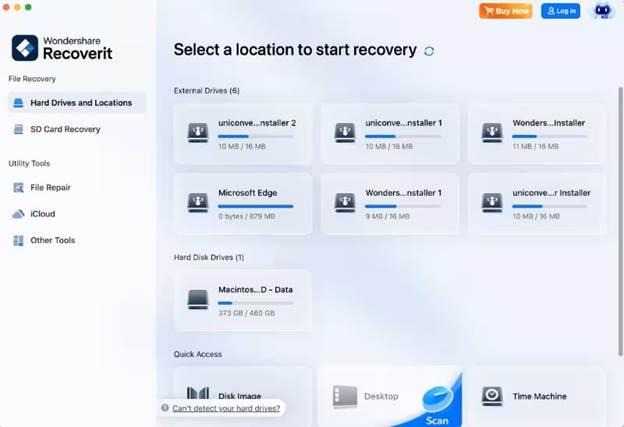
Step 1. Select the File Location to Begin the Scanning Process
Once you access the main interface, click the “Hard Drives and Location” tab in the left side menu. Afterwards, select a drive to initiate the scanning process.
Step 2. Apply Search Filers While Scanning
Next, move towards the top and click the “Filter” icon to access a drop-down menu. Now, select filter types, like “File Type” and “File Size,” to narrow down the process.
Step 3. Preview The Scanned Files Before Exporting
Once the videos start appearing in the “File Path” panel, view them in the “Preview” screen. If the scanned videos are correct, hit the “Recover” button to save them to your Mac.

Method 2. Recover Deleted Files from Time Machine Backup
Time Machine provides one of the safest ways to recover deleted files on a Mac after emptying the Trash. It creates incremental backups of your Mac to preserve previous versions of important files. When Trash has been emptied, these backups often become the most reliable recovery option. Now, follow the steps below to learn how to recover deleted files Mac after empty Trash with a Time Machine backup:
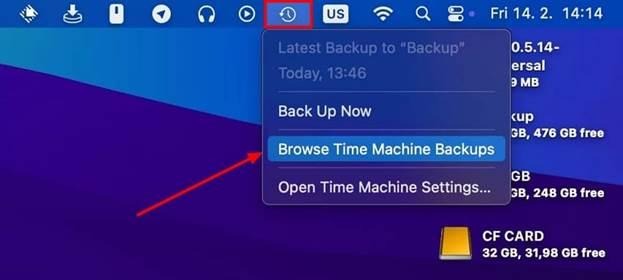
Step 1. Open the location where the video was located before deleting and press the “Time Machine” icon at the top. Next, click the “Browse Time Machine Backups” option in the drop-down menu.
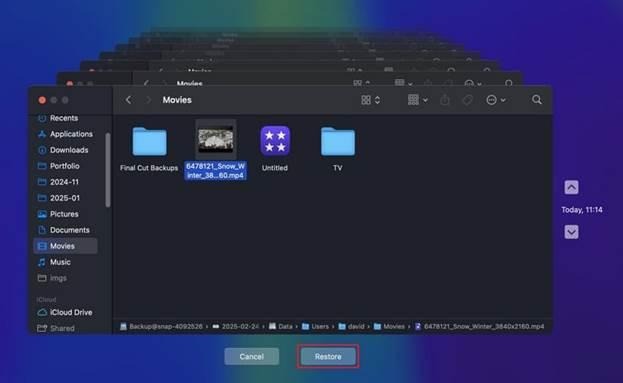
Step 2. Afterwards, use the timeline on the right side to locate the date when the video was available. Next, right-click the video and press the “Restore” option in the context menu to retrieve it.
Method 3. Recover Videos from iCloud Drive/Recently Deleted
Many users exploring how to recover empty Trash Mac overlook iCloud Drive and Recently Deleted. These built‑in Apple services often keep extra copies of videos beyond the local Trash. They provide a valuable safety net when files disappear from Finder but remain synced online. Adhere to the steps below to recover deleted videos from iCloud Drive:
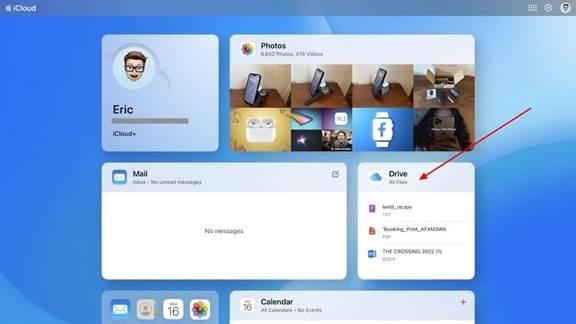
Step 1. Open “iCloud.com” and sign in to your Apple ID using your account details. Afterwards, click the “Drive” option on the main interface and find your video within the files.
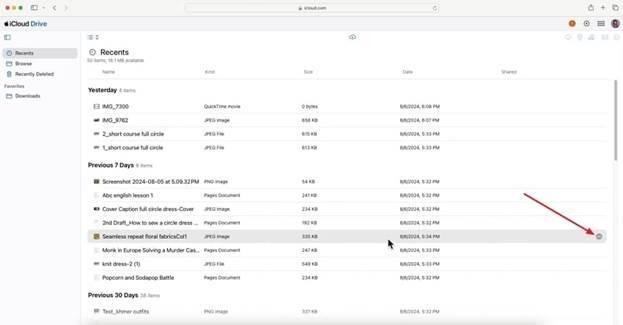
Step 2. Once you successfully find your video in the Drive, press the “Three Dots” icon on the right side to download the deleted video.
Method 4. Recover from External Drives or SD Cards with Recovery Tools
External drives and SD cards often hold irreplaceable videos that disappear without any clear warning. When users try to recover videos deleted from Trash, these removable devices may still keep hidden fragments of the original files.
Specialized recovery tools can scan external media sector by sector, revealing clips that are missing entirely of the standard methods. Recoverit can be used to recover videos from SD cards and external drives, among other storage media. This makes Recoverit a strong choice when removable storage seems to have lost everything.

Method 5. Recover from Third-Party Cloud Backups
Many users search for how to recover empty Trash Mac and forget about cloud backups. Third‑party services like Dropbox and Google Drive often keep older file versions or hidden trash folders. These online backups can quietly preserve deleted Mac files, providing another chance to restore important data. Let’s learn how you can restore your deleted videos from Cloud backups with the following steps:
Step 1. Start by opening Chrome and pressing the “Google Apps” icon to access your Google Drive.

Step 2. Afterwards, locate your file in the Drive storage and press the “Three Dots” icon on the right side to download it to your Mac.

Conclusion
To conclude, this article covers the most effective methods on how to recover deleted files Mac after empty Trash. These approaches help restore lost footage safely, though manual methods like checking Trash, iCloud, or Time Machine may not always succeed. For a reliable solution, consider using Recoverit to recover videos while preserving their quality and file integrity.
