


In today’s digital world, MP4 has become one of the most commonly used video file formats. From smartphones to digital cameras, MP4 files are valued for higher quality, efficient compression, and broad compatibility across multiple devices. Despite these features, MP4 videos occasionally become corrupted, leading to playback failures or error messages like “file format not supported” or “cannot play this file.”
Fortunately, several MP4 video repair methods are available that you can try to fix your corrupt or damaged videos with ease. In this ultimate guide to repair corrupt MP4 video files, we’ll walk through everything you need to know to fix your corrupt MP4 video files. Keep reading this guide to learn what causes MP4 corruption, how to identify it, and step-by-step methods—both manual and software-based—to repair corrupt MP4 video files effectively.
Common Reasons for MP4 File Corruption
Before jumping to video repair fixes, try understanding the exact reasons for your video corruption. Identifying the cause can help you determine the most effective repair approach. Here are a few main reasons:
Interrupted Recording
There may be some problem while recording your video files, such as your camera, smartphone, or screen recorder losing power mid-recording, which prevents the MP4 file from finalising properly and leads to corruption.
Improper File Transfer
If your video transfer is interrupted due to cable disconnection, damaged memory card, or any other reason, it may result in incomplete or damaged files.
Storage Device Errors
Errors such as bad sectors, corrupted SD cards, or failing hard drives can damage stored MP4 files, making them partially or completely unreadable.
Software Crashes
Sometimes, video editing or recording software crashes unexpectedly during saving or exporting, which results in incomplete or structurally corrupted MP4 files.
Viruses or Malware Attacks
Malicious programs like viruses or malware can infect your PC and modify, delete, or damage MP4 video data, leading to playback errors or files becoming inaccessible.
Initial Steps to Check Before Advanced MP4 File Repair Fixes
In this section, we’ve outlined quick pre-requisites that you can check from your end before moving to advanced methods for video file repair:
1: Try Playing Your Video in Different Media Player
Sometimes, the issue is not with your MP4 file. It’s the video player which prevents your videos from playing properly. To confirm the same, try playing your videos in any other media player such as VLC Media Player, Windows Media Player, or QuickTime.
2: Copy Video to Another Location
Move your MP4 file to a different folder, drive, or computer. Sometimes, this helps to fix problems related to storage device errors or file system issues.
3: Inspect Your Storage Device
As mentioned above, your damaged storage device may prevent MP4 files from playing properly. It’s good practice to check the device (SD card, USB drive, or external hard disk) for errors or bad sectors using built-in disk-checking tools.
4: Scan for Malicious Programs
Run a reliable antivirus software on your device to ensure the MP4 file or storage device is not affected by malicious programs, such as viruses or malware, which could damage or block video playback.
5: Restart Your System
A simple system restart can clear temporary glitches or software conflicts that may interfere with video playback.
How to Repair Corrupt MP4 Video Files? [Advanced Methods]
Now that you are familiar with some common reasons for your video corruption, it’s important to immediately proceed with adequate video repair fixes. You can apply the following methods one-by-one to bring your MP4 video files back to a playable state:
Method 01: Repair Videos Using VLC Media Player
VLC is a free, open-source multimedia tool popularly known for its compatibility with several video file formats. The built-in VLC Media Player on Windows not only allows you to play your video files, but also helps in fixing minor corruption issues. It works best when the video data itself is intact, but the file index or container information is damaged.
VLC player includes an automatic repair function for damaged AVI files, which can also help if you first rename your MP4 file to AVI. Here’s how:
- Firstly, rename your video by changing its file extension from .mp4 to .avi.
- Now, launch the VLC media player and go to Tools > Preferences.

- Click Input / Codecs.
- Next to the Damaged or incomplete AVI file drop-down, select Always Fix.

- Save the settings and open the renamed AVI file in VLC.
- Once done, VLC will automatically try to repair the file and may restore playback functionality.
Method 02: Repair MP4 Files with FFmpeg
FFmpeg is another powerful open-source command-line tool designed to decode, encode, and transcode video files. This method works best when the video data is intact, but the container or index is damaged. However, it requires some technical knowledge and may seem complex for beginners.
To repair corrupt MP4 videos using FFmpeg:
- Download FFmpeg from its official website and extract its files to a folder on your computer.
- Press the Windows + R keys, type cmd in the search box, and press Enter.
- Now, type the following command: ffmpeg -i corrupt.mp4 -c copy repaired.mp4 and press the Enter key.
- If the above command fails to fix playback issues, try rebuilding the MP4 index using the command: ffmpeg -err_detect ignore_err -i corrupt.mp4 -c copy repaired.mp4
After successful completion of the repair process, open repaired.mp4 in a media player like VLC and check if the video plays correctly.
Method 03: Fix MP4 Video Files Using Online Repair Tools
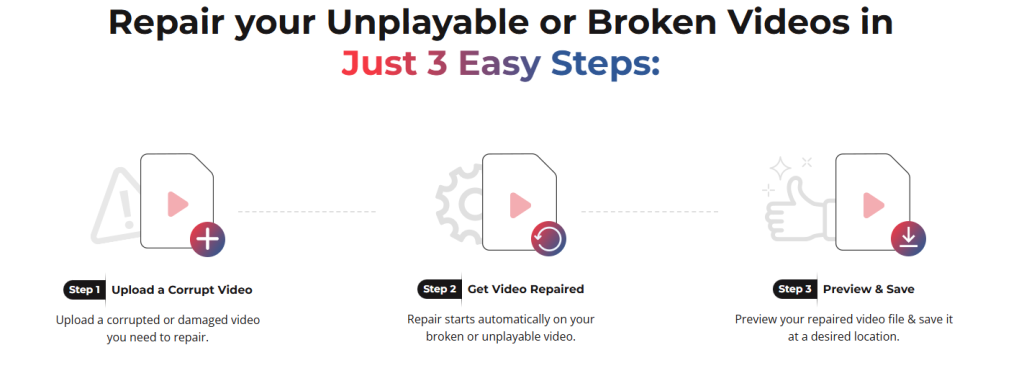
If the aforementioned methods fail to repair corrupt MP4 video files, try using an online video repair tool for easy and quick fixes. One of the most widely used tools is Stellar Repair for Video Online, which is designed to fix corrupt or damaged videos directly from a web browser, i.e., no need to install any third-party software on your device. This software can easily fix several corruption issues that can affect MP4 videos—such as files that won’t open, have a black screen, choppy playback, or sync issues between audio and video.
Why Stellar Repair for Video Online Tool to Fix Corrupt MP4 Videos?
This online video repair tool is known for several amazing features, such as:
- It allows you to repair damaged videos directly from your browser, which is especially convenient for quick fixes or troubleshooting.
- This video repair tool offers a simple and easy-to-use interface, allowing even users with minimal technical expertise to easily repair corrupt videos.
- The Stellar Repair for Video Online software is compatible with multiple image file formats such as MP4, MOV, AVI, MKV, and more.
- You can easily repair videos captured from various sources such as smartphones, DSLRs, action cameras, and drones.
Additional Tip: How to Avoid MP4 Video Corruption?
While repair is easily possible using the aforementioned MP4 repair fixes, prevention of video corruption is always better. Below are some best practices that you can consider to protect your MP4 files from further damage:
- Stabilise Your Recording Device: Keep the camera, mobile, or your recording device stable while capturing videos to prevent shaky footage, interruptions, or corrupted MP4 files caused by sudden movements.
- Safely Eject Storage Devices: Always use the “Eject” or “Safely Remove” option when disconnecting external drives or memory cards from your computer.
- Avoid Interruptions During File Transfers: Wait until transfers are fully complete and avoid unplugging cables or devices during file transfers.
- Keep Backup Copies: Maintain multiple backups of important videos on different devices or cloud storage.
Wrapping Up
Repairing corrupt MP4 videos may seem challenging, but with the right approach, your damaged videos can be easily repaired. From simple solutions like VLC and FFmpeg to advanced professional online video repair software, there are multiple methods available depending on the severity of the corruption. Try finding the exact cause of your damaged video, then proceed with adequate video repair fixes to restore your videos safely. Moreover, adopting good recording and storage practices will help ensure that your MP4 videos remain safe and playable in the future.
With this ultimate guide, you now have the knowledge and tools to confidently tackle MP4 video corruption—turning frustration into recovery and lost footage into restored content.
