

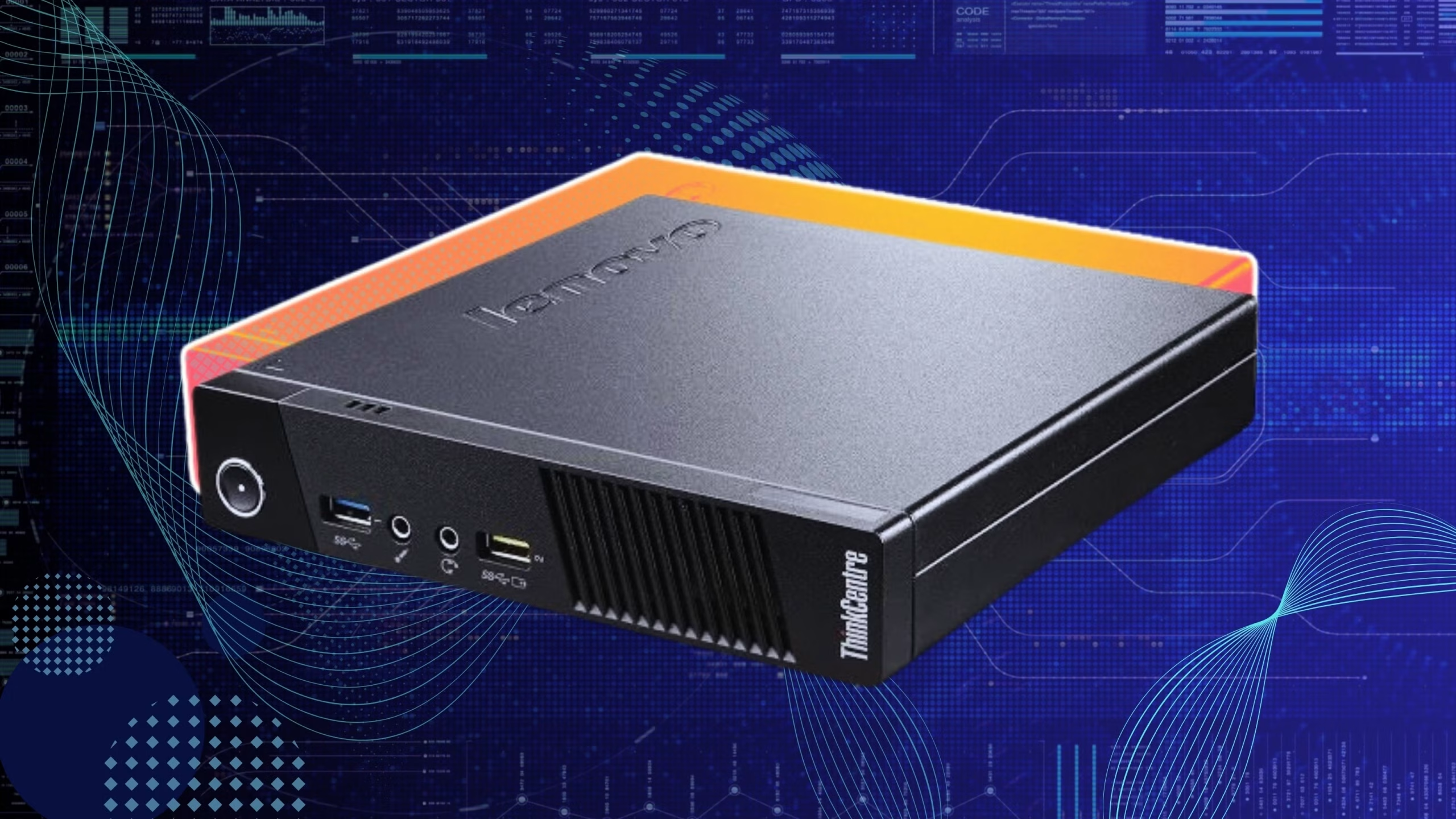
The homelab revolution is here, and enthusiasts everywhere are discovering the power of compact, efficient systems for managing their digital lives. As streaming libraries grow and precious data accumulates, the challenge becomes clear: how do you create a reliable setup for media streaming and comprehensive data backups without dedicating an entire room to server racks? Enter the Intel Mini PC—a surprisingly powerful solution that fits in the palm of your hand yet delivers enterprise-grade performance. This versatile device serves as the perfect foundation for running a Plex media server while simultaneously handling critical data backup operations. In this guide, we’ll walk you through configuring your Intel Mini PC for both purposes, with special attention to integrating ZimaOS for streamlined management. Whether you’re a data backup enthusiast looking to protect irreplaceable files or a media lover wanting seamless streaming across devices, this step-by-step approach will help you build a robust, efficient homelab that meets all your needs.
Why an Intel Mini PC is the Perfect Foundation for Homelabs
Intel Mini PCs have emerged as the ideal cornerstone for homelab environments, combining remarkable performance with practical advantages that traditional servers simply can’t match. These compact powerhouses consume a fraction of the electricity compared to full-sized servers—typically drawing between 15-65 watts under load—which translates to significant savings on your energy bill while reducing your environmental footprint. Their small form factor means they can sit discreetly on a desk or shelf without dominating your living space, yet they pack sufficient processing power to handle demanding tasks like Plex transcoding and simultaneous data backup operations. The cost-effectiveness is equally compelling, with capable units available at price points that make building a homelab accessible to enthusiasts at any budget level. For Plex servers specifically, modern Intel Mini PCs feature integrated graphics with Quick Sync technology, enabling hardware-accelerated transcoding that ensures smooth streaming to multiple devices simultaneously. When it comes to data backups, these systems offer multiple drive bays or USB ports for external storage expansion, allowing you to implement comprehensive backup strategies without compromise. This combination of efficiency, performance, and affordability makes Intel Mini PCs particularly attractive to data backup enthusiasts who need reliable, always-on systems that won’t break the bank or heat up the room.

Step-by-Step Guide to Setting Up a Plex Server on Your Intel Mini PC
Choosing the Right Intel Mini PC Hardware for Plex
Selecting appropriate hardware determines your Plex server’s capabilities. For smooth streaming, target an Intel processor from the 8th generation or newer with integrated graphics supporting Quick Sync Video—this enables efficient hardware transcoding that reduces CPU load dramatically. Aim for at least 8GB of RAM to handle multiple simultaneous streams and background processes, though 16GB provides comfortable headroom for demanding scenarios. Storage requires careful consideration: install Plex on a fast SSD for quick library scanning and metadata loading, while housing your media files on larger capacity drives. If you plan to serve 4K content or support more than three concurrent transcoding streams, prioritize processors with higher core counts and ensure adequate cooling to maintain performance during extended operation.
Installing and Configuring Plex Media Server Software
Begin by downloading the Plex Media Server installer from the official Plex website, selecting the version matching your operating system. Run the installer and follow the prompts, then access the web interface at localhost:32400/web to complete initial setup. Create or sign into your Plex account to enable remote access and device synchronization. Add media libraries by clicking “Add Library,” selecting the content type, and pointing Plex to your media folders—organize files beforehand using clear folder structures like “Movies/Movie Title (Year)” for optimal metadata matching. Configure remote access in settings to enable streaming outside your home network, ensuring your router’s port forwarding is properly configured. Enable automatic library updates so new content appears without manual scanning.
Optimizing Your Plex Server for Smooth Streaming
Navigate to Settings and enable hardware acceleration under Transcoder settings, selecting your Intel integrated graphics to offload processing from the CPU. Set transcoder quality to “Automatic” initially, adjusting based on your network bandwidth and client device capabilities. Configure your network settings to use a wired Ethernet connection rather than Wi-Fi for the server itself, ensuring stable, high-bandwidth connectivity. Adjust remote streaming quality limits based on your upload speed—conservative settings prevent buffering for remote users. Monitor playback using the Plex dashboard to identify transcoding bottlenecks, then adjust client settings or upgrade problematic streams to compatible formats. Regularly update Plex server software to benefit from performance improvements and bug fixes that enhance streaming reliability.
Implementing Robust Data Backup Strategies with Your Intel Mini PC
Best Practices for Data Management and Backup Planning
The foundation of any reliable backup strategy rests on the 3-2-1 rule: maintain three copies of your data, store them on two different media types, and keep one copy offsite. For homelab environments, this translates to your primary data on the Intel Mini PC, a local backup on attached storage, and a remote copy via cloud services or external drives stored elsewhere. Schedule automated backups during low-usage periods—typically overnight—to minimize performance impact on your Plex server and other services. Implement incremental backups rather than full backups for daily operations, reserving complete system images for weekly or monthly intervals to balance storage efficiency with recovery speed. Regular data integrity checks through checksum verification ensure your backups remain uncorrupted and recoverable when needed, providing peace of mind that your irreplaceable files remain protected against drive failures or accidental deletion.
Setting Up Automated Backups Using NAS Solutions on Intel Mini PC
Transform your Intel Mini PC into a functional NAS by installing software like TrueNAS Core, OpenMediaVault, or Unraid, which provide web-based interfaces for managing storage and backups. Connect external drives via USB 3.0 or install additional internal drives if your Mini PC supports expansion, then configure storage pools with appropriate RAID levels—RAID 1 for simple mirroring or RAID 5 for larger arrays balancing redundancy with capacity. Set up shared network folders using SMB or NFS protocols, making them accessible to other devices on your network for centralized backup destinations. Configure automated backup jobs using built-in schedulers or tools like rsync, targeting specific folders from computers, phones, and tablets to your NAS. Enable snapshot functionality if supported, creating point-in-time copies that protect against ransomware and accidental modifications without consuming excessive storage space.
Software Recommendations for Effective Data Backup
For comprehensive backup solutions, Duplicati offers encrypted, incremental backups to local drives and cloud destinations with scheduling and versioning capabilities. Restic provides fast, secure backups with deduplication that minimizes storage requirements while maintaining multiple restore points. Syncthing excels at real-time file synchronization across devices, keeping important folders continuously backed up without manual intervention. Veeam Agent for Linux delivers enterprise-grade backup features including bare-metal recovery for complete system restoration. For simpler needs, Rclone handles cloud storage synchronization across dozens of providers with excellent performance and reliability. These solutions integrate seamlessly with Intel Mini PC hardware, offering flexible deployment options whether running directly on the host OS or within Docker containers for isolated, manageable backup environments that complement your Plex server operations.
Integrating ZimaOS for Enhanced Homelab Management and Compatibility
Introduction to ZimaOS and Its Benefits for Homelabs
ZimaOS represents a purpose-built operating system designed specifically for homelab and personal cloud environments, offering an intuitive web-based interface that simplifies complex server management tasks. Unlike traditional Linux distributions requiring command-line expertise, ZimaOS provides visual controls for managing storage, applications, and network services, making advanced homelab capabilities accessible to users of all skill levels. The platform excels at Docker container management, allowing you to deploy Plex servers, backup solutions, and dozens of other applications with single-click installations. Built-in support for RAID configurations, network sharing protocols, and automated backup scheduling means your Intel Mini PC becomes a comprehensive data management hub without extensive manual configuration. For those running both Plex media servers and data backup operations, ZimaOS unifies these functions under one cohesive interface, eliminating the need to juggle multiple management tools while maintaining system stability and performance.
How to Install and Configure ZimaOS on Your Intel Mini PC
Download the ZimaOS installer image from the official website and create a bootable USB drive using tools like Rufus or Balena Etcher. Boot your Intel Mini PC from the USB drive by accessing the BIOS boot menu, then follow the installation wizard to select your target drive and complete the base system installation. After the initial boot, access the ZimaOS web interface by entering the displayed IP address into any browser on your network. Complete the setup wizard by creating an admin account, configuring network settings, and connecting storage drives. Import your existing Plex configuration by installing the Plex Docker container from the ZimaOS app store, then mounting your media library folders to the container. Migrate backup configurations by setting up your preferred backup software through Docker or native ZimaOS backup features, ensuring all scheduled tasks transfer correctly and storage paths remain accessible to maintain continuity in your data protection strategy.
Top Compatible Apps and Software for ZimaOS Devices
ZimaOS supports an extensive application ecosystem through its integrated Docker management system. Plex Media Server runs seamlessly with hardware transcoding support, while Jellyfin offers an open-source alternative for media streaming. For backups, Duplicati provides comprehensive scheduled backup capabilities with cloud integration, while Restic delivers efficient deduplication for space-conscious storage. Nextcloud transforms your Intel Mini PC into a complete personal cloud platform with file synchronization, calendar, and contacts management. Home Assistant enables smart home integration, consolidating automation alongside your media and backup operations. Portainer gives advanced users granular control over Docker containers when needed. AdGuard Home provides network-wide ad blocking and DNS management. These applications install through ZimaOS’s app store interface, with pre-configured templates ensuring compatibility with your Intel hardware while maintaining the system stability essential for reliable homelab operations serving both entertainment and critical data protection needs. For users seeking dedicated network-attached storage hardware, Zima offers purpose-built devices that pair naturally with ZimaOS for expanded storage capabilities.
Building Your Complete Homelab Solution
Configuring an Intel Mini PC as both a Plex media server and comprehensive data backup solution creates a powerful, efficient homelab that addresses the core needs of modern digital life. By following the steps outlined—selecting appropriate hardware, installing and optimizing Plex for seamless streaming, implementing the 3-2-1 backup rule with automated NAS solutions, and integrating ZimaOS for simplified management—you’ve built a robust system that protects irreplaceable data while delivering entertainment across all your devices. For data backup enthusiasts, this setup offers the reliability and redundancy essential for peace of mind, with automated processes ensuring continuous protection without constant manual intervention. The compact, energy-efficient nature of Intel Mini PCs means your homelab runs quietly in the background, consuming minimal power while providing maximum functionality. As your needs grow, this foundation scales effortlessly—add more storage, expand backup destinations, or deploy additional services through ZimaOS’s extensive app ecosystem. The investment you’ve made in configuring this system pays dividends through reduced subscription costs, complete control over your data, and the satisfaction of building a professional-grade solution tailored precisely to your requirements. Your homelab journey has just begun, with endless possibilities for expansion and refinement ahead.
