

Searching for messaging software sounds simple until the results page mixes brand pages, Windows guides, download directories, advertisements, regional-language resources, and third-party mirrors. Several results may use similar words such as “official,” “desktop,” or “download,” even though they serve very different purposes.
The safest and fastest workflow is to identify the user’s intent first, then match that intent with the correct type of page. Someone who wants general product information does not necessarily need an installer. Someone who already knows the product and only needs the Windows client should not have to navigate through unrelated articles or download wrappers.
| Key takeaway: Treat discovery, verification, and installation as three separate stages. A relevant search result is not automatically a trusted software source, and a familiar product name is not enough to verify an installer. |
Start by Reading the Search Result, Not Just the Headline
Before clicking, look at the domain, page title, result description, and the role the page appears to serve. Search engines can surface many useful resources, but usefulness and software provenance are not the same thing. A tutorial can explain installation well without being the place where the installer itself should come from.
- Brand or product page: useful for identity, general information, and support navigation.
- Windows or desktop guide: useful for compatibility, setup context, and workflow advice.
- Download page or mirror: may host an installer; verify the source and publisher carefully.
- Regional-language guide: useful for localized instructions but not automatically the software publisher.
- Advertisement or bundled download page: may lead somewhere other than the intended application.
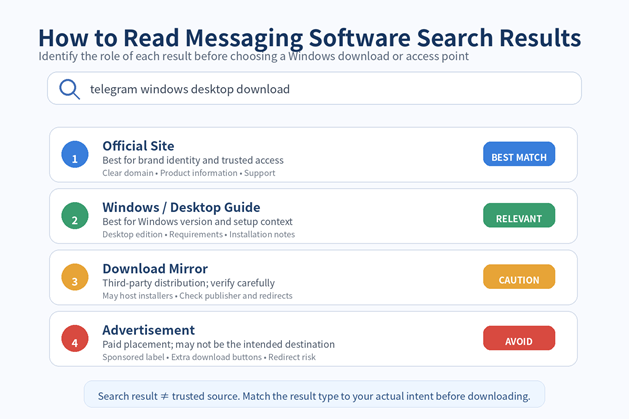
Figure 1. Search results can play very different roles. Match the result type to the task before you download anything.
Separate “Access” Intent From “Download” Intent
Many users begin with a broad search and only later decide whether they need a website, a web session, or a Windows installer. Separating those tasks makes it easier to evaluate each page on the right criteria.
A query or resource labeled Telegram 下载入口 is naturally associated with download intent. Users reaching that kind of page should still confirm what is being offered: a Windows installer, a desktop guide, a redirect to another source, or general instructions. The page role should be clear before the user executes any file.
By contrast, a user who only wants product information or a place to begin may not need to download anything at all. Keeping “learn,” “access,” and “install” as separate intents reduces unnecessary software execution and makes the search journey easier to understand.
Verify the Access Point Before Trusting a Download Path
A phrase such as Telegram 官方入口 usually reflects navigational intent: the user is trying to find a primary or trusted starting point. The phrase itself should not be treated as proof that every page using it is controlled by the software vendor.
Read the domain carefully and understand whether the page is a vendor destination, an independent guide, a regional resource, or a download directory. If the page eventually leads to an installer, users should be able to understand that route without unexplained redirects or unrelated software offers.
- Look for a clear connection between the page topic and the software being requested.
- Check whether the download destination changes to an unrelated domain.
- Avoid pages that require an extra “download manager” or browser extension before the real package appears.
- Treat guides and regional resources as information sources unless the software provenance is independently verified.
- If anything in the path is unclear, stop before running the downloaded file.
Choose the Right Windows Access Method
Windows users may encounter several access methods, and each is appropriate in a different situation. A desktop client is usually best for ongoing daily use, a web interface is useful for temporary or restricted computers, and an installer package is needed when setting up a fresh local client.
- Desktop client: persistent notifications, file handling, keyboard shortcuts, and long-running sessions.
- Web access: quick use without a local installation, especially on temporary or locked-down machines.
- Installer package: appropriate when a verified Windows application needs to be installed or reinstalled.
- Store-managed distribution: useful when an organization prefers centralized or platform-managed application delivery.
The presence of multiple options is not a problem by itself. The important step is to choose the method that matches the task instead of assuming every “Download” button leads to the same type of package.
Inspect the Windows Installer Before You Run It
After downloading a Windows package, take a moment to inspect the file before launching it. Basic metadata can reveal obvious mismatches and helps users understand what Windows is about to execute.
- Filename and file type: confirm that the package format makes sense for the expected application.
- Publisher information: review the publisher shown in file properties or the installation prompt.
- Version information: check whether the package identifies a plausible product and version.
- Digital signature: when available, review the signer and whether Windows reports the signature as valid.
- Security scan: scan the file with Microsoft Defender or the organization’s endpoint-security tool before execution.
- SmartScreen or other warnings: investigate unexpected warnings instead of dismissing them automatically.
No single check is perfect. A signature can provide useful publisher evidence, while a security scan can identify known threats, but the strongest decision comes from combining the source, domain, package metadata, and security signals.
Avoid Download Wrappers, Bundled Installers, and Misleading Buttons
Software-related pages sometimes place several buttons labeled “Download” around the main content. Some lead to advertisements, browser extensions, system utilities, or an intermediary installer rather than the application the user intended to obtain.
Be cautious if clicking the button opens several redirects, downloads a file whose name does not resemble the requested software, or launches a separate “download assistant.” A transparent download path is easier to verify and easier to repeat later when the client needs an update.
Review Every Installation Screen
Even when the source appears legitimate, read the setup screens. Installation dialogs may offer startup behavior, shortcuts, update preferences, or optional components. Users should understand what will change on the PC before accepting each step.
After installation, open Windows Settings and verify that the expected application appears. If unrelated programs, browser changes, or unfamiliar background utilities were installed at the same time, reconsider the source and remove unwanted software according to the organization’s normal security process.
Keep Updates and File Downloads Under Control
The trust decision should not be repeated from scratch for every update. Once users have an established desktop client and a known update path, they should prefer that consistent route rather than searching the web for a new installer each time.
The same principle applies to files received inside the messaging application. Configure a dedicated Windows download folder, control automatic downloads according to the types of files the user actually needs, and move important documents into long-term project storage. Executable files and unfamiliar archives deserve additional review before opening.
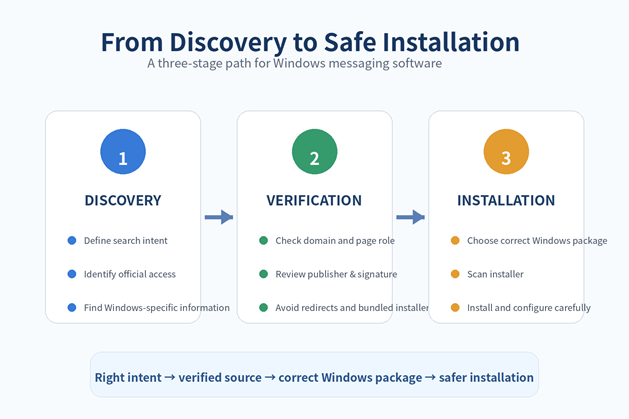
Figure 2. A reliable Windows software workflow moves in order from discovery to verification to installation, with each stage answering a different question.
A Practical Windows Messaging Software Checklist
- Define the task: product information, web access, Windows desktop use, or a fresh installer.
- Read the domain and page role before clicking a download button.
- Confirm that the destination matches the product and Windows intent.
- Avoid unexplained redirects, unrelated helper tools, and bundled download managers.
- Check the installer filename, publisher, version, and available digital signature.
- Scan the file and investigate unexpected Windows security warnings.
- Read each installation screen instead of clicking through automatically.
- Verify the installed application and confirm that no unrelated programs appeared.
- Use a stable update path for future versions.
- Keep messaging attachments in a managed download folder and move important files into long-term storage.
Final Thoughts
Finding the right Windows messaging software is less about searching harder and more about separating the steps. Discovery tells you which product or resource you need. Verification tells you whether the access path and installer make sense. Installation is the final action only after the first two questions have been answered.
This structure also makes search results easier to evaluate. A guide can be useful without being a download source, a localized resource can help without being the software publisher, and a familiar brand phrase can still lead to pages with different roles. When users match intent to page type and verify the installer before execution, the entire Windows download process becomes clearer and safer.
