

Introduction to Tirar Print Chrome
The phrase “tirar print Chrome” means taking a screenshot while using Google Chrome. Whether you want to save an important webpage, capture an error message, share information with someone, or keep a record of something you found online, taking a screenshot can be extremely tirar print chrome useful. Google Chrome provides several convenient ways to capture what appears on your screen, and users can also take advantage of built-in operating system tools and browser extensions. Understanding these methods makes it easier to choose the right option depending on whether you need to capture the entire screen, a specific area, or a complete webpage.
How to Tirar Print Chrome on Windows
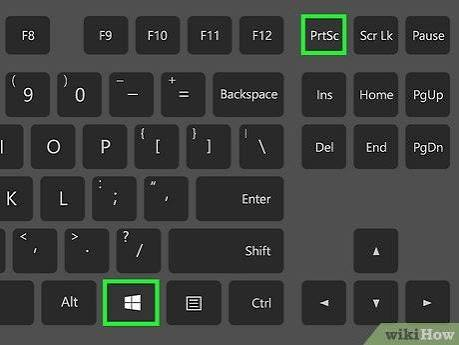
Windows users have several simple options for taking a screenshot in Chrome. One of the most common methods is using the Print Screen key, often labeled as PrtSc, PrtScn, or Print Scr. Pressing this key captures the visible screen and places the image on the clipboard. You can then open an application such as Paint, paste the screenshot, and save it as an image file. Another convenient Windows shortcut is Windows + Shift + S, which opens the Snipping Tool interface. This allows you to select a rectangular area, a specific window, or another portion of the screen.
Using Chrome DevTools for Screenshots
Google Chrome also provides a powerful screenshot option through Developer Tools. This method is especially useful when you want to capture a webpage or a particular part of it. To open Developer Tools, press Ctrl + Shift + I on Windows or Command + Option + I on Mac. After opening the tools, you can access the command menu and search for screenshot-related commands. Chrome can provide options for capturing a visible area, a selected portion, or even an entire webpage. This method is particularly helpful for developers, designers, researchers, and users who need more control over their screenshots.
Taking a Full-Page Screenshot in Chrome
Sometimes a normal screenshot is not enough because the webpage is longer than the visible screen. A full-page screenshot allows you to capture content that requires scrolling. Chrome’s Developer Tools can be used to capture an entire webpage in supported versions of the browser. After opening DevTools, access the command menu and search for the screenshot option that captures the full page. Chrome then generates an image containing the page from top to bottom. This is useful for saving articles, documenting webpages, reviewing layouts, or sharing long pages with others without taking multiple screenshots.
Screenshot Extensions for Chrome
Another way to tirar print Chrome is by using a browser extension. Chrome Web Store offers screenshot and screen-capture extensions that can add features beyond the browser’s standard capabilities. Depending on the extension, you may be able to capture visible content, selected areas, complete webpages, or even record your screen. Some tools also include editing functions, allowing you to add arrows, highlights, text, shapes, or blur sensitive information before saving or sharing the screenshot. When installing an extension, users should review its permissions, reputation, and developer information before giving it access to browser data.
How to Take a Screenshot on Mac Using Chrome
Mac users can take screenshots in Chrome without installing additional software. The Command + Shift + 3 shortcut captures the entire screen, while Command + Shift + 4 lets you select a specific area. If you want to capture a particular window, additional screenshot options can be accessed through the Mac screenshot interface. These built-in tools make it easy to capture Chrome content and save the resulting image. For longer webpages, Chrome’s Developer Tools can provide a more suitable solution when a full-page screenshot is required.
Capturing Only a Specific Part of a Webpage
There are many situations where you may not want to capture the entire Chrome window. For example, you might only need a particular paragraph, image, button, or section of a webpage. Selecting a specific area helps keep the screenshot clean and focused. Windows Snipping Tool, Mac screenshot controls, and several Chrome extensions allow you to select exactly what you want to capture. This can be particularly useful when creating tutorials, reporting technical problems, preparing presentations, or sharing information through messaging applications.
Editing and Saving Chrome Screenshots
After taking a screenshot, editing it can make the image more useful. Basic editing can include cropping unnecessary areas, adding text, highlighting important information, or covering private details. Windows and Mac both provide basic tools for working with screenshots, while dedicated image editors and Chrome extensions can offer additional features. Before sharing a screenshot publicly, it is always worth checking the image for personal information such as email addresses, account details, private messages, or other sensitive content.
Why Screenshots Are Useful
Screenshots are valuable for many different purposes. Students can use them to save educational material, workers can document online tasks, and technical users can capture error messages when requesting support. Website owners and designers can use screenshots to record webpage layouts and compare changes over time. Screenshots can also be useful when communicating with customer service because an image can show exactly what appeared on the screen instead of requiring a lengthy written explanation.
Choosing the Best Chrome Screenshot Method
The best method depends on what you need to capture. For a quick visible screenshot, operating system shortcuts are usually the fastest choice. If you need a full webpage, Chrome Developer Tools can be more appropriate. If you frequently capture and annotate online content, a reputable Chrome extension may provide additional convenience. Choosing the right method can save time and produce cleaner results.
Conclusion
Learning how to tirar print Chrome is simple and useful for everyday browsing. Chrome users can rely on Windows or Mac screenshot shortcuts, Chrome Developer Tools, or trusted browser extensions depending on their needs. Whether you want to capture a small section, the visible browser window, or an entire webpage, there is a practical method available. With the right screenshot technique, saving, documenting, editing, and sharing information from Chrome becomes faster and more convenient.
