

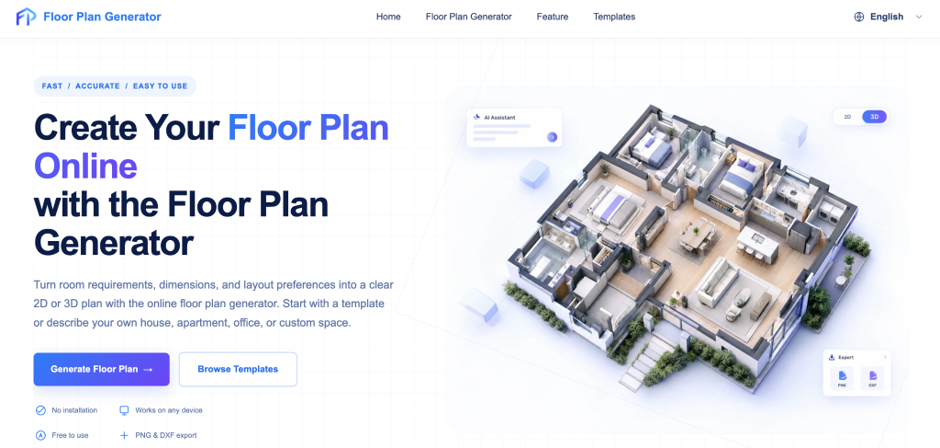
An AI floor plan generator free to use can convert a hand-drawn sketch into a clean, editable floor plan in about a minute, no drafting skills needed.
You’ve drawn the layout on graph paper, maybe on the back of an envelope. The walls are roughly straight, the kitchen sits where you want it, and now you need something a contractor, a buyer or a landlord can actually read. Redrawing it in CAD takes hours. An AI floor plan generator free to use can handle the first pass in about a minute, and many tools will convert a sketch into a floor plan straight from a phone photo. This guide explains how they work, how to get clean results, and where the free versions fall short.
What Is an AI Floor Plan Generator?
An AI floor plan generator is software that produces a 2D layout, complete with labelled rooms, walls, doors and windows, from an input you supply: a text description, a photo, a PDF or a hand-drawn sketch. Most return an editable plan in under a minute, and many offer a free tier.
Two kinds of tool hide under that label. Mixing them up is the most common reason people end up disappointed.
Text-to-plan generators
You type something like “three-bedroom apartment with an open kitchen and a master suite” and the tool invents a layout. That’s handy when you have no drawing yet and want ideas. The catch is that the AI chooses the proportions, so the result can look polished and still not fit your actual plot.
Sketch-to-plan converters
These read a drawing you’ve already made. They detect walls, rooms and openings, then redraw them as straight, tidy lines. The design stays yours; the software only cleans it up. Image-to-plan tools are close cousins, but they digitise existing blueprints or listing plans rather than freehand lines.
How Do You Convert a Sketch Into a Floor Plan?
To convert a sketch into a floor plan, photograph or scan the drawing, upload it to a sketch-to-plan tool, let the AI detect the walls and rooms, fix any mistakes in the editor, and export the result. The conversion itself usually takes 30 to 60 seconds. The review is what takes longer.
- Draw the layout on plain white paper with a dark pen.
- Write at least one real measurement on it, such as the length of the longest wall.
- Photograph the page from directly above, in even light.
- Upload the image and generate the plan.
- Check every wall, door and room label, then export.
Prepare the sketch before you upload
Bad input gives you tidy bad output. Pencil on lined paper confuses wall detection, and heavy shading gets read as extra walls. Keep the whole plan on one sheet and skip the furniture doodles; you can add those in the editor later. Writing room names in block letters helps the AI label each space correctly.
Review what the AI got wrong
Expect small errors. A thin interior wall vanishes, a door swings the wrong way, a closet turns into a room. Zoom in on each space and compare it against your original. Then enter your true dimensions. This step matters more than any other, because the software scales the plan from the numbers you give it, not from the building itself.
Which Free AI Floor Plan Generator Should You Pick?
There’s no single winner, mainly because “free” means different things in different products. Judge each tool on its terms, not its homepage promise.
What “free” often leaves out
- Generation limits. Some tools advertise unlimited runs with no signup; others stop after a handful, and one I looked at allows four free generations before its paid plans begin.
- Watermarks on exported files, which rules out sending the plan to a client.
- Resolution and commercial-use restrictions on the free tier.
- Editor access. Can you drag a wall and rename a room, or must you regenerate the whole plan to change one detail?
If I had to rank those, editor access wins. A tool with fewer free generations and a decent editor will save you more time than an unlimited one that forces you to start over after every small correction.
When a free tool is enough
Free versions suit early layout testing, rental or Airbnb listings, and rough plans you share with a contractor to start a conversation. They’re a poor fit when you need exact dimensions, watermark-free files for clients, or a drawing for a building department. In those cases, treat the AI output as a draft and have a professional redraw or check it.
Can You Build From an AI-Generated Floor Plan?
No. An AI-generated floor plan is a visual draft, not a construction document. It doesn’t check structural walls, code-required clearances or the accuracy of the measurements you supplied. If the numbers on your sketch are wrong, the polished plan will be wrong in exactly the same way, only more convincing.
Use it to communicate. It works well for briefing an architect, comparing layouts or listing a property. A licensed architect or drafter then turns the agreed layout into permit-ready drawings. [link to related post on floor plan software for beginners]
Conclusion
Free AI tools have removed the slowest part of floor planning: turning a rough drawing into something clean. Start with a bold, labelled sketch, add one true measurement, and judge any tool by its editor and export terms rather than its generation count. Verify the numbers before anyone builds from the result. Then upload your own sketch to a free tier and see how close the first pass gets. [link to related post on the best floor plan tools]
Suggested tags
ai floor plan generator free, convert a sketch into a floor plan, free floor plan generator ai, sketch to floor plan ai, hand drawn sketch to floor plan, sketch to floor plan online free, turn a photo of a sketch into a floor plan, home design tools
