

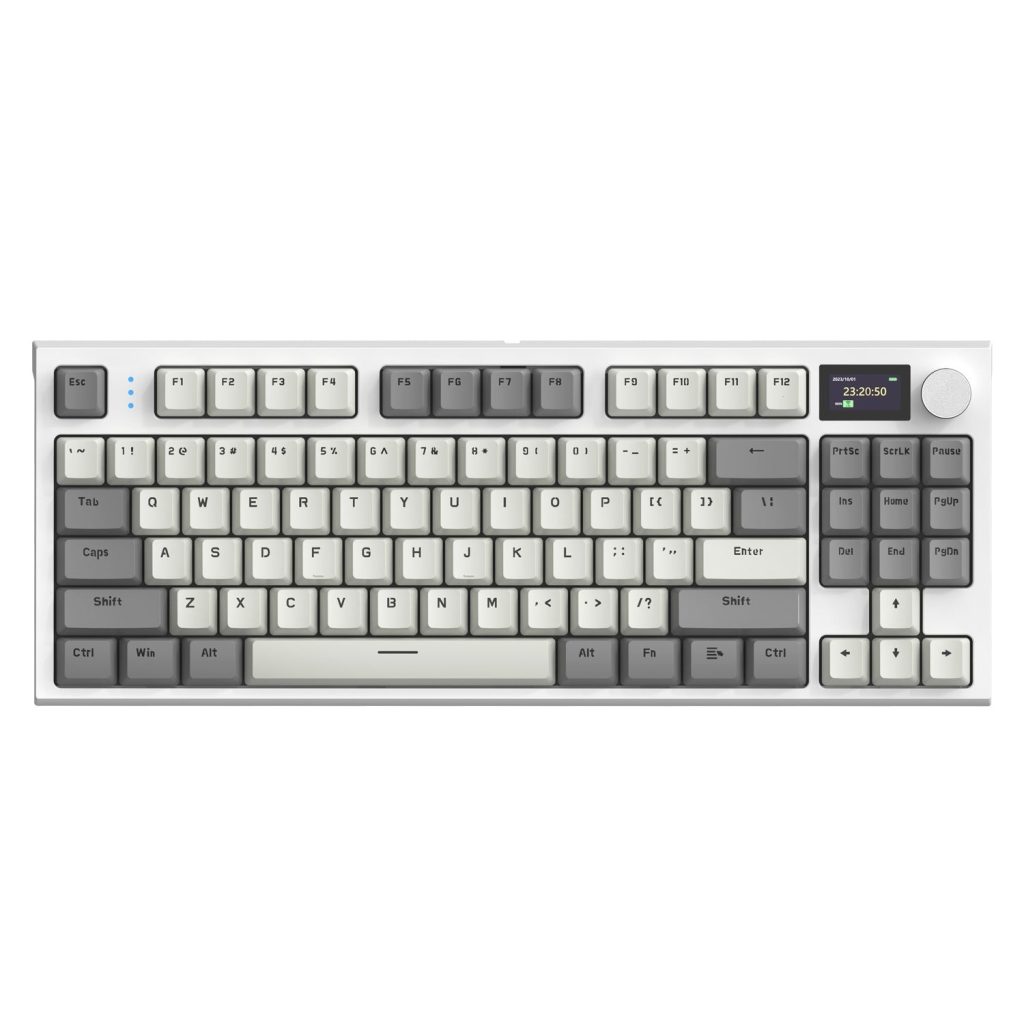
You’re three hours into a deadline-driven workday, and your fingers already feel sluggish against the flat, mushy keys of your standard office keyboard. Each keystroke blends into the next with no distinct feedback, forcing you to glance at the screen repeatedly to confirm your inputs registered. This daily frustration is more common than most professionals realize, and it quietly erodes both productivity and comfort. Mechanical-switch keyboards, long celebrated in gaming circles, are increasingly finding their way onto professional desks—and for good reason. But can features designed for fast-paced gaming truly benefit someone drafting reports, coding applications, or managing spreadsheets? The answer lies in understanding how switch types influence typing precision, how ergonomic designs combat repetitive strain, how multi-device connectivity simplifies complex workflows, and how gaming-inspired features like customizable layouts and RGB lighting can be repurposed for professional efficiency. This article explores each of these dimensions to help you determine whether a mechanical keyboard deserves a place in your professional toolkit.
Understanding Mechanical-Switch Keyboards: Beyond Gaming
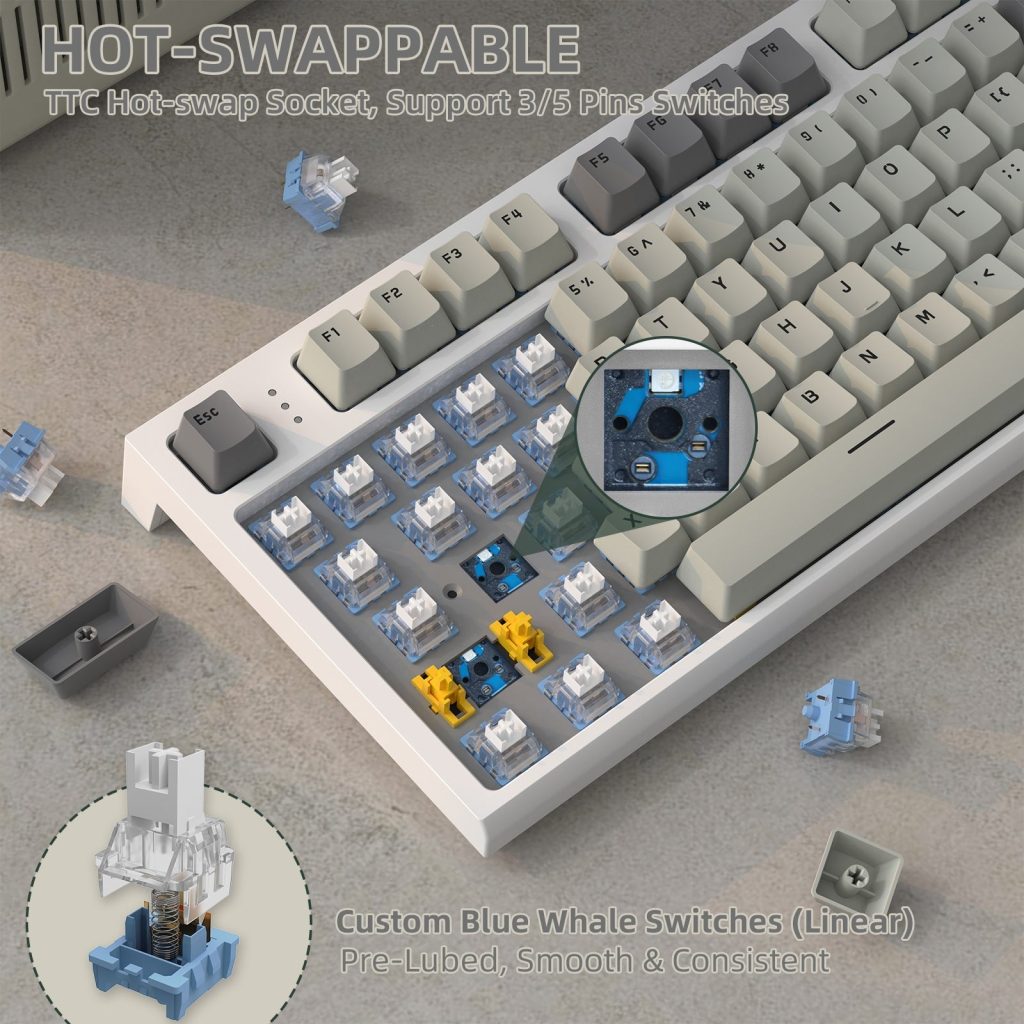
A mechanical-switch keyboard uses individual physical switches beneath each key, typically consisting of a spring, a stem, and a housing that together produce a distinct actuation point. When you press a key, the switch mechanism registers the input at a precise depth, giving your fingers clear confirmation that the keystroke was accepted. This stands in sharp contrast to membrane keyboards—the type bundled with most office computers—where a rubber dome collapses under pressure to push two plastic sheets together. Membrane designs feel uniform and indistinct, making it difficult to sense whether a key has actually registered without bottoming out completely.
For professionals, this distinction matters more than it might initially seem. The tactile feedback of a mechanical-switch keyboard reduces the force needed to confirm each input, which translates to fewer missed keystrokes and less finger fatigue over an eight-hour workday. Durability is another practical advantage: mechanical switches are typically rated for 50 to 100 million keystrokes compared to roughly 5 million for membrane alternatives, meaning the keyboard maintains its consistent feel for years rather than growing progressively mushier. When typing accuracy, long-term comfort, and equipment longevity directly affect your professional output, a mechanical-switch keyboard becomes less of a luxury and more of a strategic tool worth serious consideration.
Keyboard Switch Types: Choosing the Right Feel for Productivity
Understanding keyboard switch types is essential before investing in a mechanical keyboard for professional use. Switches fall into three primary categories, each delivering a fundamentally different typing experience. Linear switches travel smoothly from top to bottom without any bump or audible click, making them fast but offering minimal physical feedback—a characteristic some typists find disorienting when accuracy matters. Tactile switches introduce a noticeable bump at the actuation point, letting your fingers know exactly when a keystroke registers without needing to press the key all the way down. Clicky switches combine that tactile bump with an audible click sound, providing maximum feedback but generating noise levels that can irritate nearby colleagues in open-plan offices.
For professionals typing extensively, tactile switches often strike the best balance. The bump reduces error rates because your fingers learn to release earlier, preventing unnecessary force and bottoming out. Linear switches suit those who prefer a whisper-quiet environment and type with a naturally light touch. Clicky switches, while satisfying, are generally impractical in shared workspaces unless paired with sound-dampening accessories. The connection between switch type and fatigue is direct: a switch that matches your natural typing pressure means less wasted energy per keystroke, which compounds significantly over thousands of words per day.
Solution Steps: Selecting Your Ideal Switch
Start by assessing your typing style honestly. If you tend to hammer keys with force, a tactile switch with a medium-weight spring (around 55-65 grams of actuation force) will provide feedback before you bottom out, saving your joints from unnecessary impact. If you type with a lighter touch, a linear switch with lower actuation force keeps things effortless and quiet. Next, evaluate your office environment—shared spaces demand silent or near-silent options, while private offices give you freedom to choose clicky variants if you prefer auditory confirmation. Before committing, order a switch tester or visit a retailer where you can physically try different types; reading descriptions cannot replicate the sensation of actual use. Finally, prioritize switches specifically praised for ergonomic comfort in long sessions. Tactile options from well-known manufacturers consistently receive high marks from writers, programmers, and data professionals who spend six or more hours daily at the keyboard.
Ergonomic Designs: A Must-Have for Long Typing Sessions
Typing for six to eight hours daily places enormous repetitive stress on your wrists, fingers, and forearms—stress that a poorly designed keyboard amplifies with every session. Ergonomic designs in mechanical keyboards address this directly through features that align your hands and arms in more natural positions. Split keyboards angle each half outward to match the natural splay of your shoulders, eliminating the inward wrist rotation that standard flat keyboards demand. Tented designs elevate the center of the keyboard so your forearms rest in a neutral, handshake-like position rather than pronating flat against the desk. Adjustable feet let you fine-tune the typing angle, and sculpted keycap profiles—where each row has a different height and curve—guide your fingers to the correct keys with minimal reaching.
These features aren’t cosmetic upgrades; they directly combat repetitive strain injury, tendonitis, and carpal tunnel syndrome. A mechanical keyboard with integrated wrist support distributes pressure away from the carpal tunnel, while the shorter travel distance of well-chosen switches means your fingers don’t overextend on each keystroke. Professionals who have switched to ergonomic mechanical boards frequently report reduced end-of-day soreness and improved stamina during intensive writing or coding sessions. The investment in ergonomic design pays dividends not just in daily comfort but in long-term career sustainability.
Solution Steps: Implementing Ergonomic Practices
Begin by selecting a keyboard that offers a split or tented configuration matching your shoulder width—this single change eliminates the most common source of wrist strain. Next, adjust your typing angle so your wrists remain neutral rather than bent upward; most ergonomic mechanical keyboards include multiple tilt settings, and a slight negative tilt often works best. Pair this with proper chair height so your elbows rest at approximately 90 degrees and your forearms float parallel to the desk surface. Add a padded palm rest positioned just below the space bar to support your hands during pauses without pressing into your wrists while actively typing. Incorporate micro-breaks every 30 to 45 minutes—stand, stretch your fingers wide, and rotate your wrists gently. Finally, consider keycap profiles that reduce finger travel: lower-profile sculpted caps require less vertical movement and keep your hands closer to a relaxed resting position throughout the day.
Multi-Device Connectivity: Streamlining Professional Workflows
Modern professionals rarely work from a single device. You might draft emails on a laptop, review spreadsheets on a desktop, and respond to messages on a tablet—all within the same hour. Multi-device connectivity in mechanical keyboards eliminates the clutter of multiple input devices by letting one keyboard serve all of them. Bluetooth-enabled mechanical boards typically support pairing with three to five devices simultaneously, allowing you to switch between connections with a simple key combination. Some models also include a 2.4GHz wireless dongle for lower-latency connections and a USB-C wired option for situations where battery life or signal reliability is a concern.
The productivity benefit is immediate and tangible. Instead of physically reaching for a different keyboard or repairing Bluetooth connections each time you shift tasks, a dedicated button or shortcut toggles your input to the appropriate device in under a second. This seamless transition preserves your mental focus and eliminates the micro-interruptions that fragment deep work. For remote workers juggling a personal laptop alongside a company-issued machine, or professionals who move between a standing desk setup and a conference room tablet, multi-device connectivity transforms a mechanical keyboard from a single-station tool into a portable command center that follows your workflow wherever it goes.
Solution Steps: Setting Up Multi-Device Systems
First, choose a mechanical keyboard that offers Bluetooth multi-pairing with at least three device slots—this covers most professional scenarios without requiring constant re-pairing. During initial setup, assign each slot to a specific device and label them mentally or physically so switching becomes instinctive. Second, configure your device-switching shortcuts and practice the key combination until it becomes muscle memory; most keyboards use Function plus a number key, making transitions nearly instantaneous. Third, verify operating system compatibility before purchasing—confirm that the keyboard works smoothly with Windows, macOS, and any mobile platforms you use, since some boards handle cross-platform modifier key differences automatically through built-in OS toggle switches. Fourth, optimize battery life by enabling sleep modes and turning off RGB lighting when running wirelessly, as backlit wireless keyboards can drain significantly faster. Keep the USB-C cable accessible for charging during intensive sessions so you never face unexpected downtime. For office environments with heavy wireless interference from neighboring devices, the 2.4GHz dongle connection often provides more stable input than Bluetooth, making it the better default for your primary workstation while reserving Bluetooth slots for secondary devices.
Gaming Keyboard Features in a Professional Context
Features born in the gaming world translate surprisingly well to professional environments when you look past the marketing. A gaming keyboard layout—particularly tenkeyless and 75% designs—eliminates the number pad to free up valuable desk real estate, bringing your mouse closer to your centerline and reducing shoulder strain during long sessions. This compact footprint doesn’t sacrifice functionality; it simply relocates less-used keys behind layer shortcuts. Meanwhile, RGB customization, often dismissed as purely aesthetic, becomes a genuine productivity tool when you assign specific colors to key groups: highlight your most-used shortcuts in one color, mark function keys in another, and create visual maps that reduce hunting time in complex applications like video editors, CAD software, or IDEs. A gaming keyboard comparison reveals that many high-end gaming boards—including options from brands like ATTACK SHARK—share identical switch quality, build materials, and programmability with their “professional” counterparts, with the primary differences often amounting to branding and default color schemes rather than engineering substance.
Leveraging Gaming Keyboard Layout for Efficiency
Compact gaming keyboard layouts offer professionals more than space savings. Tenkeyless and 65% boards force a more centered hand position that reduces lateral reaching, while dedicated macro keys—or programmable layers—let you automate repetitive sequences. A programmer can bind compile-and-run commands to a single keystroke, a financial analyst can trigger complex Excel macro chains without navigating ribbon menus, and a writer can assign frequently used formatting shortcuts to thumb-accessible keys. Many gaming-oriented boards include onboard memory that stores these configurations directly on the keyboard, meaning your custom layout follows you between workstations without reinstalling software. The result is a personalized efficiency tool that adapts to your specific professional demands rather than forcing you into a one-size-fits-all arrangement.
Customizing RGB for Productivity Gains
RGB backlighting earns its place on a professional desk when configured intentionally. In dim environments—early mornings, late evenings, or poorly lit home offices—adjustable backlighting eliminates typing errors caused by visual uncertainty. Beyond basic illumination, software suites accompanying most mechanical keyboards let you color-code individual keys by application: assign blue to navigation shortcuts in your project management tool, red to destructive commands you want to approach cautiously, and green to your most-used text editing bindings. Some keyboards support reactive lighting that confirms keystrokes visually, which benefits accessibility for users with reduced tactile sensitivity. To implement this effectively, spend fifteen minutes mapping your most frequent workflows, identify the twenty or thirty keys central to each application, and assign distinct color profiles you can toggle when switching tasks. This transforms RGB from a distraction into a functional interface layer that accelerates your work.
Making the Right Mechanical Keyboard Investment for Your Workflow
A mechanical keyboard can genuinely enhance your professional typing experience when you select one that aligns with your specific work demands. The right keyboard switch types—whether tactile for feedback-driven accuracy or linear for quiet, effortless input—directly reduce fatigue and errors across thousands of daily keystrokes. Ergonomic designs featuring split layouts, tented configurations, and sculpted keycaps protect your hands and wrists from the cumulative damage that standard keyboards inflict over years of intensive use. Multi-device connectivity eliminates workflow friction by letting a single keyboard serve every device in your professional ecosystem, preserving focus during task transitions. And gaming-inspired features like compact layouts, programmable layers, and RGB customization prove their worth far beyond entertainment—they create personalized efficiency tools that adapt to your applications rather than constraining you to generic configurations. The mechanical keyboard is no longer a niche enthusiast product; it’s a practical investment in typing comfort, precision, and long-term physical health. Assess your typing habits, evaluate your workspace environment, and test switches firsthand. The right mechanical keyboard won’t just change how you type—it will change how productively and comfortably you work.
