

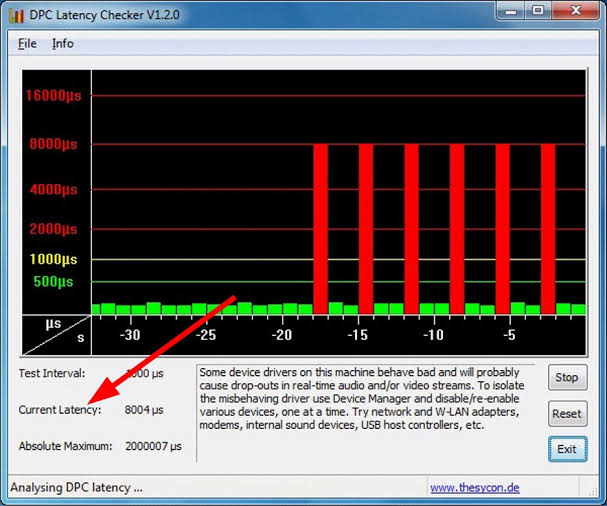
Computer performance is not only about processor speed or available memory. Sometimes a system with powerful hardware can still experience audio crackling, stuttering, freezes, or delayed responses. One possible reason is high Deferred Procedure Call (DPC) latency. DPC Latency Checker is a useful resource for understanding and checking system latency and identifying potential performance issues.
What Is DPC Latency?
DPC latency refers to the amount of time Windows takes to handle certain high-priority tasks. Drivers and hardware devices can request system resources through Deferred Procedure Calls. When these processes take too long, other tasks may have to wait.
High latency can become noticeable when performing activities that require consistent real-time performance. Audio production, video playback, gaming, streaming, and other demanding workloads may be affected when system processes are not responding efficiently.
How DPC Latency Checker Can Help
DPC Latency Checker provides information related to DPC latency and system performance. The website currently presents itself as a directory of performance, audio, and diagnostic tools, with resources related to checking and reducing latency on Windows systems.
A latency-checking tool can help users understand whether their computer is experiencing unusually high delays. Instead of guessing why audio is popping or the system occasionally stutters, users can investigate latency as one possible cause.
Why Low Latency Is Important
Low system latency is particularly important for users who depend on real-time computer performance. Musicians recording through a computer, for example, may notice unwanted interruptions when their system cannot process audio tasks smoothly.
Gamers can also be sensitive to delays. While DPC latency is only one potential source of input or performance problems, identifying driver-related issues can be a useful part of troubleshooting.
For everyday users, latency problems may appear as occasional freezes, interruptions, or inconsistent system behavior.
Common Causes of High DPC Latency
Several factors can contribute to high DPC latency. Device drivers are one of the most common areas worth investigating. An outdated, incompatible, or poorly functioning driver can interfere with normal system operations.
Hardware devices can also play a role. Network adapters, graphics hardware, audio devices, storage controllers, and other components all depend on drivers to communicate with Windows.
Software running in the background may also contribute to performance problems. Security programs, system utilities, hardware-management applications, and other background processes can sometimes affect overall responsiveness.
DPC Latency and Audio Problems
Audio users are particularly interested in DPC latency because real-time audio processing requires consistent system performance. If the computer is unable to process audio data on time, users may experience clicks, pops, crackling, or dropouts.
This can be frustrating when recording music, using a digital audio workstation, participating in live sessions, or simply playing media.
Checking latency can help narrow down the possible cause. If latency appears unusually high, users can investigate drivers and background processes instead of immediately replacing hardware.
Checking Your Windows System
When investigating latency, it is useful to start with a basic system check. Make sure Windows and important device drivers are up to date. Users should also pay attention to any hardware or software that was installed shortly before the problem appeared.
If the issue began after a driver update, software installation, or hardware change, that information can provide an important clue.
A latency checker can then be used as part of the troubleshooting process to determine whether system delays are occurring.
Improving System Performance
If testing indicates a latency problem, the next step is identifying the source. Updating or reinstalling problematic drivers may help in some cases. Disabling unnecessary background applications can also reduce the number of processes competing for system resources.
Users should make changes one at a time where possible. This makes it easier to determine which adjustment actually improved performance.
It is also important to avoid changing advanced Windows settings without understanding their purpose. Incorrect configuration can create additional problems rather than solving the original issue.
DPC Latency for Gamers
Gaming performance depends on several factors, including graphics performance, CPU usage, network conditions, and system configuration. DPC latency is another factor that can sometimes contribute to an inconsistent experience.
Gamers experiencing unexplained stuttering or input-related problems can include latency testing as part of a broader troubleshooting process.
However, high DPC latency is not automatically responsible for every gaming issue. Users should also check graphics drivers, temperatures, frame rates, network performance, and other relevant components.
DPC Latency for Audio Professionals
For musicians, producers, and audio engineers, reliable system performance is especially important. Real-time recording requires the computer to process audio data consistently.
A latency-checking tool can therefore be useful when diagnosing unexplained audio interruptions. If the system shows problematic latency, users can investigate drivers and hardware devices that may be causing delays.
The goal is to create a stable environment where audio applications can operate consistently without unnecessary interruptions.
Choosing the Right Troubleshooting Approach
DPC latency should be treated as one part of overall system diagnostics. A computer problem can have many different causes, so users should avoid assuming that latency is always responsible.
A good troubleshooting process involves checking system behavior, identifying when the problem occurs, reviewing recent changes, and testing possible causes individually.
The current DPC Latency Checker website also provides resources covering Windows latency, audio stuttering, input lag, and related performance topics.
Conclusion
DPC latency can affect the smooth operation of Windows systems, particularly during activities that require consistent real-time performance. Audio recording, gaming, streaming, and other demanding tasks can make performance interruptions more noticeable.
DPC Latency Checker can be a useful starting point for users who want to investigate latency-related problems. By checking drivers, background processes, hardware, and system behavior, users can better understand potential causes of stuttering and interruptions.
Rather than immediately replacing hardware, performing a structured latency check can help identify whether a driver or software-related issue may be contributing to the problem.
