


Intraoral scanners have changed how dental practices capture impressions, plan treatment, and work with labs. The scanner itself is only half the workflow, though. Every scan lands in a cloud portal, and if nobody on the team can sign in, cases stall, labs wait, and patients sit in the chair longer than they should.
Two of the most widely used scanner portals are Align Technology’s MyITero and Dentsply Sirona’s DS Core. Dental Reviewed, an independent editorial resource for dentists, hygienists, practice owners, and dental technicians, has published detailed guides for both. Each one explains where to sign in, how to set up an account, which errors come up most often, and who to contact when self-service fixes run out.
Why scanner portal logins cause so much trouble
Both platforms have changed noticeably over the past year. Align rolled out a new iTero sign-in screen in January 2026 and moved the login page to a new address. Dentsply Sirona retired Connect Case Center in most countries on November 15, 2025, and moved users to DS Core. Neither change affected existing credentials, yet both left practices with outdated bookmarks and staff convinced their accounts were broken.
Vendor help pages don’t always make these updates easy to follow. Information is often split across support portals, learning centers, and press releases, and it’s usually written for IT teams rather than the coordinator trying to upload a scan between patients. Dental Reviewed’s guides bring everything into one place, in plain language, with steps anyone on the team can follow.
MyITero login: from sign-in to submitted case
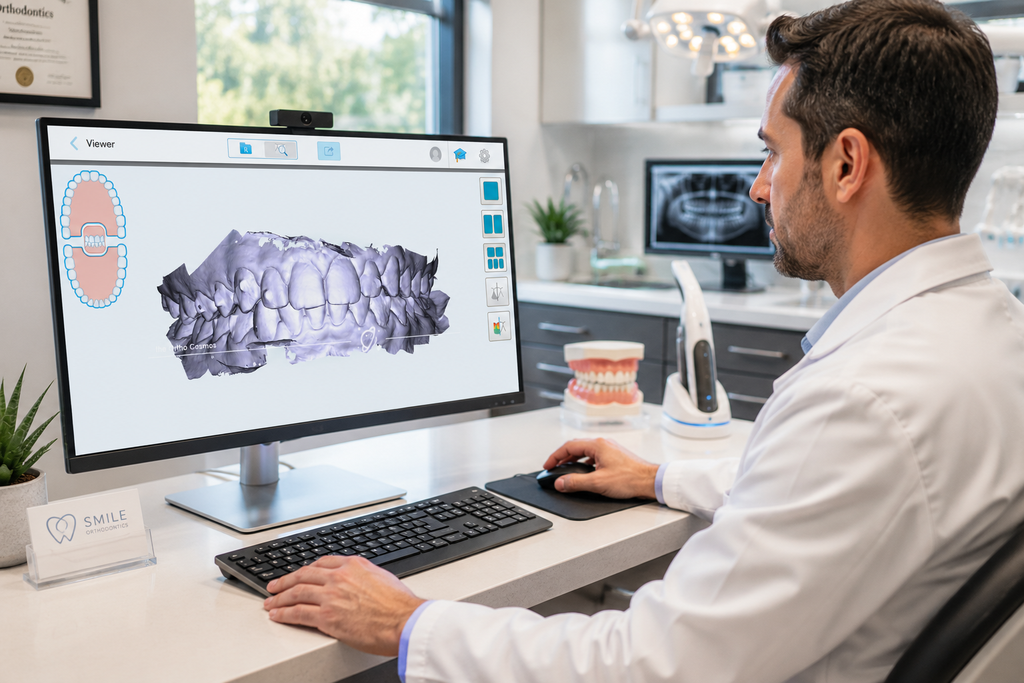
MyITero is Align Technology’s cloud portal for iTero scans, Invisalign case submissions, prescriptions, and lab messaging. Scans from a connected iTero scanner upload automatically once capture finishes and open on a PC, Mac, or tablet with nothing extra to install. The Dental Reviewed guide to the MyITero login covers the full process for US practices.
The guide starts with the most common source of confusion: the redesigned sign-in screen. It explains that typing myitero.com now redirects to Align’s updated page, that emails and passwords stayed the same, and that a legacy sign-in screen remains available for accounts not yet switched over. That alone resolves many “why does this look different?” moments at the front desk.
New practices will find a clear setup walkthrough, from the activation email and password requirements to entering the practice address and NPI number, pairing the scanner, and inviting team members. The guide also notes that DSOs and multi-location groups can use parent and child account structures for central reporting, and that labs register under their own account type with a CDL number.
One of the most useful sections explains how access differs by role:
- Doctors. Active cases, the Outcome Simulator, TimeLapse, and direct Invisalign and restorative prescriptions.
- Labs. Incoming cases from connected practices, exocad and CAD/CAM exports, and return-to-doctor flagging.
- Coordinators and staff. Scan uploads, case tracking, and scheduling, without prescription authority unless granted.
When something goes wrong, the troubleshooting section is organized by symptom. It covers mismatched email addresses, Caps Lock errors, missing password reset emails, temporary lockouts after repeated failed attempts, absent two-factor codes, automatic logouts, outdated browsers, and scans that don’t appear after upload. It also addresses scanners that won’t connect to the portal, including network and firewall checks, and warns against creating a second account to fix a wrong account type, since that splits case history.
The guide rounds things out with Align’s US support number and hours, the details to have ready before calling, instructions for ordering sleeves through the iTero Store with the same credentials, and a feature comparison of MyITero, DS Core, 3Shape, and Medit Link.
DS Core login: Dentsply Sirona’s cloud, step by step
DS Core is Dentsply Sirona’s cloud platform for patient scans, X-rays, lab orders, and connected equipment. It runs entirely in a browser, so there’s no software to install or update locally. That simplicity has a catch: when a login fails, the cause is often the browser, an unfinished activation, or a regional setting rather than the account itself. The Dental Reviewed guide to the DS Core login explains how to tell the difference.
The guide walks through account creation from start to finish, including accepting the license agreement, finding the activation email from Dentsply Sirona, completing practice information, and adding team members as Clinician or Assistant. It stresses that each person needs an individual activation rather than one shared front desk login, and that skipping activation is the most common reason a new account won’t open.
Login problems are grouped into six clear categories:
- Missing activation email. Which folders to check and which sender address to whitelist.
- Forgotten password. How to use the built-in reset instead of opening a second account.
- Region mismatch. Why DS Core’s regional hosting can make a real account seem nonexistent, and why this mostly affects multi-location practices and DSOs.
- Browser issues. Cache, cookies, extensions, private windows, and outdated versions.
- Inactive accounts. How to regain access after months away, including updating an old email address.
- Retired Connect Case Center links. What to do now that the old platform is gone.
The guide also explains how equipment connects to the account. The DS Core Link app pairs practice devices using the same practice credentials, and Primescan scanners typically connect through a CAD/CAM connector on the scanning workstation. Once linked, devices appear under the Equipment section, and new scans upload automatically.
It also clears up a frequent mix-up: SureSmile and DS Core use separate logins. DS Core scans can feed into the SureSmile Simulator, but that link is set up inside SureSmile, not by signing in through DS Core. The guide finishes with US support numbers for general, account, and CEREC scanner issues, plus a detailed security checklist covering individual logins, password habits, suspicious reset emails, and shared computers.
What both guides do well
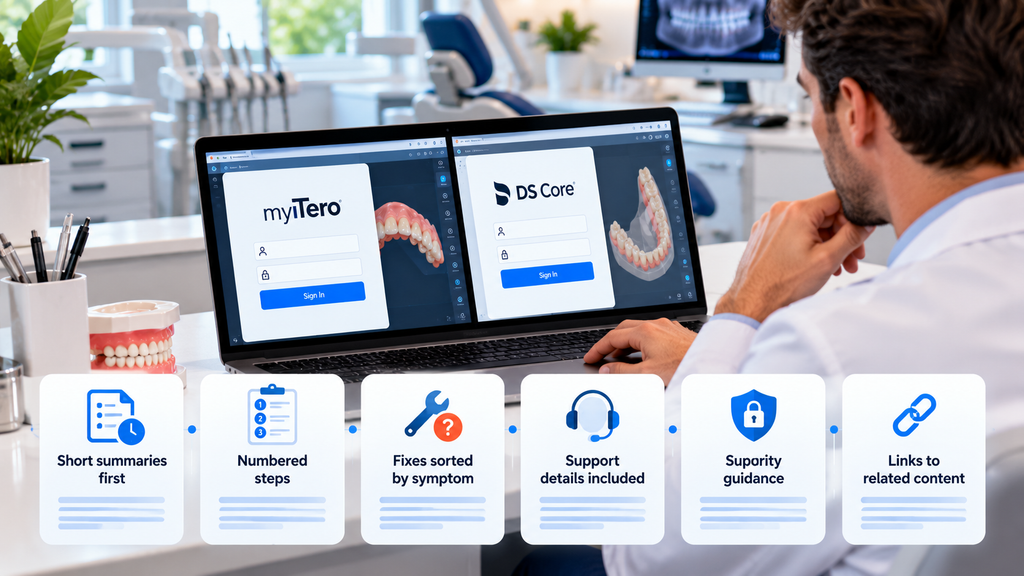
The MyITero and DS Core guides share a structure built for busy practices:
- Short summaries first. Each guide opens with the essentials, so a reader under time pressure gets answers quickly.
- Numbered steps. Sign-in, setup, and recovery instructions follow simple sequences any team member can use.
- Fixes sorted by symptom. Readers jump straight to the problem they’re facing instead of reading the whole page.
- Support details included. Phone numbers, hours, and preparation tips make support calls shorter.
- Security guidance. Both portals hold patient data, so each guide covers individual accounts, two-factor authentication, and safe habits on shared workstations.
- Links to related content. Readers can move on to scanner reviews, Invisalign compatibility guides, and platform comparisons.
Get back to patients faster
A login problem is a small issue that can hold up an entire clinical day. Dental Reviewed’s guides turn a frustrating search through support pages into a few minutes of clear, current instructions. Practices using iTero, DS Core, or both can keep these guides on hand for onboarding new staff, recovering locked accounts, and staying on top of platform updates as they happen.
