

I used to think that every problem on my computer had a different cause. A Bluetooth device would disconnect, my audio would crackle during meetings, and my graphics occasionally stuttered while watching videos. Instead of looking for one solution, I kept trying different fixes for each issue. Eventually, I discovered that many of these problems were connected to outdated drivers. That’s when I started looking for a reliable driver updater, and my experience with Driver Booster showed me that several hidden issues could be resolved much faster than I expected.
One Small Problem Turned Into Several
It all started with what seemed like a minor issue. One morning, my Bluetooth mouse disconnected several times while I was working on an important document. I reconnected it, changed the batteries, and assumed the problem was solved. The next day, however, my headphones began producing occasional audio crackles during an online meeting.
At first, I blamed Windows updates, background applications, or even aging hardware. I restarted my PC, cleared temporary files, checked my internet connection, and ran a security scan. Although these steps helped a little, the same issues kept returning.
After researching possible causes, I learned that outdated drivers can affect how Windows communicates with different hardware components. If several drivers become outdated at the same time, they can create multiple problems that appear unrelated. Instead of troubleshooting each device individually, I decided to try a solution that could check every driver in one place—and that’s when everything started to make sense.
What Helped Me Solve the Problems So Quickly?
After realizing that outdated drivers could be the common cause behind my computer’s issues, I wanted a solution that could identify and fix them without requiring hours of troubleshooting. Driver Booster offered several features that made the entire process quick, simple, and stress-free.
1. Fast Driver Scan: The first thing that impressed me was how quickly the software scanned my computer. Within a few minutes, it checked all my major hardware components and identified outdated, missing, and faulty drivers. Instead of manually inspecting each device, I had a complete overview of my system in one place.
2. One-Click Driver Updates: Rather than downloading drivers from multiple manufacturer websites, I used the Update All option to install the latest compatible drivers with a single click. This not only saved time but also reduced the risk of installing incorrect drivers or missing important updates.
3. Large Driver Database: Another feature I appreciated was its 18 million+ verified driver database. The software was able to detect updates for my graphics card, audio device, Bluetooth adapter, network controller, chipset, and other essential hardware. Having broad hardware support meant I didn’t need separate tools for different devices.
4. Automatic Driver Detection: One of the biggest advantages was automatic driver detection. Instead of remembering to check for updates manually, the software could monitor my system and notify me whenever new driver versions became available. This helped me keep my PC updated with very little effort.
These features showed me that updating drivers doesn’t have to be a complicated process. Instead of spending hours troubleshooting one problem after another, I was able to identify the root cause and fix several hardware-related issues through a single, organized solution.
How I Fixed My Computer in Less Than Five Minutes
I realized that fixing my computer would be much easier than I had expected. Instead of troubleshooting each issue separately, I simply followed a few straightforward steps.
Step 1: Download and Install Driver Booster
I downloaded Driver Booster from the official IObit website and completed the installation in just a few minutes. The setup was simple, and I was able to start using the software immediately without making any complicated configurations.
Step 2: Run a Full System Scan
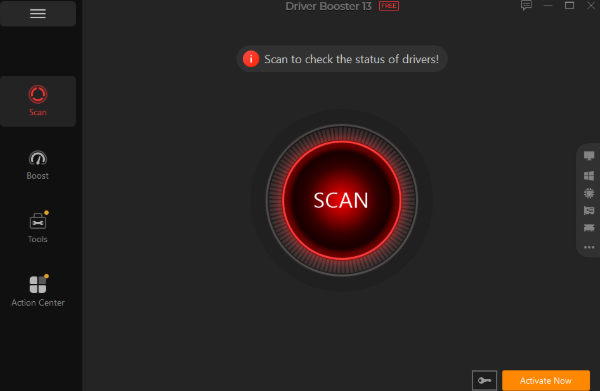
After launching the application, I clicked the Scan button. The software quickly checked my system and identified outdated, missing, and faulty drivers across multiple hardware components, including my graphics card, audio device, Bluetooth adapter, network controller, and chipset.
Step 3: Review the Results
Once the scan was complete, I reviewed the list of drivers that needed attention. Everything was organized clearly, allowing me to understand which hardware components required updates instead of searching through Device Manager or manufacturer websites.
Step 4: Update All Drivers
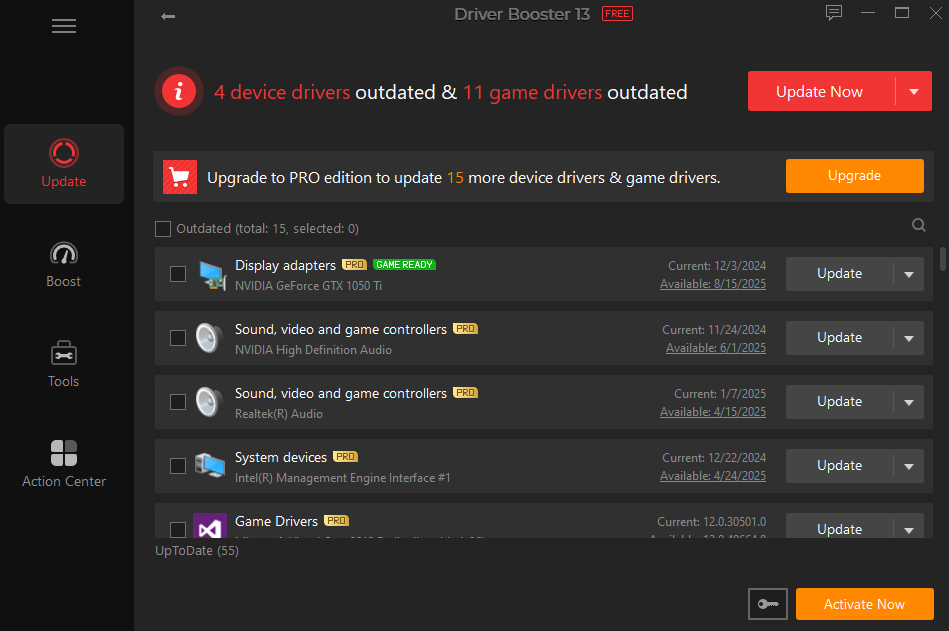
I selected the Update All option, and the software automatically downloaded and installed the latest compatible drivers. What would normally have taken a long time manually was completed in just a few minutes, making the entire process fast and hassle-free.
Step 5: Restart the Computer
After the installation finished, I restarted my computer so the new drivers could take effect. When Windows loaded again, I immediately noticed that several of the problems I had been experiencing were gone.
The Problems That Disappeared
The updates didn’t just fix one issue—they improved several areas of my computer at the same time. Here’s what I noticed afterward:
- Bluetooth devices connected more reliably without random disconnections.
- Audio playback became clear and consistent, especially during online meetings.
- Graphics performed more smoothly, with fewer stutters while streaming videos and using graphics-intensive applications.
- Network connectivity became more stable, reducing unexpected interruptions.
- USB devices were detected faster when plugged into the computer.
- The overall system felt more responsive, with fewer hardware-related errors.
- I spent far less time troubleshooting, since several issues were resolved through one driver update process.
The biggest surprise wasn’t how quickly the updates finished—it was discovering that many seemingly unrelated problems had the same underlying cause. Instead of fixing each issue individually, updating my drivers restored the stability of my computer and made everyday tasks much more enjoyable.
Final Thoughts
What surprised me most wasn’t how quickly the update process finished—it was how many different problems it resolved at once. Instead of chasing individual hardware issues, I found that relying on a proper driver updater addressed the root cause behind several frustrating interruptions. Using Driver Booster made the entire process straightforward with its fast scanning, one-click updates, extensive driver database, and restore point protection. Since then, I’ve made driver maintenance a regular part of my routine. It’s a small investment of time that has helped keep my computer stable, reliable, and ready for work every day.
