

Anyone who sells custom or personalized products online knows that the file a customer sends with their order is often just as important as the order itself. It could be a logo for a printed t-shirt, a design file for a custom phone case, a photo for a personalized gift, or a document that contains specific instructions the product cannot be made without.
When that file is wrong, low resolution, the incorrect format, or just completely missing, the whole order comes to a standstill, and what follows is usually a back-and-forth exchange over email that delays everything and frustrates both sides.
The default WooCommerce setup does not really have a clean answer for this because there is no native way to collect files from customers at any point in the ordering process, let alone review and approve or reject them before the order moves forward.
Store owners selling customizable products often end up relying on order notes, external email threads, or third party file sharing links just to get the right files from their customers, and none of those approaches are particularly organized or efficient when order volume starts to pick up.
What actually solves this properly is having an upload file WooCommerce system built directly into the store where customers can attach their files during or after the ordering process, and where the admin has a clear way to review, approve, or reject each file and communicate that decision back to the customer automatically.
That is exactly what this blog is going to cover, using the File Uploader for WooCommerce plugin by Extendons as the solution throughout.
Understanding the Problem With Unreviewed File Uploads
Before getting into the setup it is worth understanding why the approval and rejection side of file uploads matters so much, because some store owners assume that simply having a file upload option is enough and that the review process is something they can handle informally.
The reality is that when customers can upload files without any review gate in place, you end up processing orders based on files that may not actually work for production. A customer who uploads a low resolution JPEG when you need a high resolution PNG does not know they have done anything wrong until you contact them about it, by which point the order might already be partially in progress.
Having a proper approval and rejection system means every file gets reviewed before the order moves forward, the customer gets notified of the outcome automatically, and if a file is rejected they have a clear path to replace it without the whole process becoming a disorganized back and forth. It also gives the admin the ability to attach feedback notes to rejections so the customer understands exactly why their file was not accepted and what they need to provide instead.
The checkout files upload for WooCommerce system in the Extendons plugin handles all of this within the store itself, keeping the entire file review process organized and visible from the order management area rather than scattered across emails and external conversations.
Getting the Plugin Installed
Getting the File Uploader plugin installed follows the standard WordPress process and does not take long at all:
- Download the File Uploader for WooCommerce .zip file from your WooCommerce account
- In your WordPress admin panel go to Plugins > Add New and click Upload Plugin
- Select the downloaded .zip file and click Install Now
- Once installation completes click Activate Plugin
- After activation navigate to WooCommerce > Settings > File Uploader where all the configuration lives
Inside the File Uploader settings you will find three tabs which are Add Rule, Manage Rule, and Recaptcha Settings. The rule based system is how the plugin handles everything from where the upload button appears to what file types are accepted to how pricing and restrictions are applied, and it is worth understanding how it works before jumping into the approval setup specifically.
Setting Up Your First Upload Rule
Before the approval and rejection system can do anything useful, you need to have at least one upload rule set up properly so that customers actually have a way to attach files to their orders in the first place. Here is how to create a rule:
Go to WooCommerce > Settings > File Uploader > Add Rule and work through the following settings:
- Enable or Disable: Make sure the rule is enabled so it is active on the frontend
- Rule Name: Give the rule a clear name so you can identify it easily when managing multiple rules later
- Display On: This is where you choose which pages the upload button appears on. The options available are:
- Product Page
- Cart Page
- Checkout Page After Notes
- Thank You Page
- Account Page
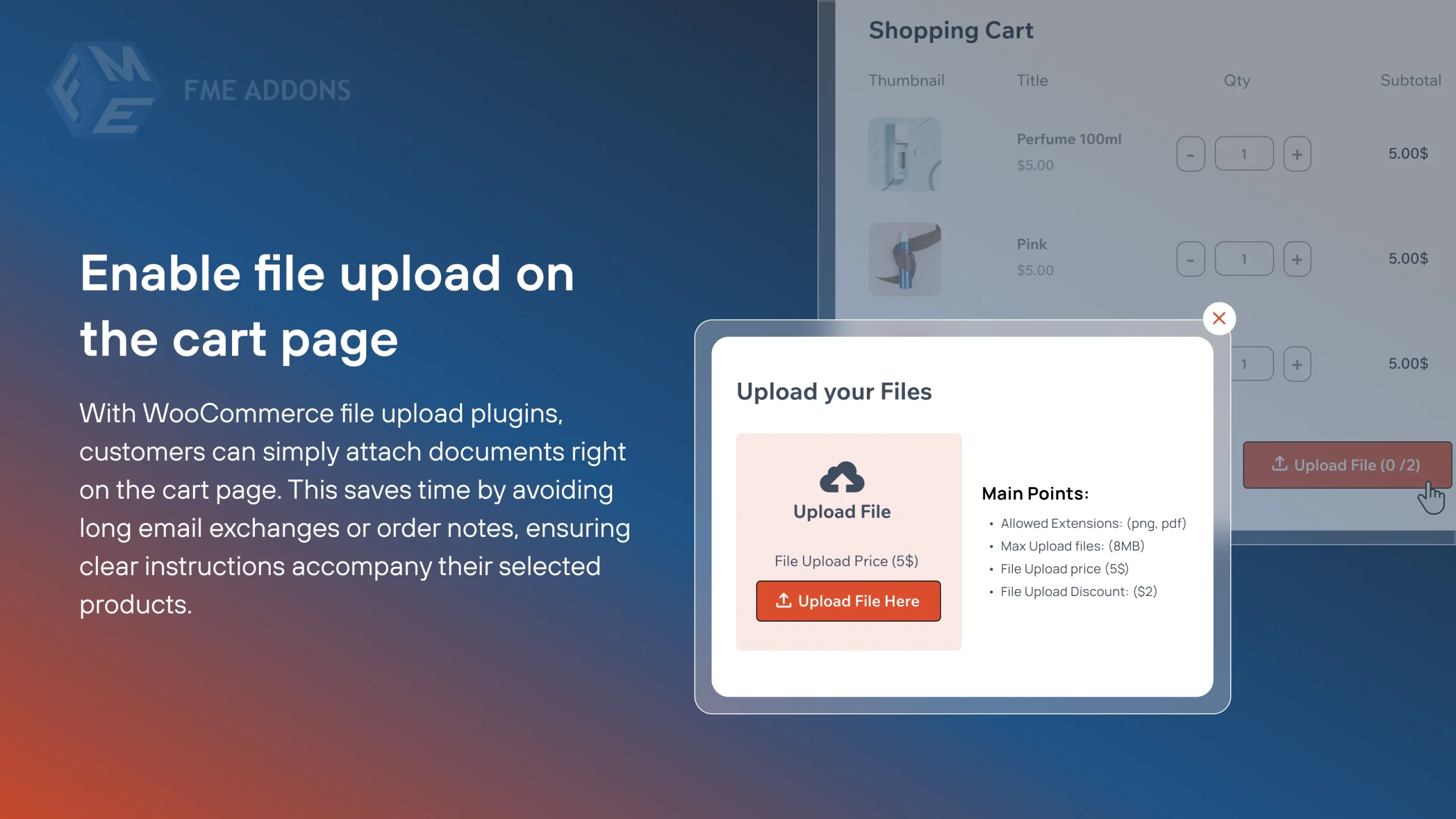
- Cart Page Alongside Cart Items
- Checkout Page Alongside Cart Items
- After Order Completion on the Thank You or Account Page
For stores focused on getting files before an order is processed, showing the upload button on the product page, cart page, and checkout page covers the main touchpoints where a customer would naturally think to attach their file. The thank you page and account page options are useful for customers who forget to attach at the time of ordering and need to add or replace a file afterward.
- Label: Set the custom label that appears above the upload button on the frontend
- Allowed Extension: Enter the file types you will accept, for example jpg, png, pdf, ai, eps and so on. This is the first line of control over what customers can submit
- Maximum Upload Size: Set the maximum file size in MB or KB based on what your production process can handle
- Upload File Button Text: Customize the text on the upload button itself
- Background Color and Text Color: Style the button to match your store design
- Maximum File Upload: Set the maximum number of files a customer can attach within this rule
- Customer Notes: Enable this if you want customers to be able to attach a written note alongside their file. You can also make the note mandatory by checking the Required box which is useful when file specifications or instructions from the customer are essential for the order
- Allow Upload Modification: Check this to allow customers to replace or update their uploaded files after submitting them, which is directly relevant to what happens after a file gets rejected
Once the rule is configured, you can also set up Product or Category Restrictions to limit the upload button to specific products or categories so it only appears when relevant products are in the cart, and User Role restrictions to control which types of customers see the upload option at all.
How the Approval and Rejection Process Works
With the upload rule in place and customers starting to attach files to their orders, the approval and rejection workflow becomes the most important part of the whole system from an admin perspective.
When a customer places an order and attaches a file, the admin can view that file by opening the order in the WooCommerce order management area. Clicking on the order shows the uploaded files alongside any notes the customer attached, giving the admin everything they need to assess whether the file meets the requirements before the order is processed.
From there the admin has two options for each file:
Approving a File
When a file meets all the requirements and is ready for production, the admin can approve it directly from the order. Once a file is approved, an important thing to note is that the customer can no longer modify or replace that file. This is a deliberate part of the system because it locks the approved file in place so that production proceeds based on exactly what was reviewed and accepted, rather than a customer being able to swap it out for something different after the fact.
Rejecting a File
When a file does not meet the requirements, whether because of the wrong format, insufficient resolution, incorrect dimensions, or anything else, the admin can reject it from the order. At the point of rejection the admin can attach a feedback note explaining exactly why the file was not accepted and what the customer needs to provide instead. This note goes directly to the customer so they have a clear and specific reason for the rejection rather than a vague notification that something was wrong.
Upon approval or rejection, the customer is automatically notified via email so they know the status of their file without having to log in and check manually. For rejections, this email communication paired with the feedback note gives the customer everything they need to take action and resubmit the correct file without needing any additional back and forth.
What Happens After a File Is Rejected
This is the part that completes the loop and makes the whole system work properly rather than just being a one-way review process. When a customer receives a rejection notification, they need a way to replace their file without creating a new order or contacting support to sort it out manually.
The upload file WooCommerce plugin handles this through the Thank You Page and My Account Page upload options. If the Allow Upload Modification setting was enabled in the rule configuration, customers can go to either of these pages after receiving a rejection and upload a replacement file or update their existing one.
From the My Account page specifically, customers can:
- View all their uploaded files across their orders
- See the status of each file including whether it has been approved, rejected, or is still pending review
- Add new files to an order if they missed the upload during checkout
- Preview existing uploads to verify what they submitted
- Replace or update files that have been rejected
This self-service approach to file management after an order is placed significantly reduces the amount of admin involvement needed to resolve file issues because customers can act on a rejection independently without needing to reach out to support for help navigating the process.
Controlling What Gets Uploaded in the First Place
A big part of keeping the approval and rejection workload manageable is making sure that what customers can upload is already filtered by the time it reaches the review stage. The checkout files upload for WooCommerce plugin gives you several ways to control this at the rule level so that obviously unsuitable files are stopped before they even get submitted.
File Type Restrictions
By specifying allowed extensions in the rule configuration, you ensure that customers can only submit files in the formats your production process actually accepts. A customer trying to upload a .docx file when you only accept .pdf and .ai will not be able to proceed with that file type, which eliminates a whole category of rejections before they happen.
File Size Restrictions
Setting a maximum upload size means files that are either too small to be usable for production or unreasonably large for your hosting environment to handle can be filtered out at the upload stage. This is particularly relevant for print-based businesses where file resolution and size directly affect the quality of the final product.
Recaptcha Protection
The plugin also includes Recaptcha settings which add a security layer to the upload process preventing automated or spam submissions from clogging up your order management area with files that have nothing to do with real customer orders.
Together these restrictions mean that by the time a file reaches the admin review stage it has already passed through a basic filter, and the remaining approval or rejection decisions are about quality and suitability rather than dealing with obviously wrong submissions.
Charging for File Uploads and the Pricing Options Available
One thing worth mentioning alongside the approval setup is the pricing flexibility the upload file WooCommerce plugin offers for file submissions, because for stores where file processing is a paid part of the service this is directly relevant to how orders are structured.
You can charge for file uploads in two ways:
- Price Per File Upload: A charge is applied for each individual file a customer uploads, which works well for services where every file submitted requires separate processing or review time
- Apply Fee to Item Subtotal: A single flat fee is charged once per order regardless of how many files are uploaded or how many products are in the cart, which keeps pricing simple and predictable for customers who might be submitting multiple files for a single order
Alongside the upload fee, discount options are also available if you want to offer reduced rates for file uploads under certain conditions, and all of this pricing is configured at the rule level so different products or categories can have different upload pricing structures if needed.
Conclusion
Selling custom or personalized products on WooCommerce without a proper file review system in place creates the kind of operational gaps that are easy to overlook at low order volumes but become genuinely problematic as the business grows. Having an upload file WooCommerce setup that lets customers attach files at multiple points in the ordering process, and that gives admins a clear and organized way to approve or reject those files with automatic customer notifications and feedback notes, removes a significant amount of friction from the whole custom order workflow.
The File Uploader for WooCommerce plugin by Extendons covers all of that in one place, from the initial checkout files upload for WooCommerce configuration through to the post-order file management that lets customers replace rejected files without any support involvement required.
For any store selling products that depend on customer-provided files, getting this system properly set up is one of the more practical improvements you can make to how custom orders are handled from start to finish.
