

AVI files are the ghosts of the early internet era — millions of them sitting on hard drives from the DivX download days that won’t play on a single modern smartphone, won’t upload to YouTube, and won’t open in most editing software. Converting to MP4 fixes every one of those problems in minutes, and AhaConvert does it free in your browser with no software required. Here’s exactly how — including the quality settings that actually matter.
What Is an AVI File and Why Is It Obsolete?
AVI (Audio Video Interleave) was created by Microsoft in 1992 as part of Video for Windows — one of the first systems allowing PCs to play digital video. For its era, it was revolutionary.
The format exploded in the early 2000s when DivX (and its open-source cousin Xvid) emerged as codecs that compressed full-length films to 700MB — small enough to download over dial-up and early broadband. For nearly a decade, if you downloaded a movie, it was an AVI file with DivX or Xvid video and MP3 audio inside.
Then H.264 arrived, MP4 became the universal standard, and AVI’s limitations became impossible to ignore:
- 2GB file size limit on FAT32 file systems — causes split files for longer videos
- No support for modern codecs — H.265, AV1, AAC are incompatible with true AVI structure
- Poor streaming support — AVI requires full download before playback begins
- No container-level metadata — chapter markers, subtitle tracks, aspect ratio flags not supported
- Zero native mobile support — iPhone and Android have never played AVI natively
The codecs inside your AVI file — almost certainly DivX, Xvid, or MPEG-4 Part 2 — are what’s causing modern compatibility failures, not the container alone.
Remux vs Re-encode: The Quality Decision
This is the most important distinction nobody explains for AVI conversion — and it determines whether you lose quality or not.
Remuxing (zero quality loss, takes seconds): If your AVI contains H.264 video and AAC audio, the streams can move into an MP4 container without re-encoding. Zero quality loss.
Re-encoding (some quality loss, takes longer): If your AVI contains DivX, Xvid, MPEG-4 Part 2, or MP3 audio — which describes the vast majority of AVI files — re-encoding is required. Quality loss is minimal at correct settings but cannot be completely eliminated.
How to check: Open your AVI in MediaInfo (free). If Video says H.264 and Audio says AAC — remux. If Video says DivX, Xvid, MPEG4 or Audio says MP3 — re-encode.
How to Convert AVI to MP4 (Step-by-Step)
Using AhaConvert — free, browser-based, no installation:
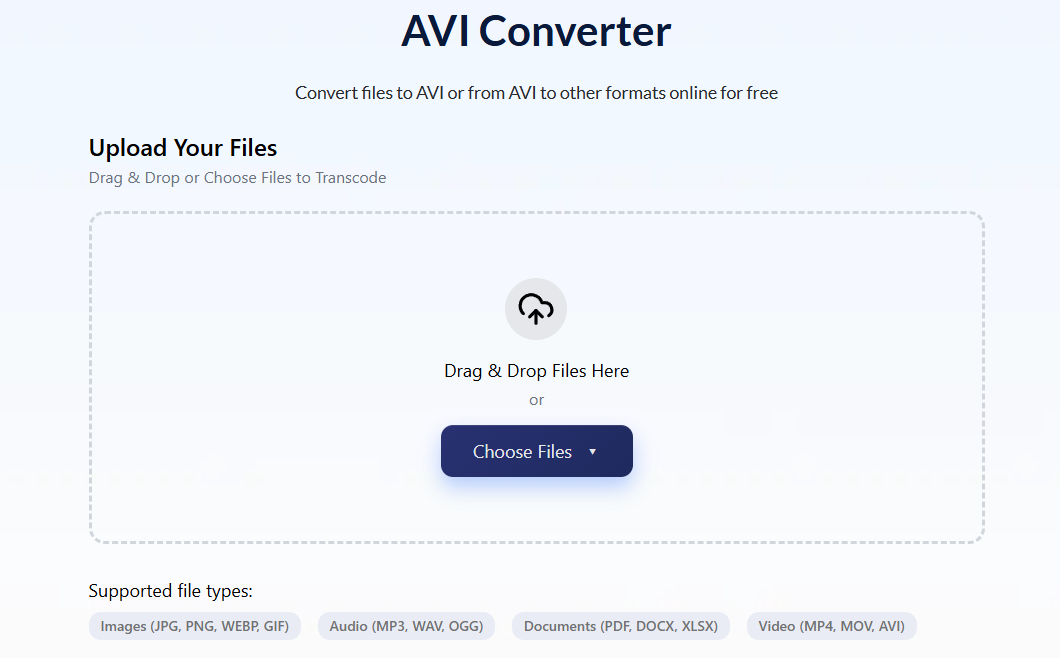
- Open AhaConvert’s free online AVI to MP4 converter
- Upload your .avi file from your device
- Select MP4 as the output format
- Choose H.264 video + AAC audio — maximum device compatibility
- Set bitrate to match your destination (see table below)
- Keep resolution and frame rate at source — never change these unnecessarily
- Click Convert and download instantly
AhaConvert handles DivX, Xvid, MPEG-4, and H.264 AVI files, protects uploads with 256-bit SSL encryption, deletes files automatically within 24 hours, and requires no account — completely free.
Settings by destination:
| Destination | Video Codec | Bitrate | Audio | Notes |
|---|---|---|---|---|
| General playback | H.264 | 4,000 kbps | AAC 192kbps | Matches most AVI source quality |
| YouTube upload | H.264 | 8,000 kbps | AAC 192kbps | Reduces YouTube reprocessing |
| iPhone/WhatsApp | H.264 | 3,000 kbps | AAC 128kbps | Native iPhone playback |
| Android/Smart TV | H.264 | 4,000 kbps | AAC 192kbps | Universal compatibility |
| Long-term archive | H.265 | 3,000 kbps | AAC 192kbps | 40% smaller than H.264 at same quality |
FFmpeg command (advanced users):
# Re-encode DivX/Xvid AVI to H.264 MP4
ffmpeg -i input.avi -c:v libx264 -crf 23 -c:a aac -b:a 192k output.mp4
# Remux H.264 AVI to MP4 (zero quality loss)
ffmpeg -i input.avi -c copy output.mp4
CRF 23 is the H.264 default — visually lossless for standard content. Lower CRF = better quality, larger file (18–20 for archival).
AVI vs MP4: Why the Switch Matters
| Feature | AVI | MP4 |
|---|---|---|
| Common video codecs | DivX, Xvid, MPEG-4, H.264 | H.264, H.265, AV1 |
| Common audio codecs | MP3, AC3 | AAC, MP3 |
| iPhone native | No | Yes |
| Android native | No | Yes |
| Browser playback | No | Yes |
| YouTube/Instagram | Accepted but reprocessed | Preferred |
| Smart TV apps | Limited | Universal |
| File size limit | 2GB (FAT32) | No practical limit |
| Streaming support | Poor (full download required) | Excellent |
| Chapter/subtitle support | None | Basic |
Why Your AVI Files Have Specific Problems
Won’t play on iPhone or Android: iOS and Android have never included DivX/Xvid decoders. The codecs inside 2000s-era AVI files are simply not present in mobile operating systems. Converting to H.264 MP4 is the only permanent fix.
Won’t upload to YouTube correctly: YouTube accepts AVI but reprocesses it heavily, often producing worse quality than uploading an equivalent MP4. Convert to H.264 MP4 first for best YouTube results.
Audio works but video shows green/corrupt frames: The DivX or Xvid decoder isn’t installed on your system. Install VLC for immediate playback or convert to MP4 permanently.
AVI file is split into multiple parts: Files over 2GB on FAT32 file systems are automatically split into segments (movie.avi, movie.avi.001, etc.). Most converters handle the primary file — some require joining segments first using tools like VirtualDub.
Frequently Asked Questions
Does converting AVI to MP4 reduce quality?
It depends on what’s inside your AVI file. If it contains H.264 video and AAC audio, you can remux to MP4 with zero quality loss — the data moves containers without re-encoding. If it contains DivX, Xvid, or MPEG-4 Part 2 video — which describes most AVI files from the 2000s — re-encoding is required. At 4,000 kbps H.264 output (CRF 23), quality loss compared to the DivX source is invisible for standard viewing. AhaConvert uses optimal settings automatically.
Why won’t AVI files play on iPhone or Android?
iOS and Android have never included DivX or Xvid decoders — the codecs inside the vast majority of AVI files. The MP4 container with H.264 video is what both platforms natively support. Installing VLC for iOS or Android plays AVI files immediately as a free workaround. Converting to H.264 MP4 using AhaConvert provides permanent native playback without needing a separate app.
What is the difference between AVI and MP4?
AVI is a 1992 Microsoft container that stores DivX, Xvid, or MPEG-4 video with MP3 audio — codecs and structure that modern devices don’t support natively. MP4 is the modern universal standard using H.264 or H.265 video with AAC audio — supported natively by every phone, browser, smart TV, and streaming platform. Converting AVI to MP4 doesn’t change the visual content; it repackages it in a format every modern device understands.
Can I convert AVI to MP4 without re-encoding?
Yes — if your AVI contains H.264 video and AAC audio (uncommon but possible in newer AVI files), the streams can be remuxed to MP4 with zero re-encoding and zero quality loss. Check using MediaInfo. Most AVI files from the 2000s contain DivX, Xvid, or MPEG-4 Part 2 video, which requires re-encoding to H.264. AhaConvert automatically detects the optimal conversion path.
How long does AVI to MP4 conversion take?
Re-encoding a DivX AVI to H.264 MP4 typically takes 1–5 minutes per hour of video using AhaConvert’s online converter, depending on your internet speed and file size. Remuxing (when the AVI already contains H.264) completes in seconds regardless of video length. Conversion time scales with video length and bitrate — a 700MB movie file typically converts in 2–4 minutes online.
The Bottom Line
AVI files aren’t broken — they’re just built around codecs that modern devices stopped supporting years ago. The fix is straightforward: convert to H.264 MP4 and every compatibility problem disappears instantly. Use a reliable AVI Converter like AhaConvert — free, browser-based, no account required, with automatic quality optimisation and files deleted within 24 hours.
