

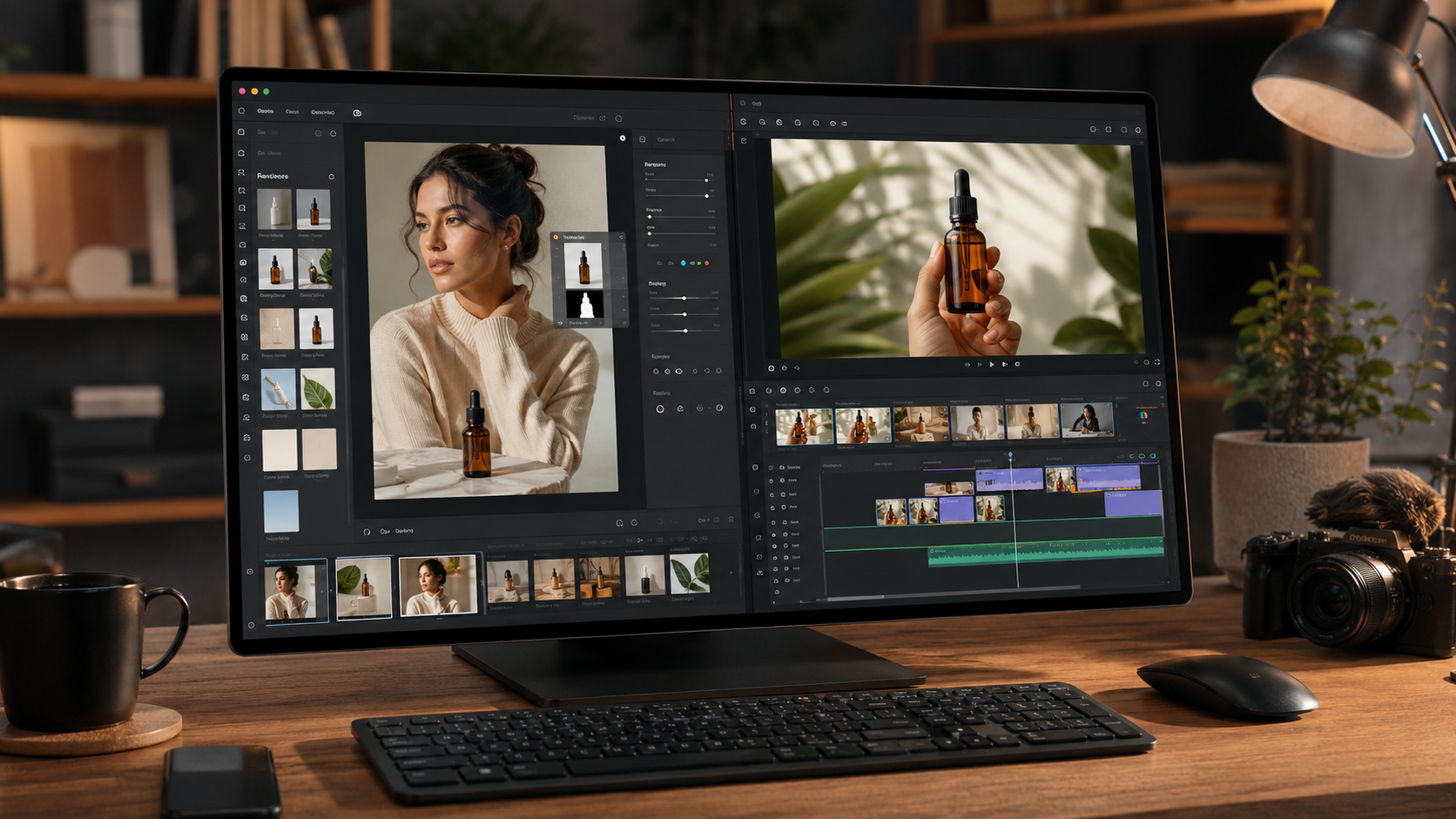
The past year has shifted how people expect AI image tools to behave. One-pass text-to-image is still useful, but everyday users increasingly want something more practical: upload a real photo, describe a precise change, and get a result that still looks believable. That is the promise behind agentic image models — systems that follow complex instructions, blend multiple references, and refine output instead of guessing in a single shot.
Muse Image sits at the center of that shift. Released by Meta Superintelligence Labs in 2026, it is built around reasoning before rendering: planning composition, grounding facts when needed, and improving drafts through self-refinement. For creators, the real value is not abstract benchmark scores. It is whether you can remove a photobomber from a wedding photo, place yourself in front of a landmark without losing your face, or turn a casual product shot into a clean listing image — all from natural language.
Muse Image: where editing beats generation
Most people who search for Muse-style workflows are not starting from a blank canvas. They have a photo that is almost right. Muse Image shines in that mode.
Natural-language photo editing is the headline use case. Upload an image, switch to edit mode, and write what should change — not the whole image. Strong prompts name what to remove or replace and what must stay the same. For portraits, that often means explicitly protecting face, hair, expression, and lighting while only altering the background or a distraction.
Multi-reference composition is the second standout. Muse Image–class models can merge separate uploads — a selfie plus a travel scene, or a product plus a room — into one coherent visual. The trick is assigning roles in the prompt: which file is the person, which is the background, and which details must remain untouched.
Text-to-image still matters when no source photo exists: social graphics, concept art, thumbnails, and quick mockups. Muse Image handles multi-clause prompts well, which helps when you need readable labels or several objects in one frame.
On Meta Image, Muse Image is the default image model inside a browser studio. You get Image Edit and Text To Image in one workspace, quick presets for common jobs (remove object, change background, restore photo, room redesign), and optional switches to GPT Image 2 or Flux Pro when a task demands more precision or lower cost. New accounts receive 100 free credits with no credit card required, and failed generations refund automatically — useful when you are iterating edits.
If you want to try Muse Image–style editing without living inside a social app, start at meta muse image — upload a photo, pick Muse Image, and describe one specific change first. Small, focused edits usually outperform giant all-in-one prompts.
Muse Video: image and motion in the same account
Video is the natural next step once still images are in your workflow. Muse Video (branded on Meta Image as Meta Video) extends the same idea to motion: describe a scene, optionally attach a reference frame, and generate short clips for social, ads, or storyboards.
Meta Image treats video as part of the same studio, not a separate product. You keep one credit balance and one generation history. The generator currently supports established video engines including Kling 3.0 (cinematic motion and storytelling), Seedance 2.0 (realistic humans and reference-guided video), and Gemini Omni (Google’s multimodal video path), while the flagship Muse Video model remains the platform’s default long-term direction.
Typical Meta Video workflows look like this:
- Open the video tab in the generator.
- Write a clear motion prompt — subject, camera movement, lighting, and mood.
- Choose aspect ratio (16:9 for YouTube, 9:16 for Stories/Reels).
- Add a reference image when the engine supports it, especially for character or product consistency.
- Download the clip and refine the prompt if motion or framing drifts.
For teams that already produce still assets on Meta Image, keeping video in the same tool removes export-and-reupload friction. A product photo edited with Muse Image can feed directly into an image-to-video run without leaving the tab.
Explore the video side of the studio at meta muse video — the homepage studio switches between Muse Image and Meta Video in one click.
Why a single studio matters
Creators lose time when image and video live in different apps with different billing and no shared history. Meta Image’s layout — Muse Image for stills, Meta Video for motion — is aimed at that friction. You edit a photo, generate a variant, then move to video without re-authenticating or buying credits on another platform.
That does not mean one model solves everything. Hard edits on busy photos may still benefit from GPT Image 2; cheap brainstorming drafts may be faster on Flux Pro. The point is having Muse-class editing as the default, with alternatives one click away.
Getting started in five minutes
- Visit the homepage and sign up (100 free credits).
- Image first: upload a real photo → Image Edit → Muse Image → protect identity in your prompt.
- Then video: switch to Meta Video → pick an engine → describe motion and aspect ratio.
- Save downloads and iterate; credits refund on failed jobs.
A note on naming
Meta Image is an independent platform — not affiliated with Meta Platforms, Inc. The product offers Muse Image– and Meta Video–class workflows in the browser; model names in the app refer to third-party integrations accessed through the interface. If you need Meta’s official in-app Muse Image inside Instagram or WhatsApp, use Meta AI there. If you want a standalone web studio with credits, history, and both image and video, Meta Image is built for that path.
