

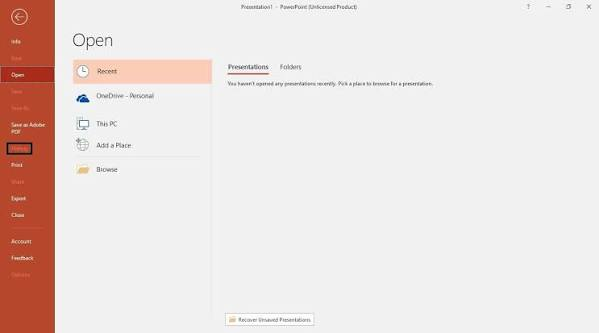
PowerPoint can stop opening for many different reasons. The app may freeze, close without warning, show an error, or open a blank screen. In other cases, PowerPoint itself works normally, but one presentation refuses to open. This difference matters because you should not treat every problem as file corruption. Software conflicts, faulty add-ins, Office installation problems, security settings, and damaged presentations can all cause the issue. This guide explains practical PowerPoint not opening fixes so you can identify the cause first and choose the right solution.
Why Won’t PowerPoint Open?
Before changing settings or repairing files, check what exactly fails. If PowerPoint will not launch with any presentation, the problem may come from Microsoft Office, an add-in, an update, or another software conflict. If PowerPoint opens but only one PPT or PPTX file fails, the presentation itself may have a problem.
Common causes include:
- A damaged PowerPoint installation
- Conflicting third-party add-ins
- Outdated Microsoft Office
- Security or permission restrictions
- An incompatible file format
- A damaged or corrupted presentation
- Limited system resources or temporary software problems
This simple check can save you from trying file-repair methods when the actual problem sits inside PowerPoint.
Method 1: Restart PowerPoint and Check Another File
Start with the easiest test. Close PowerPoint completely and restart your computer. A restart can clear temporary system problems and free resources that PowerPoint needs to run. After restarting, open PowerPoint without opening your problem presentation. Then create a new blank presentation or open another PPTX file. If other presentations open normally, your PowerPoint installation probably works, and you should focus on the specific file.
If PowerPoint not opening affects every presentation, move to the next methods. You may need to check add-ins, repair Microsoft Office, or install pending updates.
Also make sure you use a PowerPoint version that supports the presentation format. Older Office versions may have trouble with files created with newer features or formats.
Method 2: Open PowerPoint in Safe Mode
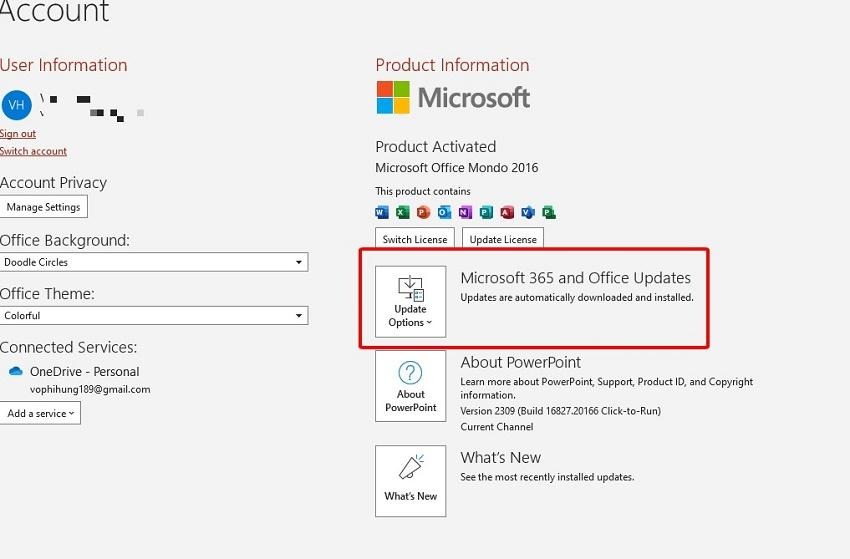
Third-party add-ins can sometimes interfere with PowerPoint. Safe Mode starts PowerPoint without normal add-ins, which makes it useful for finding this type of problem.
On Windows, press Win + R, type PowerPnt /Safe, and press Enter. If PowerPoint opens in Safe Mode, test the program again.
If it works correctly, an add-in may cause the problem. You can then check your add-ins from:
File > Options > Add-ins
At the bottom, choose PowerPoint Add-ins from the Manage box and select Go. Disable or remove add-ins one at a time, then restart PowerPoint.
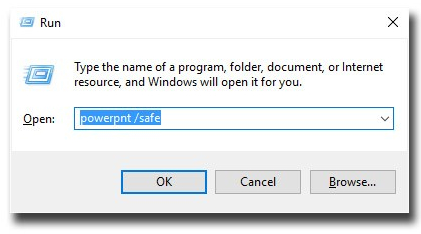
This method helps you determine whether the application or an added feature causes the failure.
Method 3: Repair Microsoft Office
If PowerPoint still refuses to open, repair the Microsoft Office installation. Windows provides built-in repair options that can fix problems inside Office without requiring a full reinstall. On Windows 11, open Settings > Apps > Installed apps. On Windows 10, go to Settings > Apps > Apps & features.
Find Microsoft 365 or your Microsoft Office installation, select the three-dot menu, and choose Modify. Start with Quick Repair and follow the instructions.
If Quick Repair does not solve the problem, try Online Repair if your Office installation provides that option. Online Repair performs a more complete repair and may take longer.
After the repair finishes, restart your computer and test PowerPoint again. If PowerPoint still does not open, check for Office updates or consider reinstalling Office as a later step.
Method 4: Check File Security Settings
Sometimes PowerPoint works correctly, but Windows blocks a particular presentation because of its source or security settings. This can happen with files downloaded from the internet or received from another computer.
First, right-click the presentation in File Explorer and select Properties. Look at the General tab for a security message or Unblock option. If Windows shows an Unblock option and you trust the file source, you can select it and apply the change.
You should also check whether you have permission to access the file. If the presentation sits on a shared drive, USB device, cloud folder, or restricted location, copy it to a local folder such as Documents and try opening it again.
PowerPoint may also use Protected View for files from potentially unsafe locations. Do not disable security features blindly. First confirm that you trust the presentation and its source.
Method 5: Repair Damaged PowerPoint Presentations
If PowerPoint opens normally but one presentation continues to fail, the file may be damaged. Signs can include an error when opening the file, missing slides, broken formatting, blank content, or unreadable presentation data.
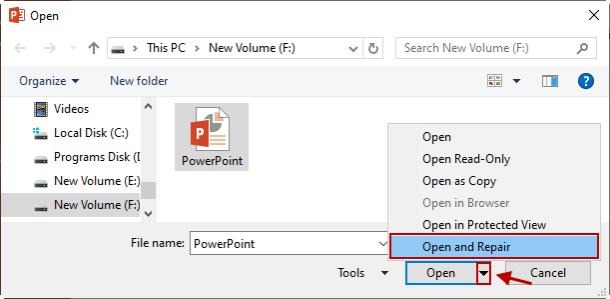
First, try PowerPoint’s built-in Open and Repair option. Open PowerPoint, select File > Open, browse to the presentation, select it without double-clicking, and use the Open drop-down to choose Open and Repair. This option can fix some minor file problems.
Repair Corrupted PowerPoint Files with 4DDiG File Repair
If PowerPoint cannot open a presentation even after you try its built-in repair option, the file may have serious damage. 4DDiG File Repair can help repair corrupted PowerPoint files and recover content from damaged PPTX presentations. It can be useful when a file shows an error, fails to load, loses slides, or displays broken formatting. The tool supports Microsoft Office files and provides a simple repair process for users who do not want to edit damaged files manually. You can add the affected presentation, start the repair, preview the result, and save the repaired file when the content looks correct.
Key Features:
- PPTX File Repair: Repairs damaged PowerPoint presentations that fail to open or display correctly.
- Simple Repair Process: Lets users add a damaged file and start the repair without complex steps.
- Preview Repaired Content: Allows you to check the repaired presentation before saving the final file.
- Fixes Different File Problems: Can help with missing content, broken formatting, and opening errors.
- Supports Office Documents: Works with damaged Microsoft Office files, including PowerPoint presentations.
Final Thoughts
When PowerPoint not opening becomes a problem, do not assume that your presentation is corrupted immediately. First check whether PowerPoint fails with every file or only one presentation. Restart the app and computer, test Safe Mode, disable problematic add-ins, repair Microsoft Office, and check security restrictions.
If PowerPoint works normally with other files but one presentation still refuses to open, focus on the file itself. Try Open and Repair first. If that fails and the presentation contains important data, a dedicated file-repair tool such as 4DDiG File Repair can provide another option. This approach helps you choose the right fix instead of changing several settings without knowing the cause.
