

Switching a messaging app into Chinese is often treated as a display preference. On a Windows PC, it is also a useful moment to review the settings that can expose account or message information.
This matters particularly when the same account is used on a phone and a Windows 10 or Windows 11 computer. A new desktop login adds another active session, another notification surface, and another place where files may be stored locally.
For users in Hong Kong and Taiwan, Traditional Chinese may make privacy menus easier to interpret, but the language choice itself does not make an account safer. Old sessions, broad visibility rules and automatic downloads still need deliberate review.
A more useful setup therefore combines localization with a short privacy check instead of changing the interface and leaving every other option at its default.
Start With the Client, Then Adjust the Language
Keep installation and localization as separate decisions. First make sure the Windows client is the version you actually intend to use; change the interface language only after the application is running normally.
A sensible sequence is:
- identify the device platform;
- install the appropriate client;
- authenticate the account;
- configure the preferred language;
- review privacy and device settings.
That separation makes later updates and troubleshooting more predictable because a language preference does not become a reason to switch installers.
If the existing client already provides the required Chinese interface, adding a separately modified build usually creates more maintenance work than value.
Traditional Chinese, Simplified Chinese or English?
Chinese-speaking users do not all want the same interface. The best choice is the one that makes important controls unambiguous on the device being used.
Some users prefer:
- Simplified Chinese;
- Traditional Chinese;
- English menus with Chinese message input.
Region is one factor, but personal habit and workplace documentation matter too.
A user in Hong Kong or Taiwan may prefer Traditional Chinese, while an English interface can still be practical in a bilingual workplace. The message language and interface language do not need to match.
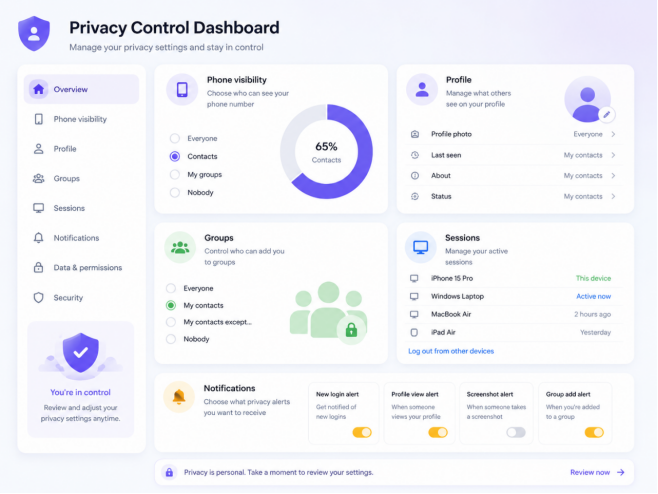
Privacy labels are a good test: choose the interface in which options such as phone visibility, active sessions and group permissions are easiest to understand.
Check Phone-Number Visibility Before Joining More Groups
One of the first settings worth checking is who can see the account’s phone number.
Depending on how the account is used, a user may not want their number visible to:
- unknown group members;
- public community participants;
- people added indirectly through shared groups.
For accounts used in large communities, this setting is worth checking before adding more desktop sessions or joining additional public groups.
A guide such as Telegram隐私设置指南 can be useful for understanding the kinds of controls to look for. Use it as context, then make the final privacy choices from the settings shown on the account itself.
Last Seen and Online Status Are Separate Choices
Presence information can reveal more than users expect.
Depending on the platform, settings may control:
- last-seen time;
- online status;
- exceptions for selected contacts.
There is no single correct configuration.
There is no universal “best” setting; the important point is knowing what other people can infer from the visibility level you select.
The key is to make the choice deliberately.
Profile Photos Can Travel Farther Than Expected
Profile images can reveal identity across large groups.
Users should ask:
- Should everyone see the photo?
- Contacts only?
- Are there exceptions?
- Is the current image appropriate for public communities?
A profile image that is fine for close contacts may be less suitable when the same account is used in public groups or professional communities.
Control Who Can Add the Account to Groups
Messaging platforms make it easy to join or be added to communities.
That convenience can create unwanted invitations.
Users should review who is allowed to add them to:
- groups;
- channels;
- community chats.
Reducing unsolicited group additions is a simple way to cut down spam without changing how normal one-to-one conversations work.
Review Forwarding and Attribution Controls
Forwarded messages can sometimes reveal information about the original sender.
Where the platform provides controls for this behavior, users should understand whether forwarded content can link back to their identity.
This is especially useful for:
- public-group users;
- community moderators;
- people discussing sensitive topics.
Regional Names Do Not Change the Privacy Model
Chinese search terms can help users find explanations in the language they are comfortable with, but they should not be treated as proof that a page represents a different or safer edition of the software.
Users may also encounter the term 纸飞机中文版 in Chinese-language search results. Treat the phrase as regional vocabulary, not as evidence that the software follows a different privacy model.
The practical checks remain the same on a Hong Kong or Taiwan Windows PC: confirm the active devices, visibility rules, group permissions and local file behavior.
Regardless of what users call the application, they should still review:
- active devices;
- visibility settings;
- group permissions;
- local downloads.
Active Sessions Deserve a Regular Look
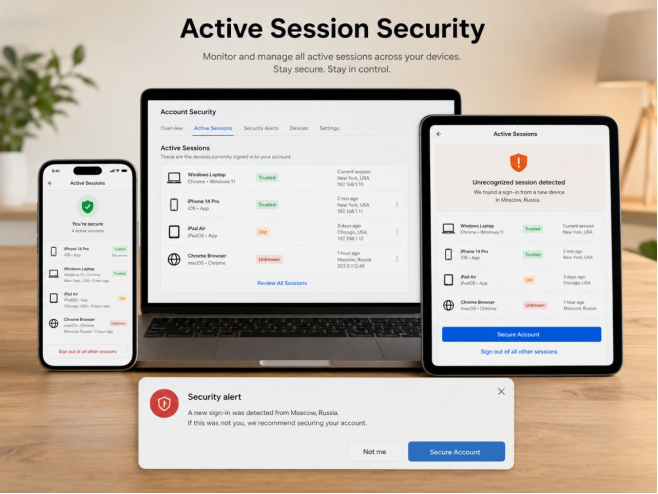
Every browser, phone, tablet and desktop login expands the list of devices that can access the account.
Users should periodically review:
- current phone;
- current desktop;
- old laptops;
- previous phones;
- temporary browser sessions;
- unfamiliar devices.
Removing a session that is no longer needed is often more useful than repeatedly changing unrelated privacy settings.
This is one of the highest-value security habits because old sessions are easy to forget.
When Replacing a PC, Retire the Old Session
When replacing a phone or computer:
Before migration
- confirm access to the account;
- save important local files;
- review existing sessions.
After the new device is working
- check that the new session appears;
- remove the old device.
This prevents a retired laptop from remaining logged in indefinitely.
Automatic Downloads Are Also a Privacy Setting
Desktop privacy is not limited to what other users can see. A Windows client can quietly accumulate local copies of files from chats and groups.
Desktop messaging clients can automatically store:
- images;
- videos;
- PDFs;
- Office documents;
- archives.
Users should understand what is downloaded without explicit action.
On a shared or managed computer, this can matter even when the account itself has strong login protection.
Give Downloads a Deliberate Home
On a personal Windows PC, a dedicated download folder makes cleanup easier. On a company machine, important documents may need to be moved into approved storage instead of remaining in an application cache.
On a company device, important documents may need to be transferred into approved storage.
Sensitive files should not remain indefinitely in a loosely managed cache or default Downloads folder.
Hide Message Previews When the Screen Is Visible to Others
Desktop notifications can reveal conversation content to anyone looking at the screen.
Consider hiding previews when:
- working in an open office;
- sharing the screen;
- presenting;
- using a family computer.
During screen sharing, presentations or work in an open office, a notification can expose content even when nobody has access to the account itself.
Use Two-Step Verification Before You Need Recovery
Where the account supports an additional password, users should understand how it works.
A stronger login process may involve:
- temporary verification code;
- additional account password;
- recovery method.
These elements should be configured before a device is lost—not afterward.
Treat Login Codes Like Temporary Passwords
Verification codes should never be shared with strangers or accounts claiming to provide activation services.
A code can function as a temporary credential.
If a code arrives unexpectedly:
- do not share it;
- review active sessions;
- check whether someone attempted to access the account;
- update security settings if necessary.
Localization Helps When It Improves Understanding
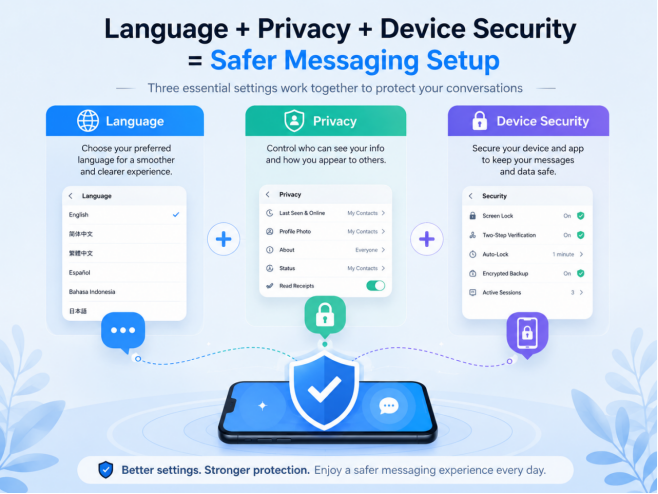
The strongest reason to use a preferred interface language is not appearance; it is confidence when reading settings that affect privacy and account access.
That is one real advantage of localization.
A privacy option written in an unfamiliar language may be ignored.
A clearly understood Chinese interface can make it easier to evaluate:
- who can see information;
- who can invite the user;
- which devices are logged in;
- which files download automatically.
That is especially useful for bilingual Windows users who may chat in Chinese but work with an English operating system.
Recheck Key Settings After Major Updates
A major application update can occasionally change:
- menu locations;
- language settings;
- privacy labels;
- notification behavior.
After updating, check:
- Chinese remains selected;
- privacy settings still match expectations;
- session controls are available;
- text renders correctly.
A quick review after a major release is usually enough; a changed menu location is not a reason to reinstall the application.
A Compact Privacy + Localization Checklist
Application
- Supported client installed
- Platform verified
- Update route understood
Language
- Preferred Chinese variant selected
- Chinese text displays correctly
- Chinese input works
Privacy
- Phone-number visibility reviewed
- Profile visibility reviewed
- Group-invite permissions checked
- Forwarding controls reviewed
Account
- Active devices checked
- Old sessions removed
- Two-step verification understood
Local device
- Download folder reviewed
- Automatic downloads configured
- Notification previews adjusted
Final Notes
A Chinese interface can make privacy controls easier to read, but language is only one layer of a well-managed desktop setup.
For a long-term Windows installation, the useful combination is simple:
a verified client + a familiar interface language + intentional privacy choices + regular session review.
That approach keeps the account easier to understand without creating a separate maintenance path just for localization.
For Hong Kong and Taiwan users in particular, Traditional Chinese can improve day-to-day clarity while the underlying security and device-management habits stay exactly the same.
