


Browser-based communication is convenient, but many users still depend on a dedicated Windows messaging client for focused work. A desktop application can remain open throughout the day, surface notifications without keeping a browser tab active, handle files more naturally, and fit into multi-monitor workflows alongside documents, spreadsheets, development tools, and video meetings.
These advantages become more important in multilingual teams. Users may prefer different interface languages, switch between English and Chinese input, exchange files with bilingual names, and work across groups that follow different communication conventions. The desktop client becomes not just a chat window, but part of the team’s operating environment.
| Key takeaway: A productive desktop messaging setup should reduce context switching. The goal is to make language, notifications, files, search, and session security predictable enough that communication supports the work instead of interrupting it. |
Why a Dedicated Windows Messaging Client Still Matters
The web is ideal for temporary access, shared computers, or situations where installing software is not possible. Daily desktop work has different requirements. People need persistent sessions, reliable keyboard shortcuts, easy drag-and-drop file handling, visible unread states, and fast switching between conversations while other applications remain open.
- Persistent access during long work sessions.
- Desktop notifications that do not depend on an open browser tab.
- More natural file selection, downloads, and drag-and-drop workflows.
- Faster keyboard-driven navigation for high-volume communication.
- Better use of multiple monitors and separate workspaces.
- Clear separation between communication and general web browsing.
For teams that work with messaging all day, these small efficiencies accumulate. The desktop client can become the stable communication layer around which other Windows tasks are organized.
Chinese Naming and Localization Are Part of Product Discovery
Chinese-speaking users may arrive through regional terminology such as 纸飞机中文版 when they are looking for a Chinese-language experience. In practice, that query often combines several intents: identify the correct platform, understand the Chinese interface, find a Windows-compatible client, and avoid confusing third-party download routes.
A useful setup guide should connect those intents rather than treating them as unrelated topics. Users first need to know which desktop application they are dealing with, then how language preferences affect the interface, and finally how the client fits into normal Windows workflows.
Localization should also be described precisely. The language used for menus and settings is separate from the language used inside messages. A Traditional Chinese interface can coexist with English project channels, and a Simplified Chinese interface can be used while communicating with customers in several languages.
Use Telegram Desktop as a Focused PC Workspace
For users who spend most of the day on a Windows PC, Telegram Desktop is best understood as a dedicated workspace rather than simply a larger version of a mobile chat screen. The desktop environment makes it easier to combine conversations with files, search, keyboard input, and other productivity applications.
The best workflow is not to keep every chat equally visible. Pin active project conversations, archive or mute low-priority communities, and use folders or other available organization features to separate work, customer communication, announcements, and general discussion. The exact feature names may vary by version, but the principle is stable: reduce the number of conversations competing for attention.
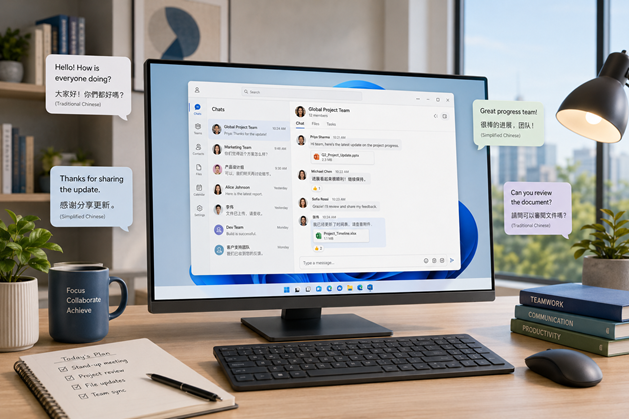
Figure 1. Desktop messaging can support multilingual communication while remaining part of a focused Windows work environment.
Design Notifications Around Priority, Not Volume
Notification overload is one of the fastest ways to make desktop messaging counterproductive. Teams should decide which conversations require immediate attention and which can be reviewed in batches. Direct messages, active project groups, and urgent operations channels usually deserve stronger notification settings than general communities or high-volume announcement feeds.
Privacy also matters. A desktop notification can reveal message text on a shared screen, in a meeting room, or during a presentation. Users should review preview settings and Windows notification behavior so that important alerts remain visible without exposing sensitive content.
- Keep high-priority direct messages visible.
- Use project-specific notifications for active workstreams.
- Mute or reduce noise from general communities.
- Review message-preview settings on shared or presentation PCs.
- Recheck notification behavior after major application or Windows updates.
Treat Chat Attachments as Part of a File Workflow
A desktop client often becomes a temporary landing zone for files. Users receive PDFs, spreadsheets, presentations, images, archives, and source files directly in conversations. Without a simple file workflow, the default download folder quickly becomes difficult to search and important attachments remain trapped inside chat history.
A more reliable pattern is to use chat for transfer, a Windows download folder for short-term handling, and structured project storage for long-term retention. That storage might be a shared drive, a cloud workspace, or an organization-managed document system. The important point is that files should move from conversation context into a place where naming, permissions, backup, and versioning are easier to manage.
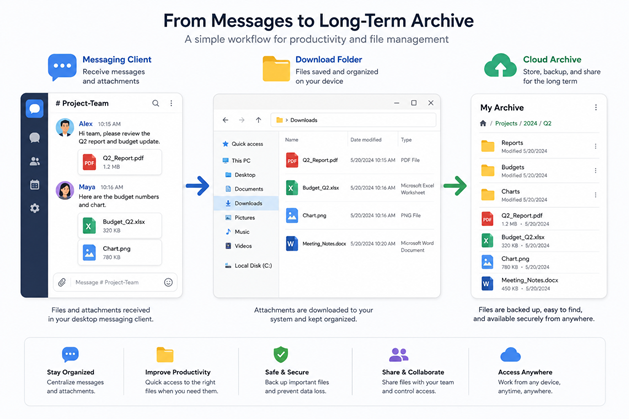
Figure 2. Messaging works best as the transfer layer; important files should move into organized Windows or cloud storage for long-term use.
Use Consistent File Names Across Languages
Multilingual teams often discover that the hardest part of file exchange is not the transfer itself but later retrieval. A report may be described in Chinese inside a chat, saved with an English file name, and then uploaded to a project folder under a third naming convention. Searchability deteriorates quickly.
Standardize the elements that matter most: project code, date, document type, and version. Teams can still use Chinese or English descriptive terms, but the stable identifiers should remain predictable. This approach makes Windows Search, cloud search, and chat search more useful across language boundaries.
Keep Technical Terms Stable When Translating
Not every term benefits from translation. Product names, account identifiers, URLs, file extensions, command names, API fields, and version numbers should usually remain unchanged. Translating these inconsistently can create ambiguity, especially when users are troubleshooting across English and Chinese documentation.
For internal guides, define a preferred term once and reuse it. If a Chinese label is helpful, place it beside the stable technical name rather than replacing the identifier entirely. This gives users a localized explanation without weakening precision.
Search Is a Core Desktop Productivity Feature
High-volume teams cannot rely on memory alone. Desktop search should be part of normal messaging habits. Users should search by stable project names, file names, dates, usernames, or distinctive phrases instead of scrolling through long histories.
This is another reason to standardize terminology. When a project is known by three different Chinese and English names, search becomes fragmented. A small glossary or naming convention can make conversations easier to retrieve months later.
Review Sessions, Updates, and Local Storage
A persistent desktop client deserves the same basic security discipline as other Windows applications. Users should periodically review active sessions, remove devices they no longer use, keep the client updated through an established path, and understand where downloaded files are stored locally.
Organizations should also decide whether sensitive attachments belong on unmanaged PCs. If the answer is no, the messaging policy should make that boundary clear instead of relying on individual judgment each time a file arrives.
A Practical Multilingual Desktop Routine
- Start the day by reviewing direct messages and active project groups rather than every unread conversation.
- Keep the interface language that makes settings and privacy controls easiest to understand.
- Switch between Chinese and English input methods using a familiar Windows shortcut.
- Move important attachments from the messaging download folder into structured project storage.
- Use stable project terms and technical identifiers so search works across languages.
- Reduce notification noise from low-priority groups and announcement channels.
- Move decisions, specifications, and final files into the team’s long-term system of record.
- At the end of the day, close sensitive files and review whether any temporary downloads should be deleted or archived.
Final Thoughts
Desktop messaging remains valuable because it sits close to the work itself. On Windows, users can communicate, handle files, search past discussions, and switch between languages without moving constantly between a phone and a browser. For multilingual teams, that convenience is strongest when the environment is deliberately organized.
The most effective setup is not defined by one language or one notification preference. It is defined by consistency: a clear desktop access path, understandable interface settings, predictable file handling, stable technical terminology, and a routine for keeping sessions and software up to date. When those pieces are in place, messaging becomes a support system for focused work rather than another source of digital noise.
