

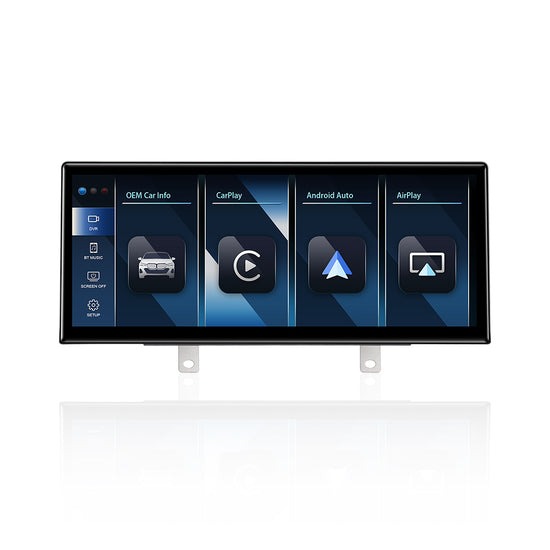
You’ve invested in a BMW, Mercedes, or Audi — a machine engineered to impress — yet every time you glance at that infotainment screen, it feels like a relic from another era. Clunky menus, outdated navigation, and zero smartphone integration make daily drives more frustrating than they should be. You deserve better, and so does your car.
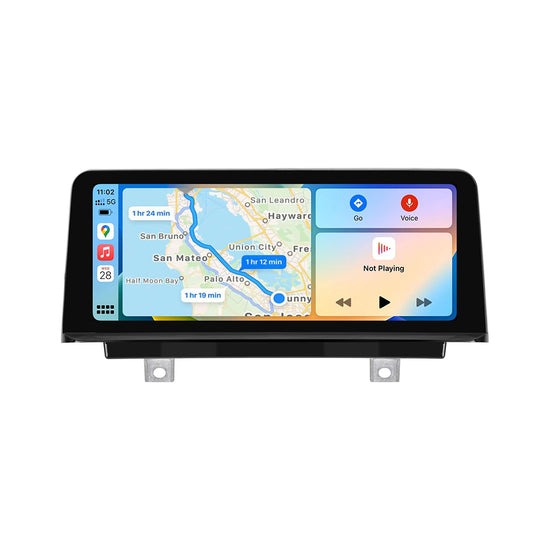
Apple CarPlay changes everything. It transforms your existing touch screen into a seamless extension of your iPhone, giving you hands-free calls, real-time navigation through Apple Maps or Waze, and instant access to your favorite music and podcasts — all without taking your eyes off the road. The problem? A surprising number of luxury car owners discover their vehicles shipped without native CarPlay support, even when a perfectly capable touch screen sits right on the dashboard.
The good news is that upgrading is more straightforward than most people assume. This guide walks car enthusiasts through the entire process — from selecting the right accessories like optical cables and fiber optic connectors, to physical installation and the essential coding steps required to bring CarPlay fully to life. Whether you drive a BMW, Mercedes, or Audi, you’re about to unlock a driving experience that finally matches the quality of the car around you.
Why Upgrade to Apple CarPlay in Your Luxury Car?
Owning a BMW, Mercedes, or Audi means expecting the best in every department — yet factory infotainment systems from even five years ago can feel painfully behind modern standards. Apple CarPlay bridges that gap instantly, turning your existing touch screen into a genuinely intelligent interface that works the way you already live your life.
The practical benefits are immediate. You get hands-free calling through Siri, turn-by-turn navigation via Apple Maps or Waze with live traffic updates, and seamless access to Spotify, Apple Music, or any podcast app — all displayed in a clean, familiar layout your eyes can process in a split second. No more fumbling with a separate phone mount or squinting at outdated built-in maps that haven’t been updated since the car left the dealership.
For cars with touch screen Apple CarPlay integration, BMW’s iDrive, Mercedes’ COMAND, and Audi’s MMI systems were engineering achievements in their time, but none were designed with today’s app ecosystem in mind. Integrating CarPlay through compatible accessories preserves your car’s original interface while layering modern smartphone connectivity on top — you get the best of both worlds without replacing the head unit entirely.
Keeping your car’s technology current also protects its long-term value and daily usability. A luxury vehicle that feels modern inside holds its appeal far longer, both to you and to future buyers. The upgrade pays for itself quickly in convenience alone.
Essential BMW Accessories for Your CarPlay Upgrade
Getting CarPlay to work in a BMW that didn’t ship with it requires more than plugging in a cable — the car’s audio and data architecture demands specific hardware to bridge the gap between your iPhone and the existing infotainment system. Choosing the right accessories from the start saves you from frustrating compatibility issues down the line.
The optical cable is the backbone of the entire upgrade. BMW’s audio systems route sound through a fiber optic network known as MOST (Media Oriented Systems Transport), which means a standard USB or analog connection simply won’t cut it. A purpose-built optical cable maintains signal integrity across this network, ensuring your CarPlay audio plays through the car’s premium speakers without degradation or interference. When shopping for one, prioritize cables rated specifically for your BMW’s model year — a mismatch here is the most common cause of audio dropouts after installation.
Paired with the optical cable, a fiber optic connector acts as the physical junction point that loops the signal correctly through the MOST ring. Without it, removing or bypassing any component in the chain breaks the entire audio loop, leaving you with silence. Quality matters here: connectors with secure locking mechanisms prevent accidental disconnection from vibration during normal driving. Brands like PEMP Car Audio offer model-specific optical cables and fiber optic connectors designed to meet the precise tolerances BMW’s MOST network requires, which takes much of the guesswork out of parts selection.
Beyond these two core components, you’ll typically need a CarPlay interface module compatible with your specific iDrive generation, a USB port harness for iPhone connection, and vehicle-specific wiring adapters that tap into existing connectors without cutting factory wires. Preserving the original wiring keeps your car’s warranty considerations intact and makes the upgrade fully reversible. Always cross-reference part numbers against your VIN before purchasing to confirm fitment.
Step-by-Step Guide to Installing CarPlay in Your Car
Installing Apple CarPlay in a BMW, Mercedes, or Audi is a rewarding project, but it demands patience and methodical execution. Rushing any stage — especially in a vehicle with sophisticated electronics — can create problems that are far more time-consuming to fix than the installation itself. Work through each phase deliberately, and the result is a factory-clean integration that looks and performs as though it shipped from the dealership that way.
Preparing Your Vehicle and Gathering Tools
Before touching a single panel, disconnect the negative battery terminal and let the car sit for at least fifteen minutes — this allows capacitors in the electronics to discharge fully and prevents accidental airbag deployment or module resets. Gather your tools in advance: a trim removal kit, a set of Torx drivers, a multimeter, and a clean microfiber cloth for protecting interior surfaces. Luxury car trim panels use plastic clips that break easily under metal tools, so plastic pry tools are non-negotiable here. Photograph every connector and panel position before removal so reassembly is straightforward.
Connecting the Optical Cable and Fiber Optic Connector
With the head unit exposed, locate the existing MOST fiber optic loop — it’s typically a thin orange cable running between audio components. Insert the fiber optic connector into the loop at the designated tap point, ensuring the locking tab clicks firmly into place. Thread the optical cable from the connector to your CarPlay interface module, keeping bends gradual rather than sharp — fiber optic cables lose signal integrity when kinked. Once connected, a quick continuity check with a MOST loop tester confirms the ring is intact before you reassemble anything.
Installing the Touch Screen Interface for Apple CarPlay
Mount the CarPlay interface module in a concealed location behind the dashboard where it won’t shift during driving — double-sided thermal tape combined with a zip-tie anchor point works reliably. Connect the vehicle-specific wiring adapter to the existing head unit harness without cutting any factory connectors, then run the USB port harness to a convenient location within the center console. Power up the system, confirm the module is detected by the head unit, and verify that the touch screen responds correctly to input before closing up the panels permanently.
Coding and Configuration for CarPlay Compatibility
Hardware installation gets CarPlay physically connected, but coding is what actually brings it to life. Without the correct software configuration, your car’s control modules won’t recognize the new interface — you’ll have all the components in place with nothing to show for it on screen. This step is where many DIY upgrades stall, but approaching it systematically makes the process manageable.
For BMW owners, the go-to tool is ISTA (Integrated Service Technical Application) or BimmerCode, a user-friendly app that communicates with the car’s OBD-II port via a compatible adapter. Within BimmerCode, navigate to the HU-NBT or HU-MGU module depending on your iDrive generation, and enable the CarPlay and Siri parameters — these are typically listed under “Telephone” or “Connected Drive” coding options. Mercedes owners working with COMAND NTG systems should use Vediamo or the more accessible Xentry software, adjusting the SCN coding to recognize third-party interface modules. Audi and Volkswagen Group vehicles respond well to VCDS (VAG-COM Diagnostic System), where enabling the MDI (Media Device Interface) and MIB module parameters unlocks CarPlay recognition.
After coding, perform a full system restart by reconnecting the battery and allowing all modules to complete their wake-up cycle — this typically takes two to three minutes. Then connect your iPhone via the USB harness and confirm CarPlay launches automatically. Test every function: make a call through Siri, run navigation, and play audio to verify the optical audio path is carrying sound cleanly through all speakers. If any function misbehaves, return to your coding software and double-check that no parameters were inadvertently reset during the module write process.
Troubleshooting Common CarPlay Upgrade Issues
Even a carefully executed installation can surface unexpected problems once everything is powered up. Knowing where to look first saves hours of guesswork and prevents the frustration of dismantling panels you just reassembled.
Intermittent connectivity or CarPlay failing to launch when you plug in your iPhone is almost always traced back to one of two sources: a loose USB harness connection or an incomplete coding write. Start by reseating the USB connector at both the harness end and the interface module — vibration during the first few drives can work a freshly connected plug slightly loose. If the connection is solid, open your coding software and verify the CarPlay parameter is still enabled; some modules revert settings after a battery reconnection.
Audio dropouts or complete silence through the speakers point directly to the optical cable and fiber optic connector. Re-examine every bend in the fiber optic run for kinks, and confirm the connector’s locking tab is fully engaged in the MOST loop. A MOST loop tester takes the guesswork out entirely — if the ring shows broken continuity, the fault location becomes obvious immediately.
Touch screen responsiveness issues, where inputs register slowly or not at all, typically indicate a grounding problem with the interface module. Check that the module’s ground wire is fastened to a clean, paint-free metal surface on the chassis. For persistent software errors or module recognition failures that resist standard fixes, manufacturer-specific forums for your vehicle — Bimmerpost for BMW, MBWorld for Mercedes, AudiWorld for Audi — carry detailed threads with model-specific solutions and updated coding files from owners who have resolved identical issues.
Your Luxury Car Deserves Modern Connectivity
Upgrading your BMW, Mercedes, or Audi to Apple CarPlay is one of the most impactful improvements you can make to a luxury vehicle — and it’s well within reach for any car enthusiast willing to approach the project methodically. The path forward is clear: source the right accessories for your specific model, including a quality optical cable and fiber optic connector for BMW’s MOST audio network; follow the installation steps carefully with proper safety precautions; and complete the coding process using the appropriate software for your vehicle’s platform. Each stage builds on the last, and the result is a seamless integration that feels entirely factory-built.
What makes this upgrade genuinely satisfying is how completely it transforms the daily driving experience. Hands-free calls, live navigation, and your entire music library become effortlessly accessible through a familiar interface — all while the rest of your car’s premium systems continue working exactly as intended. You’re not replacing what makes your vehicle exceptional; you’re bringing it fully into the present.
The technology in your car should match the engineering around it. Now that you have a clear roadmap — from hardware selection through to final testing — there’s no reason to keep driving with an infotainment system that falls short of everything else your vehicle delivers. Take the first step, and every drive from here becomes noticeably better.
