

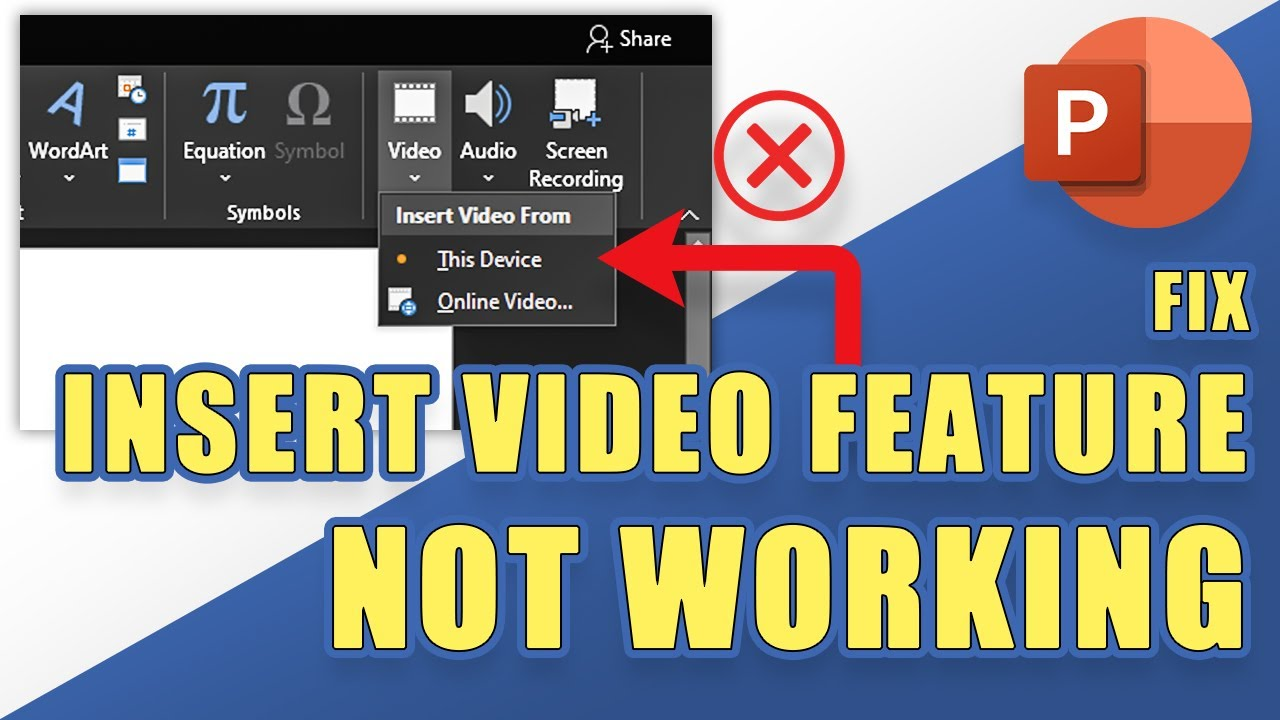
Getting the fix PowerPoint cannot insert a video from the selected file error does not always mean PowerPoint is broken. A video may play normally in a media player but fail when you add it to a presentation.
The problem is often related to the video’s format, codec, or file condition. PowerPoint recommends MP4 videos encoded with H.264 video and AAC audio for broad compatibility across Windows and Mac.
Common Reasons PowerPoint Cannot Insert A Video
PowerPoint supports several video formats, but the file extension alone does not determine compatibility. The video and audio codecs inside the file also matter.
Unsupported Video Format
Older formats can cause insertion problems, especially when their encoding is not supported by your PowerPoint version. Microsoft currently recommends MP4 with H.264 video and AAC audio as the preferred combination. Some older formats also have limited or deprecated support in newer PowerPoint versions.
Missing Or Incorrect Codecs
A supported file extension can still fail if Windows does not have the codec required to decode the video. This can happen when someone sends you a presentation or media file created with a codec that is not installed on your computer.
Corrupted Video File
The source video may also be damaged. Missing frames, playback errors, freezing, or a black screen can indicate corruption. If the video cannot play properly outside PowerPoint, changing its format may not solve the underlying problem.
Method 1: Convert The Video To A PowerPoint-Compatible Format
Converting a healthy video to a recommended format is one of the simplest ways to resolve compatibility problems. The goal is to create an MP4 using H.264 for video and AAC for audio, and that way you can fix PowerPoint cannot insert a video from the selected file issue.
- Use a trusted video converter and select “MP4” as the output format. In the video encoding settings, choose “H.264” or “AVC” for the video codec and “AAC” for the audio codec. Start the conversion and save the new file to your computer.
- After conversion, open your presentation and select the slide where you want the video. Go to the “Insert” tab, select “Video”, choose the option for inserting a video from your computer, and select the converted MP4 file.
If the converted file inserts successfully, the original problem was likely related to format or codec compatibility.
Method 2: Update PowerPoint And Media Components
An outdated PowerPoint installation can have compatibility limitations with newer media formats. Updating Office can also provide fixes for known playback and insertion issues.
- Open PowerPoint and select “File,” then go to “Account”. Under “Office Updates”, select “Update Options” and then choose “Update Now” if an update is available.
- After the update finishes, restart PowerPoint and try inserting the video again.
If the video still fails despite using a supported format, check whether your system is missing a required codec or media component. Microsoft notes that additional codecs can sometimes provide support for media files that otherwise fail to play or insert.
Method 3: Repair The Damaged Video File
If the video does not play correctly in a normal media player, the problem may be corruption rather than PowerPoint compatibility. In this situation, converting the file may not work because the source data itself is damaged.
A dedicated video repair tool can be useful when you need to repair corrupted video files before inserting them into PowerPoint. 4DDiG Video Repair supports common formats such as MP4, MOV, AVI, MKV, and M4V and is designed to repair videos affected by playback errors, corruption, freezing, and other damage.
- To repair the video, open 4DDiG File Repair and select “Video Repair” from the available repair options. Click “Add Videos” and select the video that PowerPoint cannot insert.
- Once the video appears in the repair window, select “Repair All” to begin the repair process. Wait for the analysis to finish.
- Select “Preview” to check whether the repaired video plays correctly.
- If the result looks good, select “Save” or “Save All” and choose a safe location for the repaired video. You can then return to PowerPoint and try inserting the repaired copy.
Tips To Avoid Video Problems In PowerPoint
A few habits can reduce compatibility and corruption problems when working with presentation media:
- Use MP4 with H.264 video and AAC audio whenever possible.
- Keep the original video on reliable local storage.
- Avoid interrupting downloads or file transfers.
- Test embedded videos before an important presentation.
- Keep PowerPoint and Microsoft 365 updated.
- Keep a backup copy of important source videos.
Conclusion
Most PowerPoint video insertion errors can be traced to format, codec, or file corruption issues. Start by converting the video to MP4 with H.264 and AAC, then update PowerPoint and check media components. If the video itself shows playback problems, repair it before trying to insert it again.
Following this troubleshooting path makes it easier to fix PowerPoint cannot insert a video from the selected file without unnecessarily rebuilding the presentation.
