

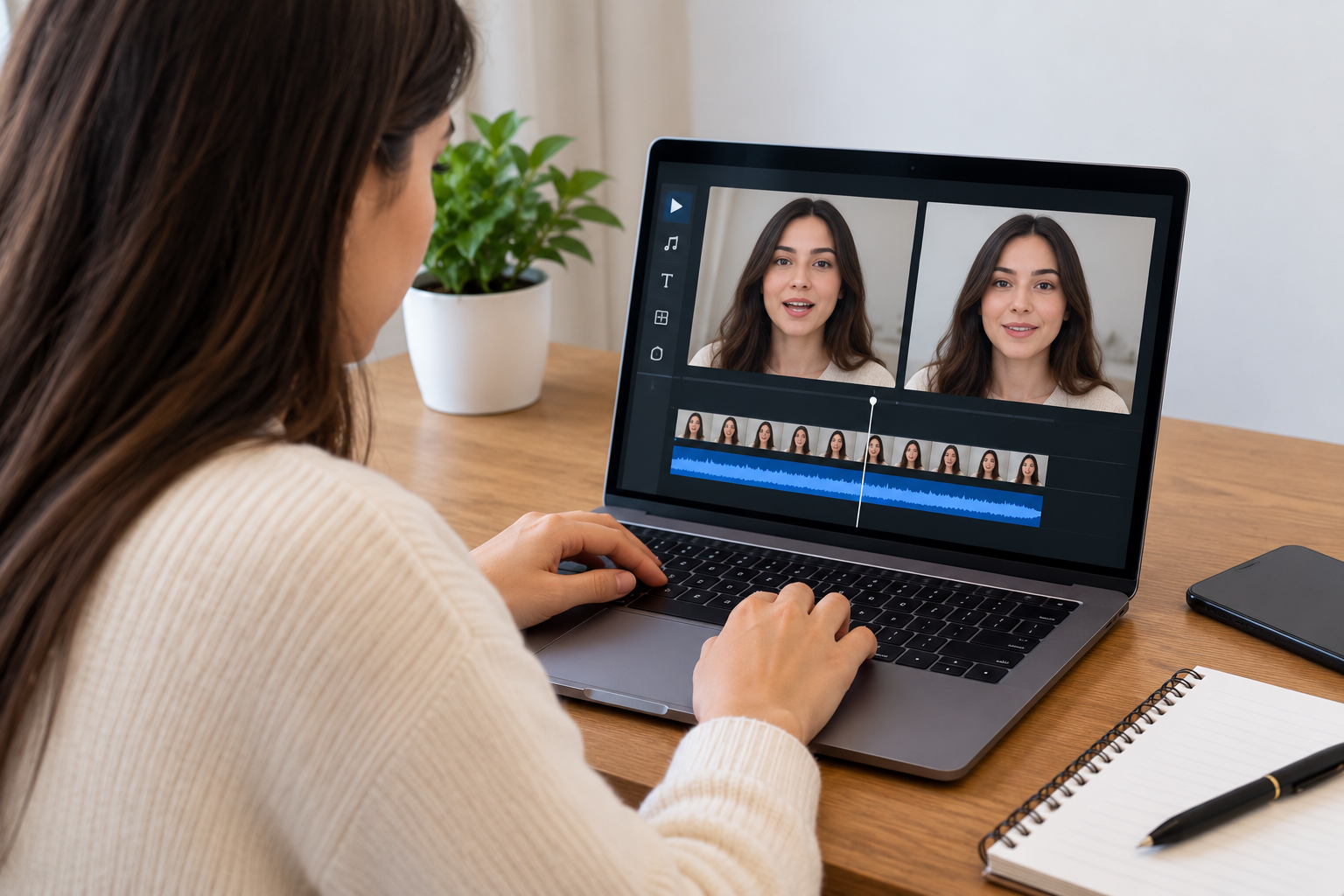
The voice sounds fine. The face looks fine. Put them together, though, and something feels wrong: the mouth seems late, the jaw barely moves, or a sentence ends while the lips keep going.
Before generating another version, work out which part is failing. A timing problem needs a different fix from a blurry portrait. Running the same inputs again makes it harder to tell what changed.
Here is a practical way to check a short AI lip sync clip. Start with a copy of the source files so you can compare each change against the original.
Listen to the actual file you uploaded
Open the audio file itself. Do not rely on the version you remember recording. An export can contain silence at the beginning, a cut-off final syllable, or music that was louder than it sounded in the editing timeline.
For a first test, use one speaker and a short passage of ordinary speech. Ten to fifteen seconds is a useful working sample, not a requirement of the tool. Leave out the music until you have a result you are happy with.
Check the first word and the last word especially closely. If a consonant is missing from the recording, changing the face will not bring it back. Fix the recording, export it, and give the new file a clear name.
Separate an offset from a bad mouth shape
Watch the clip at normal speed with headphones. If the mouth consistently seems to lead or trail the voice throughout the clip, check the timing in your editor. Move neither track until you have confirmed that they start together on the timeline.
If the start looks right but the end drifts, compare the durations of the original audio and the audio in the exported video. Look for an accidental speed adjustment or a change introduced while editing. A mismatch appearing only after export deserves a check of the export settings.
A mouth that moves at roughly the right time but looks distorted is a different issue. That is a reason to inspect the image or try another source clip, rather than repeatedly shifting the audio.
Give the model a face it can read
A portrait can be attractive and still make a poor animation source. A hand near the chin, hair across the mouth, or a deep shadow on one side of the face all make the visible shape less clear.
Try a well-lit, roughly front-facing portrait with enough detail around the lips. Avoid enlarging a tiny face from a distant group photograph. Keep the crop loose enough to include the chin and surrounding face.
Use a portrait you own or have permission to animate. If you are comparing inputs, keep the voice track unchanged. Otherwise you are testing two things at once.
For a browser-based lipsync ai test, LipSyncX offers talking-photo and video-dubbing workflows. For a portrait test, prepare the image and narration before opening the generator. The tool should be the place you run a prepared test, rather than the place you discover the script still needs rewriting.
Make the first comparison small
Keep a short note beside your files. It can be as plain as this:
- Version A: original portrait and original recording.
- Version B: clearer portrait, same recording.
- Version C: chosen portrait, recording with the long opening pause removed.
Compare the same sentence in each version. Pick the one that is less distracting at normal playback speed. Frame-by-frame inspection can help locate a problem, but most viewers will watch the finished clip once, on a small screen.
The AI lip sync workflow is a starting point for these short comparisons. Check the settings and generation cost shown in the current interface before submitting another test. Do not assume every model uses the same limits.
Check what happens after generation
Play the downloaded video before adding captions, transitions, or background music. Then play the finished export. If the source download looks acceptable and the final version does not, trace the edits between them.
Watch once on a phone as well. Captions can hide the chin, a vertical crop can remove part of the face, and loud music can make speech harder to follow. Those problems need an editing change.
Keep the original download. If you later need a square version for a feed and a vertical version for a story, make both from that file instead of repeatedly exporting an already compressed copy.
When you find a usable combination, save the portrait, voice file, and settings together. The next clip then starts with a known reference. Change the script, check the pronunciation, and run another short test before committing to a longer video.
Paid contribution from LipSyncX, prepared with AI-assisted writing.
