

A messaging client can be installed on Windows in a few minutes, but daily use creates a much larger footprint: downloaded documents, media cache, startup behavior, notification rules, language preferences and several signed-in devices.
The difference between a tidy setup and a troublesome one usually appears months later, when the system drive is filling up or a user cannot remember which computer is still logged in.
For a Windows 10 or Windows 11 user, three areas are worth deciding early:
- installation and download verification;
- language configuration;
- long-term update and storage management.

Check the Windows PC Before Looking for an Installer
Start with the computer, not the download button. A quick environment check avoids many “wrong version” problems before they happen.
- Windows version;
- available storage;
- system architecture;
- administrator permissions;
- security restrictions.
A personal laptop and an employer-managed Windows PC can have very different installation rules.
If security software or administrator policy blocks an installation, that is a reason to verify the approved process—not to disable protection just to make the installer run.
Use Search to Find Information, Not to Skip Verification
Search is useful for discovering a Windows workflow, especially when users search in Chinese, but the result page should not make the trust decision for them.
A user researching Windows setup may come across a Telegram电脑版下载教程. That can help explain the desktop workflow, while the actual installer should still be checked against the Windows environment and file metadata.
Once a candidate page is open, the practical checks are still about the domain, platform, file type, publisher, signature and security scan.
- domain;
- platform information;
- file type;
- publisher;
- signature;
- security scan.
In other words, relevance to a search phrase and integrity of an installer are two different questions.
Inspect the Windows File Before Running It
After downloading, spend a few seconds on the file itself instead of double-clicking immediately.
Look at:
- filename;
- size;
- extension;
- publisher;
- digital signature.
Windows security tools can also provide useful warnings.
An unexpected Windows warning deserves investigation. Turning off Defender or endpoint protection should not be the default response.
Choose Startup Behavior Based on How Often You Use the App
Starting with Windows is convenient for a client used all day, but it is unnecessary overhead for software opened only a few times a week.
This is convenient for users who depend on messaging all day.
It may be unnecessary for users who open the client only occasionally.
Automatic startup also affects:
- boot time;
- memory usage;
- notification availability.
A small startup decision also affects when notifications become available and how much background activity the PC carries after boot.
Set the Download Folder Before It Becomes a Mystery
File handling is one of the main reasons people prefer a desktop client, so the download location should be treated as part of setup rather than an afterthought.
Messaging clients can accumulate:
- images;
- videos;
- PDFs;
- ZIP files;
- spreadsheets;
- Word documents.
On a busy account, the volume can become significant.
For work documents, a dedicated project folder or managed cloud location is usually easier to maintain than leaving everything in an application default directory.
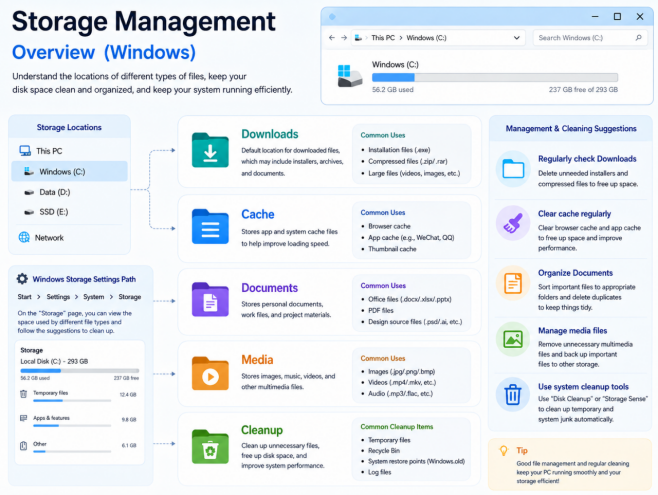
Cache and Saved Files Are Not the Same Thing
Cache is usually disposable; a document you intentionally saved may not be. Cleaning both categories as though they are identical can cause avoidable data loss.
Saved documents may be important user files.
These should not be treated identically.
Before cleaning storage, users should understand which data can be safely removed and which files need to be preserved.
This matters especially when disk space becomes low.
Configure Chinese Only After the Client Is Working
For users in Hong Kong and Taiwan, Traditional Chinese may be the most comfortable interface, while others may prefer an English Windows environment with Chinese typing. Either way, language is best handled as a configuration step.
For the language step, a reference such as Telegram中文设置指南 can help identify where Chinese options are discussed. The safer long-term approach is still to keep the same Windows client and change the interface through its normal settings.
The stable sequence is to install the intended Windows client, authenticate, select the preferred language, and then test normal work tasks.
install → authenticate → configure Chinese → test input and display.
This is cleaner than searching for a separate modified installer.
Test Chinese in the Tasks You Actually Do
Seeing Chinese menus is only the first check. A practical Windows test should include typing, search, filenames and notifications.
Test:
- Simplified Chinese;
- Traditional Chinese;
- Chinese filenames;
- group search;
- notifications;
- English-Chinese mixed text.
A multilingual desktop environment should handle these tasks without requiring users to switch software versions.
Know How Updates Are Delivered
A desktop client is a maintained application, not a one-time installer. Users should know whether updates arrive automatically, through prompts or through an organization-managed process.
Users should understand whether updates are:
- automatic;
- manual;
- prompted;
- centrally managed.
For personal systems, automatic updates are often practical.
For managed environments, testing a major release on a small number of machines can be more useful than updating every PC at the same moment.
After an Update, Test the Basics Instead of Reinstalling
After upgrading, check:
- login;
- message synchronization;
- notifications;
- file upload;
- file download;
- Chinese interface;
- storage settings.
If login, synchronization, notifications, file transfer, Chinese display and storage still work, there is usually no need for further intervention.
Watch the System Drive Over Time
Videos, image cache and downloaded archives can consume more space than expected, particularly on a busy account.
Periodic maintenance can include:
- checking cache size;
- removing unnecessary videos;
- cleaning old temporary files;
- moving important documents elsewhere.
A monthly look at cache and large downloads is often enough to prevent an emergency cleanup when C: is nearly full.
Keep the Active-Device List Understandable
Desktop use adds another authenticated endpoint to the account.
Users should periodically inspect:
- current Windows PC;
- current phone;
- old devices;
- browser sessions.
Unneeded sessions should be removed.
A short list of recognizable sessions is easier to audit than years of forgotten computers and browsers.
Moving to a New Windows PC: Save Local Files First
Before replacing a Windows PC:
- preserve important local downloads;
- review sessions;
- note custom settings.
After setting up the new PC:
- authenticate;
- configure language;
- configure storage;
- test messaging;
- revoke the old computer.
Once the new PC is tested, revoke the old Windows session so the migration finishes cleanly.
A Small Windows Maintenance Checklist
Installation
- Correct package
- Source checked
- Installer reviewed
Language
- Chinese configured if needed
- Input tested
- Filenames tested
Storage
- Download folder known
- Cache monitored
- Automatic downloads controlled
Security
- Sessions reviewed
- Notification previews adjusted
Maintenance
- Updates functioning
- New releases tested
- Old devices removed
Final Notes
Treat a Windows messaging client as part of the desktop environment, not as a file downloaded once. Long-term reliability depends on source, storage, language, updates and active devices. The same structure works for Hong Kong and Taiwan users whether the interface is Traditional Chinese or English.
