


Giving a child their first Android phone is one of those parenting moments that feels bigger than it looks. One minute they needed your phone to watch YouTube. The next, they have their own device, their own number, and access to the entire internet.
Most parents focus on choosing the right phone and the right plan. Fewer think about what happens after the phone is unboxed. And that first 20 minutes, before the child has set up accounts and downloaded apps, is the window where the right settings make the biggest difference.
Here are five Android settings to change before the phone leaves your hands.
1. Turn On Google Family Link
Family Link is Google’s free, built-in parental control tool, and it is the single most useful thing you can set up on a child’s Android phone.
Once you link the child’s Google account to yours through the Family Link app, you can set daily screen time limits (the phone locks when time runs out), set per-app time limits (Instagram gets 1 hour, games get 30 minutes), approve every app download before it installs, see the phone’s location on a map, and schedule a bedtime when the phone stops working except for calls.
The setup takes about 10 minutes. If you create a supervised child account (for children under 13), the controls are locked and the child cannot remove them without your password. For teenagers 13 and above, they can request to stop supervision, but you approve or deny.
The key is doing this during the initial phone setup, not after the child has been using it for a week. Retroactive controls feel like punishment. Controls set from the beginning feel like normal phone rules.
For families who want a deeper walkthrough covering every setting, this complete parental controls setup guide covers Family Link alongside additional layers like web filtering and per-app permissions.
2. Disable “Install Unknown Apps”
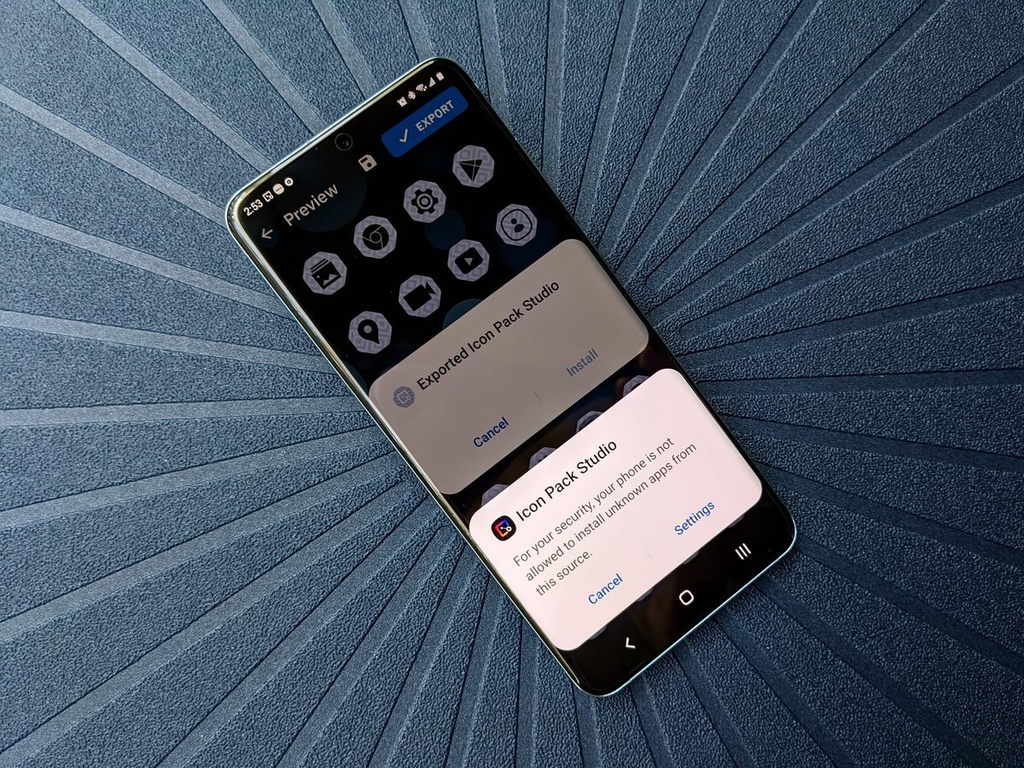
This one setting prevents the most common way risky apps get onto a phone.
Android allows apps to be installed from sources outside the Play Store (a process called sideloading). This is how pirated games, unofficial APKs, and sometimes malware end up on a device. A child who taps a “download free diamonds” link on a gaming forum can end up installing something that steals data or runs up charges.
The fix is simple. Go to Settings, then Apps, then Special Access, then Install Unknown Apps. You will see a list of apps (Chrome, WhatsApp, Files, etc.) that could be used to install APKs. Turn off the permission for every one of them.
With this off, the Play Store is the only source of apps, and if you turned on Family Link’s app approval in the previous step, every Play Store download needs your permission anyway. Two layers, no gaps.
3. Set Up Find My Device
If the phone is lost or stolen, Find My Device is how you get it back, or at least protect the data on it.
Go to Settings, then Security (or Google, depending on your phone), and toggle on Find My Device. Also make sure Location is turned on and that the child’s Google account is signed in.
With this enabled, you can go to google.com/android/find from any browser and see the phone on a map. From there you can ring it at full volume (even if it is on silent), lock it with a message so anyone who finds it can call you, or erase it remotely as a last resort.
Google recently upgraded this to “Find Hub,” which can locate newer phones even when they are turned off, using a Bluetooth signal picked up by other Android devices nearby. If the child’s phone supports this (most 2024 and later models do), turn on “Use Find My Device network” in the Find My Device settings.
This takes 2 minutes and could save the phone (and everything on it) the day it is left on a bus or in a school locker.
4. Lock Down the Play Store
Even with Family Link’s app approval, the Play Store itself has content-rating settings worth configuring.
Open the Play Store, tap the profile icon, go to Settings, then Family, then Parental Controls. Turn it on and set a PIN (different from the screen lock, so the child cannot change it). Then set the maximum allowed rating for apps, games, movies, and books. For a child under 13, set everything to the lowest tier.
This adds a second filter. Even if an app somehow gets past the Family Link approval (for example, if the child borrows a friend’s phone and logs into their account), the content rating restricts what is available.
Also worth checking: in-app purchases. Many “free” games push children toward spending real money on skins, gems, and upgrades. In the Play Store settings, you can require authentication for every purchase, so the child cannot buy anything without entering a password or biometric.
5. Review App Permissions
Every app asks for permissions when installed: camera, microphone, location, contacts, phone, storage. Most people tap “Allow” without reading. On a child’s phone, this is worth doing carefully.
Go to Settings, then Privacy (or Apps, then Permissions), and review each category. A photo editing app should not have access to the child’s contacts. A calculator should not need the microphone. A game should not have permission to read SMS messages.
Set sensitive permissions (camera, microphone, location) to “Ask every time” or “Only while using” rather than “Allow all the time.” This limits what apps can access in the background and reduces the data they collect about your child.
For parents who want to go further, monitoring tools like SpyHuman’s phone tracker can show detailed app activity alongside location and communication data, giving a more complete picture of how the phone is being used. This kind of tool is designed for parental oversight on a child’s device and works best when the child knows it is there.
The Setting That Matters Most
If you take one thing from this article, it is this: set everything up before you hand the phone over. The 20-minute window between unboxing and first use is the easiest moment to configure a safe phone. After the child has been using it for a week, every change feels like a restriction being added. During setup, it feels like the normal way the phone works.
Five settings, 20 minutes, and a conversation about why they are there. That combination covers more ground than any single app or tool.
