

You may have once imagined the convenience of watching your beloved streaming videos offline, wherever you go. This ensures uninterrupted entertainment when internet access is scarce and allows for seamless viewing during flights or in remote locations. Naturally, you might be wondering how to download any streaming videos for such occasions. Let’s delve into the methods that can rip streaming videos and make this a reality.
Method 1. Rip Streaming Videos Using Professional Video Downloader
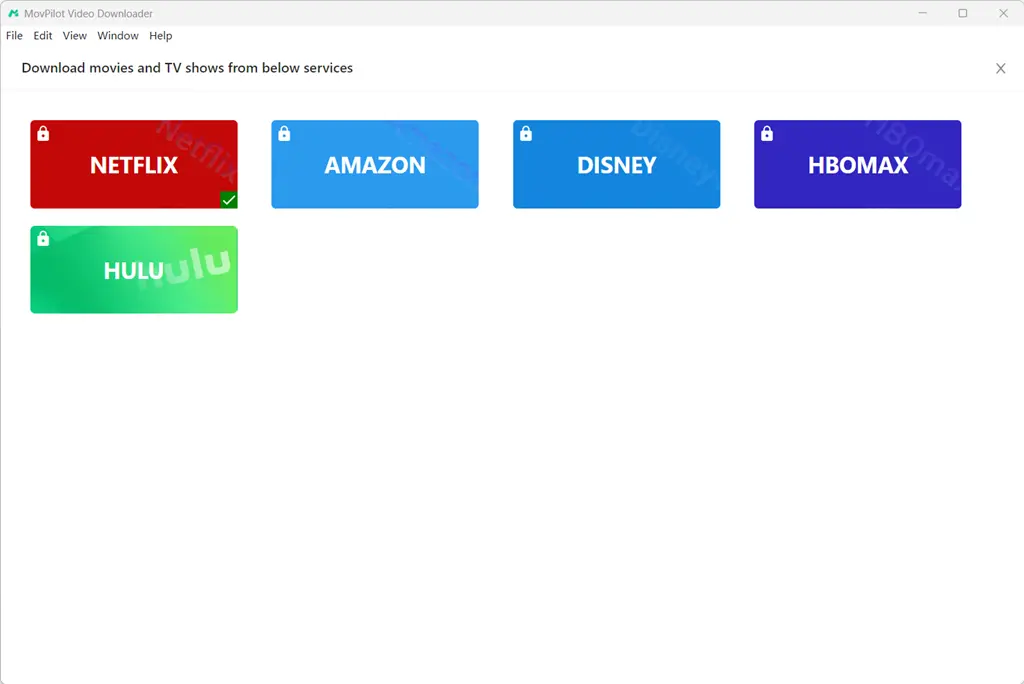
If you want to rip streaming videos rapidly and safely, without any worries, then MovPilot All-in-One Video Downloader is a versatile solution that revolutionizes your offline viewing experience. Its multi-platform boasts compatibility with numerous popular streaming platforms, including Netflix, Hulu, Disney+, and Amazon Prime Video, etc, ensuring you never miss out on your favorite content across different services.
What’s more, it supports high-quality downloads, enabling you to effortlessly download videos in MP4 or MKV formats, preserving their pristine 1080P quality, so you can enjoy every detail of your shows and movies even without an active internet connection.
Key Features of MovPilot All-in-One Video Downloader:
- Broad Streaming Platform Coverage: Including Netflix, Disney+, Hulu, Amazon Prime, HBO Max, etc, MovPilot has got you covered, allowing you to download from a wide array of streaming services seamlessly.
- 1080P Downloads in MP4/MKV: Experience crystal-clear visuals by downloading your videos in 1080P resolution, ensuring the highest visual fidelity in MP4 or MKV formats, ideal for both Windows and Mac users.
- Original Audio Preservation: Retain the rich audio experience, including Dolby Sound effects, ensuring your offline viewing is just as immersive as streaming online.
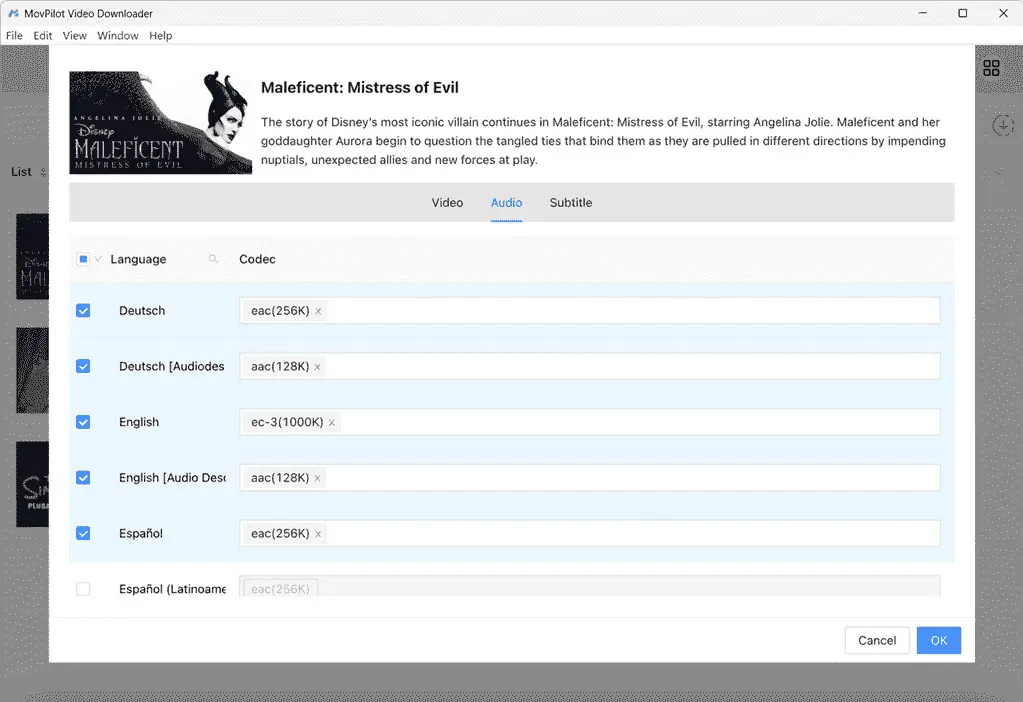
- Multi-Language Audio & Subtitle Support: Keep the original flavor intact with support for multiple language tracks and subtitles. This feature enhances accessibility and personalization, letting you enjoy content in your preferred language.
- Comprehensive Subtitle Support: MovPilot supports three main types of subtitles: soft subtitles, hard subtitles, and external subtitles. These various subtitle types aim to provide you with a customized viewing experience.
MovPilot All-in-One Video Downloader features an embedded browser that grants direct access to the official platforms of Netflix, Disney+, Amazon Prime, Hulu, and HBO. This streamlined process makes downloading your favorite TV shows and movies a breeze, requiring just a few simple steps.
Now, let’s delve into the workings of MovPilot’s All-in-One Video Downloader, the ultimate highly integrated software solution.
Step 1. Launch MovPilot and Log into Account
Download and install MovPilot All-in-One Video Downloader. Once installed, launch the downloader on your Windows/Mac device. You will then need to select all the desired streaming services and log into your respective accounts.
Step 2. Search for Desired Shows or Movies
Enter a keyword into the search bar to promptly find your desired titles. Within a few seconds, the results will appear, and you can filter the results as well.

Optional Step: Customize Output Settings
Navigate to the “Gear” icon and select “Settings” to configure your preferences for video format, video codec, output folder, download speed, and more. Additionally, you have the option to select audio tracks or subtitles in various languages to include in your downloads.
Step 3. Download Streaming Videos for Offline Viewing
Next, click on the “Download” icon next to the desired result. If you’re interested in downloading TV shows, select the episodes you wish to download first, and then click the “Download” button to initiate the download of streaming videos. Once completed, you can access your downloads in the “History” tab.

Method 2. Rip Streaming Videos Using Online Download Site
VideoGrabber is an online video downloader that simplifies the process of capturing streaming content. It supports various streaming platforms such as YouTube, Vimeo, and Facebook, enabling you to easily access your favorite videos.
This tool offers a range of download formats, including MP4, FLV, 3GP, WMV, WEBM, MP3, etc, ensuring compatibility across devices. It boasts good video quality, though the exact resolution may vary based on the source. Unfortunately, batch downloading is not supported, requiring you to rip streaming videos individually.
Step 1. Open VideoGrabber in your web browser.
Step 2. Navigate to the streaming platform and copy the URL of the desired video.
Step 3. Paste the URL into VideoGrabber’s search bar and select your preferred download format.
Step 4. Click the “Download” button to initiate the download process.
Step 5. Once completed, the video will be saved to your device’s designated downloads folder.

Pros:
- No need to download or install any additional software
- Offers a variety of video formats for download
Cons:
- Does not support batch downloading, which can be time-consuming for multiple videos.
- Occasional errors occur
- low success rates
- Output parameters cannot be customized
Method 3. Rip Streaming Videos Using Screen Recorder
FonePaw Screen Recorder is a powerful yet user-friendly software designed for capturing high-quality streaming videos directly from your screen. This versatile tool supports a wide range of output formats, including MP4, AVI, WMV, and more, ensuring compatibility with various devices and platforms.
Its standout feature lies in its ability to rip streaming videos in full HD by recording, preserving every detail of your favorite content. Additionally, FonePaw Screen Recorder offers basic video editing capabilities, allowing you to trim, crop, and add annotations to your recordings without switching to another application.
Step 1. Download and install FonePaw Screen Recorder on your computer. Launch the application.

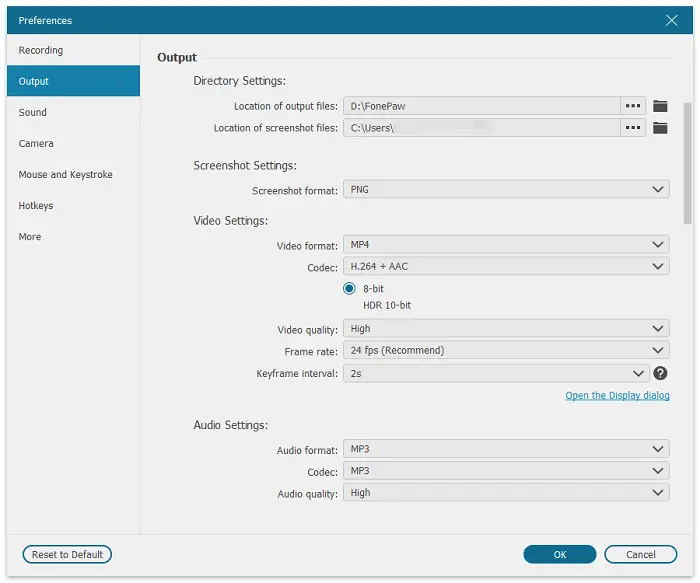
Step 2. Adjust the recording settings as needed, choosing your preferred output format, resolution, and frame rate.
Step 3. Use the drag-and-drop interface to select the area of your screen you want to record, or opt for full-screen recording.

Step 4. Press the “REC” button to begin recording. Immediately afterward, open the target streaming platform (e.g., Netflix, Amazon Prime) and play the video you wish to capture.

Step 5. Click the stop button once the video is recorded. Your recording will be saved in the specified format and location.
Pros:
- Works with most streaming platforms and supports multiple output formats
- Delivers professional-grade video quality
- Allows basic edits within the app
Cons:
- Recording from certain DRM-protected platforms like Netflix or Amazon Prime may result in a black screen due to copyright restrictions
- Users must keep the video playing during recording
- high-quality recording can consume significant system resources, potentially impacting other applications’ performance
Method 4. Rip Streaming Videos Using Chrome Extension
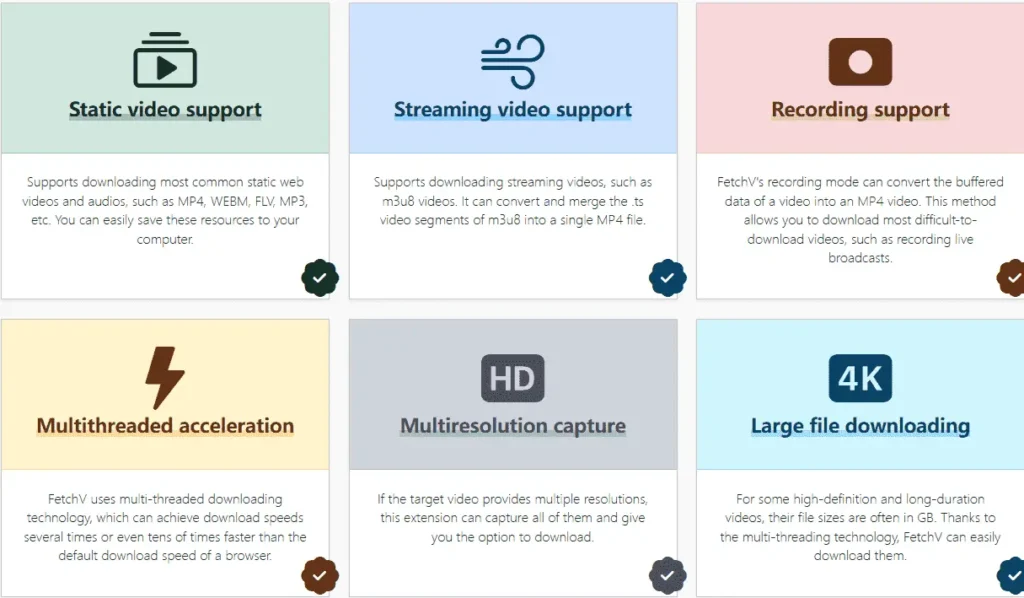
FetchV Video Download Extension is a powerful Chrome extension that enables you to rip streaming videos with ease. It’s a versatile tool, compatible across all operating systems as long as you have the Google Chrome browser installed. FetchV stands out for its seamless integration and wide support for various video formats, including MP4, AVI, and even high-definition (HD) quality options, ensuring you get the best possible video quality for offline viewing.
Step 1. Navigate to the Chrome Web Store, search for “FetchV Video Download Extension,” and click “Add to Chrome” to install it.
Step 2. After installation, ensure the extension is enabled by checking its icon next to the address bar.
Step 3. Open a new tab and go to the website hosting the video you wish to download.
Step 4. Play the video, and FetchV’s icon should automatically detect it. Click on the icon to see available download options, including different resolutions and formats.
Step 5. Choose your preferred format and resolution, then click “Download.” The video will start downloading to your designated folder.
Pros:
- Works seamlessly on any operating system supporting Chrome
- No need to download or install additional software
- Offers a variety of video formats and resolutions
Cons:
- May encounter compatibility issues with certain websites or video streams, resulting in failed downloads
- Features and settings are relatively basic, lacking advanced customization options for power users
- Only works within the Chrome browser
Conclusion
By and large, if you are looking for a way to rip streaming videos smoothly and effortlessly, compared to other tools, MovPilot All-in-One Video Downloader excels in supporting multiple mainstream streaming platforms, ensuring access to vast content. Its high-quality MP4/MKV downloads preserve the original quality while retaining subtitles and audio tracks. Cross-platform compatibility on Windows and Mac adds convenience. Considering all the benefits it can bring, please don’t miss out – try MovPilot All-in-One Video Downloader now!
