

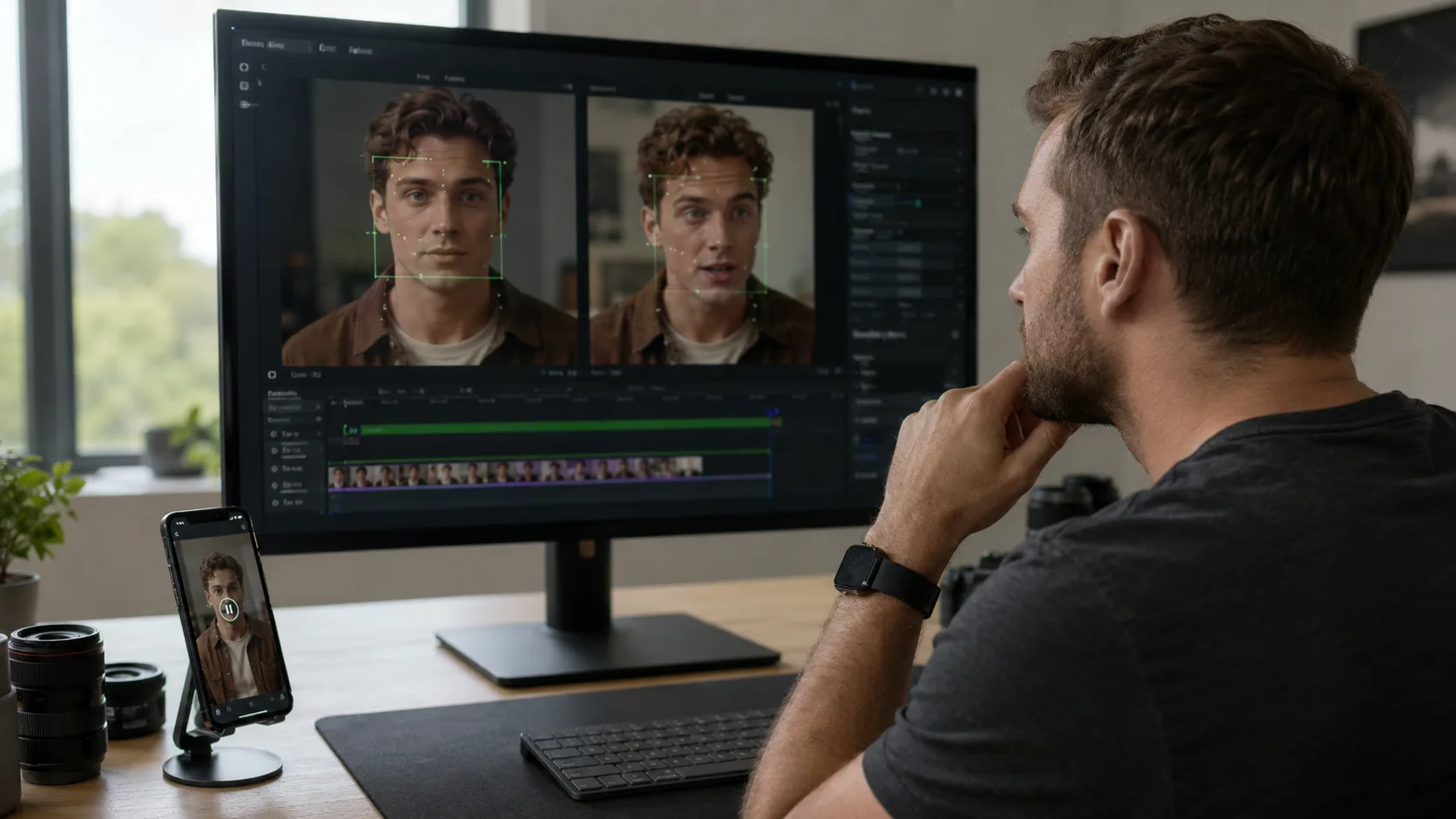
AI video face swap has reached the point where the bad results are easy to spot and the good results are surprisingly useful. A bad clip has the usual tells: the jaw floats, the eyes drift, the skin tone feels painted on, or the face looks sharp while the rest of the video is soft. A good clip does not scream “AI.” It just looks like a short edit that survived normal viewing.
That difference usually comes down to the inputs. The tool matters, but the source face, target video, lighting, angle, and clip length matter more than most beginners expect.
If you are testing face swaps for social posts, concept videos, training drafts, or private personal edits, treat the process like a small production workflow. Do not just upload a random selfie and hope the algorithm saves it. Pick the right source image, pick a target clip that gives the AI enough facial detail, review the output like an editor, and stay clear about consent.
Browser-based AI video platforms now bundle face swap with broader generation and editing tools, which makes the workflow easier than setting up a local model or jumping between separate apps. But the same rule still applies: clean inputs in, believable clips out.
This guide walks through a practical way to use AI video face swap without ending up with the waxy, glitchy results that make viewers notice the edit before they notice the idea.
Start with a face photo the AI can actually read
The source face image is the most common reason a swap fails. A face swap model needs enough facial structure to map identity, skin tone, expression, and head shape. If the source photo is tiny, shadowed, filtered, or cropped through the chin, the model has to guess.
Use a photo where the face is clear, front-facing or only slightly angled, and not covered by sunglasses, hair, heavy makeup, or harsh shadows. Natural light works well because it gives the model skin detail without blowing out the forehead or cheeks.
Avoid group shots for the source image. Cropping one face out of a busy party photo may look fine to you, but the model sees compression, background clutter, and partial features. A simple portrait is better.
For iMideo’s video face swap workflow, the face image can be JPG or PNG up to 10MB. That is enough for a clean portrait, but bigger is not automatically better. A sharp, normal phone portrait will usually beat a giant image where the face is small inside the frame.
Choose a target video with the right kind of movement
The target video is where most people get too ambitious. They pick a clip with fast camera motion, a moving crowd, face occlusion, motion blur, or dramatic colored lighting. Then they blame the tool when the output flickers.
Start with a clip where the face is visible for most of the shot. Moderate head movement is fine. A person turning slightly, speaking to camera, reacting to something, or moving through a simple scene gives the AI a fair test. A clip with hands crossing the face, hair blowing over the eyes, or strobe lighting is much harder.
The target format also matters. iMideo accepts MP4 and MOV target videos up to 60MB, with a stated maximum of 5 minutes. For a first test, do not upload a five-minute clip. Use 5 to 15 seconds. Short clips process faster, are easier to review, and make it obvious where the swap starts to break.
If your goal is a TikTok-style post, a short vertical clip is fine. If your goal is a product demo or training draft, use a clean talking-head clip with stable framing. The more stable the face, the less the AI has to repair from frame to frame.
This is where a broader platform like iMideo helps. You can test face swap, image-to-video, video-to-video, and other AI video workflows in one place instead of treating every edit as a separate tool hunt.
Match lighting before you upload
Lighting mismatch is the fastest way to make a face swap feel wrong. If the source face is lit from the left and the target video is lit from the right, the final clip may technically track the face but still feel fake. The viewer may not know why. They just feel that the face does not belong in the shot.
Try to match three things:
| Input choice | What to look for |
| Light direction | Source and target should be lit from roughly the same side |
| Light softness | Do not mix a soft indoor portrait with a harsh outdoor noon clip |
| Face angle | A front-facing source works best with a front or slight three-quarter target |
You do not need a studio setup. A window-lit portrait and a simple indoor target video can work. A phone selfie under bathroom lighting and a neon club clip probably will not.
If the first output looks plastic, check the lighting before changing tools. Many “bad AI” results are just bad source pairing.
Use the right face selection mode
Multi-person clips add another layer of risk. If the tool swaps every face in the frame, a background person may get changed by accident. If it misses the main person, you get an edit that looks unfinished.
That is why face selection matters. iMideo’s face swap page lets users target all faces, male faces only, or female faces only. That is useful for simple group clips, but it is not a substitute for review. If the clip has several people in similar lighting, check the output frame by frame before publishing.
For a first project, use a one-person target video. Once you understand how the model handles expressions, head turns, and blinking, then test group scenes.
Keep the first version boring
The boring version is usually the one that teaches you the most.
Start with a clean source face and a short, stable target clip. Generate one version without trying to force a dramatic scene. Watch it once at normal speed. Then watch it again while looking only at the edges of the face, the mouth, the eyes, and the neck.
You are looking for four problems:
- The face slides or jitters during head movement.
- The mouth does not match the expression.
- The skin tone changes when the head turns.
- The face border looks too sharp or too blurry.
If the clip passes those checks, then you can try more interesting footage. If it fails, fix the input before you move on.
For quick browser testing, this AI video face swap tool keeps the flow simple: add a face image, add an MP4 or MOV target video, choose which faces to replace, generate, and download the MP4. Its frame-by-frame tracking, adaptive blending, and 720p output are exactly the areas that affect whether the result holds up during motion.
Review the clip like an editor, not like a fan
The first time a swap works, it is tempting to accept it too quickly. Do not. The novelty makes small flaws easier to ignore.
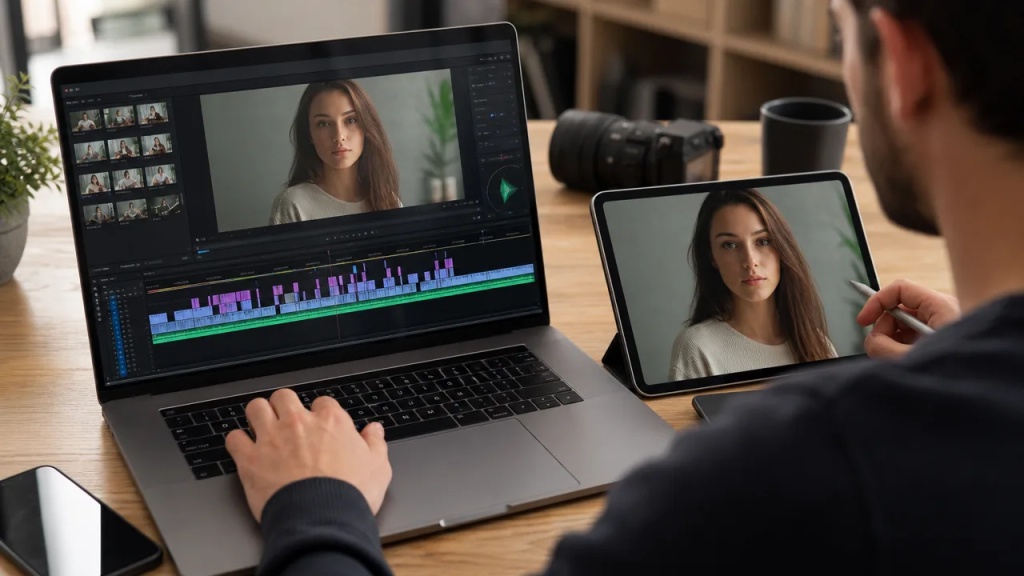
Review the output in the setting where people will actually watch it. If it is for a phone-first social post, watch it full-screen on a phone. If it is for an internal presentation, watch it on the screen where it will be shown. If it is for a quick concept test, check whether the idea reads clearly even if the swap is not perfect.
Pay special attention to the first two seconds. Viewers notice face errors early. If the first frames look strange, trim the opening, use a different target clip, or rerun the swap with a cleaner source image.
Also check audio. Face swap does not fix bad sound, awkward pacing, or a confusing scene. A believable face on a weak clip is still a weak clip.
Use consent as part of the workflow
Face swap tools are easy to use, and that is exactly why consent matters. A clip can be funny, harmless, and private. It can also become impersonation, harassment, or a brand risk if you use a person’s likeness without permission.
A simple rule works: use your own face, use licensed talent, or get clear permission from the person whose face appears in the source image. For commercial drafts, get a release before the clip leaves your internal review process. For public social posts, avoid making the swapped person appear to say or do something they did not agree to.
Disclosure is also smart. If the clip is synthetic, edited, or a concept draft, label it that way where the context requires it. You do not need to ruin the joke, but you should not trick people into believing a person appeared in footage they never approved.
Common mistakes that make face swaps look fake
The biggest mistake is using a face photo that does not match the video. A smiling selfie swapped onto a serious talking-head clip may track correctly but still feel off. Expression matters.
The second mistake is using clips that are too long. Long clips give the model more chances to drift, especially when the face turns away, enters shadow, or gets covered by hair or hands.
The third mistake is over-editing after the swap. Heavy sharpening, aggressive color filters, and compression can make the swapped face stand out from the rest of the video. If you plan to grade the clip, do light color work after the swap and check whether the face still matches the scene.
The fourth mistake is publishing the first successful render. Generate, review, adjust, and compare. AI video tools are fast enough that you can afford a second attempt.
A simple first-project workflow
If you are new to AI video face swap, use this setup:
- Choose a clear source portrait with natural light.
- Choose a 5 to 15 second target video with one visible face.
- Avoid heavy motion, low light, sunglasses, and extreme side angles.
- Generate the first version.
- Review the eyes, mouth, jawline, and neck.
- If the result fails, change the input before changing the tool.
- Keep the final use consent-based and clearly labeled when needed.
That workflow is not flashy. It is just repeatable. And repeatable matters more than a lucky one-off render.
Final thought
AI video face swap is best when it supports a clear idea: a creator testing a skit, a marketer previewing presenter options, a filmmaker checking a rough VFX direction, or a team making a training draft before a real production pass.
The tool does not remove taste, judgment, or responsibility. It only makes the edit faster. If you give it a clean face, a reasonable clip, matching light, and a use case that respects consent, the result can look good enough to move the idea forward.
If you feed it a dark selfie, a chaotic target video, and no plan, it will probably look exactly like that.
