

The home office has become something far more interesting than a place to answer emails. For millions of people, it’s also where they unwind with an intense gaming session the moment the workday ends — sometimes without even leaving the chair. This overlap between productivity and play has created a real challenge: finding an office monitor that genuinely excels at both, rather than compromising on one to serve the other.
The wrong choice means squinting at blurry spreadsheets, suffering through laggy gameplay, or constantly swapping cables between devices. The right office monitor, however, transforms your entire setup — sharpening every video call, pulling you deeper into virtual worlds, and keeping fatigue at bay during marathon sessions of either kind. Features like a 32-inch display and 1440p resolution have emerged as a sweet spot for users who refuse to settle, delivering the screen real estate and visual clarity that both demanding work tasks and immersive gaming require. This guide breaks down exactly what to look for and why it matters.
The Evolution of Office Monitors: From Work to Play
Not long ago, the office monitor was a purely utilitarian object — a boxy screen designed to display spreadsheets and word processors without much thought given to color vibrancy or response speed. Gaming happened on dedicated setups in separate rooms, and the idea of a single display serving both worlds would have seemed unnecessary, if not absurd. That separation has collapsed almost entirely over the past decade.
The rise of remote work accelerated a shift that was already underway. When professionals began building home offices, they quickly realized their gaming rigs and work stations were competing for the same desk space. Simultaneously, monitor manufacturers started recognizing that their customers weren’t neatly divided into “worker” and “gamer” categories — they were the same person at different hours of the day. This drove real innovation, pushing brands to develop displays that could handle a color-accurate design review in the afternoon and a fast-paced multiplayer session by evening without missing a beat.
Today’s dual-purpose monitors reflect that evolution directly. Features once considered gaming luxuries — high refresh rates, adaptive sync, wide color gamuts — now appear alongside work-friendly additions like USB-C connectivity, built-in KVM switches, and ergonomic stands. The ability to connect a laptop, a gaming console, and a desktop simultaneously has become less of a premium feature and more of a baseline expectation. Understanding this history helps explain why multi-device connectivity isn’t just a convenience; it’s the foundation of a genuinely versatile setup.
Essential Features for a Dual-Purpose Office Monitor
Choosing a monitor that genuinely serves both work and gaming means looking beyond marketing language and focusing on specifications that actually move the needle for both use cases. The good news is that the features most valuable to gamers and remote workers overlap more than you might expect — and understanding where they converge makes the decision considerably easier.
Resolution and Size: Why 32-inch and 1440p are Ideal
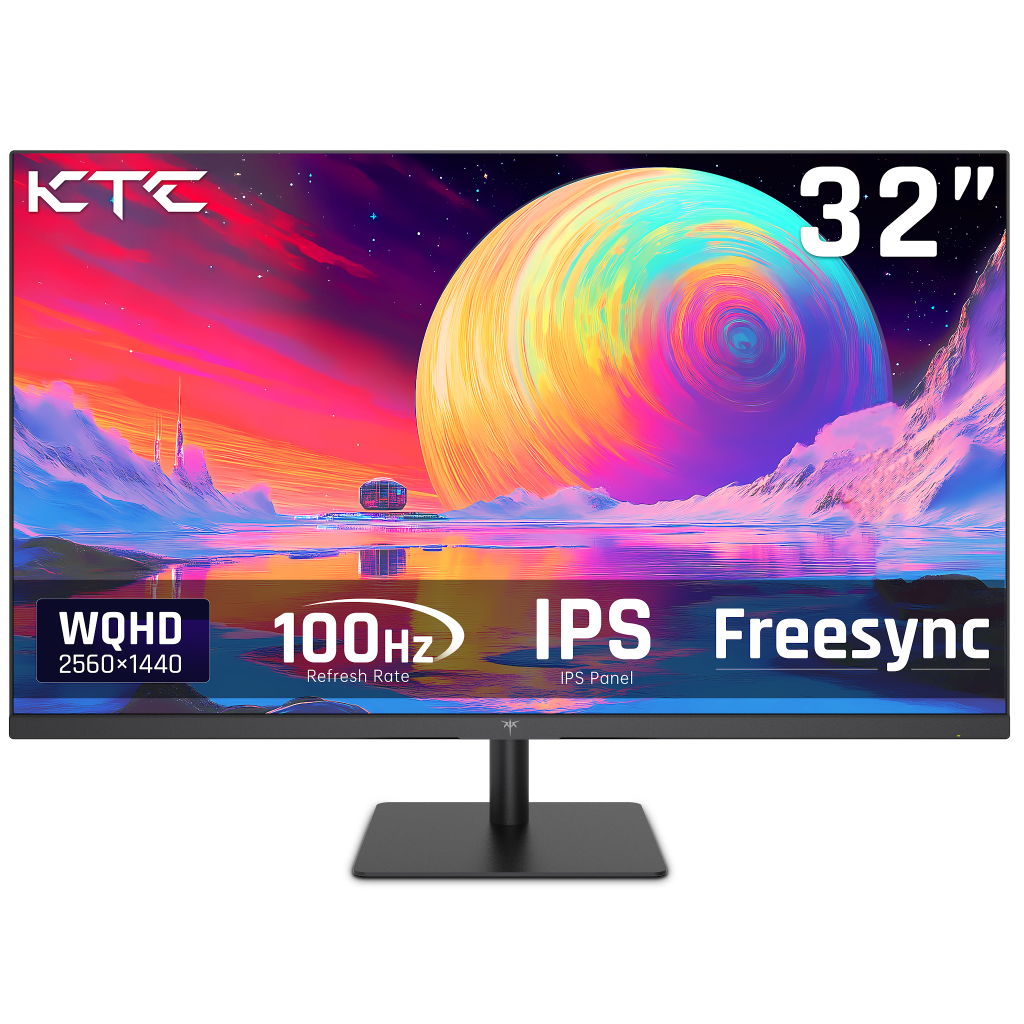
A 32-inch monitor at 1440p resolution hits a practical sweet spot that neither smaller nor larger screens quite match. At this size, 1440p delivers a pixel density sharp enough to render fine text crisply during document editing while keeping game environments richly detailed without demanding the extreme GPU power that 4K requires. Spreadsheet rows stay readable across the full width, and game textures hold their definition even in fast-moving scenes. The 32-inch footprint also provides enough screen real estate to comfortably run two application windows side by side — a genuine productivity multiplier for anyone juggling a browser, a document, and a communication tool simultaneously. For gaming, that same expanse creates a field of view wide enough to feel genuinely immersive without requiring an ultrawide setup. Monitors like the KTC 32-inch 1440p display have gained attention among hybrid users precisely because they target this balance without pushing into 4K pricing territory.
Connectivity Options for Seamless Multi-Device Use
A dual-purpose monitor earns its keep through its port selection. At minimum, look for two HDMI ports — one for a gaming console and one for a desktop or streaming device — alongside a USB-C port capable of delivering power delivery and video signal simultaneously. This single USB-C connection lets you plug in a laptop and immediately get a charged, fully functional workstation without reaching for a separate adapter. DisplayPort remains essential for high-refresh-rate gaming at 1440p, as it handles the bandwidth demands that HDMI older versions cannot. Built-in USB hubs are a practical bonus, centralizing peripherals like keyboards and webcams so switching between devices doesn’t mean re-routing cables every time.
Gaming-Focused Solutions: Meeting Gamer Needs
Detailed Visuals for Immersive Gaming Sessions
Competitive and immersive gaming both demand display performance that keeps pace with what’s happening on screen. A high refresh rate — 144Hz being the practical minimum for serious play — eliminates the motion blur that makes fast-paced shooters and racing games feel sluggish and imprecise. Pair that with a response time of 1ms to 5ms, and the gap between your input and the on-screen result shrinks to the point where the display stops being a limitation. Adaptive sync technologies like FreeSync Premium or G-Sync Compatible take this further by synchronizing the monitor’s refresh rate to the GPU’s output, eliminating screen tearing without introducing the input lag that traditional V-Sync creates. Color accuracy matters here too — a wide color gamut covering at least 95% of the DCI-P3 spectrum brings game environments to life with the richness that developers intended, making the difference between a world that feels painted and one that feels real.
Comfort Features for Long Gaming Hours
Extended gaming sessions introduce physical strain that accumulates gradually and hits hard after hour three. An adjustable stand that offers height, tilt, and swivel range lets you dial in a position that keeps your neck neutral and your eyes level with the top third of the screen — the ergonomic standard that reduces both neck tension and eye fatigue. Flicker-free backlighting eliminates the imperceptible strobing that traditional PWM dimming produces, which is a surprisingly common source of headaches during long sessions. Low blue light modes reduce the high-energy wavelengths that interfere with sleep cycles, making a real difference if your gaming sessions run late. Curved screen designs available on many 32-inch monitors wrap the display slightly toward your peripheral vision, reducing the eye movement needed to scan the full screen and contributing to a more relaxed viewing experience over time.
Work-Focused Solutions: Enhancing Remote Work Productivity
Clear Image Quality for Professional Video Calls
Video conferencing has become the backbone of remote work communication, and monitor quality plays a larger role in that experience than most people realize. A 1440p display renders faces and shared documents with enough clarity that you can read expressions and fine text without leaning toward the screen — a subtle but meaningful improvement over 1080p during back-to-back calls. Beyond resolution, look for a monitor with good contrast ratio and consistent brightness across the panel, as uneven backlighting creates distracting hotspots that make screen sharing look unprofessional. Positioning matters too: mounting a webcam at the top center of a 32-inch monitor places your camera at near-eye level, producing a more natural sightline that reads as engaged and attentive to colleagues. If the monitor includes a built-in USB hub, connecting your webcam through it keeps cable management clean and ensures a stable, direct connection rather than routing through a laptop’s compressed USB bandwidth.
Technologies to Reduce Eye Strain During Long Work Hours
Eight or more hours of screen time is the reality for many remote workers, and the cumulative physical cost is worth taking seriously. Low blue light modes, ideally hardware-based rather than software filters that shift color temperature, reduce the high-frequency light that strains the eyes and disrupts melatonin production by evening. Ambient light sensors found on some monitors automatically adjust brightness to match the room’s lighting conditions — a feature that prevents the jarring contrast between a bright screen and a dim workspace that accelerates fatigue. Flicker-free technology, achieved through DC dimming rather than PWM, eliminates the rapid on-off cycling that many people feel as eye strain without consciously identifying the cause. Combine these technologies with an ergonomic stand adjustment that positions the screen so your eyes rest naturally on the upper portion of the display, and the difference across a full workday becomes genuinely noticeable.
Practical Steps to Choose Your Perfect Office Monitor
Narrowing down your options becomes straightforward once you treat the decision as a series of concrete trade-offs rather than a search for a single perfect spec. Start by honestly assessing how your hours split between work and gaming — if gaming dominates, prioritize refresh rate and adaptive sync first, then confirm the display handles text rendering cleanly. If work takes the majority of your day, lead with panel quality and ergonomics, then verify the gaming credentials hold up for your genre of choice. Either way, 1440p at 32 inches covers both cases well enough that it rarely requires compromise.
Next, audit your devices. Count the machines you need connected simultaneously — a gaming PC, a work laptop, a console — and match that list against the monitor’s port layout before purchasing. A USB-C port with power delivery, at least one DisplayPort, and dual HDMI inputs covers most multi-device setups without requiring a separate dock. Check that the USB-C wattage is sufficient to charge your specific laptop model, as delivery ratings vary considerably between monitors.
Finally, weigh the ergonomic package against your workspace. A monitor with full height, tilt, and swivel adjustment adapts to your desk and chair combination rather than forcing you to adapt around it. Confirm the stand includes VESA compatibility as a fallback if your needs change. Budget-wise, spending more on features you use daily — panel quality, stand adjustability, connectivity — delivers better long-term value than paying a premium for specifications that exceed what your GPU or workflow can actually use.
Choosing the Right Monitor for Work and Gaming
Finding the right office monitor for both gaming and remote work is less about chasing the highest specs and more about understanding which features genuinely serve both roles. A 32-inch display at 1440p resolution consistently delivers on both fronts — sharp enough for detailed professional work, expansive enough for immersive gaming, and demanding enough on hardware to remain practical rather than aspirational. Layer in a high refresh rate, adaptive sync, robust connectivity, and thoughtful ergonomics, and you have a setup that performs at a high level whether you’re closing out a project or diving into a late-night gaming session.
The insights in this guide point toward a clear framework: assess your daily split between work and play, match your port requirements to your actual devices, and prioritize the features you’ll use every single day over specifications that look impressive on a box. Ergonomics and eye-comfort technologies deserve as much weight as refresh rates and resolution — your body notices the difference across weeks and months of use, even when your eyes don’t register it in the moment.
Your home office setup should work as hard as you do and reward you just as well when the workday ends. With the right office monitor at the center of that space, both halves of your day become noticeably better — sharper, smoother, and far less exhausting.
