

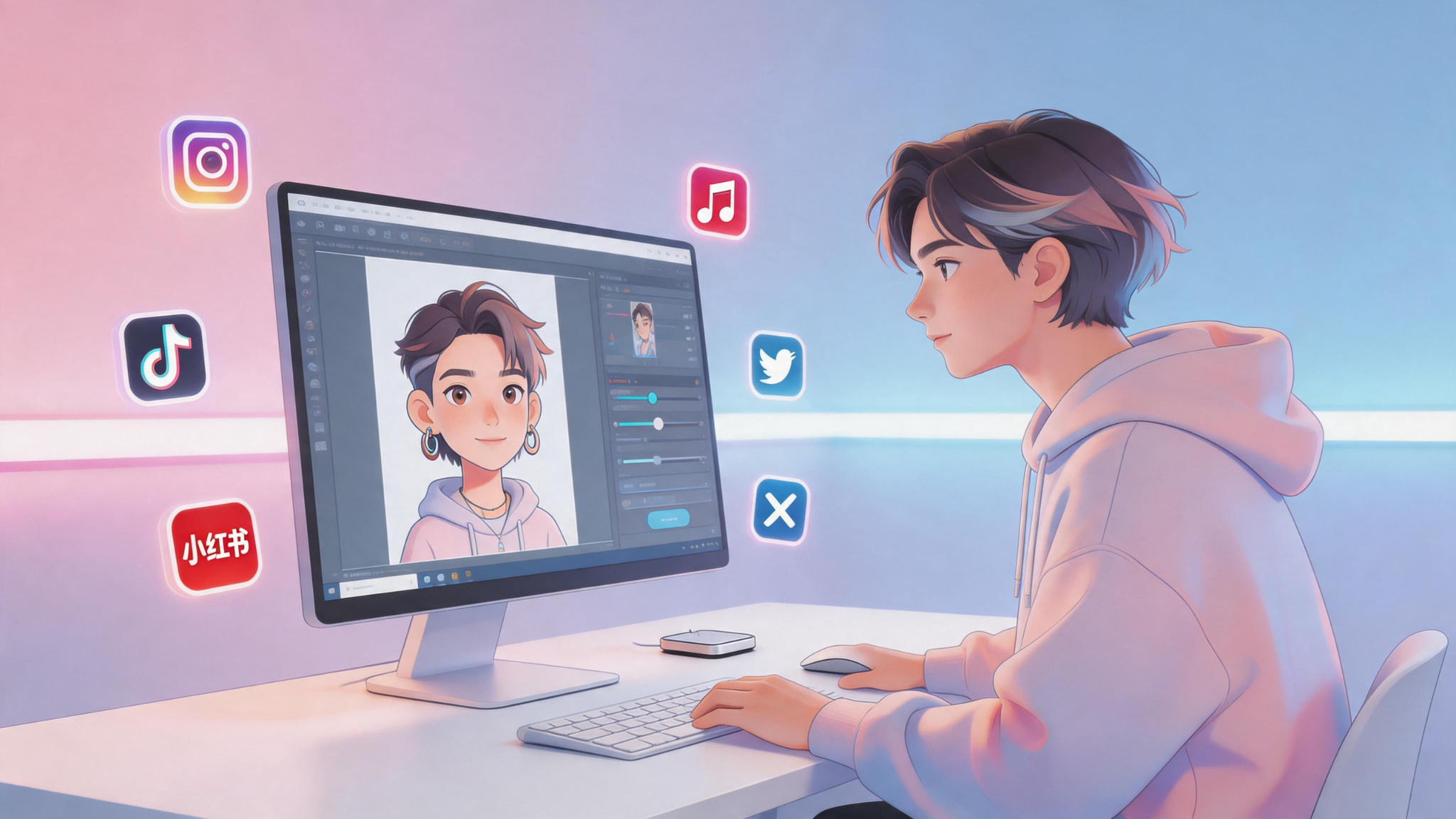
Your profile picture appears everywhere beside comments, messages, creator pages, portfolios, and social media posts. A blurry selfie or messy background can make even high-quality content feel less polished.
Creating a strong social media profile picture is no longer just about uploading a random photo. Today, many creators, professionals, and brands use AI tools to generate cleaner, more recognizable, and more visually consistent profile images.
This workflow combines:
- AI Headshot Generator
- Image to Cartoon
- Image to Sketch
- Background Remover
- AnyWebP
to help you create a profile picture that works across modern social platforms.
Section 1 — Choose the Right Profile Picture Style
Before editing your image, the first step is deciding what kind of visual identity you want your profile picture to create.
Different profile styles communicate different personalities, branding styles, and levels of professionalism.
Professional AI Headshots
Professional headshots work best for:
- Resume websites
- Business accounts
- Team pages
- Professional personal brands
With Vheer’s free AI Headshot Generator, you can upload a regular selfie and transform it into a polished studio-style portrait with improved lighting, cleaner composition, and professional visual quality.
This style feels clean, trustworthy, and professional while still looking natural.
Cartoon Avatars
Cartoon-style avatars are popular among:
- Streamers
- Gamers
- TikTok creators
- YouTubers
- Discord communities
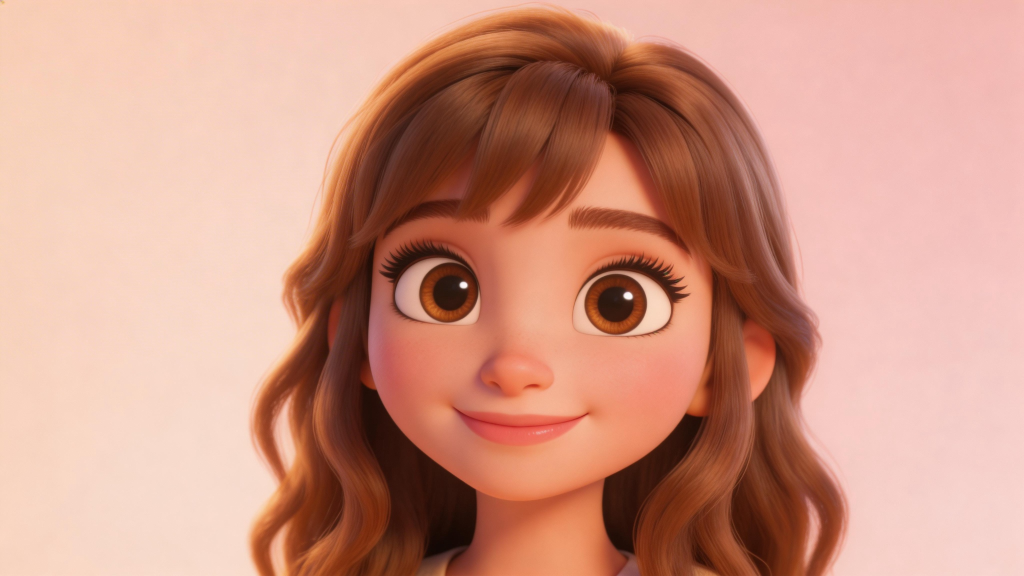
Using Image to Cartoon, you can turn a normal photo into a more playful and expressive avatar that stands out easily in small social media thumbnails.
This style feels energetic, approachable, and highly social-media friendly.
Sketch-Style Portraits
Sketch portraits are commonly used by:
- Designers
- Artists
- Writers
- Creative portfolios
- Personal websites
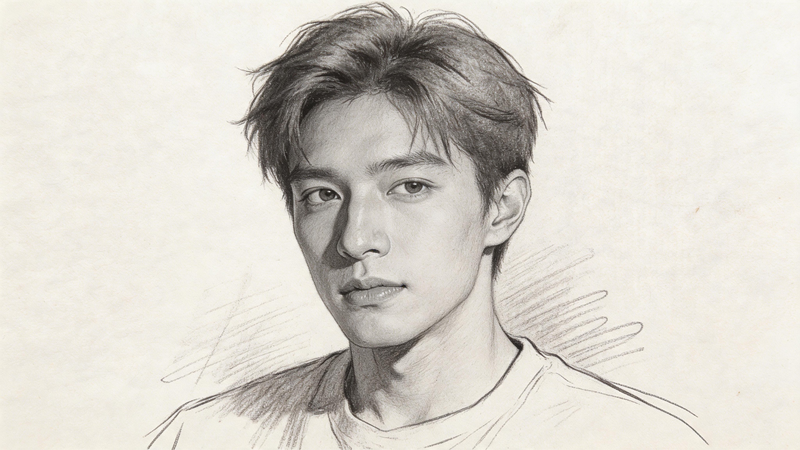
Image to Sketch creates a more artistic and handcrafted appearance while keeping the face recognizable.
This style feels more creative and visually unique without looking overly casual.
Section 2 — The Three-Step Workflow for Better Profile Pictures
A polished profile picture is usually not created with a single filter. Most high-quality avatars follow a simple three-step workflow.
Step 1 — Generate the Portrait Style
Start with a clear selfie or portrait photo.
Then choose the visual direction that best matches your platform or personal brand:
- Professional AI headshot
- Cartoon avatar
- Sketch portrait
At this stage, focus on creating an image that still looks recognizable at very small sizes.
Step 2 — Remove the Background
After generating the portrait, remove distracting backgrounds to make the subject stand out more clearly.
Clean backgrounds are especially important because most social platforms display profile pictures inside small circular frames.
Transparent PNGs usually work best for flexibility across different platforms and themes.
Step 3 — Optimize for Social Media Uploads
Finally, compress and resize the image for faster loading and better compatibility.
Tools like AnyWebP help reduce file size while keeping the image sharp and clear.
For most social platforms, square sizes like 400×400 or 512×512 pixels work well.
Section 3 — The Social Avatar Checklist
Before creating your final profile picture, it helps to plan a few important details first.
Keep the Face Centered
Most social apps automatically crop profile pictures into circles.
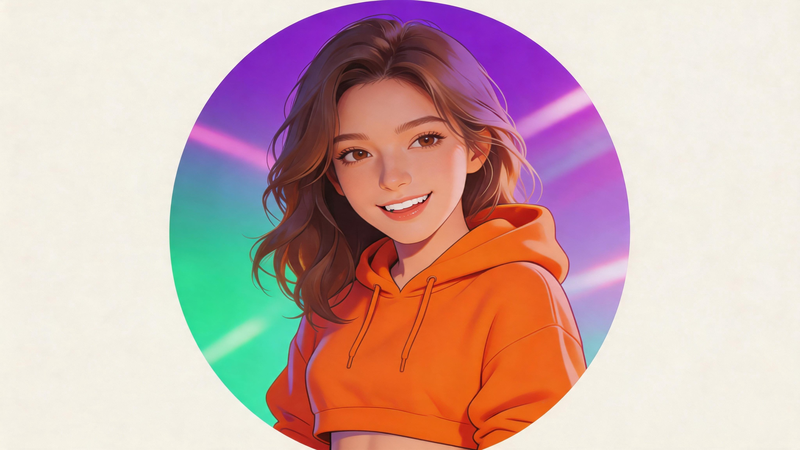
Keep the eyes and face centered so important details are not cut off during cropping.
Choose a Clean Background Style
Decide whether you want:
- A transparent background
- A solid color background
- A soft gradient
- A minimal studio-style backdrop
Simple backgrounds usually perform better at small sizes.
Match the Platform Style
Different social platforms often favor different avatar styles.
For example:
- LinkedIn usually works better with professional headshots
- Discord and Twitch often favor cartoon avatars
- Portfolio websites may work better with sketch portraits
Plan for File Size
Some platforms compress uploaded images heavily.
Optimizing your profile picture beforehand helps preserve image quality while reducing loading time.
Test Small Thumbnail Visibility
A profile picture may look great in full size but become unclear in tiny social media previews.
Before uploading, zoom out and check whether:
- The face remains recognizable
- The image still looks sharp
- The background stays clean
- The subject stands out clearly
Section 4 — Generate Your Profile Picture
Now it’s time to create the actual portrait image.
Start with a clear selfie or portrait photo. Front-facing photos with good lighting usually produce the best AI results.
Depending on your preferred style, you can choose between professional headshots, cartoon avatars, or sketch-style portraits.
Option 1 — Create a Professional AI Headshot
If you want a polished and professional-looking profile picture, upload your image to Vheer’s AI Headshot Generator.
This tool transforms a normal selfie into a cleaner studio-style portrait by improving:
- Lighting
- Facial clarity
- Composition
- Overall portrait quality
Professional AI headshots work especially well for:
- LinkedIn profiles
- Resume websites
- Team pages
- Business branding
- Professional social media accounts
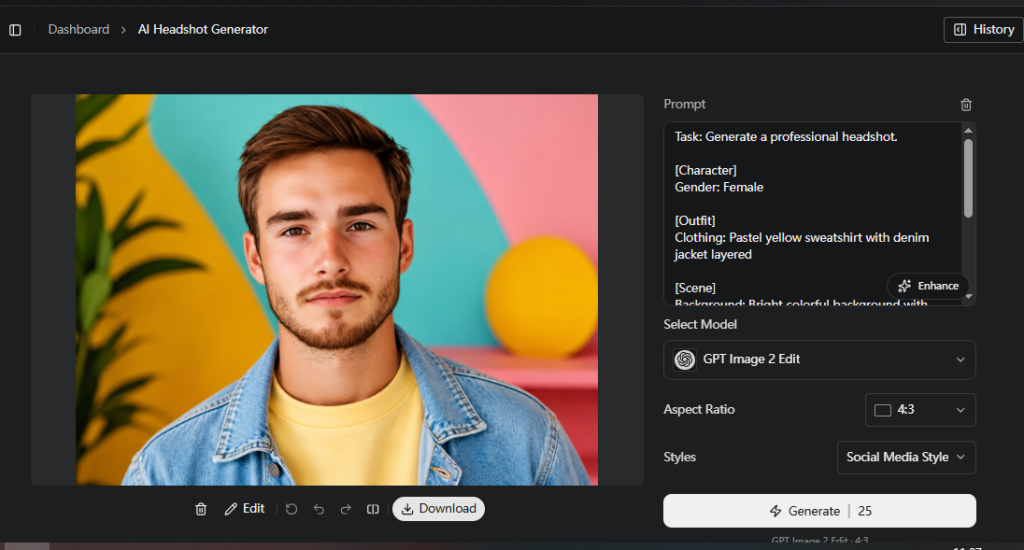
Tips for Better AI Headshots
- Use a high-resolution selfie
- Face the camera directly
- Avoid heavy beauty filters beforehand
- Use even lighting when possible
- Leave some space around the head for profile cropping
Once generated, save the highest-quality version before moving to background cleanup.
Option 2 — Create a Cartoon Avatar
If you want a more expressive and social-media-friendly profile picture, use Image to Cartoon.
Cartoon avatars help profile images stand out more clearly in small thumbnails and often feel more approachable and energetic.
This style is popular on:
- Discord
- Twitch
- TikTok
- YouTube channels
How to Create a Cartoon Avatar
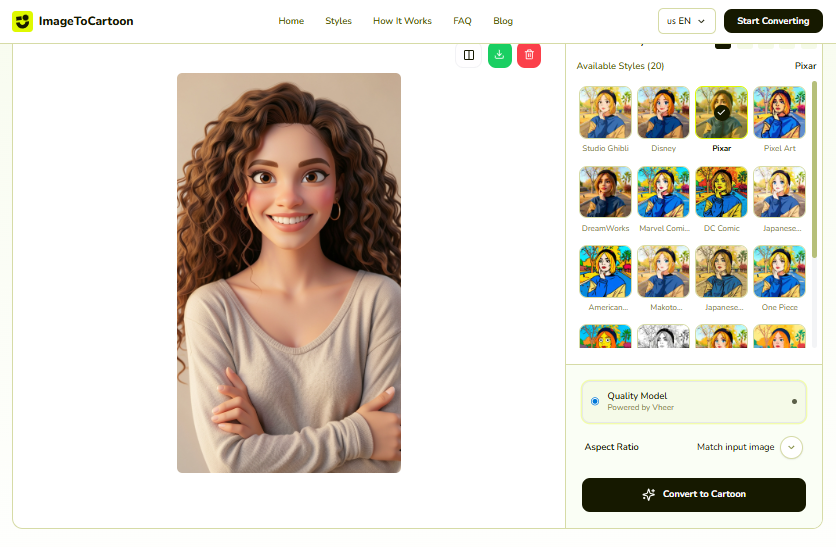
Step 1 — Upload Your Photo
Choose a clear portrait or selfie image.
Step 2 — Select a Cartoon Style
Depending on the tool, you may be able to choose between:
- Anime-style avatars
- Soft illustration portraits
- Pixar-inspired looks
- Manga effects
- Minimal social avatars
- Pop-art styles
Step 3 — Generate the Avatar
The AI automatically analyzes the image and creates a stylized cartoon version.
Step 4 — Download the Result
Save the generated image in high quality for further editing and optimization.
Option 3 — Create a Sketch Portrait
If you prefer a more artistic or minimalist appearance, use Image to Sketch.
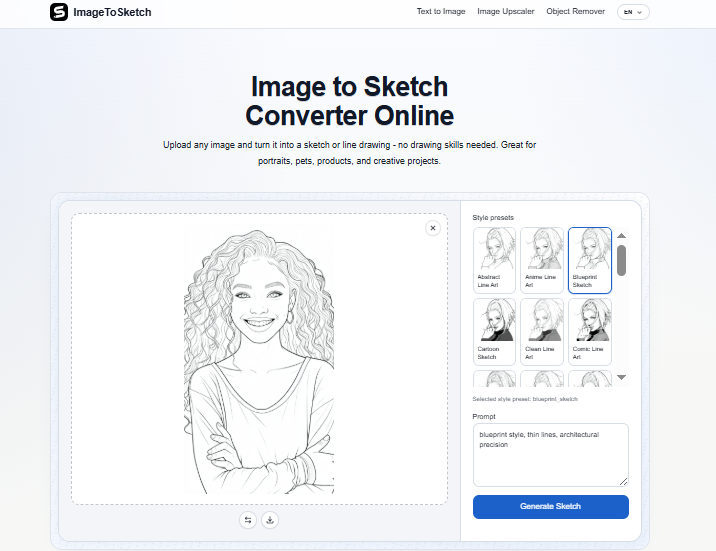
Sketch-style profile pictures feel more handcrafted and creative while still keeping the face recognizable.
This style works especially well for:
- Designers
- Artists
- Writers
- Portfolio websites
- Creative personal brands
Tips for Better Sketch Portraits
- Use images with clear facial contrast
- Avoid overly dark lighting
- Simple clothing usually works best
- Clean outlines are easier to recognize at small sizes
Thin sketch lines can become blurry after compression, so exporting a high-quality source image is important.
Section 5 — Remove the Background from Your Profile Picture
After generating the portrait, the next step is cleaning the image background.
Background removal helps the subject stand out more clearly and creates a cleaner appearance across different social media platforms.
This step is especially important because most apps display profile pictures in small circular frames where busy backgrounds can become distracting.
Using Vheer’s AI Background Remover, you can automatically erase the background in seconds without manual editing.
How to Remove the Background
Step 1 — Open the Background Remover
Upload the generated portrait image into the AI background remover tool.
The tool supports common formats such as:
- JPG
- PNG
- WebP
Step 2 — Start Automatic Background Removal
The AI automatically detects the main subject and removes the background.
This usually takes only a few seconds.
Step 3 — Preview the Result
Check the edges carefully around:
- Hair
- Glasses
- Shoulders
- Clothing outlines
Good edge quality is important because profile pictures are often viewed at small sizes.
Step 4 — Export a Transparent PNG
Transparent PNG files work best for flexible social media usage and allow the avatar to blend naturally into different interface themes.
Section 6 — Optimize the Image for Social Media
Once the background is removed, the final step is optimizing the image for upload.
Large uncompressed files may:
- Load slowly
- Lose quality after platform compression
- Create unnecessary storage usage
Using AnyWebP, you can reduce file size while keeping the avatar sharp and visually clean.
Best Export Settings for Social Media
Recommended Dimensions
Most platforms work well with:
- 400×400 pixels
- 512×512 pixels
Always export a square image to avoid unexpected cropping.
Recommended Formats
PNG
Best for:
- Transparent backgrounds
- Maximum image quality
WebP
Best for:
- Smaller file sizes
- Faster website loading
- Creator portfolios
- Link-in-bio pages
JPG
Best for:
- Universal compatibility
- Platforms with strict upload requirements
Test the Avatar Before Uploading
Before publishing the profile picture, preview it at small sizes.
Make sure:
- The face remains recognizable
- The image looks sharp
- The background stays clean
- The avatar works in both light mode and dark mode
If the image still looks clear in tiny thumbnail previews, the optimization is successful.
Final Thoughts
A strong social media profile picture is no longer just a casual selfie upload. Today, creators, professionals, and brands often combine AI portrait generation, background cleanup, and image optimization to create cleaner and more recognizable avatars.
Whether you prefer:
- Professional AI headshots
- Cartoon avatars
- Sketch portraits
the overall workflow stays simple:
- Generate the portrait style
- Remove the background
- Optimize the image for social platforms
With the right combination of portrait generation, image cleanup, and compression tools, you can create a profile picture that looks polished across LinkedIn, Discord, TikTok, YouTube, Instagram, portfolio websites, and more.
