

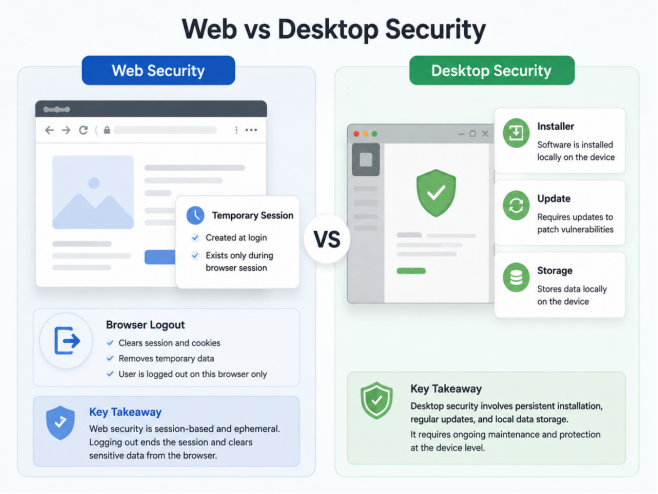
Messaging services often provide both a browser session and a Windows desktop client, and the safer choice depends heavily on whose computer you are using.
A browser is convenient for short access because there is no installer to manage. A desktop client makes more sense on a trusted PC used every day for notifications, file handling and longer work sessions.
Neither route removes the need for verification; they simply move the verification step to a different place.
For users in Hong Kong and Taiwan who switch between a Windows work PC, a personal laptop and mobile devices, the useful rule is simple: verify before you authenticate or install.

Web Access Removes the Installer, Not the Need to Check the Page
A browser session avoids a Windows executable, but it still asks the user to authenticate an account.
That makes the URL and page behavior the security boundary.
Before logging in:
- check the domain;
- confirm HTTPS;
- inspect the address carefully;
- avoid unexpected redirects.
A convincing login screen can be copied, so visual familiarity is not enough.
Search Results Are a Starting Point, Not a Login Decision
A search for a Web login can mix tutorials, community pages, advertisements and pages that imitate the real service.
- tutorials;
- community articles;
- copied login pages;
- advertisements.
Do not enter a code or credential merely because the page title looks familiar.
A resource such as Telegram Web安全使用指南 can provide a checklist for browser access. Before entering any account information, the user should still verify the exact URL in the address bar.
Temporary Computers Need a Stricter Exit Routine
Web access is often chosen precisely because the computer is not a long-term device.
Examples:
- coworking computer;
- hotel business center;
- borrowed laptop;
- campus workstation.
On these systems:
- do not save credentials;
- do not enable persistent login;
- avoid downloading sensitive files;
- On a borrowed or public machine, minimizing what is saved locally is just as important as logging in correctly.
After the session, check the account again from a trusted phone or PC and remove the temporary login if it is still listed.
Remember What the Browser Leaves Behind
Even after sign-out, the browser may still retain history, downloads or cached content.
- page history;
- downloaded files;
- cached content.
Users should avoid unnecessary sensitive activity on public devices.
For sensitive work, a trusted personal or company-managed Windows computer is usually a better environment than an unknown public workstation.
Desktop Verification Starts With the Windows Installer
A desktop client adds a different risk: a local installation package that will run on the PC.
Before downloading:
- confirm the platform;
- inspect the page;
- review installer metadata;
- The goal is to confirm that the package and the page both make sense for the intended Windows environment.
A domain reference such as telegramcem.com can help a user recognize the site they are researching, but recognition alone is not a substitute for checking the specific Windows download path and installer details.
Recognizing a domain name can help orient the user, but it does not replace checking the specific download page, platform details and installer metadata.
Use Publisher and Signature Information as Supporting Evidence
Windows installer properties may provide:
- publisher;
- signature;
- certificate information.
These signals can help distinguish an expected package from something clearly inconsistent.
These checks are useful signals, not a substitute for keeping Windows security tools enabled.
Avoid Rediscovering the Installer Through a New Mirror Every Time
Once a user or organization has a stable route they have already reviewed, repeatedly searching for new download mirrors adds unnecessary variables.
- outdated versions;
- bundled software;
- redirect chains;
- modified installers.
A consistent update path is easier to audit than a series of unrelated download sites.
Keep Browser and Desktop Sessions Easy to Recognize
After using both environments, review active sessions.
Users should be able to identify:
- browser session;
- desktop PC;
- phone;
- other devices.
The list should make it obvious which login belongs to the current Windows PC, phone and any temporary browser session.
Match the Access Method to the Computer
Web access is particularly useful when:
- installation is prohibited;
- the computer is temporary;
- usage is brief.
Desktop is more suitable when:
- the PC is trusted;
- usage is daily;
- file handling is frequent;
- notifications matter.
A trusted personal Windows PC favors a maintained desktop client; a temporary machine favors a short, carefully closed browser session.
Never Share Verification Codes
Whether Web or Desktop is being added, authentication codes must remain private.
Never provide a code to someone who claims they can “verify” the account remotely.
If a login request appears unexpectedly, do not approve it.

Downloaded Files Are a Separate Trust Decision
A verified account session does not make every attachment safe.
Users should:
- know where files are stored;
- scan unfamiliar files;
- avoid running executables from unknown senders;
- remove sensitive content from shared devices.
Know the Windows download location, scan unfamiliar files and avoid running executable attachments from unknown senders.
Screen Sharing Can Expose Messages Without Exposing the Account
Desktop notifications can reveal private text during a meeting even when the account is otherwise secure.
Before presenting:
- hide notifications;
- close private conversations;
- enable Do Not Disturb.
Browser users should also remember that open chat tabs may appear during full-screen sharing.
Web Security Checklist
Before login:
- domain checked;
- HTTPS present;
- no suspicious redirect.
During use:
- no password saving on shared devices;
- avoid sensitive downloads.
After use:
- sign out;
- close browser;
- review sessions.
Windows Desktop Download Checklist
Before installation:
- correct platform;
- source reviewed;
- installer checked.
After installation:
- authenticate;
- review session;
- configure storage;
- keep updates working.
Final Notes
Web and Desktop solve different access problems, so neither option is automatically safer in every situation. The right choice starts with device ownership and duration of use.
A trusted Windows workstation suits a maintained desktop client; a temporary computer suits a short browser session with explicit sign-out. In both cases, verify the actual access path before authenticating the account or executing software.
