

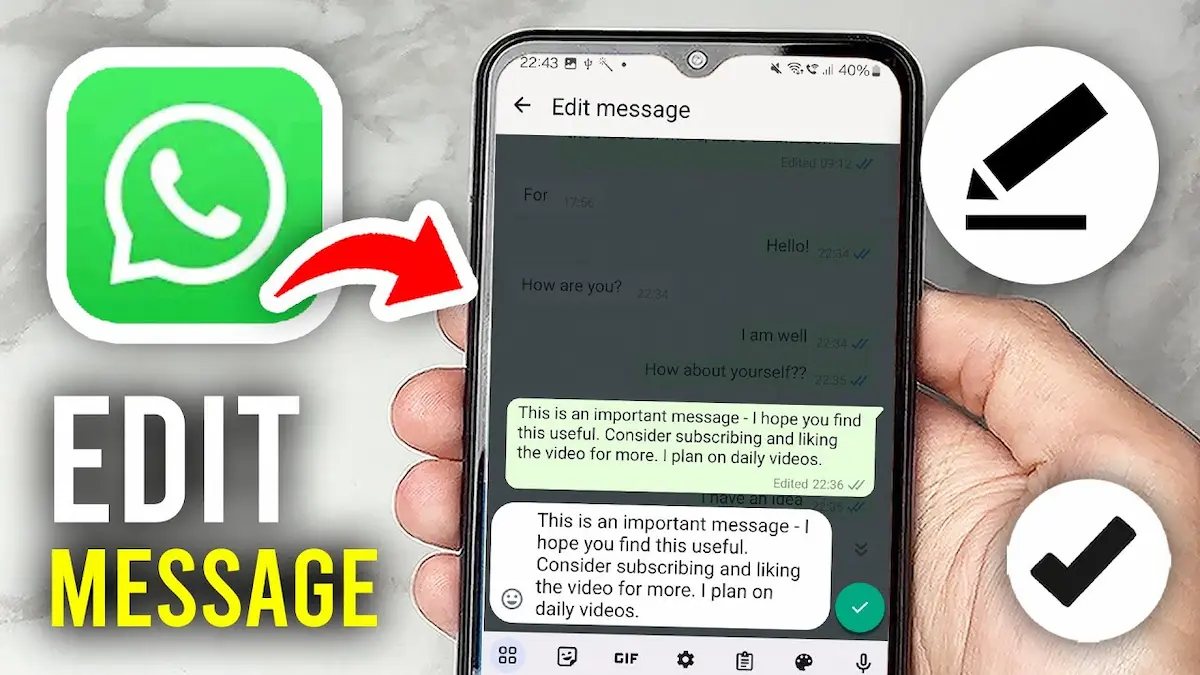
Have you ever sent a WhatsApp message and immediately noticed a spelling mistake or realized you wrote something wrong? Don’t worry! It happens to almost everyone. The good news is that WhatsApp allows you to correct your mistakes without deleting the entire message. If you’re wondering how to edit WhatsApp messages, you’re in the right place.
In this guide, we’ll explain how to edit sent WhatsApp messages on Android, iPhone, and WhatsApp Web. We’ll also discuss the editing time limit, common problems, and some useful tips to make your chatting experience easier.
Can You Edit Messages on WhatsApp?
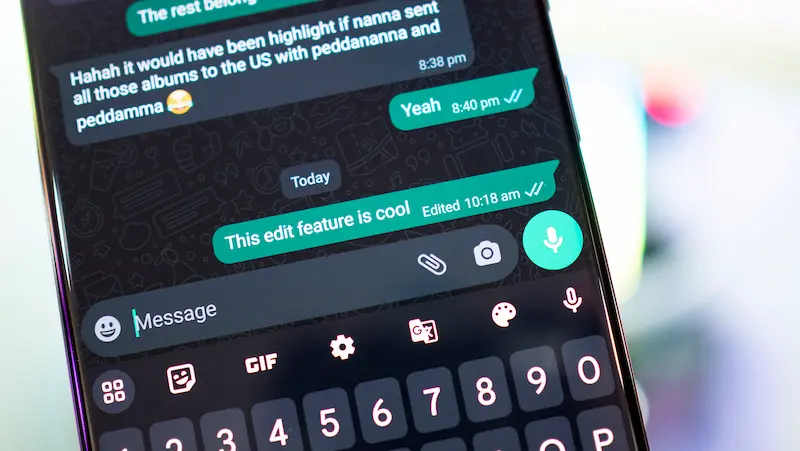
Yes! WhatsApp has a built-in editing feature that allows users to change messages after sending them.
For example, imagine you’re texting your friend and accidentally write, “I’ll meet you at 8 PM,” when you actually meant 7 PM. Instead of deleting the message and sending another one, you can simply edit the original message.
However, there’s one important thing you need to know.
WhatsApp allows you to edit messages only within 15 minutes of sending them.
Once you edit a message, WhatsApp displays a small “Edited” label next to it. This label lets the other person know that you’ve made changes, but WhatsApp doesn’t show them the original message through an edit-history feature.
You can use this feature in both personal chats and group conversations.
How to Edit WhatsApp Messages on Android
If you’re using an Android smartphone, editing a WhatsApp message is easy. You don’t need to install any additional application or change complicated settings.
Just follow these steps:
Step 1: Open WhatsApp
First, open the WhatsApp application on your Android phone.
Step 2: Select the Chat
Go to the conversation where you sent the message you want to edit.
Step 3: Press and Hold the Message
Find your sent message and press and hold it until the message is selected.
Step 4: Tap the Three-Dot Menu
After selecting the message, tap the three-dot menu in the top-right corner. Depending on your WhatsApp version, you may see the editing option directly.
Step 5: Select Edit
Tap the “Edit” option from the menu.
Step 6: Make Your Changes
Now, correct your spelling mistakes, remove unnecessary words, or update the message.
Step 7: Save the Message
Once you’ve finished editing, tap the checkmark to save your changes.
That’s it! Your corrected message will appear in the conversation with an “Edited” label.
Remember that you must complete these steps within 15 minutes of sending the original message.
How to Edit WhatsApp Messages on iPhone
Are you using an iPhone? Don’t worry! The process is just as simple as it is on Android.
Here’s how you can edit your WhatsApp messages on an iPhone.
- Open WhatsApp on your iPhone.
- Go to the chat containing the message you want to edit.
- Find the message and press and hold it.
- Select “Edit” from the menu.
- Make the necessary changes to your message.
- Tap the checkmark to save the edited message.
Your updated message will now appear in the conversation.
For example, suppose you accidentally sent “Happy Birthdy!” to your friend. You can quickly edit it to “Happy Birthday!” without sending another message.
Just remember that the editing option is available for only 15 minutes after sending the message.
How to Edit WhatsApp Messages on WhatsApp Web
Many people use WhatsApp on their laptops or computers, especially while working or studying.
If you’re one of them, you’ll be happy to know that you can also edit messages using WhatsApp Web.
Follow these steps:
Step 1: Open WhatsApp Web in your browser.
Step 2: Sign in to your WhatsApp account if you’re not already logged in.
Step 3: Open the conversation containing the message you want to edit.
Step 4: Move your mouse over the message you sent.
Step 5: Click the small downward arrow or message menu.
Step 6: Select the “Edit” option.
Step 7: Make the necessary changes to your message.
Step 8: Click the checkmark to save your changes.
Your edited message will now appear in the conversation.
The same 15-minute editing limit also applies to WhatsApp Web.
How to Edit WhatsApp Messages on Desktop
If you use the WhatsApp desktop application on Windows or Mac, you can also edit your sent messages.
The process is similar to WhatsApp Web.
First, open the WhatsApp desktop application and select the conversation containing your message.
Next, move your cursor over the sent message and open its menu.
Select “Edit” and make the necessary corrections.
Finally, save your changes.
Your message will be updated, and WhatsApp will display the “Edited” label.
This feature is particularly helpful when you’re using WhatsApp for office communication or discussing important work-related information.
You may also like to read this:
How To Edit Photo In Gemini: Step-By-Step Guide (2026)
How To Edit Videos On IPhone: Easy Step-By-Step Guide
How To Edit PDF File In Laptop: Easy Step-By-Step Guide
Photo Edit Kaise Karen? Easy Guide For Beginners
How To Edit PDF File In Mobile Without A Computer
What Is the Time Limit for Editing WhatsApp Messages?
One of the most common questions people ask is how long they can edit a WhatsApp message after sending it.
The answer is simple.
WhatsApp gives you 15 minutes to edit a sent message.
Let’s understand this with an example.
Suppose you send a message at 10:00 AM.
You can edit that message until approximately 10:15 AM.
After that, the editing option will no longer be available.
Here’s another example.
If you send a message at 5:30 PM, you can edit it until approximately 5:45 PM.
This time limit applies to WhatsApp on Android, iPhone, Web, and Desktop.
Also, remember that editing a message doesn’t restart the 15-minute timer.
How to Edit WhatsApp Messages After 15 Minutes
What happens if you notice a mistake after the 15-minute limit has expired?
Unfortunately, WhatsApp doesn’t officially allow you to edit messages after this period.
However, you still have a few alternatives.
1. Delete the Message and Send It Again
If WhatsApp still allows you to delete the message for everyone, you can remove it and send a corrected version.
Here’s how:
- Open the WhatsApp conversation.
- Press and hold the incorrect message.
- Tap the delete icon.
- Select “Delete for Everyone” if the option is available.
- Type and send the correct message.
Keep in mind that the recipient may have already read your original message before you deleted it.
2. Send a Correction Message
Another simple solution is to send a new message explaining your mistake.
For example, suppose you accidentally write:
“I’ll come tomorrow at 9 AM.”
But you actually meant 10 AM.
You can send another message saying:
“Sorry, I meant 10 AM, not 9 AM.”
This is a quick and easy way to correct information.
3. Reply to Your Original Message
You can also reply directly to the incorrect message.
Just press and hold the message, select “Reply,” and type the correct information.
This makes it easier for the other person to understand what you’re correcting.
Why Can’t I Edit My WhatsApp Message?
Sometimes, you may try to edit a WhatsApp message but cannot find the editing option.
This can happen for several reasons.
1. The 15-Minute Limit Has Expired
The most common reason is that more than 15 minutes have passed since you sent the message.
Once the time limit expires, WhatsApp removes the editing option.
2. You’re Using an Outdated WhatsApp Version
If your WhatsApp application is outdated, some features may not work correctly.
To fix this issue, update WhatsApp through the Google Play Store or Apple App Store.
After updating, reopen the application and check whether the editing option is available.
3. You’re Trying to Edit Someone Else’s Message
WhatsApp only allows you to edit messages you’ve sent.
You cannot edit messages sent by another person, even if you’re a group administrator.
4. You’re Trying to Edit a Photo or Voice Message
The regular WhatsApp editing feature is mainly designed for text messages.
You cannot use it to change the actual content of a sent photo, video, or voice recording.
If you’ve sent the wrong media file, you may need to delete it and send the correct one.
5. There’s a Temporary WhatsApp Problem
Sometimes, a temporary application issue can prevent certain features from working.
Try restarting WhatsApp, checking your internet connection, or restarting your phone.
These simple steps may resolve the problem.
Can Someone See the Original Message After You Edit It?
This is an important question, especially if you’ve corrected something personal or sensitive.
When you edit a WhatsApp message, the updated version replaces the original text in the conversation.
WhatsApp displays an “Edited” label, but it doesn’t provide a built-in option to view the original message.
However, that doesn’t necessarily mean the other person never saw your first message.
For example, they may have:
- Read the message before you edited it.
- Seen the original text in a notification preview.
- Taken a screenshot of the conversation.
- Remembered what you originally wrote.
So, while editing can help you correct mistakes, it cannot guarantee that the original message was never seen.
Can You Edit WhatsApp Messages Multiple Times?
Yes! WhatsApp allows you to edit a sent text message multiple times during the original 15-minute editing window.
For example, imagine you send a message at 11:00 AM.
You notice a spelling mistake and edit it at 11:03 AM.
A few minutes later, you notice another error and edit it again at 11:08 AM.
Both edits are allowed because you’re still within the 15-minute limit.
However, once the time reaches approximately 11:15 AM, you won’t be able to edit that message again.
This means you can make multiple corrections, but the editing deadline remains the same.
Can You Edit WhatsApp Messages in Group Chats?
Yes, you can edit your own messages in WhatsApp group chats.
The process is exactly the same as editing messages in a personal conversation.
Simply open the group chat, press and hold your message, select “Edit,” make your changes, and save.
For example, imagine you’re organizing a birthday party and accidentally send:
“The party starts at 6 AM.”
You can edit the message to say:
“The party starts at 6 PM.”
Everyone in the group will see the corrected message with the “Edited” label.
However, remember that you can only edit messages you’ve sent yourself.
You cannot edit another group member’s message.
Can You Edit WhatsApp Messages Without Showing Edited?
Many users wonder whether they can edit a WhatsApp message without displaying the “Edited” label.
Unfortunately, WhatsApp doesn’t provide an official option to hide this label.
Whenever you successfully edit a message, WhatsApp automatically adds “Edited” next to it.
This helps people understand that the message has been changed.
Although recipients cannot view the original message through WhatsApp’s edit history, they can still see that an edit was made.
What Happens When You Edit a WhatsApp Message?
When you edit a WhatsApp message, a few things happen automatically.
First, your original text is replaced with the corrected version.
Second, WhatsApp adds an “Edited” label to indicate that the message has been modified.
Third, the edited text appears within the existing conversation instead of creating a completely new message.
For example:
Original message: “I will reach home at 8 PM.”
Edited message: “I will reach home at 7 PM.”
Instead of sending a second message, WhatsApp updates your original message with the corrected information.
This helps keep conversations clear and organized.
Benefits of Editing WhatsApp Messages
Now that you understand how to edit WhatsApp messages, let’s look at why this feature is useful.
1. Correct Spelling Mistakes
Typing mistakes happen all the time, especially when you’re chatting quickly.
The editing feature lets you correct these mistakes without sending another message.
2. Save Time
Instead of deleting a message and typing everything again, you can simply make a small correction.
This saves time and effort.
3. Avoid Misunderstandings
Sometimes, even a small mistake can change the meaning of a message.
For example, writing “Monday” instead of “Tuesday” can create confusion.
Editing allows you to fix incorrect information quickly.
4. Keep Conversations Organized
Sending multiple correction messages can make a conversation confusing.
Editing your original message helps keep the chat cleaner and easier to understand.
5. Improve Professional Communication
If you use WhatsApp to communicate with clients, coworkers, or business partners, the editing feature can be especially helpful.
You can quickly correct minor mistakes and make your messages clearer.
Important Tips for Editing WhatsApp Messages
Here are a few useful tips to help you use this feature effectively.
Always check your message before sending it.
Although WhatsApp allows editing, it’s still a good habit to read your message before pressing Send.
Correct mistakes as soon as possible.
Since WhatsApp provides only 15 minutes for editing, make corrections quickly.
Double-check important information.
Pay special attention to dates, times, addresses, phone numbers, and meeting details.
Keep WhatsApp updated.
Using the latest official version helps you access supported features and receive bug fixes.
Avoid confusing edits.
If you’re making a major change to an important message, consider sending an additional clarification so the recipient understands the update.
Following these tips can make your WhatsApp conversations smoother and more effective.
Frequently Asked Questions (FAQs)
1. How do I edit a WhatsApp message after sending it?
To edit a WhatsApp message, open the chat, press and hold your sent message, select “Edit,” make the necessary changes, and tap the checkmark to save. You must do this within 15 minutes of sending the message.
2. Can I edit a WhatsApp message after 1 hour?
No. WhatsApp only allows you to edit messages within 15 minutes. After one hour, you can send a correction message or delete the original message if the deletion option is still available.
3. Can I edit WhatsApp messages after 24 hours?
No. WhatsApp doesn’t provide an official way to edit messages after 24 hours. The editing window is limited to 15 minutes.
4. Will the other person know if I edit a WhatsApp message?
Yes. WhatsApp displays an “Edited” label next to the message. However, the recipient cannot use WhatsApp’s built-in features to view the original text.
5. Can I edit WhatsApp messages without the Edited label?
No. WhatsApp automatically displays the “Edited” label whenever you change a sent message.
Conclusion
Learning how to edit WhatsApp messages is a simple but helpful skill that can save you from spelling mistakes, incorrect information, and awkward conversations.
Whether you’re using WhatsApp on Android, iPhone, or a computer, the process is straightforward. Just select your sent message, choose the Edit option, make your corrections, and save the changes.
The most important thing to remember is that WhatsApp only gives you 15 minutes to edit a message after sending it. Once this time limit expires, you’ll need to send a correction or use another available option.
So, the next time you accidentally send the wrong information or notice a typing mistake, don’t panic. Simply use WhatsApp’s editing feature and correct your message before the time runs out.
