

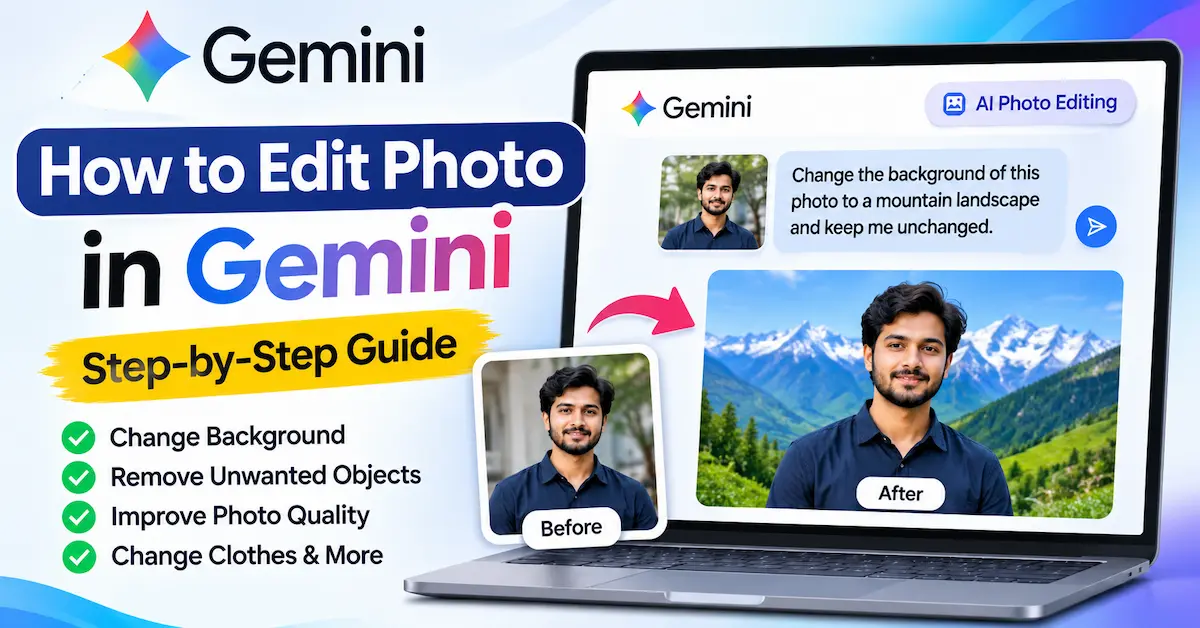
Have you ever taken a photo that looks good but needs a little improvement? Maybe you want to remove an unwanted object, change the background, or make your picture look more professional. If you are wondering how to edit photo in Gemini, you have come to the right place. Google Gemini makes photo editing easier by allowing you to change your images using simple text instructions. You don’t need professional editing skills or complicated software to get started.
In this guide, I will walk you through everything you need to know about editing photos in Gemini, from uploading your first image to using creative AI prompts for impressive results.
Whether you are a beginner, a content creator, or someone who simply wants better-looking photos, this guide will help you get started.
What Is Gemini AI Photo Editing?
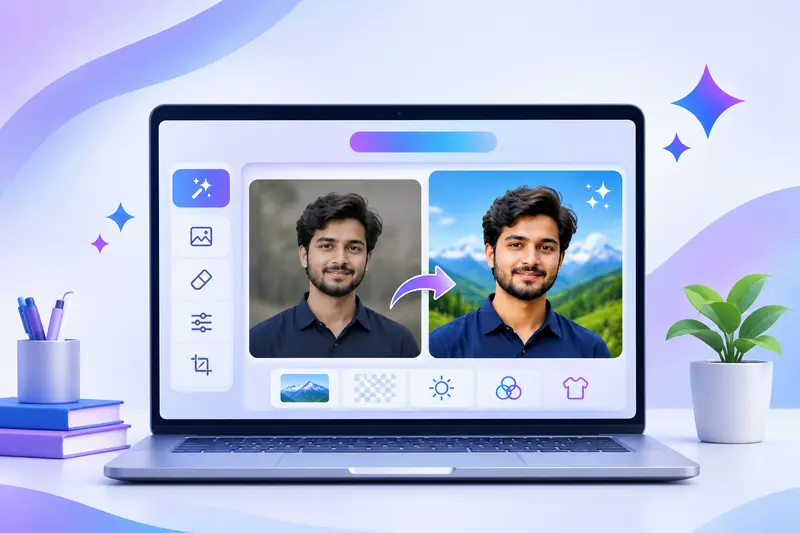
Google Gemini is an artificial intelligence assistant developed by Google. Along with answering questions, writing content, and helping with everyday tasks, Gemini can also generate and edit images.
Gemini uses advanced AI image models, including Nano Banana, to understand your instructions and make changes to your pictures.
The best part is that you don’t need to spend hours learning complicated photo editing tools. You simply upload an image, describe what you want to change, and let Gemini handle the editing.
For example, imagine you have a picture of yourself standing in your room, but you want to appear on a beautiful beach. Instead of manually removing the background and adding a new one, you can ask Gemini to do it for you.
It’s like having an AI photo editor that understands what you want through a conversation.
Can You Edit Photos in Google Gemini?
Yes, Google Gemini allows you to edit existing photos using AI. You can upload an image from your device or modify an image that Gemini has already generated.
Here are some things you can do with Gemini photo editing:
- Change or replace photo backgrounds.
- Remove unwanted objects from images.
- Improve lighting and colors.
- Change hairstyles and clothing styles.
- Create professional-looking portraits.
- Turn ordinary photos into artistic illustrations.
- Combine multiple images into a new picture.
- Create product photos for your online business.
- Add creative effects to your pictures.
You can make these changes by writing simple instructions, also known as AI prompts.
How to Edit Photo in Gemini: Step-by-Step Instructions
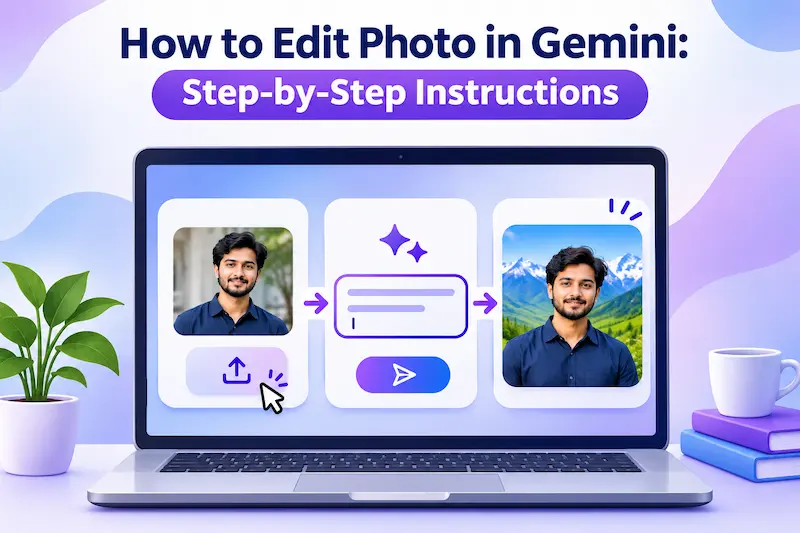
Now that you know what Gemini photo editing is, let’s look at how you can edit your first photo.
The process is simple, and you can do it on your smartphone or computer.
Step 1: Open Google Gemini
First, visit the official Google Gemini website at gemini.google.com.
You can also open the Gemini app on your Android phone or iPhone if it is available on your device.
Sign in using your Google account to access Gemini’s features.
Make sure you are using a supported account and have access to the image editing feature.
Step 2: Upload the Photo You Want to Edit
Once you open Gemini, start a new conversation.
Look for the plus (+) button or the attachment option near the message box. Select the image upload option and choose a photo from your device.
For example, you can upload:
- A personal selfie.
- A family photo.
- A product image.
- A landscape picture.
- A photo you want to use on social media.
Try to choose a clear, high-quality image because better input images can help produce better results.
If you want to edit an image that you previously created in Gemini, you can also find it in the Library, open the image, and select the Chat option.
Step 3: Write Your Photo Editing Prompt
This is where the fun begins.
After uploading your photo, tell Gemini exactly what you want to change.
For example, you can write:
Change the background of this photo to a beautiful mountain landscape with natural sunlight. Keep my face, clothes, and body unchanged.
Gemini will use your instructions to generate an edited version of your photo.
You don’t need to use technical words. Just describe the result you want in a natural and clear way.
The more specific your instructions are, the easier it is for Gemini to understand your expectations.
Step 4: Submit Your Request
Once you have written your prompt, press the send or submit button.
Gemini will process your image and generate an edited version based on your instructions.
The processing time can vary depending on your request, internet connection, and the image model being used.
When the edited image appears, take a moment to check the details.
Look at the face, background, lighting, and any other elements that you wanted to change.
Step 5: Make Additional Changes
What if you don’t like the first result?
Don’t worry. You can continue the conversation and ask Gemini to make further improvements.
For example:
Make the background slightly brighter and add warm sunlight. Keep everything else the same.
Or:
The face looks different from the original photo. Please preserve the original facial features and natural skin tone.
This conversational editing process allows you to refine your image without starting from scratch every time.
However, remember that AI-generated edits may occasionally change details you wanted to preserve. Always check the final result carefully.
Step 6: Download Your Edited Photo
Once you are happy with your edited photo, you can save it to your device.
On a computer, move your cursor over the image and select the full-size download option.
On the Gemini mobile app, you can usually touch and hold the image and select Save.
Your edited image will then be available on your device, ready to use or share.
And that’s it! You have successfully edited a photo using Google Gemini.
How to Edit Photo in Gemini on Android and iPhone
If you prefer using your smartphone, Gemini makes it convenient to edit pictures directly from your mobile device.
Here’s how you can do it:
- Open the Google Gemini app on your Android phone or iPhone.
- Sign in to your Google account.
- Start a new chat and select the attachment or upload option.
- Choose a photo from your phone.
- Enter a prompt describing the changes you want.
- Submit your request.
- Review the edited photo and request additional changes if needed.
- Save the final image to your phone.
You can also use Gemini through your mobile browser by visiting its official website.
The exact buttons and menu names may vary depending on your device and app version, but the basic process remains the same.
Best Ways to Edit Photos Using Gemini AI
Now that you understand the basic process, let’s explore some practical ways to use Gemini for photo editing.
You might be surprised by how many creative things you can do with just a few words.
1. Change the Background of a Photo
Have you ever taken a great picture with a boring or messy background? Gemini can help you transform it.
Simply upload your photo and describe the new background you want.
Example prompt:
Replace the existing background with a modern city skyline at sunset. Keep the person unchanged and make the lighting look natural.
You can experiment with backgrounds such as beaches, mountains, offices, gardens, luxury hotels, or photography studios.
This is particularly useful for profile pictures, social media posts, and professional portraits.
2. Remove Unwanted Objects From Photos
Sometimes an unwanted object can ruin an otherwise perfect picture.
Maybe there is a trash can in the background, a distracting sign, or an object on a table that you don’t want in the image.
Gemini can help remove these distractions.
Example prompt:
Remove the trash can and the plastic bottle from the background of this image. Fill the empty areas naturally and keep the rest of the photo unchanged.
The AI attempts to reconstruct the area where the objects were removed.
For better results, clearly describe the object and its location in the image.
3. Improve Photo Quality and Lighting
Do you have a picture that looks too dark or dull?
Instead of manually adjusting brightness, contrast, and saturation, you can describe the improvements you want.
Example prompt:
Improve the lighting and clarity of this photo. Make the colors more vibrant but natural, reduce visible noise, and preserve the original details.
This can help you create a more attractive image for social media or personal use.
However, remember that AI cannot always recover the exact original details from a blurry or low-resolution image. It may generate new details instead.
4. Create a Professional Profile Picture
You don’t always need an expensive photography session to create a professional-looking profile picture.
Gemini can help transform an ordinary portrait into a polished headshot.
Example prompt:
Turn this photo into a professional business headshot with a clean light gray background, soft studio lighting, and formal business clothing. Preserve my original facial features and natural appearance.
You can use the resulting picture for platforms such as LinkedIn, your personal website, or a professional portfolio, provided it accurately represents you.
5. Change Your Clothing or Hairstyle
Want to see how you would look in a different outfit or with a new hairstyle?
Gemini allows you to experiment with different appearances without making any real-life changes.
Example prompt:
Change my outfit to a stylish black suit with a white shirt. Keep my face, hairstyle, pose, and background unchanged.
For a hairstyle change, you could write:
Give me a neat, medium-length hairstyle while keeping my facial features, skin tone, and background the same.
This can be a fun way to explore fashion ideas or visualize a new look before making a decision.
6. Turn Your Photo Into an Artistic Image
If you enjoy creative photography, Gemini can transform your regular photos into different artistic styles.
You can try watercolor paintings, pencil sketches, cartoons, digital art, or cinematic portraits.
Example prompt:
Transform this photo into a detailed watercolor painting with soft pastel colors and a beautiful artistic background. Keep the main subject recognizable.
This is a great way to create unique profile pictures, wallpapers, or creative social media content.
7. Create Professional Product Photos
If you run an online store, you already know how important product photography is.
Good product images can make your listings more attractive and help customers understand what you sell.
Gemini can help you create cleaner and more professional product presentations.
Example prompt:
Turn this product photo into a professional e-commerce image with a clean white background, soft studio lighting, and realistic shadows. Keep the product’s original shape, color, logo, and packaging unchanged.
Before publishing the edited photo, make sure the AI has not changed any important product details.
Your customers should receive the same product that appears in your listing.
8. Restore the Appearance of Old Photos
Do you have an old family picture that has faded over time?
Gemini can attempt to improve its appearance by reducing visible scratches, enhancing colors, or adding color to a black-and-white photograph.
Example prompt:
Restore this old photograph by reducing scratches, improving contrast, and enhancing visible details. Preserve the original faces, clothing, and historical appearance.
Keep in mind that AI restoration is not always historically accurate. Gemini may reconstruct missing details based on its predictions.
Always keep a copy of the original photograph.
Best Gemini Photo Editing Prompts to Try
One of the most important parts of learning how to edit photo in Gemini is understanding how to write effective prompts.
You don’t have to create every prompt from scratch. Here are some ready-to-use examples that you can copy and customize.
| Editing Purpose | Gemini AI Prompt |
| Background change | Replace the background with a tropical beach during sunset. Keep the subject unchanged. |
| Photo enhancement | Improve the brightness, contrast, and clarity while maintaining natural colors. |
| Professional portrait | Create a professional headshot with soft studio lighting and a neutral background. |
| Object removal | Remove the unwanted objects behind the main subject and fill the area naturally. |
| Cinematic effect | Give this photo a cinematic appearance with warm lighting and realistic shadows. |
| Cartoon effect | Transform this image into a colorful cartoon illustration while preserving the subject’s appearance. |
| Product photography | Create a clean product photograph with a white background and professional lighting. |
| Vintage effect | Give this photo a vintage film appearance with subtle grain and warm colors. |
| Outfit change | Replace the current outfit with a casual denim jacket and white shirt. Keep the face unchanged. |
| Social media photo | Make this photo more visually appealing with balanced lighting, vibrant colors, and a clean background. |
You can adjust any of these prompts to match your personal preferences.
How to Write Better Gemini AI Photo Editing Prompts
Have you ever asked an AI tool to edit a picture and received something completely different from what you expected?
In many cases, the problem is that the prompt is too general.
Writing clear instructions can make a big difference in your results.
Be Specific About What You Want
Instead of writing:
Make this photo better.
Try writing:
Increase the brightness slightly, improve the contrast, remove the distracting objects in the background, and maintain natural skin tones.
The second prompt gives Gemini a much clearer idea of what you want.
Tell Gemini What to Keep Unchanged
Sometimes Gemini may modify parts of an image that you didn’t want to change.
To reduce this problem, include instructions about what should stay the same.
For example:
Change only the background. Keep the person’s face, hairstyle, clothing, body proportions, and pose unchanged.
This is especially important when editing portraits or product photos.
Describe Your Preferred Style
Think about how you want the final image to look.
Do you want something realistic, cinematic, artistic, professional, or vintage?
Include that information in your prompt.
For example:
Edit this image in a realistic cinematic photography style with soft golden-hour lighting and a shallow depth of field.
Make One Major Change at a Time
Although Gemini can handle multiple instructions, making too many changes at once may produce inconsistent results.
You can start by changing the background, then improve the lighting, and finally adjust the colors.
This gives you more control over the final image and makes it easier to identify unwanted changes.
Use a Simple Prompt Formula
Here is an easy formula you can follow:
Photo editing prompt = Desired change + Preferred style + Details to preserve
For example:
Replace the background with a modern office, use realistic natural lighting, and preserve the person’s original face, clothing, and pose.
Once you understand this formula, you can create effective prompts for almost any photo editing task.
Is Gemini Photo Editing Free?
Yes, Gemini offers image editing capabilities without requiring every user to purchase a paid subscription, subject to account eligibility, availability, and usage limits.
This means you can try many AI photo editing features without paying for traditional editing software.
However, free access may come with certain limitations, such as how many images you can generate or edit within a specific period.
Google’s paid AI plans may provide higher usage limits, access to additional image models, and higher-resolution downloads.
For example, Gemini’s Nano Banana image models offer different levels of speed, quality, and creative control.
Features and usage limits can change over time, so it is a good idea to check the official Gemini website for the latest information.
Why Is Gemini Not Editing My Photo?
Sometimes you may upload an image and discover that Gemini is not generating the edited version you expected.
Here are some common reasons and possible solutions.
| Problem | Possible Solution |
| Image upload is not working | Check your internet connection and try uploading a supported image format. |
| Gemini only provides text instructions | Select an image-capable model and clearly ask Gemini to generate an edited image. |
| Photo editing option is unavailable | Check whether the feature is supported in your region and account. |
| App is not working properly | Update the Gemini app or try using the web version. |
| Image looks different from the original | Specify which facial features, objects, and details must remain unchanged. |
| Usage limit has been reached | Check your account limits or try again when your usage allowance resets. |
| Gemini refuses the editing request | Make sure your request follows Google’s image generation and safety policies. |
Google also requires users to be at least 18 years old to use Gemini’s image editing feature. Work and school accounts may have additional restrictions.
Gemini AI Photo Editing vs. Traditional Photo Editing
You might be wondering whether Gemini can replace traditional photo editing software.
The answer depends on your needs.
| Feature | Gemini AI Photo Editing | Traditional Photo Editing |
| Ease of use | Simple text instructions | Requires familiarity with editing tools |
| Editing speed | Often fast for creative changes | Depends on the task and your skills |
| Manual control | Limited compared to professional software | Detailed control over individual elements |
| Learning curve | Beginner-friendly | Can take time to learn |
| Background replacement | AI-assisted | Often requires manual tools or automated selection |
| Creative transformations | Easy with descriptive prompts | May require advanced techniques |
| Precision | Results can vary | Greater control over exact adjustments |
Gemini is a useful choice for quick creative edits, social media content, and everyday photo improvements.
On the other hand, tools such as Adobe Photoshop and Lightroom may be more suitable when you need precise color correction, professional retouching, or detailed manual adjustments.
You can also use both approaches together. Gemini can help generate creative ideas, while traditional software can help you fine-tune the results.
Benefits of Editing Photos With Gemini
There are several reasons why you might want to try Gemini for your next photo editing project.
- Easy to use: You can edit images without learning complicated tools.
- Time-saving: Many creative changes can be made with a single prompt.
- Beginner-friendly: No previous graphic design experience is required.
- Creative flexibility: You can experiment with backgrounds, outfits, and artistic effects.
- Accessible: You can use Gemini on supported smartphones and computers.
- Conversational editing: You can request additional changes naturally.
- Useful for content creators: It can help produce images for websites, blogs, and social media.
Whether you want a better profile picture or a professional-looking product image, Gemini gives you an accessible way to experiment with AI-powered editing.
Limitations of Gemini Photo Editing
Although Gemini is a powerful AI tool, it is important to understand that it is not perfect.
Some limitations include:
- AI may unintentionally change facial features.
- Small details, text, and logos may not always remain accurate.
- Complex editing requests may require multiple attempts.
- Free accounts may have usage restrictions.
- Some features may not be available in every country or account.
- AI-generated changes may introduce details that were not in the original image.
You should also be careful when uploading private or sensitive photographs.
Avoid sharing confidential images or pictures of other people without their permission, and review Google’s privacy policies before uploading sensitive content.
Always check the final image before using it for professional or commercial purposes.
Tips for Getting the Best Results With Gemini Photo Editing
If you want your edited pictures to look more realistic and professional, keep these practical tips in mind:
- Start with a clear photo. A well-lit, high-quality image gives Gemini a better starting point.
- Write detailed instructions. Clearly explain what you want to change.
- Preserve important details. Tell Gemini which features should remain unchanged.
- Check the lighting. Ask for consistent lighting and realistic shadows.
- Experiment with different prompts. Small changes in wording can produce different results.
- Review the image carefully. Pay attention to faces, hands, text, and objects.
- Save the original photo. Keep an unedited copy in case you want to start over.
- Avoid excessive editing. Natural-looking improvements often produce more appealing results.
These simple habits can help you get better results and avoid common AI photo editing mistakes.
Frequently Asked Questions
1. How do I edit a photo in Gemini AI?
Open Google Gemini, upload the photo you want to edit, and enter a prompt describing your desired changes. Submit your request, review the generated image, and download it when you are satisfied.
2. Can Gemini change the background of a photo?
Yes, Gemini can replace a photo’s existing background with a new one. You can request a beach, office, mountain landscape, studio background, or almost any other setting that follows its content policies.
3. Can I edit photos in Gemini for free?
Yes, eligible users can access Gemini’s image editing features without a paid subscription. However, free accounts may have usage limits and fewer advanced options than paid accounts.
4. Can Gemini remove people from the background of a photo?
Yes, Gemini can attempt to remove unwanted people from the background and reconstruct the affected area. Results may vary depending on how complex the original image is.
5. Can Gemini edit photos without changing my face?
You can ask Gemini to preserve your original facial features while editing other parts of the image. However, AI may still introduce subtle changes, so always compare the edited picture with the original.
Conclusion
Learning how to edit photo in Gemini is much easier than you might think. With just a photo and a clear text prompt, you can change backgrounds, remove distractions, enhance colors, create professional portraits, and experiment with different artistic styles.
The biggest advantage of Gemini is that you don’t need advanced photo editing skills to get started. You can simply describe what you want, review the results, and make further adjustments through conversation.
Of course, AI photo editing has its limitations, and you may need to try different prompts to achieve the perfect result. But with a little practice, you can create impressive images without spending hours learning complicated editing software.
So why not give it a try? Open Google Gemini, upload your favorite photo, and experiment with some of the prompts shared in this guide. You might be surprised by what you can create with just a few simple instructions.
