

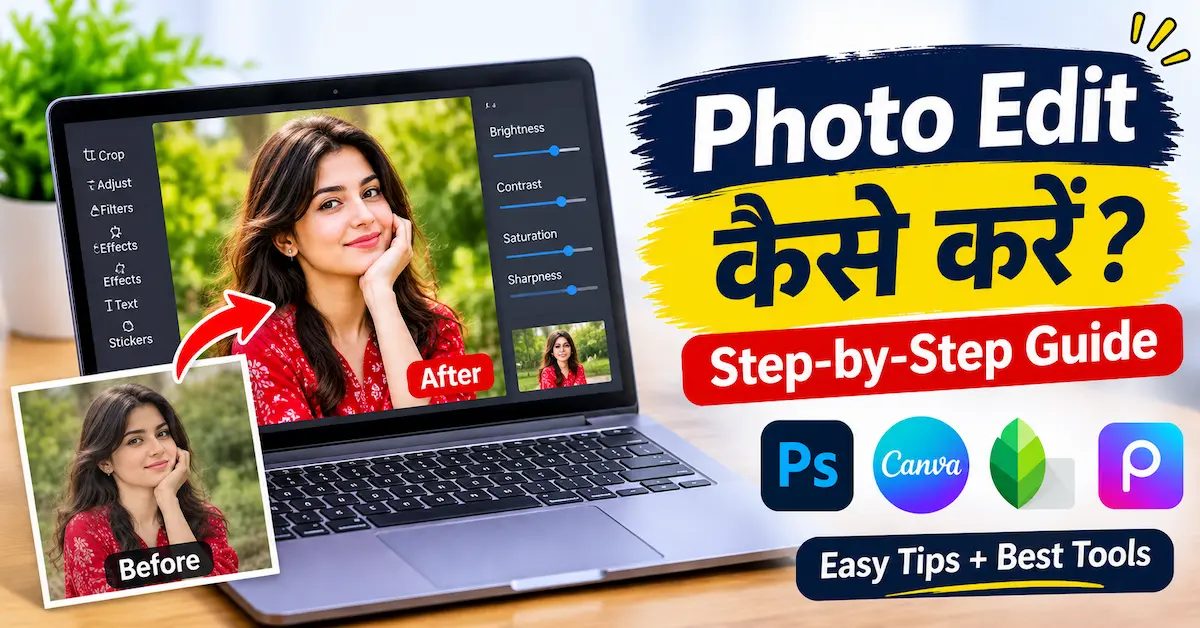
Photo edit kaise karen is a common question for people who want to make their pictures look beautiful, attractive, and professional. Whether you want to edit selfies, family pictures, social media photos, or product images, photo editing can help you improve their appearance. The good news is that you don’t need professional photography skills or expensive software to edit pictures. You can easily edit photos using your smartphone or computer with simple editing tools.
In this guide, you will learn how to edit photos step by step, which applications you can use, and how to make your pictures look more professional.
What Is Photo Editing?
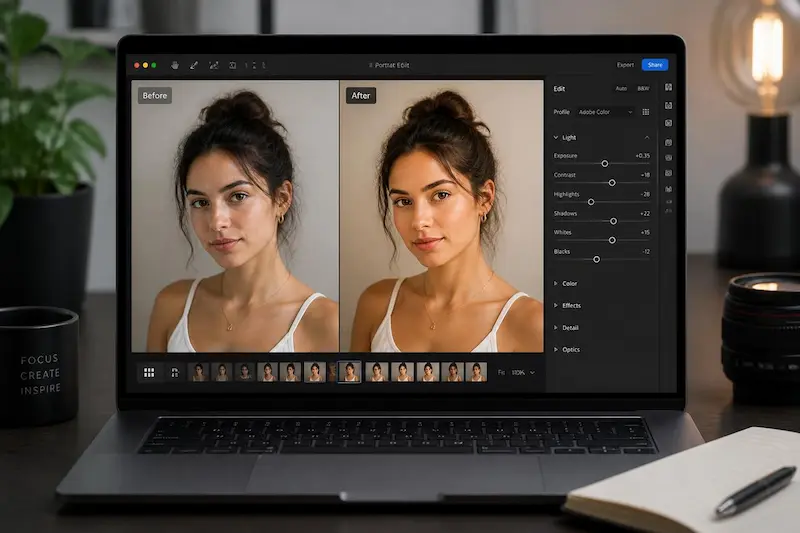
Photo editing is the process of improving or modifying pictures using different tools and features. It allows you to adjust brightness, contrast, colors, sharpness, and other image settings.
For example, if your picture looks too dark, you can increase its brightness. If the colors appear dull, you can improve their saturation. You can also crop pictures, remove unwanted objects, change backgrounds, and apply different filters.
Photo editing is useful for:
- Improving selfies and personal pictures.
- Creating attractive social media posts.
- Editing product images for online businesses.
- Making professional-looking photographs.
- Designing posters and thumbnails.
- Removing unwanted objects from pictures.
Photo Edit Kaise Karen on Mobile?
If you want to edit pictures using your smartphone, you can easily do it with free and paid photo editing applications. Most Android and iPhone devices also have built-in editing features.
Follow these simple steps to edit your pictures.
Step 1: Choose a Photo Editing App
First, install a photo editing application on your smartphone. There are many applications available for beginners and professional users.
Some popular photo editing apps include:
- Snapseed
- Picsart
- Canva
- Adobe Lightroom
- Adobe Photoshop Express
If you are a beginner, Snapseed is a good option because it offers simple editing tools that are easy to understand.
Step 2: Select Your Picture
After installing the application, open it and select the picture you want to edit from your phone’s gallery.
Try to choose a clear and high-quality photograph. A good original image makes the editing process easier and helps you achieve better results.
Step 3: Adjust Brightness and Contrast
Brightness and contrast are two important photo editing settings.
- Brightness: Makes your picture lighter or darker.
- Contrast: Improves the difference between light and dark areas.
- Highlights: Controls the brightest parts of an image.
- Shadows: Adjusts the darker areas.
Make small adjustments to achieve a natural appearance.
Step 4: Improve Colors and Saturation
Colors can make your pictures look more attractive. Use saturation and temperature settings to improve the overall appearance.
Saturation controls color intensity, while temperature makes a picture look warmer or cooler.
Avoid increasing these settings too much because excessive colors can make your image look artificial.
Step 5: Apply Filters
Filters are an easy way to change the appearance of your pictures.
Most photo editing applications offer different filter styles, including:
- Vintage filters
- Black and white filters
- Warm filters
- Cool filters
- Portrait filters
- Cinematic filters
Choose a filter that matches the mood and style of your picture.
Step 6: Crop and Straighten Your Photo
Cropping helps remove unnecessary parts of an image and improves its composition.
You can crop your picture into square, portrait, or landscape dimensions. You can also straighten tilted photographs to make them look more professional.
Step 7: Save Your Edited Photo
After completing the editing process, review your picture carefully. If everything looks good, select the Save, Export, or Download option.
Choose a suitable image quality to maintain the clarity of your photograph.
Best Photo Editing Apps for Beginners
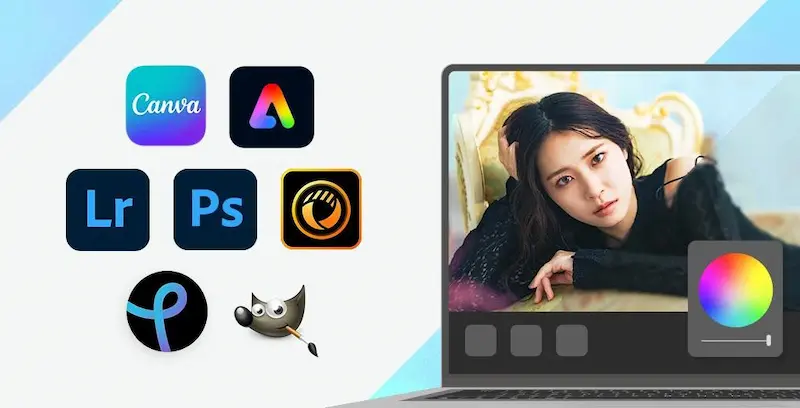
Choosing the right application can make photo editing easier. Here are some popular applications you can try.
1. Snapseed
Snapseed is a popular photo editing application developed by Google. It offers several useful features, including brightness adjustment, cropping, filters, healing, and selective editing.
It is a good choice for beginners who want to edit pictures without complicated tools.
2. Picsart
Picsart is another popular photo editing application. It provides creative editing features such as background removal, stickers, text, filters, and special effects.
It is especially useful for people who create social media content.
3. Canva
Canva is a beginner-friendly design platform that allows users to edit pictures and create attractive graphics.
You can use it to design posters, social media posts, YouTube thumbnails, invitations, and promotional images.
4. Adobe Lightroom
Adobe Lightroom is useful for advanced photo editing. It offers color correction, exposure control, presets, and detailed image adjustment features.
Photographers and content creators often use Lightroom to improve image quality.
5. Adobe Photoshop Express
Adobe Photoshop Express provides simple editing features for improving photographs. You can crop images, correct colors, apply effects, and make different adjustments.
It is suitable for users who want quick and convenient editing options.
Photo Edit Kaise Karen on Computer?
If you prefer editing pictures on a laptop or desktop computer, you have several options.
1. Use Online Photo Editors
Online photo editors allow you to edit pictures directly through your web browser. You don’t always need to install additional software.
Some popular options include Canva, Photopea, Pixlr, and Adobe Express.
Open your preferred editing platform, upload your picture, and start using the available tools.
2. Use Photoshop for Professional Editing
Adobe Photoshop is a powerful photo editing program used by photographers, designers, and content creators.
You can use Photoshop to:
- Remove unwanted objects.
- Change image backgrounds.
- Retouch portraits.
- Adjust colors and lighting.
- Combine multiple images.
- Create professional designs.
Beginners may need some practice to understand its advanced features.
3. Save Your Image in the Right Format
After editing your photograph, choose an appropriate image format.
- JPG: Suitable for everyday photographs.
- PNG: Useful for graphics that require transparency.
- WebP: Helpful for website images because of its efficient file size.
Choose the format according to where you want to use your image.
How to Edit Background of a Photo?
Changing the background is one of the most popular photo editing techniques. It can make an ordinary picture look completely different.
Follow these steps:
- Open a photo editing application such as Picsart or Canva.
- Upload the picture you want to edit.
- Find the background removal option.
- Allow the application to detect and remove the existing background.
- Select a new background.
- Adjust the image position and size.
- Save your edited picture.
Some background removal features may require a paid subscription, depending on the application.
How to Make Photos Look Professional?
You don’t need to be a professional photographer to create beautiful pictures. A few simple editing techniques can make a noticeable difference.
Use Natural Lighting
Good lighting is important for attractive photographs. If your picture looks too dark, adjust its brightness and exposure carefully.
Avoid Too Many Filters
Using too many filters can make your picture look unnatural. Choose one suitable filter and adjust its intensity.
Keep the Image Sharp
Sharpness helps make important details clearer. However, excessive sharpening can create unwanted edges and noise.
Remove Unwanted Objects
If something distracting appears in your picture, use a healing or object removal tool to clean up the image.
Maintain Natural Skin Colors
When editing portraits, avoid excessive skin smoothing or color changes. Natural-looking pictures generally appear more attractive.
Photo Editing Tips for Social Media
If you want to upload edited pictures to Instagram, Facebook, Pinterest, or other social media platforms, keep these tips in mind:
- Use high-quality original pictures.
- Choose the correct image dimensions.
- Keep colors consistent with your content style.
- Use readable text when adding captions.
- Avoid excessive filters and effects.
- Preview your image before publishing.
- Save a copy of the original photograph.
These simple practices can help your social media pictures look cleaner and more professional.
Is Photo Editing Possible Without Downloading an App?
Yes! You can edit pictures without downloading any additional application.
Most modern smartphones include built-in photo editing features in their gallery applications. You can use these tools to crop images, adjust brightness, change colors, rotate pictures, and apply filters.
You can also use online editing platforms through your computer or mobile browser.
This is a convenient option if you only need to make a few quick changes.
Common Photo Editing Mistakes to Avoid
When learning photo editing, beginners often make a few common mistakes. Avoiding them can improve your results.
- Over-editing: Too much brightness, contrast, or saturation can make a picture look artificial.
- Poor cropping: Removing important parts of a picture can affect its composition.
- Low-quality images: Editing a blurry photograph cannot always restore its original details.
- Excessive skin smoothing: Too much retouching can make faces look unnatural.
- Ignoring image size: Using incorrect dimensions can affect how pictures appear on websites and social media.
Try to keep your edits simple and focus on improving the original picture.
Conclusion
Learning photo edit kaise karen is easier than you might think. You can start editing pictures directly on your smartphone using applications like Snapseed, Picsart, and Canva. If you want more advanced editing options, Adobe Lightroom and Photoshop can help you achieve professional-looking results.
Start with basic adjustments such as brightness, contrast, cropping, and filters. As you gain experience, explore background removal, color correction, and other creative features. Remember, the best photo editing is not about adding too many effects but about making your pictures look clear, beautiful, and natural.
Frequently Asked Questions (FAQs)
1. Photo edit kaise karen on mobile?
You can edit photos on your mobile using applications like Snapseed, Picsart, Canva, and Adobe Lightroom. Simply select your picture, adjust brightness and colors, apply filters, crop the image, and save your edited photo.
2. Which is the best free photo editing app?
Snapseed is one of the best free photo editing apps for beginners. It offers useful features such as brightness adjustment, cropping, filters, healing, and color correction.
3. How can I edit photos without an app?
You can edit photos without installing an app by using your smartphone’s built-in gallery editor or an online photo editing platform through your browser.
4. How can I change the background of a photo?
You can change a photo’s background using Picsart, Canva, or other background removal tools. Upload your picture, remove the existing background, select a new one, and save the edited image.
5. Can I edit photos on a laptop?
Yes, you can edit photos on a laptop using software such as Adobe Photoshop and Lightroom or online tools like Canva and Photopea.
