

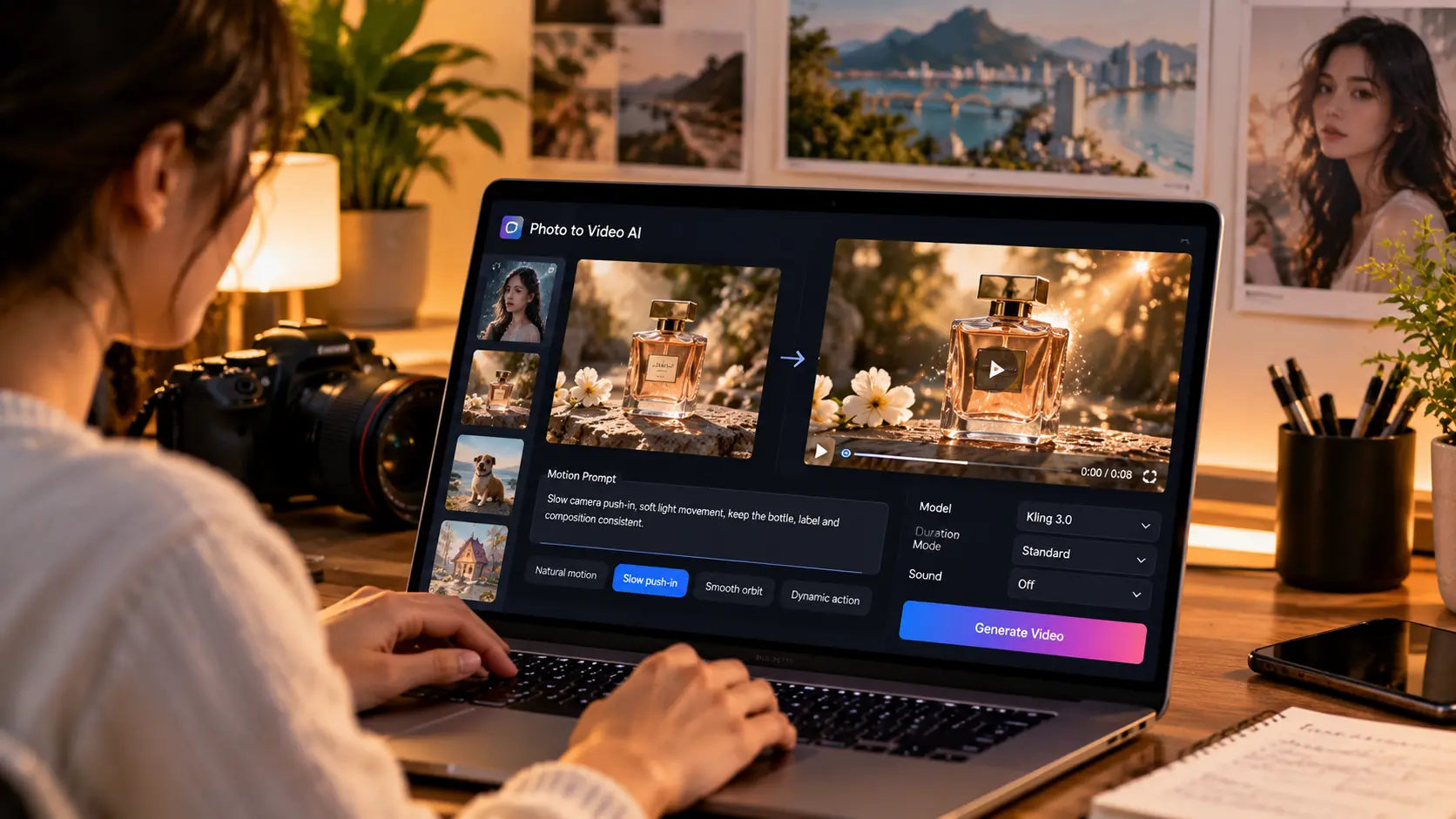
A product photo already contains the packaging, materials, lighting, and composition you want. A portrait already establishes the person and the mood. The challenge is deciding what should move—and how to turn that movement into a useful video.
That is where photo to video ai fits into a creator’s workflow. The online tool lets you upload an image, choose a compatible video model, describe the movement, and review the generation cost before creating a clip.
Its homepage also provides example images and motion prompt templates, giving beginners a practical starting point. For a more specific workflow, Kling 3.0 is available through the model menu and has a dedicated Kling AI Image to Video page.
Here is how to combine those features into a focused photo to video AI workflow.
What You Get with Photo to Video AI
The platform brings several parts of image animation into one workspace:
- Image upload: Start with a JPG, PNG, or WEBP photo.
- Motion templates: Explore Natural motion, Slow push-in, Smooth orbit, and Dynamic action.
- Example images: Try scenes featuring a rainy portrait, a luxury product, a coastal dog, or a storybook illustration.
- Model selection: Choose a compatible model and review its available controls.
- Generation and review: Check the credit requirement, generate a video, then preview and download the result.
These features serve different purposes. Example images help you understand the workflow. Motion templates help you describe a shot. Model controls determine the settings available for that generation.
For the walkthrough below, we will use Kling 3.0. Its dedicated page describes support for 3–15-second clips, adjustable quality modes, and sound generation.
Why the Photo and Motion Prompt Work Together
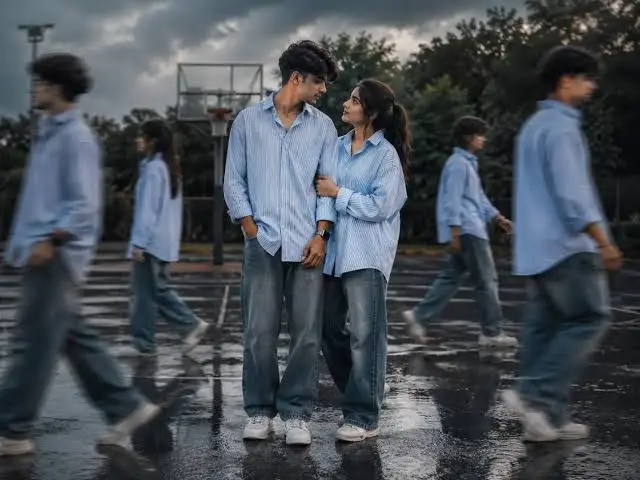
A useful photo to video AI prompt does not need to describe every visible detail again. Your source image already supplies much of that information.
Instead, use the prompt to explain what changes over time.
For a perfume bottle, that might mean a slow camera movement and shifting reflections. For a portrait, it could mean a gentle blink, subtle breathing, and a few moving strands of hair.
Think about the shot in three parts:
- Subject movement: What does the person, animal, or object do?
- Camera movement: Does the camera remain still, move closer, or travel around the subject?
- Preservation: Which details should remain recognizable?
This gives you a clear way to judge the result. If the camera movement works but the product shape changes, the next version can focus on reducing that specific problem.
What to Write in a Photo to Video AI Prompt
Start with a short brief:
- Subject: The main person, product, animal, or illustrated character.
- Action: One visible movement.
- Camera: One camera direction.
- Atmosphere: A small environmental detail, such as rain, steam, or moving fabric.
- Preservation: The face, silhouette, materials, clothing, or composition to retain.
A reusable prompt structure is:
Animate [subject] with [one clear action]. Use [one camera movement]. Add [subtle environmental motion]. Keep [important visual details] consistent.
Treat this as a starting point, rather than a guarantee of exact preservation. Generated video can still change faces, text, reflections, and object geometry.
Example: A Product PhotoThe perfume bottle remains upright on the stone surface. The camera moves slowly closer while a soft highlight travels across the glass. Keep the bottle silhouette, cap, label placement, and warm lighting consistent.
This prompt gives the shot a clear visual focus without asking the product to perform an unnecessary transformation.
Example: A PortraitThe person breathes gently and blinks once. A few loose strands of hair move in a light breeze. Use a slow camera push-in. Keep the face, expression, clothing, and background composition consistent.
The movement is deliberately restrained. Start with a small action you can evaluate before attempting a larger pose change.
How to Adapt the Built-In Motion Templates
The homepage’s motion templates provide useful directions for photo animation. Choose one that matches the image, then adapt the instruction.
Natural motion is a starting point for breathing, blinking, or gentle environmental movement.
Slow push-in directs the camera toward the main subject. It can help emphasize a face, product, or detail already visible in the frame.
Smooth orbit asks the camera to move around the subject. Use it thoughtfully: moving around an object requires the model to generate surfaces that the original photograph does not show.
Dynamic action provides a structure for a more active movement, including anticipation and a clear finish.
You do not need to combine all four. Choose one direction, replace any placeholder with a specific action, and remove instructions that do not fit your image.
For example, a bottle photographed against a wall may suit a slow push-in better than a wide orbit. A seated portrait may suit a blink better than a sudden walking sequence.
A Practical Photo to Video AI Workflow with Kling 3.0
Step 1: Choose a Readable Source Image
Upload a sharp image with the main subject clearly visible.
For products, check the edges, label, and materials. For portraits, choose a photo with a readable face and sufficient room around the head. Avoid cropping through details that you expect to move.
Also consider what the photograph actually supports. A tightly cropped face provides less information for a full-body movement than a wider portrait.
Step 2: Select Kling 3.0
Choose Kling 3.0 from the compatible model menu, or use the dedicated Kling AI Image to Video page.
Review the controls after selecting the model. Available settings can change when you switch models, so keep the parameters tied to the model you are actually using.
Step 3: Set Up a Short Test
A practical first test is:
- Model: Kling 3.0
- Duration: 5 seconds
- Mode: Standard
- Sound: Off
This is a suggested starting configuration. Kling 3.0 supports clips from 3 to 15 seconds, so you can give a scene more time when the action needs it.
If sound matters to the concept, enable the sound option and include a clear audio direction. Kling 3.0 supports generating sound with the video; review the result alongside the visuals.
Step 4: Check the Credit Requirement and Generate
Read the displayed credit requirement before submitting.
The platform’s Kling pricing configuration distinguishes between duration, Standard or Professional mode, and sound settings. Changing those choices can change the cost.
Keep your first attempt focused on answering one question: does this image work with this movement?
Step 5: Review the Entire Clip
Watch from beginning to end. Check:
- Faces, hands, and expressions.
- Product shape, labels, and small text.
- Reflections and background structure.
- Whether the movement finishes naturally.
Then change one variable. Reduce the camera movement, simplify the action, or shorten the shot. Keeping the other settings stable makes the next result easier to compare.
Where Photo to Video AI Fits into Content Creation
Product marketing: Turn an existing product photograph into a short reveal or visual concept. Begin with restrained movement when packaging and geometry matter.
Portraits and personal memories: Add subtle motion to a portrait or family photo. The animation creates new movement; it does not recover an original recording.
Pet and travel content: Explore a small head movement, drifting clouds, moving grass, or another action that fits the scene.
Illustration and artwork: Animate selected elements while asking the model to retain the original visual style. A small character movement or gentle environmental animation gives you a focused first experiment.
Across these uses, the strongest starting point is a clear visual idea. Decide what the viewer should notice before adding more movement.
Common Questions Before Generating
Do I Need Video Editing Experience?
The upload-and-generate workflow does not require timeline editing. You still make creative decisions about the image, movement, model, and settings.
Is Photo to Video AI Free to Try?
The site offers free signup credits without requiring a card. Generation costs vary by model and settings, so check the displayed requirement before choosing a configuration.
Will Every Detail Stay Exactly the Same?
Exact preservation is not guaranteed. Review faces, logos, text, and product geometry before using a clip publicly.
Start with One Photo and One Clear Movement
Photo to video AI becomes easier to direct when each attempt has a specific purpose. Choose a readable image, adapt a motion template, and use a short Kling 3.0 generation to test the idea.
Once the movement works, refine the shot around the details that matter. A clear source image and a focused prompt give you a useful basis for creating, reviewing, and improving short videos.
