

If you have ever received a PDF document and needed to change some text, add a signature, fill out a form, or insert information, you may have wondered how to edit PDF file in mobile without using a computer. The good news is that you can easily edit PDF documents directly from your Android phone or iPhone. Several free and paid mobile applications allow you to make changes, add notes, highlight important information, and manage PDF files within minutes.
In this guide, I’ll explain different ways to edit PDF files on your mobile phone, including useful applications and simple step-by-step instructions.
What Does Editing a PDF File Mean?
Editing a PDF file means making changes to an existing Portable Document Format (PDF) document. These changes can include modifying text, adding images, inserting signatures, highlighting important information, or filling out digital forms.
For example, if someone sends you a PDF application form, you can open it on your phone, enter your information, sign it, and save the updated document.
You don’t always need a laptop or desktop computer because modern smartphones support many PDF editing features.
How to Edit PDF File in Mobile Using Different Methods
There are several ways to edit PDF documents on your smartphone. Let’s explore the easiest options.
1. Edit PDF Files Using Adobe Acrobat Reader
Adobe Acrobat Reader is one of the most popular applications for viewing and working with PDF documents. It is available for both Android and iPhone users.
Follow these steps:
- Open Google Play Store or Apple App Store.
- Search for Adobe Acrobat Reader.
- Download and install the application.
- Open the app and select your PDF document.
- Choose the available editing or annotation tools.
- Add comments, highlight text, or fill out forms.
- Save your changes.
Important: Basic PDF viewing and some annotation features are free, but editing existing text and certain advanced features may require a paid subscription.
2. Edit PDF Using Google Drive
Google Drive is another convenient option for managing PDF files on your mobile phone. It allows you to store, open, and share documents.
Here is how you can use it:
- Open the Google Drive app.
- Upload your PDF document if it is not already available.
- Tap the PDF file to open it.
- Use available viewing and annotation options.
- If you need to make changes to the document, open it using a compatible PDF editor.
- Save the edited version and upload it to Google Drive.
Google Drive is useful for storing and accessing PDF documents, although it does not provide full editing of existing PDF text by itself.
3. Edit PDF Files Using WPS Office
WPS Office is a popular mobile office application that includes tools for working with PDF documents.
You can use it to manage and edit PDF files without switching between multiple applications.
Steps to edit a PDF using WPS Office:
- Download WPS Office from your mobile app store.
- Open the application.
- Select the PDF document you want to edit.
- Find the PDF editing tools.
- Add text, images, comments, or annotations where supported.
- Make the required changes.
- Save your updated PDF document.
Some advanced PDF editing features may require a premium subscription.
4. Edit PDF Online Without Installing an App
Don’t want to install another application? No problem! You can also edit PDF documents using online PDF editing websites.
Some popular options include:
- Smallpdf – Offers PDF editing and conversion tools.
- iLovePDF – Provides PDF editing, merging, splitting, and conversion features.
- Sejda PDF – Offers tools for modifying PDF documents.
How to edit PDF online:
- Open your mobile browser, such as Chrome or Safari.
- Visit an online PDF editing website.
- Select its PDF editor tool.
- Upload your PDF document.
- Make the required changes using the available tools.
- Download the edited document to your phone.
Always check the website’s privacy policy before uploading documents containing personal, financial, or confidential information.
How to Edit PDF Text in Mobile
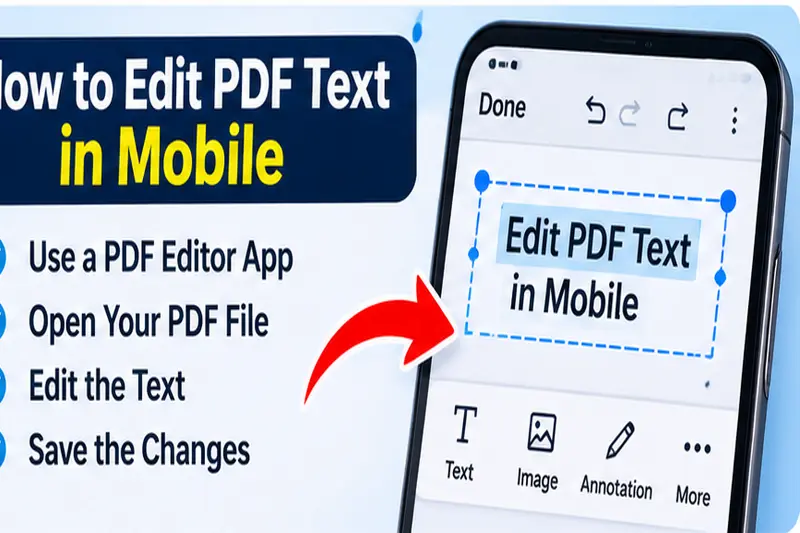
Sometimes you don’t just want to highlight text or add comments. You may need to change existing words, correct spelling mistakes, or update information.
Here is what you should do:
- Install a PDF editor that supports editing existing text.
- Open your PDF document.
- Select the Edit PDF option.
- Tap the text you want to change.
- Delete the incorrect words or enter new information.
- Adjust the font size and formatting if available.
- Save the updated document.
Keep in mind that some PDF files are scanned images rather than editable text documents. In that situation, you may need an OCR (Optical Character Recognition) feature to recognize the text before editing it.
How to Add a Signature to a PDF on Mobile
If you need to sign an application, agreement, or other document, you can add your signature directly from your smartphone.
Follow these simple steps:
- Open your PDF document in a compatible PDF editor.
- Find the Fill and Sign or Signature option.
- Select Create Signature.
- Draw your signature using your finger.
- Place it in the correct location.
- Adjust its size if necessary.
- Save the signed PDF document.
This feature is especially useful when you need to sign documents quickly without printing them.
You may also like to read this:
How To Edit Photo In Gemini: Step-By-Step Guide (2026)
How To Edit Videos On IPhone: Easy Step-By-Step Guide
How To Edit PDF File In Laptop: Easy Step-By-Step Guide
Photo Edit Kaise Karen? Easy Guide For Beginners
How to Edit PDF File on Android
Android users have several options for editing PDF documents. You can choose an application according to the type of changes you want to make.
Here are some useful options:
- Adobe Acrobat Reader for PDF viewing, annotations, and forms.
- WPS Office for document management and PDF editing.
- Xodo PDF for reading, annotating, and working with PDF files.
- Smallpdf for online PDF editing and conversion.
To edit a PDF on Android, download your preferred application, open the document, select the required editing tool, make your changes, and save the updated file.
How to Edit PDF File on iPhone
If you are using an iPhone, you can edit PDF documents through built-in iOS features and third-party applications.
The Files app provides a convenient way to mark up PDF documents.
Follow these steps:
- Open the Files app on your iPhone.
- Find the PDF document.
- Open the document.
- Tap the Markup icon.
- Use the available tools to draw, highlight, or add text.
- Add your signature if required.
- Tap Done to save your changes.
If you want to modify existing PDF text, you may need a dedicated PDF editing application.
Best Free PDF Editing Apps for Mobile
Choosing the right PDF editor depends on your requirements. Some apps are better for simple annotations, while others offer more advanced editing options.
Here are some popular choices:
| PDF Editor | Best For |
| Adobe Acrobat Reader | Reading, signing, and annotating |
| WPS Office | Document management and PDF tools |
| Xodo PDF | Reading and marking up PDFs |
| Smallpdf | Online PDF editing |
| iLovePDF | PDF conversion and organization |
Before choosing an application, check which features are free and which require payment.
Common Problems When Editing PDF Files on Mobile
Sometimes you may experience problems while editing PDF documents. Here are some common issues and their possible solutions.
PDF File Is Not Opening
If your PDF document is not opening, check whether the file is damaged or downloaded completely. Try opening it with another PDF reader.
Cannot Edit Existing Text
Some PDF files contain scanned images instead of selectable text. Use an editor with OCR functionality to recognize the text.
Changes Are Not Saving
Make sure your phone has enough storage space and that the application has permission to access your files. Save a separate copy if necessary.
PDF Formatting Changes After Editing
Formatting problems can happen when fonts are unavailable or unsupported. Use a PDF editor that preserves the original document layout.
Online PDF Editor Is Not Working
Check your internet connection, refresh the website, and try uploading the document again.
Tips for Editing PDF Files Safely on Mobile
Before editing any important PDF document, keep these simple tips in mind:
- Always keep a backup of your original PDF file.
- Use trusted PDF editing applications.
- Check the document carefully before sharing it.
- Avoid uploading confidential documents to unknown websites.
- Use password protection when sharing sensitive PDFs.
- Make sure all changes are saved before closing the application.
- Check the final document on another PDF reader to ensure proper formatting.
These small precautions can help you avoid losing important information.
Conclusion
Learning how to edit PDF file in mobile is simple when you have the right application. Whether you use Android or iPhone, you can edit documents, add signatures, highlight text, fill out forms, and manage PDF files directly from your smartphone.
Adobe Acrobat Reader, WPS Office, and online tools like Smallpdf and iLovePDF are useful options. If you only need to add a signature or highlight text, your phone may already have the tools you need. However, if you want to change existing PDF text, choose an application that supports full PDF editing.
With these methods, you can manage your PDF documents anytime without depending on a computer.
Frequently Asked Questions (FAQs)
1. How to edit PDF file in mobile for free?
You can use free PDF editing tools such as Adobe Acrobat Reader, Xodo, or your phone’s built-in markup features. Free features vary depending on the application.
2. Can I edit a PDF file on my Android phone?
Yes, you can edit PDF documents on Android using applications such as WPS Office, Adobe Acrobat Reader, and Xodo.
3. How can I edit PDF files on an iPhone?
You can use the Files app and its Markup feature to add notes, highlights, and signatures. For editing existing text, you may need a third-party PDF editor.
4. Which is the best app to edit PDF files on mobile?
Adobe Acrobat Reader, WPS Office, and Xodo are popular options. The best choice depends on whether you need annotations, signatures, or advanced text editing.
5. Can I edit PDF files without downloading an app?
Yes, you can use online PDF editing websites through your mobile browser. Upload your document, make the changes, and download the edited version.
